
Are you looking to add custom HTML to your WordPress page but don’t know where to start? You’re not alone.
Adding HTML can seem tricky if you’re new to it, but it’s actually easier than you think. Whether you want to embed a special feature, customize your design, or add unique content, knowing how to insert HTML gives you more control over your site.
Keep reading, and you’ll learn simple, step-by-step methods to add HTML to your WordPress pages—no coding experience required. By the end, you’ll feel confident making your site truly your own.
Credit: blog.hubspot.com
Why Add Html To WordPress
Adding HTML to a WordPress page lets you control the design and content deeply. It gives you the power to customize your site beyond standard blocks and themes. You can create unique layouts and add special features that default options do not offer.
Using HTML code helps you tailor your website to fit your exact needs. It also improves how your site looks and works. This is important for engaging visitors and making your site stand out.
Benefits Of Custom Html
Custom HTML lets you design your site exactly how you want. You can add special effects or styles not found in the WordPress editor. This helps your website look professional and unique.
It also improves site speed by reducing heavy plugins. Clean HTML code loads faster, which helps visitors stay longer. Better speed boosts your search engine ranking too.
Custom HTML offers full control over your content. You can fix layout issues or add interactive elements easily. This flexibility lets you create a better user experience.
When To Use Html In WordPress
Use HTML when you want to create a custom page layout. The WordPress editor may limit your design options. HTML allows you to add tables, buttons, or video embeds easily.
HTML is useful for adding tracking codes or special scripts. This helps with analytics or marketing tools. It also works well for adding custom forms and widgets.
Use HTML if you want to fix display problems in your theme. Sometimes themes don’t show content correctly. Adding HTML manually can solve these issues quickly.
Credit: www.inmotionhosting.com
Accessing WordPress Editor
Accessing the WordPress editor is the first step to adding HTML to your page. This editor lets you create and edit content easily. You can switch between different views to add custom HTML.
WordPress offers a user-friendly editor called the Block Editor. It organizes content into blocks. Each block can be a paragraph, image, or code. This makes editing simple and clear.
Using The Block Editor
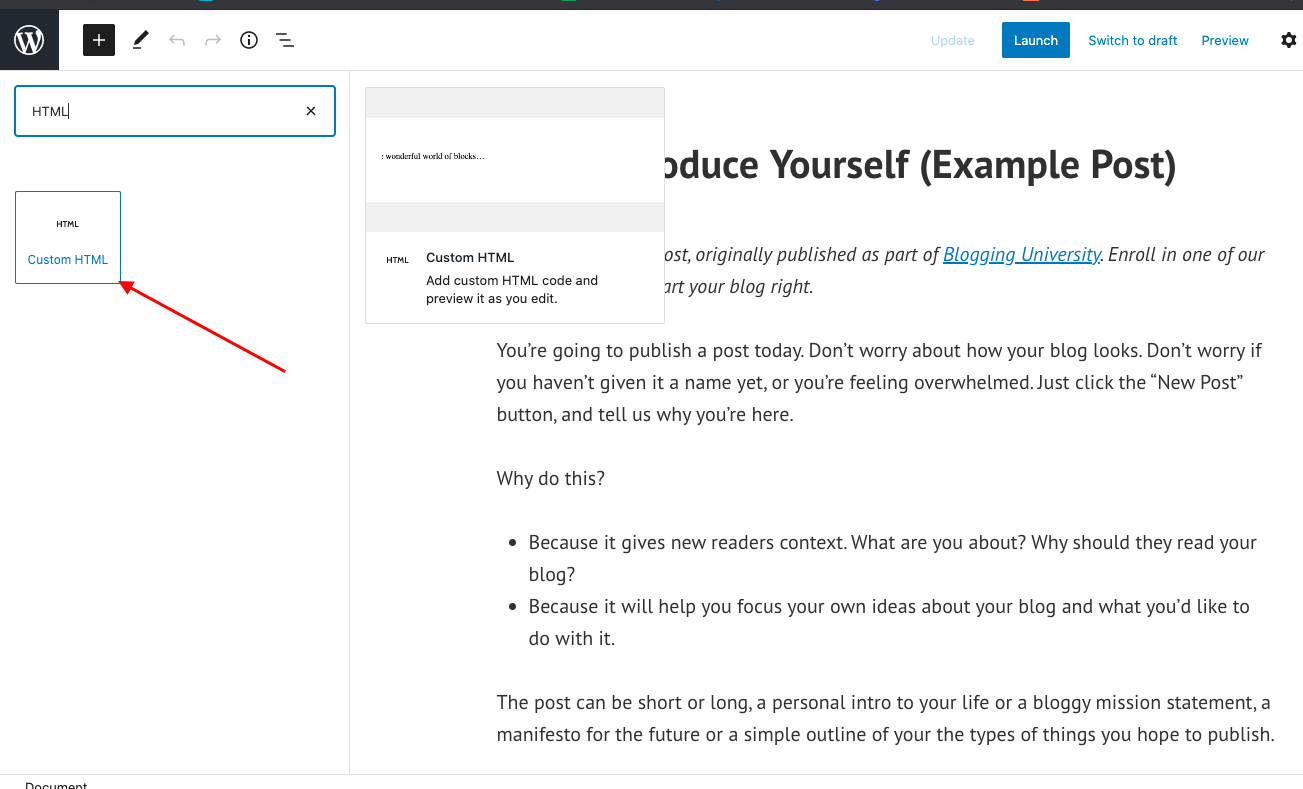
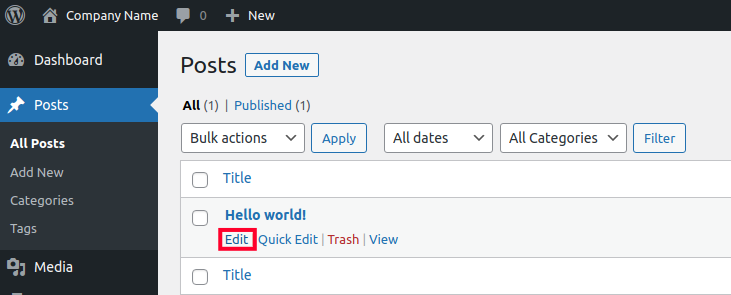
Open your WordPress dashboard and select Pages. Choose the page you want to edit or create a new one. The Block Editor will appear by default. You can add new blocks by clicking the plus (+) icon. Select the ‘Custom HTML’ block to add your code. This block lets you write and preview HTML directly inside the editor.
Switching To Html View
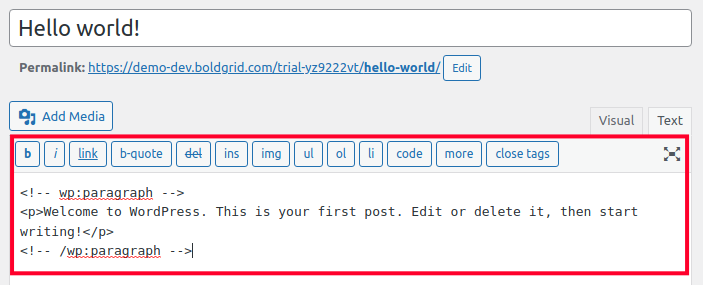
To see the full HTML of your content, switch to the HTML view. Click the three dots at the top-right corner of the editor. Choose ‘Code Editor’ from the dropdown menu. Now, you can edit the entire page in HTML. This view helps you add complex code or fix formatting issues quickly.
Adding Html In Pages
Adding HTML in your WordPress pages lets you customize content easily. HTML helps you control the layout and style. You can insert code blocks or edit existing content. This process gives more freedom to shape your page.
Understanding how to add HTML will improve your site’s look. It allows simple changes and advanced design tweaks. You do not need to know complex coding to start.
Inserting Html Blocks
To add HTML, open the WordPress page editor. Click the plus (+) button to add a new block. Choose the “Custom HTML” block from the list. Paste your HTML code inside this block. Preview the block to see how it looks. Save your changes to publish the HTML content.
Editing Existing Content With Html
Open the page where you want to edit content. Click on the block you want to change. Switch from “Visual” to “HTML” view in the block toolbar. Make your HTML changes directly in the editor. Switch back to “Visual” to check the results. Update the page to save your edits.
Using Custom Html Widgets
Using Custom HTML Widgets allows you to place your own HTML code in widget areas. This method helps customize your site without changing theme files. You can add buttons, forms, images, or any HTML content easily. It works well for sidebars, footers, and other widget-ready areas.
Adding Widgets To Sidebars
Go to your WordPress dashboard. Select Appearance, then Widgets. Find the Custom HTML widget from the list. Drag it to the sidebar area where you want it to appear. You can also place it in footers or other widget zones. Each widget area depends on your theme setup.
Embedding Html In Widgets
Click the Custom HTML widget in the sidebar. A box appears for you to enter your HTML code. Paste or write your HTML directly into this box. Use simple, clean code for best results. After adding your code, click Save. Visit your site to see the changes live.
Editing Theme Files Safely
Editing theme files can help you add custom HTML to your WordPress page. It lets you change the look and feel of your site. But it can also break your site if done wrong. Always take care to edit theme files safely. This means making backups and avoiding direct changes to the main theme. There are safer methods to add code without risking your site’s stability.
Using The Theme Editor
The Theme Editor is a built-in tool in WordPress. It lets you edit theme files right from the dashboard. You can add HTML, CSS, or PHP code here. Before editing, always back up your site. A small mistake can cause errors. Use the editor to make quick changes carefully. Save often and check your site after each edit. Avoid editing core files directly to keep your site safe.
Child Themes For Custom Html
Child themes are a safer way to customize your site. They let you add HTML without changing the original theme. Create a child theme that inherits the parent’s style and functions. Add your HTML changes in the child theme files. This way, updates to the main theme won’t erase your work. It also keeps your site stable. Using child themes is the best practice for adding custom code safely.
Credit: www.inmotionhosting.com
Common Html Tags For WordPress
Adding HTML to a WordPress page helps customize content easily. Basic HTML tags control how text and media appear. Knowing common tags improves page design and user experience.
These tags work inside WordPress editors. They let you format text and embed images or videos. Using them properly keeps your content clear and organized.
Formatting Tags
Formatting tags change text style and structure. The tag creates paragraphs. Use for bold text and for italics.
The to tags define headings. They help organize content and improve SEO. The
Lists are useful for points. Use tags.
Embedding Media
Embedding media makes pages attractive. The alt text for accessibility.
Videos can be added with the tag. It supports controls like play and pause. Use
Audio files use the tag. Like video, it can include control options. Embedding media keeps visitors engaged longer.
Troubleshooting Html Issues
Adding HTML to a WordPress page can sometimes cause issues. These problems affect how your content shows up or works. Knowing how to fix these problems is important. It saves time and keeps your website professional.
Common HTML issues include broken layout, missing images, or strange formatting. They often come from small errors in your code. Other times, conflicts with plugins may cause trouble.
Fixing Display Errors
Display errors happen when HTML code is incorrect. A missing tag or a wrong attribute breaks the page layout. Check your code for unclosed tags or extra characters. Use a simple text editor to spot mistakes easily.
Clear your browser cache after fixing code. Sometimes old data shows the wrong page. Preview your page in different browsers to ensure consistency.
Avoiding Conflicts With Plugins
Some plugins add their own code to your site. This code can clash with your HTML. Disable plugins one by one to find the problem. If a plugin causes issues, look for alternatives or updates.
Use WordPress’s built-in editor to add HTML safely. Avoid pasting code directly into visual editors. They may change or break your HTML tags.
Tips For Beginners
Adding HTML to a WordPress page can seem tricky for beginners. Simple steps and careful checks make the process easier. Following best practices helps avoid errors and saves time. This section offers clear tips to guide beginners through HTML editing on WordPress pages.
Testing Html Before Publishing
Testing your HTML code before publishing is important. It helps find errors early. Use a draft or preview mode in WordPress to see your changes. Check if the layout looks right on different devices. Small mistakes can break your page’s design or function. Testing saves you from fixing problems later.
Using Online Html Validators
Online HTML validators are free tools to check your code. They find syntax errors and suggest fixes. Validators ensure your code follows web standards. Copy your HTML code and paste it into a validator tool. Review the results and correct any issues. Clean code improves your website’s performance and SEO.
Frequently Asked Questions
How Do I Add Html Code To A WordPress Page?
To add HTML to a WordPress page, open the page editor and switch to the “HTML” or “Code” view. Paste your HTML code directly into the editor. Then, save or update the page to apply changes. This allows custom content or design elements on your page.
Can I Use Html And Visual Editor Together In WordPress?
Yes, WordPress lets you switch between Visual and HTML editors. Use the Visual editor for content formatting. Switch to HTML to add or edit custom code. Avoid switching repeatedly to prevent formatting issues or code loss. This keeps your page content clean and functional.
Is Adding Custom Html Safe In WordPress Pages?
Adding HTML is generally safe if the code is clean and trusted. Avoid using scripts from unknown sources to prevent security risks. Always test your code on a staging site before publishing. Keep WordPress and plugins updated to enhance security.
How Do I Add Html Widgets To WordPress Pages?
Go to Appearance > Widgets in your WordPress dashboard. Add a “Custom HTML” widget to your desired widget area. Paste your HTML code into the widget and save. This displays custom HTML content like ads or forms on your site.
Conclusion
Adding HTML to a WordPress page is simple and useful. It helps you customize your site easily. Just follow the steps carefully and try it yourself. You can create unique content and improve your page’s look. Practice often to get better and feel confident.
Keep your code clean and check how it appears. This skill adds value to your website. Start adding HTML today and see the difference it makes.


