
Are you tired of unwanted comments cluttering your WordPress site? Maybe you want to keep your content clean, focused, and free from distractions.
Disabling comments can help you regain control and improve your visitors’ experience. In this guide, you’ll learn simple and effective steps to turn off comments on your WordPress site—no technical skills needed. Keep reading, and you’ll have a clear, comment-free website in no time.
Credit: kinsta.com
Why Disable Comments
Disabling comments on your WordPress site can help keep your website clean and secure. Many website owners choose to turn off comments to avoid common problems. Comments can sometimes bring more trouble than value. Here are key reasons to disable comments on your WordPress site.
Impact Of Spam
Spam comments fill your site with unwanted messages. They often contain links to harmful websites. Spam makes your site look unprofessional and messy. Removing spam wastes time and effort. Turning off comments stops spam from appearing.
Improving Site Performance
Comments add extra data to your pages. More comments mean slower page loading times. Slow sites frustrate visitors and hurt search rankings. Disabling comments reduces server load. It helps your website run faster and smoother.
Maintaining Content Quality
Comments can distract readers from your main content. Some comments may be rude or off-topic. Keeping comments off ensures your content stays clear. It helps maintain a professional and focused website.
Disabling Comments On New Posts
Disabling comments on new posts helps keep your site clean and spam-free. You control whether visitors can leave feedback on future articles. This saves time spent on moderation and keeps your content focused.
WordPress offers easy options to turn off comments for all new posts automatically. Use simple settings to stop comments from appearing right after you publish.
Using WordPress Settings
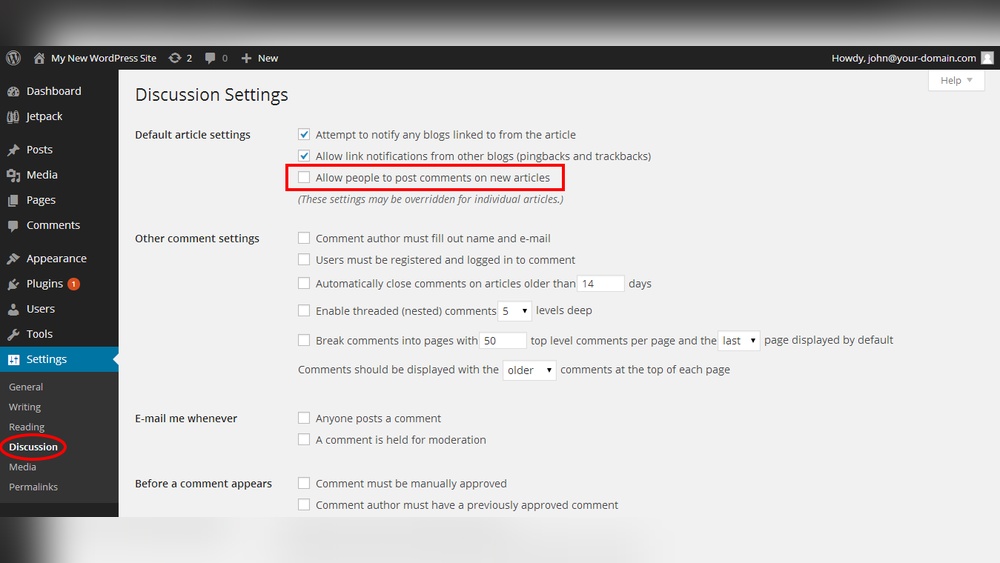
Go to your WordPress dashboard. Click on “Settings” and then “Discussion.” Here, you find the main controls for comments.
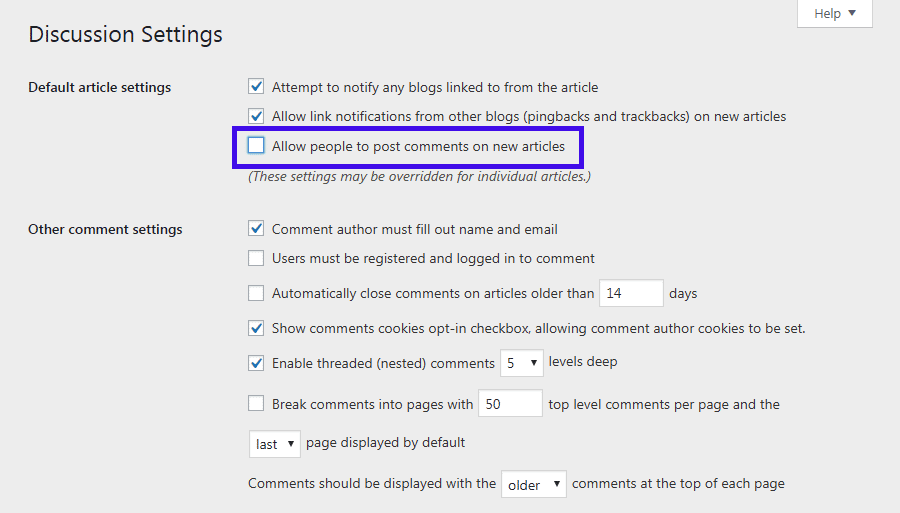
Look for the option that says “Allow people to post comments on new articles.” Uncheck this box. This stops comments on all new posts you create.
Save your changes. Now, every new post you publish will have comments disabled by default.
Adjusting Discussion Preferences
In the same “Discussion” settings area, find more options to manage comments. You can control who can comment and how.
Set preferences to automatically close comments on posts older than a certain number of days. This helps stop old posts from getting new comments.
Review other settings, like requiring users to log in before commenting. Adjust these to fit your website’s needs.
Turning Off Comments On Existing Posts
Turning off comments on existing posts helps keep your WordPress site clean and focused. It stops new comments from being added to posts already published. This can reduce spam and distractions for your readers.
You can disable comments on many posts at once or edit posts one by one. Both ways are simple and take just a few steps.
Bulk Edit Method
Go to your WordPress dashboard and click “Posts.”
Select the posts where you want to turn off comments by checking the boxes next to them.
Choose “Edit” from the Bulk Actions dropdown menu, then click “Apply.”
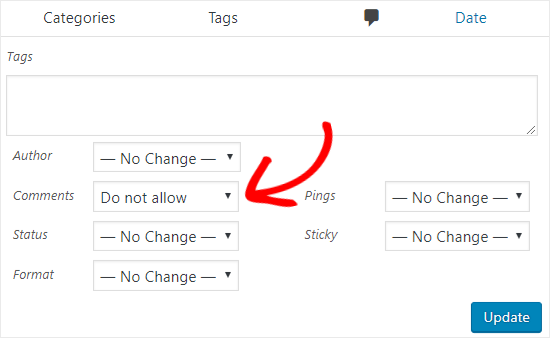
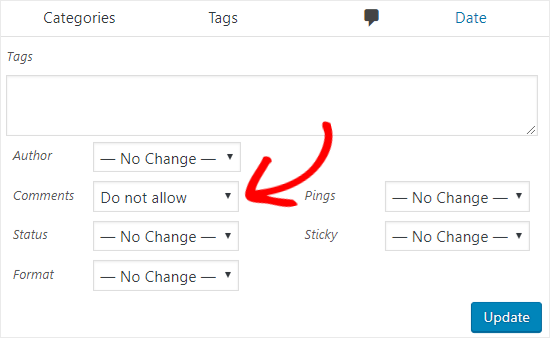
Find the “Comments” option in the bulk edit settings and select “Do not allow.”
Click “Update” to save the changes. Comments will now be off for all selected posts.
Manual Post-by-post Approach
Open the post you want to edit in the WordPress editor.
Look for the “Discussion” box below the post content. If you don’t see it, enable it in the “Screen Options” at the top.
Update or publish the post to save the change.
Repeat this process for each post you want to disable comments on.
Credit: www.wpbeginner.com
Using Plugins To Manage Comments
Using plugins to manage comments in WordPress offers a simple way to control interactions on your site. Plugins provide tools to disable comments without changing code. They save time and make managing comments easy, even for beginners.
Many plugins allow disabling comments on all posts or just specific ones. You can also set rules to control comment permissions automatically. These tools help keep your site clean and focused on your content.
Top Plugins For Disabling Comments
Several plugins work well to disable comments on WordPress sites. “Disable Comments” is popular for turning off comments site-wide. “WPBruiser” stops spam comments and can disable comments too. “No Page Comment” offers options to disable comments on posts, pages, and media. Each plugin has unique features. Choose one that fits your needs and site size.
Plugin Installation And Setup
Start by logging into your WordPress dashboard. Go to the Plugins menu and click “Add New.” Type the plugin name in the search box. Click “Install Now” next to the plugin. After installation, click “Activate.”
Open the plugin settings from the dashboard menu. Configure options to disable comments as you want. Save changes to apply settings. Test your site to confirm comments are disabled properly. Adjust settings if needed for better control.
Disabling Comments On Media Files
Disabling comments on media files in WordPress helps keep your site tidy. Media files include images, videos, and audio you upload. Comments on these files can clutter your site and distract visitors. Turning off comments improves user experience and site management.
Why Media Comments Matter
Comments on media files can cause spam. Many users do not expect to comment on images or videos. This can lead to irrelevant or unwanted messages. Disabling comments stops this problem early. It helps keep your site clean and professional.
Steps To Disable Media Comments
Start by logging into your WordPress dashboard. Go to the Media Library and select a file. Click the “Edit” option under the file. Scroll to the “Discussion” box. Uncheck the option for “Allow comments.”
To disable comments on all media files, use a plugin or add code. This stops comments on all uploads at once. It saves time and ensures consistency across your site.
Alternative Ways To Control Spam
Spam comments can clutter your WordPress site and distract real readers. Managing spam helps keep your site clean and trustworthy. There are simple ways to control spam without disabling comments entirely. These methods reduce unwanted messages and improve user experience.
Using Captcha
CAPTCHA tests verify that a user is human. They stop automated bots from posting spam comments. You can add CAPTCHA to your comment forms easily. This method reduces fake comments and keeps your site safer.
Moderation Settings
Moderation lets you review comments before they appear. You can approve or reject comments manually. Set rules to hold comments with links or specific words. This control prevents spam from showing up publicly.
Blacklists And Filters
Blacklists block comments from certain IPs or email addresses. Filters catch specific words or phrases often used in spam. Use these tools to stop spam comments automatically. They work quietly in the background, saving you time.
Troubleshooting Comment Issues
Troubleshooting comment issues on WordPress can be tricky. Sometimes, comments stay visible even after disabling them. Other times, plugins or themes cause problems. This section helps you find common issues and fix them easily.
Comments Still Showing
Sometimes comments remain visible after you disable them. Clear your website cache first. Caching plugins can show old content. Also, check if comments are turned off for each post. WordPress lets you disable comments globally and per post. Make sure both settings are correct.
Plugin Conflicts
Plugins can interfere with comment settings. Some plugins manage comments separately. Disable all plugins and check if comments disappear. If they do, activate plugins one by one. Find the one causing the issue. Update or replace the problematic plugin.
Theme Restrictions
Your theme may control comment display. Some themes ignore WordPress comment settings. Switch to a default theme like Twenty Twenty-One. Check if comments still show. If not, your theme is the problem. Contact the theme developer or use a different theme.
Credit: kubiobuilder.com
Frequently Asked Questions
How Can I Disable Comments On New WordPress Posts?
Go to Settings > Discussion in your WordPress dashboard. Uncheck “Allow people to post comments on new articles. ” Save changes to stop comments on future posts.
Can I Disable Comments On Existing WordPress Posts?
Yes, go to Posts > All Posts. Select posts, choose Edit, then Bulk Actions > Edit. Set Comments to “Do not allow” and update.
Is It Possible To Disable Comments Site-wide In WordPress?
Yes, use the Discussion settings to disable comments globally. Alternatively, use plugins like “Disable Comments” for more control.
How Do I Disable Comments On WordPress Pages Only?
Edit each page, locate the Discussion box, and uncheck “Allow comments. ” If not visible, enable it via Screen Options at the top.
Conclusion
Disabling comments on WordPress helps keep your site clean and focused. It stops unwanted spam and saves you time. You can choose to turn off comments for all posts or just certain pages. This control makes managing your website easier and safer.
Try the steps shared here to keep your site tidy and user-friendly. Simple changes can make a big difference in how visitors see your content.


