
Thinking about moving your GoDaddy domain to WordPress but not sure where to start? You’re not alone.
Many website owners wonder if they can transfer their domain smoothly without losing traffic or facing downtime. The good news is, yes—you can transfer your GoDaddy domain to WordPress, and it’s easier than you might think. You’ll discover simple steps to make the switch confidently.
By the end, you’ll know exactly how to take control of your online presence and get your site running just the way you want. Keep reading—you don’t want to miss these essential tips!

Credit: wordpress.com
Domain Transfer Basics
Transferring a domain from GoDaddy to WordPress involves moving your website address from one provider to another. This process allows you to manage your domain and website in one place. Understanding the basics helps make the transfer smooth and clear.
Domain transfer involves a few important steps. Knowing these steps can save time and avoid problems. It is not difficult but requires care and attention.
What Is Domain Transfer
Domain transfer means changing the company that manages your domain name. Your domain stays the same, but a new provider controls it. This gives you control over your website address and settings in a new account.
During transfer, your domain’s registration moves from GoDaddy to WordPress. The process usually takes a few days to complete. You must unlock your domain and get a transfer code from GoDaddy before starting.
Benefits Of Transferring To WordPress
Managing your domain and website on WordPress saves time. It keeps everything in one place. This can simplify updates and payments. WordPress offers built-in tools for easy website control.
WordPress also provides better integration with its hosting and site tools. This helps improve website performance and security. Transferring your domain to WordPress can create a smoother experience for website management.
Things To Check Before Transfer
Check if your domain is unlocked on GoDaddy. Locked domains cannot be transferred. Verify your domain is older than 60 days, as new domains cannot transfer yet.
Make sure your contact details are up to date. You will receive important transfer emails. Also, disable any privacy protection that hides your domain owner info.
Obtain the authorization code from GoDaddy. This code is necessary for the transfer. Review any domain transfer fees on both sides before starting.

Credit: wordpress.com
Preparing Your Godaddy Domain
Preparing your GoDaddy domain is the first step before moving it to WordPress. This process helps avoid delays and errors. You must get your domain ready in GoDaddy settings.
Follow the steps carefully to ensure your domain is set for transfer. This makes the next steps smooth and quick.
Unlocking Your Domain
Domains are locked by default to prevent unauthorized transfers. You need to unlock your domain in GoDaddy. This setting allows the domain to be transferred safely.
Log in to your GoDaddy account. Find the domain manager section. Select your domain and turn off the lock option. This action prepares your domain for transfer.
Obtaining The Authorization Code
The authorization code, also called EPP code, is essential for domain transfer. It acts like a password to confirm your ownership. Without it, WordPress cannot accept the domain.
Request the code from your GoDaddy dashboard. It usually appears in the domain settings or is sent to your email. Keep this code safe and ready for the next step.
Disabling Privacy Protection
Privacy protection hides your personal details from public view. You need to disable this feature before transferring your domain. WordPress requires accurate contact information.
Go to the privacy settings in your GoDaddy account. Turn off the privacy option. This allows WordPress to verify your ownership and complete the transfer.
Starting The Transfer To WordPress
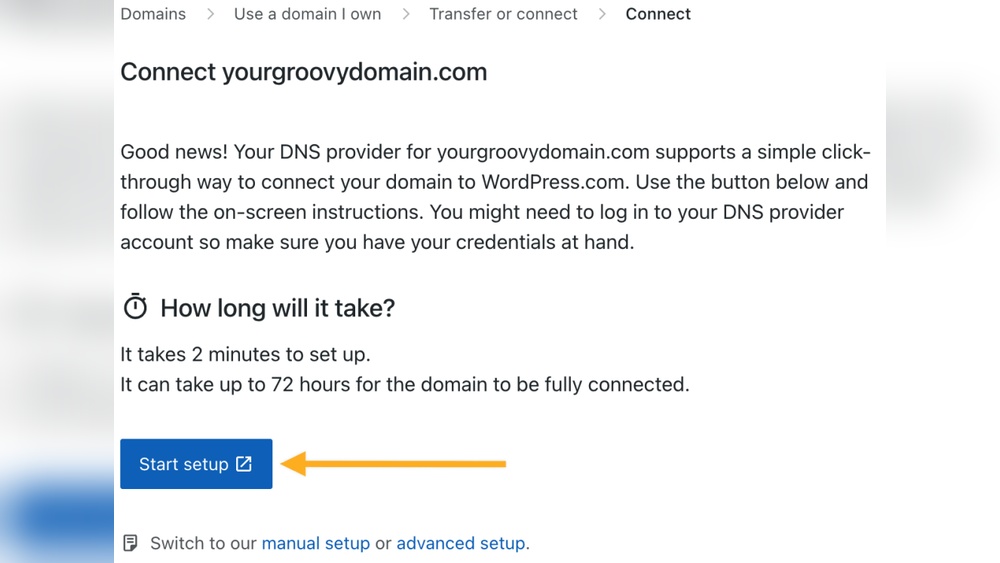
Starting the transfer of your GoDaddy domain to WordPress is a clear and simple process. This step is crucial to make sure your domain points correctly to your new website. The transfer involves a few key actions that you need to complete carefully. Follow the steps below to begin moving your domain without issues.
Initiating Transfer On WordPress
First, log in to your WordPress account. Navigate to the domain management section. Look for the option to transfer a domain. Enter the domain name you want to move from GoDaddy. WordPress will check if the domain is eligible for transfer. If it is, you can proceed to the next step.
Entering Authorization Code
You must get an authorization code from GoDaddy. This code is also called an EPP code or transfer key. Log in to your GoDaddy account to find it. Copy this code carefully. Then, paste the code into the WordPress transfer form. This code confirms you own the domain and allows the move.
Confirming Transfer Request
After entering the code, review all the details. Make sure the domain name and authorization code are correct. Confirm the transfer request on WordPress. You might also get an email to approve the transfer. Approve it quickly to speed up the process. The transfer usually takes a few days to complete.
Post-transfer Steps
After transferring your GoDaddy domain to WordPress, there are important steps to complete. These steps make sure your website works well and stays secure. Follow each step carefully for smooth domain management.
Verifying Domain Status
Check if the domain transfer is complete. Visit your WordPress domain management page. Look for a confirmation that shows the domain is active. This step ensures your domain is properly linked to your WordPress site. Without verification, your website may not load correctly.
Updating Dns Settings
DNS settings tell the internet where to find your website. After transfer, update these settings in your WordPress dashboard. Change nameservers if needed to point to WordPress hosting. This step helps visitors reach your website without issues. Incorrect DNS settings can cause downtime or errors.
Managing Renewals And Billing
Keep track of your domain renewal dates in WordPress. Set up payment methods for automatic renewal to avoid losing your domain. Confirm billing details are correct and up to date. Managing renewals prevents your domain from expiring unexpectedly. Stay on top of these tasks to keep your site live.
Troubleshooting Common Issues
Transferring a domain from GoDaddy to WordPress can sometimes face issues. These problems slow down the process or stop it completely. Knowing common issues helps solve them fast. This section explains main troubles and how to fix them.
Transfer Delays
Domain transfers often take a few days. Delays happen if GoDaddy or WordPress servers are busy. Sometimes, waiting for email confirmation holds the process. Check your email regularly. Respond quickly to any transfer requests. This speeds up the transfer.
Authorization Code Errors
The authorization code is like a password for your domain. Entering it wrong causes errors. Copy the code carefully from GoDaddy. Avoid extra spaces or missing characters. If the code is old, request a new one. Use the latest code to avoid problems.
Domain Lock Problems
Domains are locked to prevent unauthorized transfers. GoDaddy locks domains by default. You must unlock the domain before transferring. Log in to your GoDaddy account. Find the domain settings. Turn off the lock option. This allows the transfer to start.

Credit: www.gsplugins.com
Frequently Asked Questions
Can I Transfer My Godaddy Domain To WordPress?
Yes, you can transfer your GoDaddy domain to WordPress. You need to unlock the domain and get the authorization code from GoDaddy. Then, initiate the transfer in your WordPress account. The process usually takes 5-7 days to complete.
What Are The Steps To Transfer A Godaddy Domain?
First, unlock your domain in GoDaddy settings. Next, get the authorization code. Then, start the transfer on WordPress by entering the code. Finally, confirm the transfer via email. Ensure your domain is at least 60 days old and not expired.
How Long Does Transferring A Domain From Godaddy Take?
Transferring a domain from GoDaddy to WordPress typically takes 5 to 7 days. This includes the time for domain verification and approval. You can speed up the process by promptly approving the transfer confirmation emails.
Will My Website Go Down During The Domain Transfer?
No, your website will not go down during the domain transfer. Your site remains active on GoDaddy until the transfer completes. Make sure DNS settings are correctly configured to avoid any downtime.
Conclusion
Transferring a GoDaddy domain to WordPress is simple and clear. You only need to follow a few steps carefully. This process helps keep your website and domain together. It also makes managing your online presence easier. Take your time and double-check each step.
Soon, your domain will work smoothly with WordPress. This makes your site more professional and trustworthy. Start the transfer when you feel ready. Your website’s growth depends on good domain management.


