
Are you looking to make your WordPress site more engaging and user-friendly? Adding a sidebar in Elementor can help you do just that.
A well-designed sidebar keeps important information, links, or ads right where your visitors can see them, boosting your site’s usability and even your revenue. But if you’re wondering how to add a sidebar in WordPress Elementor without hassle, you’re in the right place.
This guide will walk you through simple, step-by-step instructions so you can customize your site exactly how you want. Ready to make your website stand out? Let’s dive in!
Prepare Your WordPress Site
Preparing your WordPress site before adding a sidebar in Elementor is important. It ensures smooth setup and better design control. This step helps avoid conflicts and makes the process easier.
Check Elementor Compatibility
First, verify that your WordPress version supports Elementor. Elementor works best with WordPress 5.0 or higher. Also, check your PHP version; 7.0 or above is recommended. Older versions might cause errors or slow loading.
Next, ensure Elementor is installed and activated. Use the latest Elementor version for new features and fixes. Some plugins may not work well with Elementor. Disable or update plugins that cause issues.
Choose A Suitable Theme
Select a WordPress theme that works well with Elementor. Themes like Hello Elementor or Astra offer good compatibility. These themes allow easy sidebar customization without coding.
A lightweight and clean theme improves site speed. Avoid themes with many built-in features that may conflict with Elementor. Choose a theme that supports widget areas or sidebars. This support is needed to add and manage sidebars effectively.

Credit: www.youtube.com
Create A Sidebar Template
Creating a sidebar template in Elementor helps you customize your website easily. This template allows you to design a sidebar that fits your site’s style and needs. You can reuse this sidebar on multiple pages without building it every time.
Follow simple steps to build a sidebar template. Start by opening the Elementor Template Builder. Then, design your sidebar layout with widgets and style options. This way, your sidebar will look great and work well.
Open Elementor Template Builder
Log in to your WordPress dashboard. Go to “Templates” and select “Theme Builder.” Click “Add New” and choose “Section” as the template type. Name your template, for example, “Custom Sidebar.”
Click “Create Template.” Elementor will open the editing screen where you can start designing. This builder lets you add sections, columns, and widgets for your sidebar.
Design Your Sidebar Layout
Choose a structure for your sidebar, such as one column. Add essential widgets like navigation menus, search bars, or recent posts. Drag and drop these widgets into your layout.
Style your sidebar by adjusting colors, fonts, and spacing. Keep your design clean and easy to read. Save your template once you finish. Your sidebar template is now ready to use on your website.
Add Widgets To Sidebar
Adding widgets to your sidebar in WordPress Elementor makes your site more useful and attractive. Widgets help you show extra content, like recent posts, search bars, or social links. This section explains how to pick and set up widgets for your sidebar.
Select Essential Widgets
Start by choosing widgets that match your site’s needs. Common choices include search bars, categories, recent posts, and social media icons. Pick widgets that offer value to your visitors. Avoid adding too many widgets. Keep the sidebar clean and easy to use. Elementor has many widget options in the sidebar area. Select those that help users find content or interact with your site.
Customize Widget Settings
After selecting widgets, adjust their settings to fit your site style. Change titles, colors, and layout to match your theme. Set how many posts or items to show. Some widgets let you add custom links or images. Preview changes to see how widgets look. Make sure widgets are easy to read and use. Proper customization improves user experience and keeps visitors engaged.
Assign Sidebar To Pages
Assigning a sidebar to specific pages in WordPress using Elementor helps customize your site. You can show different sidebars on different pages. This makes your site more organized and user-friendly.
Elementor allows easy control over where sidebars appear. You can decide which pages or posts display a sidebar. This improves user experience and helps highlight important content.
Use Display Conditions
Display conditions control where your sidebar shows up. Set these conditions in the Elementor editor. Choose options like entire site, specific pages, or post types.
This feature saves time by avoiding manual sidebar setup on each page. You can update or remove conditions anytime. It keeps your site flexible and neat.
Target Specific Pages Or Posts
Target pages by selecting them in the display settings. Pick single pages, categories, or tags to assign sidebars. This way, sidebars match the page content perfectly.
For example, you can show a sidebar with recent posts on blog pages only. Or a product menu sidebar on shop pages. This targeted approach keeps visitors engaged.
Integrate Sidebar With Theme
Integrating a sidebar with your WordPress theme ensures a smooth and consistent design. The sidebar can display widgets, menus, or other content alongside your main page. It helps users find important links or information quickly. Adding a sidebar that fits your theme style creates a better user experience.
Enable Sidebar In Theme Settings
Start by checking your theme’s settings. Many themes have a built-in option to turn the sidebar on or off. Go to your WordPress dashboard and open the Appearance menu. Find the Customize or Theme Options area. Look for Sidebar settings. Activate the sidebar for the pages you want. Save your changes. This step allows your theme to support the sidebar before building it with Elementor.
Use Elementor’s Theme Builder
Elementor’s Theme Builder lets you design custom sidebars easily. Open Elementor and go to Theme Builder. Choose the Sidebar template or create a new one. Add the widgets or content you want in the sidebar area. Design it to match your site’s style and colors. Set display conditions to show the sidebar on specific pages or posts. Publish the sidebar template. The sidebar now works with your theme and Elementor’s design tools.

Credit: www.youtube.com
Test And Optimize Sidebar
Testing and optimizing your sidebar is important to make sure it works well for all visitors. A sidebar that looks good on one device may not look right on another. Checking it on different screen sizes helps you find any issues. Fixing these ensures a smooth user experience and keeps your site professional.
Preview Sidebar On Different Devices
Elementor lets you preview your sidebar on many devices. Use the preview tool to see how it looks on desktop, tablet, and mobile. This helps you spot if any parts are missing or too big. Make sure the sidebar content is easy to read on all screens. Adjust fonts and images if they look off.
Adjust Layout For Responsiveness
Responsive design means your sidebar adapts to screen size changes. Use Elementor’s layout settings to control width and alignment. Change margins and padding to keep the sidebar neat. Hide or show certain widgets on smaller screens for better focus. Keep the sidebar simple on mobiles to avoid clutter.
Troubleshoot Common Issues
Adding a sidebar in WordPress Elementor can sometimes cause issues. These problems can stop your sidebar from showing or cause conflicts with widgets. Troubleshooting these common problems helps keep your site running smoothly. Here are simple steps to fix the most frequent sidebar issues.
Fix Sidebar Not Showing
First, check if the sidebar is enabled in your theme settings. Some themes turn off sidebars by default.
Next, ensure you assigned the sidebar to the correct page or template in Elementor. Without this, the sidebar won’t appear.
Clear your site cache and browser cache. Caches can hold old data and prevent updates from showing.
Check for plugin conflicts by disabling other plugins one by one. This finds if a plugin stops the sidebar from showing.
Resolve Widget Conflicts
Widget conflicts happen when two or more widgets clash on the same page.
Start by updating all your plugins and Elementor to the latest versions.
Use safe mode in Elementor. It turns off other plugins temporarily to test widget issues.
If a widget still causes trouble, replace it with an alternative widget. Some widgets don’t work well together.
Review custom code or CSS that might affect widget display. Sometimes code blocks widget functions.
Credit: elementor.com
Frequently Asked Questions
How Do I Add A Sidebar In Elementor WordPress?
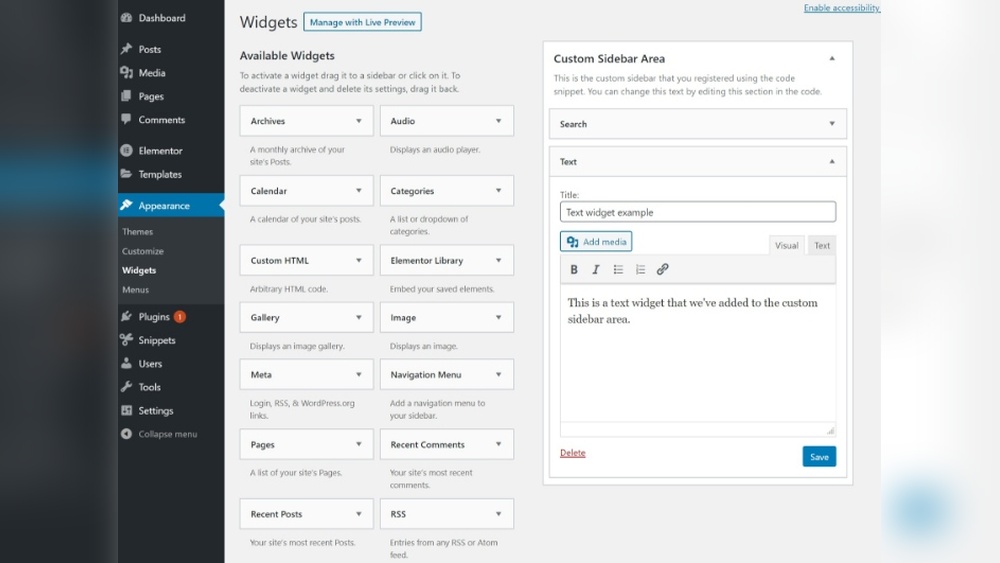
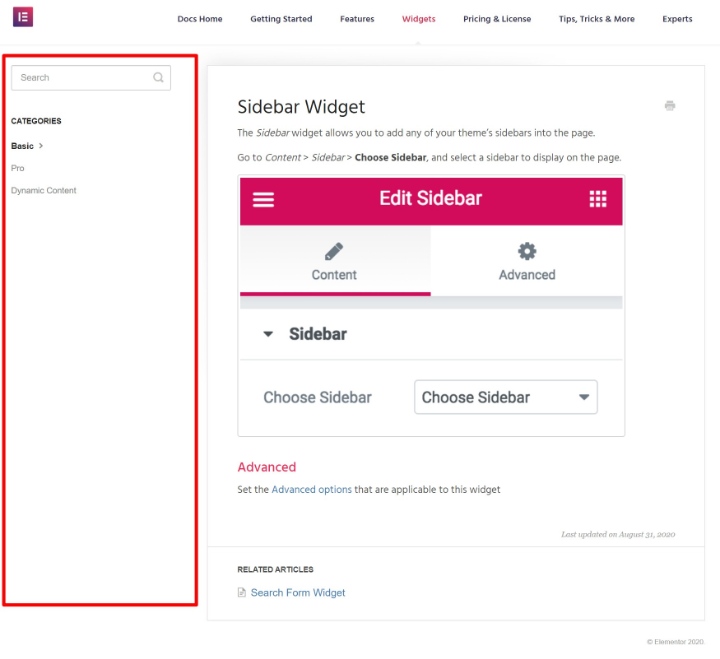
To add a sidebar in Elementor, go to WordPress dashboard > Appearance > Widgets. Add widgets to your sidebar area. Then, edit your page with Elementor and insert the Sidebar widget where you want it.
Can I Customize Sidebar Layout Using Elementor?
Yes, Elementor allows sidebar customization. You can adjust width, position, and style using Elementor’s drag-and-drop editor. This helps create a unique sidebar that matches your website design.
Is It Possible To Create A Sticky Sidebar In Elementor?
Yes, Elementor Pro offers a sticky sidebar option. Enable the “Sticky” feature under Advanced settings to keep the sidebar visible while scrolling. This improves user experience and engagement.
Do I Need Plugins To Add Sidebars In Elementor?
Not necessarily. WordPress has built-in sidebar widgets. However, some plugins offer advanced sidebar management and customization options for Elementor users.
Conclusion
Adding a sidebar in WordPress Elementor is simple and useful. It helps organize your content clearly. Sidebars can show menus, ads, or extra info. You can customize them to fit your site style. Try different widgets to see what works best.
Keep your sidebar neat and easy to read. This small change can improve user experience. Start adding sidebars today to make your site more engaging.


