
Have you ever felt like your WordPress site needs a fresh new look? Maybe your current theme isn’t showcasing your content the way you imagined, or perhaps you’re ready for a design that better reflects your brand’s personality.
Changing your WordPress theme can breathe new life into your website, making it more appealing to visitors and aligning it with your goals. But how do you ensure a smooth transition without losing your hard-earned content or disrupting your site’s functionality?
You’ll discover a step-by-step guide to migrating from one WordPress theme to another seamlessly. We understand that the thought of changing themes can be daunting, with potential pitfalls like broken links or altered layouts. That’s why we’re here to simplify the process for you. By the end of this guide, you’ll have the confidence to make the switch smoothly, preserving the essence of your site while embracing a new design. So stick around; your website’s transformation is just a few clicks away.
Credit: getshifter.io
Pre-migration Checklist
Check the features you use. Are they important? Write them down. Note what you like about your theme. Is it fast? Does it look good? Make a list of what you want in your new theme.
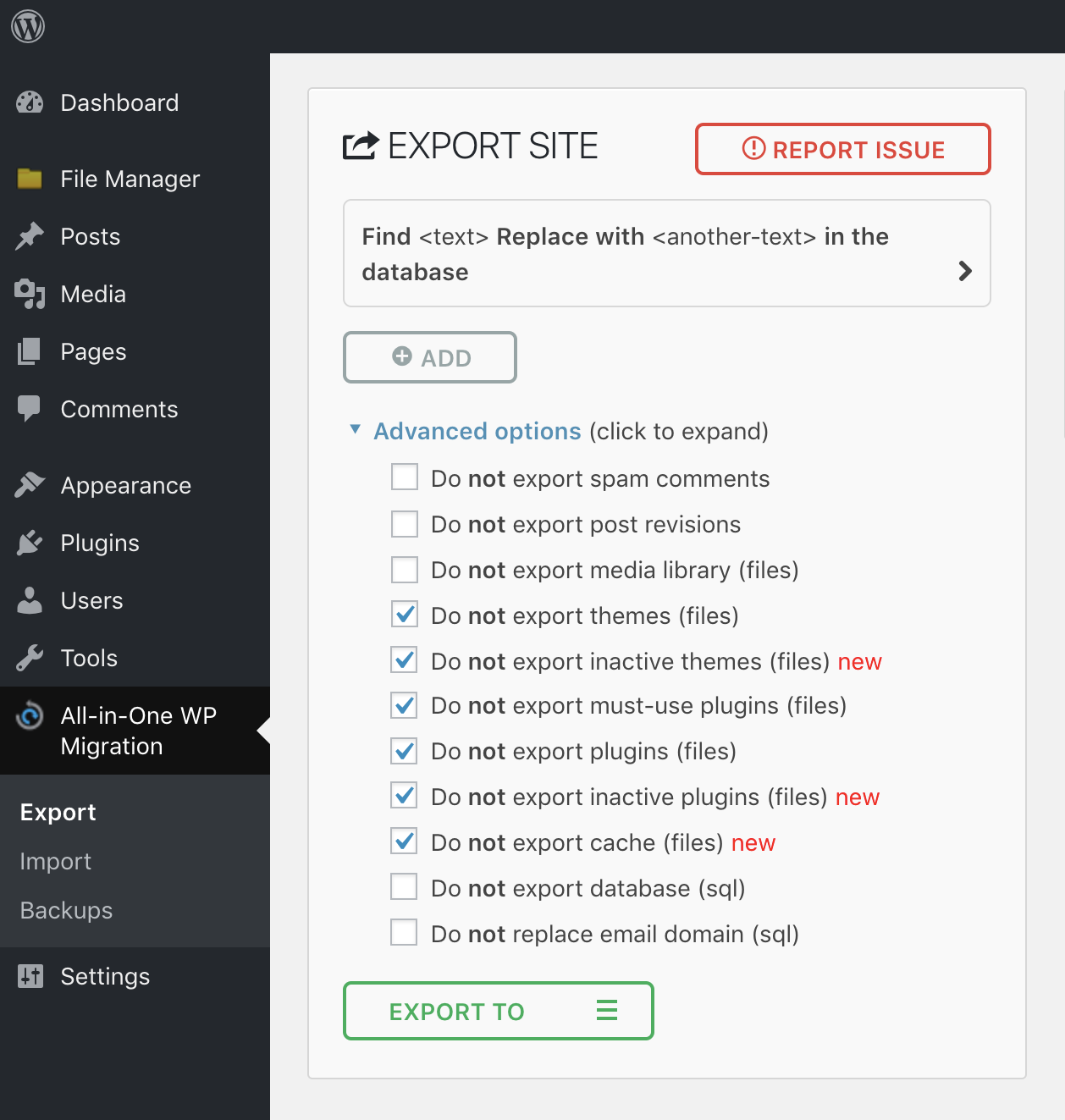
Save your site. Use a plugin. Keep a copy of your posts, pages, and settings. Never skip this step. It’s your safety net. If something goes wrong, you can restore everything.
Try the new theme. Check if all features work. Is the design correct? Ensure plugins still function. See if your site stays fast. Do this before you change themes.
Selecting A New Theme
Think about what you need. Do you want a blog or a shop? Make a list of features. This helps you choose the right theme. Look for themes that match your style. Also, check if they are easy to use.
There are many themes to choose from. Visit the WordPress theme store. You can also search online for more options. Compare themes by reading reviews. See what other users say. This helps you find the best one.
Good support is important. If you need help, you want fast answers. Check if the theme developer offers support. Look for themes with active support forums. This can save you time later.
Preparing For Migration
Staging environment is a safe place. It protects your live site. Set up a copy of your site here. Test changes before going live. It prevents errors. It keeps your main site safe.
Find the new theme you love. Install it on the staging site. Check for compatibility with plugins. Look for errors or bugs. Make sure it works well. Test it thoroughly.
Go to theme settings. Change colors, fonts, and layouts. Match your style. Make it look good. Adjust settings for the best view. Test each change. Ensure everything is perfect.
Migrating Content
Widgets are small tools in WordPress. They add functions to your site. Menus help users find their way around. Moving them to a new theme is important. Make sure to copy all widgets first. Then, create new menus that match the new theme. Check every widget works correctly. Verify each menu link is active. This ensures a smooth transition.
Pages and posts are the heart of your site. Review each one for changes after migration. Some pages might need design tweaks. Ensure all images and text display properly. Check for missing content in posts. Update the layout to fit the new theme’s style. This keeps your site looking good and easy to read.
Broken links can frustrate visitors. Scan your site for these errors. Use a link-check tool to find them. Fix every link that doesn’t work. Replace old links with new ones. Make sure all links lead to correct places. This helps keep your site user-friendly and trustworthy.
Testing And Troubleshooting
Migrating to a new WordPress theme involves careful testing and troubleshooting to ensure a seamless transition. Check compatibility, backup data, and validate settings to avoid issues. Adjust and optimize design elements for smooth functionality and enhanced user experience.
Verify Site Functionality
Check all site links. Make sure they work. Test forms and buttons. See if they respond well. Open your site on different devices. Check its look and feel. Make sure all features work smoothly. This ensures a great user experience.
Resolve Compatibility Issues
Some plugins may not work with the new theme. Update them to the latest version. If they still fail, find alternatives. Themes may break some custom codes. Fix these or seek help from a developer. This keeps your site running smoothly.
Optimize Loading Speed
A slow site can annoy users. Compress images to make them smaller. Use caching plugins to load pages faster. Check your hosting service. Ensure it supports your new theme well. Fast loading keeps visitors happy.

Credit: www.youtube.com
Finalizing The Migration
Switching from one WordPress theme to another involves finalizing the migration process. Ensure all settings and plugins transfer smoothly. Test your site thoroughly to guarantee a seamless transition and maintain functionality.
Go Live With New Theme
Prepare your site for the new theme. Make sure everything looks good. Check all pages and links. Fix any broken links. Ensure images load correctly. Test your site’s speed. Fast loading is important. Ensure mobile compatibility. Many users browse on phones. Look for any errors in the layout. Make necessary adjustments. Then, go live! Your new theme is ready for visitors.
Monitor Site Performance
Keep an eye on how your site behaves. Check the loading speed. Slow sites lose visitors. Track the bounce rate. High rates mean users leave quickly. Analyze traffic patterns. See what pages are popular. Use tools like Google Analytics. They provide valuable insights. Regularly check for errors. Fix them promptly. Ensure your site is secure. Update plugins and themes regularly. This helps protect your site.
Gather User Feedback
Ask visitors what they think. Feedback helps improve your site. Create a simple survey. Ask about their experience. Were they able to find what they needed? Did the site load quickly for them? Listen to their suggestions. It helps you make changes. Respond to feedback. Show visitors you care. Happy users visit again and again.
Credit: www.flawlessthemes.com
Frequently Asked Questions
How Do I Migrate To A New WordPress Theme?
Backup your site before starting. Install the new theme and preview it. Customize settings to match your brand. Test functionalities thoroughly. Activate the theme once satisfied.
Can You Switch Themes In WordPress Without Losing Content?
Yes, you can switch themes in WordPress without losing content. Content like posts, pages, and media stay intact. Always back up your site before changing themes to prevent any potential issues. Widgets and custom settings might require reconfiguration after switching.
How Do I Switch WordPress Themes?
Switch WordPress themes by going to the dashboard. Click “Appearance,” then “Themes,” and select “Add New. ” Browse themes or upload one. Activate your chosen theme by clicking “Activate. ” Always back up your site before changing themes to prevent data loss.
Check your site for compatibility issues after switching.
How Do I Export A WordPress Theme?
To export a WordPress theme, use the WordPress admin dashboard. Navigate to “Appearance” > “Themes”. Select the desired theme. Use a plugin like “All-in-One WP Migration” to export. This ensures a smooth export process. Download the theme as a file for backup or transfer.
Conclusion
Switching WordPress themes can feel daunting. Yet, it’s a manageable task. Follow each step carefully. Keep backups handy for safety. Test your new theme thoroughly. Check for broken links. Ensure all plugins work smoothly. Don’t rush through the process. Take your time to adjust settings.
Remember, the right theme enhances your site. Improves user experience. Boosts your site’s appeal. With patience, your site will shine with its new look. Enjoy the fresh design. Embrace the change confidently. Your WordPress journey continues with a new theme.
Happy blogging!


