Are you looking to share important documents, guides, or brochures directly on your WordPress website? Adding a PDF file to your site can make it easy for your visitors to download and access your content anytime.
But if you’re not sure how to do it, don’t worry – this guide will walk you through simple, step-by-step instructions. By the end, you’ll know exactly how to upload and display PDF files on your WordPress site, helping you provide more value to your audience.
Let’s get started and make your website even more useful!
Prepare Your Pdf File
Preparing your PDF file is an important step before uploading it to your WordPress site. A well-prepared file improves user experience and boosts your site’s SEO. Take time to check the file size and format. Also, rename your PDF to help search engines understand its content.
Check File Size And Format
Keep your PDF file size small. Large files take longer to load and may frustrate visitors. Aim for a file size under 5MB. Use tools like Adobe Acrobat or online compressors to reduce size. Make sure the PDF is in the standard .pdf format. Other file types may not display correctly on WordPress.
Rename Your Pdf For Seo
Give your PDF a clear, descriptive name. Use simple words that match your content. Separate words with hyphens, not spaces. For example, use “summer-travel-guide.pdf” instead of “doc1.pdf”. This helps search engines find and rank your file better. Avoid using special characters or capital letters in the file name.

Credit: www.wpmadesimple.org
Upload Pdf To WordPress
Uploading a PDF to WordPress is simple and quick. It helps share important documents with your visitors. This guide shows two easy ways to upload PDFs to your website. Both methods use built-in WordPress tools.
Use The Media Library
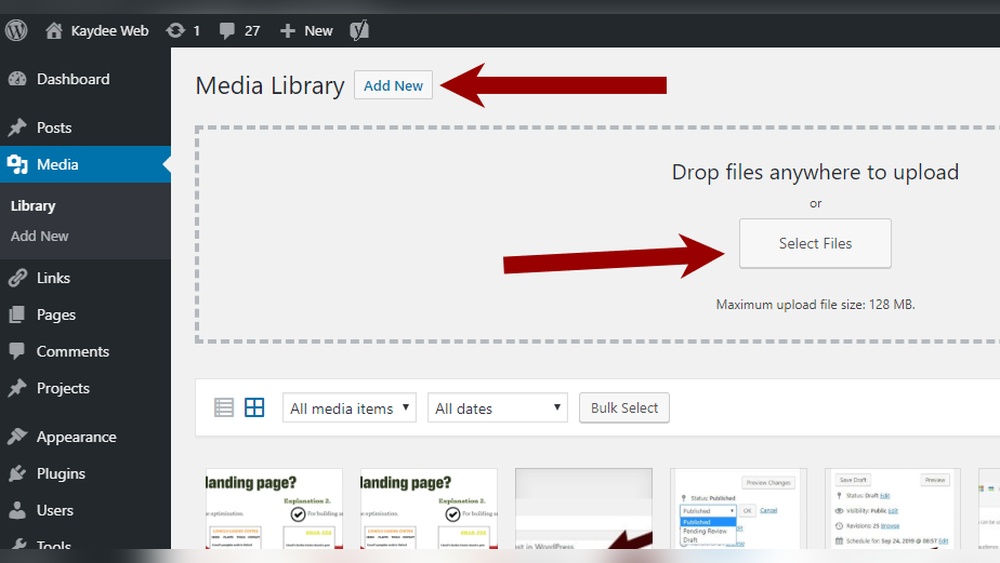
Go to your WordPress dashboard. Find the Media menu and click on Library. Click on the “Add New” button at the top. Drag your PDF file into the upload area or click “Select Files” to choose it from your computer. Wait for the upload to finish.
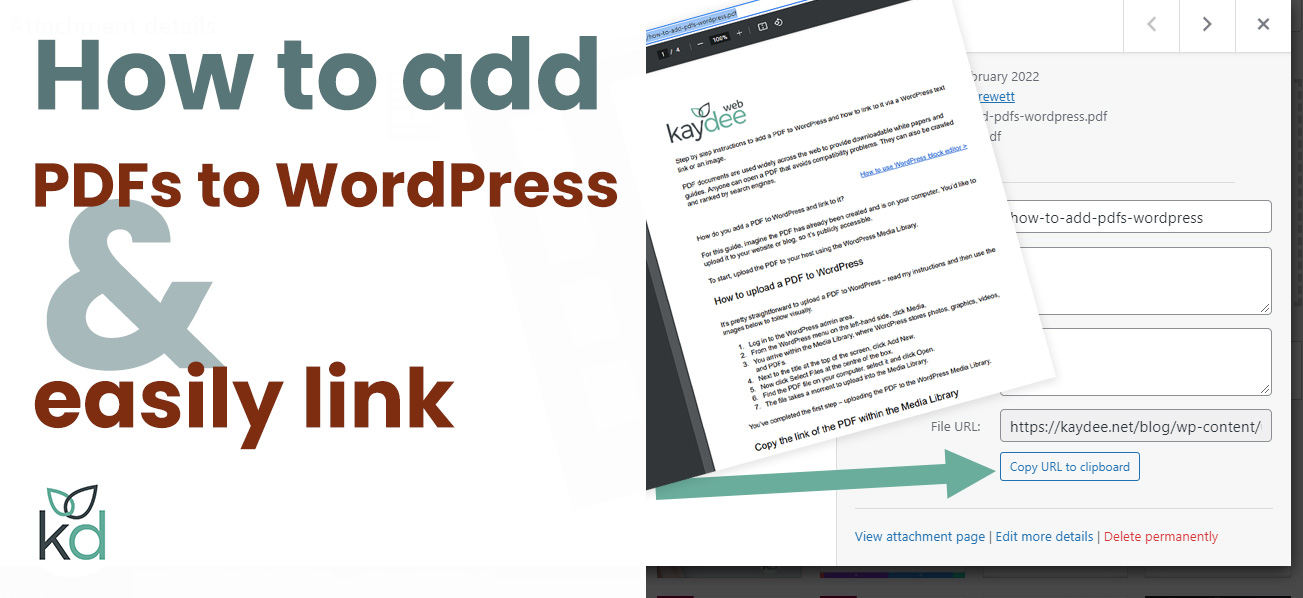
After uploading, click the PDF in the Media Library. Copy the URL shown on the right side. Use this link to share the PDF anywhere on your site.
Upload Via The Block Editor
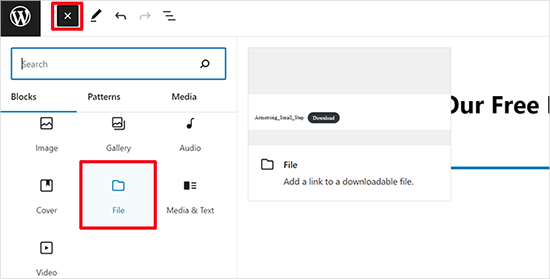
Edit the post or page where you want the PDF. Click the plus (+) button to add a new block. Search for “File” block and select it. Click “Upload” and pick the PDF from your device. WordPress uploads the file and adds a download button automatically.
You can change the button text or add a description below it. This method lets visitors download or view the PDF directly from the page.
Insert Pdf Link In Posts Or Pages
Adding a PDF link in your WordPress posts or pages helps share documents easily. Visitors can click the link to view or download the file. This method keeps your page clean and user-friendly. Follow simple steps to insert the PDF link quickly.
Add Link Using The Editor
Open the post or page where you want the PDF link. Click the spot in the editor to place your cursor. Select the “Add Media” button above the editor toolbar. Upload your PDF file or choose one from the media library. After selecting the file, click “Insert into post.” WordPress will add the PDF link automatically. You can now save or update your content.
Customize Link Text
By default, the link shows the PDF file name. Change this to make it clear and inviting. Highlight the link text in the editor. Type the words you want visitors to see. Use simple phrases like “Download PDF” or “View Document.” This helps visitors understand the link purpose. Clear link text improves user experience and SEO.
Credit: www.wpbeginner.com
Embed Pdf Directly On A Page
Embedding a PDF directly on a WordPress page helps visitors see the document without downloading it. It keeps users on your site and improves their experience. This method is simple and efficient for sharing brochures, manuals, or reports.
Use Pdf Embed Block
WordPress offers a built-in PDF Embed Block. It lets you add PDF files quickly. First, open the page or post editor. Click the plus (+) icon to add a new block. Search for “PDF Embed” and select it. Upload your PDF file or choose one from the media library. The PDF will appear inside your page. Visitors can scroll through the pages easily. This block works well for most PDF viewing needs.
Try Third-party Plugins
Some plugins add extra features for embedding PDFs. They often include zoom, download options, and better viewer controls. Popular plugins like “PDF Embedder” and “Embed Any Document” are easy to use. Install and activate the plugin from the WordPress dashboard. Follow the plugin instructions to embed your PDF. This method gives more control over how the PDF looks and works. Plugins can improve user experience for complex documents.
Optimize Pdf For User Experience
Optimizing PDFs for user experience improves how visitors interact with your content. A well-optimized PDF loads faster and is easier to view. This helps keep users on your site longer and reduces frustration. Simple steps can make your PDFs more accessible and pleasant to use.
Enable Pdf Previews
PDF previews let users see the document without downloading it. This saves time and helps users decide if they want to open the full file. WordPress plugins or built-in features can display PDF previews directly on your page. Make sure the preview loads quickly and shows clear images and text.
Ensure Mobile Compatibility
Many visitors use phones or tablets to browse your site. PDFs must display well on small screens. Use responsive PDF viewers that adjust to different screen sizes. Check that text is readable without zooming in. Avoid PDFs that require horizontal scrolling or pinch gestures to read.
Manage And Update Pdfs
Managing and updating PDFs on your WordPress site keeps your content fresh and useful. It helps visitors find the latest information without confusion. Regular updates also improve your site’s professionalism and user experience.
Replace Existing Files
To replace a PDF file, first upload the new version to the Media Library. Use the same file name to avoid broken links. WordPress does not replace files automatically, so delete the old file before uploading. Update any links on your pages to point to the new file. This ensures visitors always access the latest document.
Track Pdf Downloads
Tracking PDF downloads shows how often users access your files. Use plugins like MonsterInsights or Google Analytics to monitor downloads. This data helps you understand what content interests your audience most. Adjust your strategy based on download trends to improve engagement and value.
Credit: kaydee.net
Frequently Asked Questions
How Do I Upload A Pdf To My WordPress Site?
To upload a PDF, go to your WordPress dashboard. Click “Media” > “Add New,” then select your PDF file. Once uploaded, copy the file URL for use in posts or pages.
Can I Embed A Pdf Directly Into A WordPress Page?
Yes, you can embed PDFs using plugins or the Gutenberg block editor. This allows visitors to view the file without downloading it, improving user experience.
Is It Possible To Link A Pdf In WordPress Posts?
Absolutely. After uploading your PDF, copy its URL. Highlight text or an image in your post, click the link icon, and paste the PDF URL to create a clickable link.
What Plugins Help Add Pdfs To WordPress Easily?
Popular plugins like PDF Embedder and Embed Any Document simplify adding PDFs. They offer features like inline viewing, customization, and mobile responsiveness for better display.
Conclusion
Adding a PDF to your WordPress website is simple and quick. Just follow the steps carefully to avoid mistakes. Use the built-in tools to upload and link your file. This helps visitors access important documents easily. Keeping files organized improves your site’s user experience.
Practice these methods to get comfortable with the process. Your website will look more professional with useful PDFs. Start adding files today and see the difference yourself.