
Are you wondering if you can change your domain name on WordPress without losing your site’s traffic or hard work? Maybe you picked a name that no longer fits your brand, or you want something easier to remember.
Changing your domain might sound tricky, but it’s completely possible—and you don’t have to be a tech expert to do it. You’ll discover exactly how to change your WordPress domain name smoothly, what steps to follow, and how to avoid common mistakes that could cost you visitors.
Keep reading, because your website’s future could depend on this simple switch.
Why Change Your WordPress Domain
Changing your WordPress domain name can be a smart choice for many website owners. It can help improve your site’s identity and fit your goals better. The right domain name makes your site easier to find and remember. It also reflects your brand clearly.
Sometimes, the old domain no longer suits your website. A fresh domain can bring new opportunities and a stronger presence online. Understanding why to change your domain helps you decide if it is the right step for you.
When To Consider A Domain Change
Think about changing your domain if your current name is hard to spell or remember. A confusing domain can lose visitors and reduce traffic. Change it if your site focus has shifted to a new topic or market.
Another reason is rebranding. When your business changes its name or style, the domain should match. Also, avoid domains with bad reputations from past use. A new name can clear up that problem.
Benefits Of A New Domain Name
A new domain can boost your site’s image and trust. It makes your website look more professional and serious. Visitors are more likely to return to a memorable domain.
New domains can improve search engine rankings if chosen well. Keywords in the domain help attract the right audience. It also allows you to target new markets or niches easily.
Preparing For The Domain Change
Changing your domain name on WordPress requires careful preparation. It is important to protect your website data and choose a good new domain. Planning each step helps avoid problems during the change. This section explains what to do before you start the switch.
Backing Up Your Website
Backing up your website saves all your files and data. You can use plugins or your hosting service to create a backup. Keep a copy of your backup on your computer or cloud storage. This safety net prevents data loss if something goes wrong. Always backup before making big changes.
Choosing The Right New Domain
The new domain should match your brand and be easy to remember. Short and simple names work best for visitors. Avoid numbers or special characters that confuse users. Check if the domain is available and not used by others. Also, consider the domain extension, like .com or .net. This helps with trust and search engines.
Changing Domain Name In WordPress
Changing the domain name in WordPress is a common task. It happens when you want a new website address. The process involves more than just buying a new domain. You must update WordPress settings and database links.
This guide explains the steps to change your domain name safely. Follow these simple instructions to avoid site errors and keep your content intact.
Updating Domain In WordPress Settings
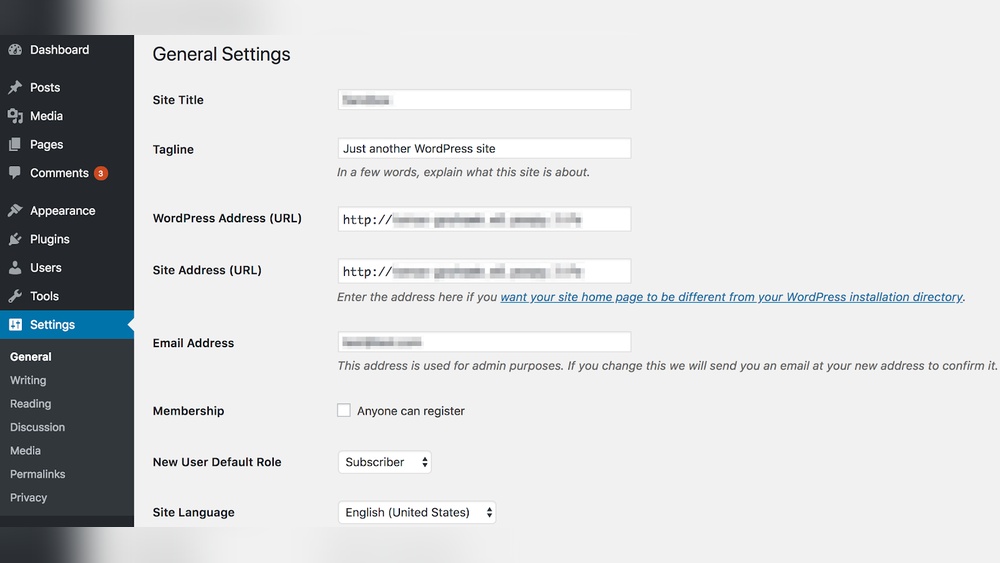
First, log in to your WordPress dashboard. Go to Settings and then General. You will see two fields: WordPress Address (URL) and Site Address (URL). Replace the old domain with your new one in both fields. Save the changes at the bottom of the page.
This step tells WordPress where your site is located now. Without this, your site will not load correctly.
Modifying Wp-config.php File
Next, access your website files via FTP or file manager. Find the wp-config.php file in the root folder. Open this file for editing. Add these two lines, replacing “newdomain.com” with your new domain:
define('WP_HOME','http://newdomain.com'); define('WP_SITEURL','http://newdomain.com');Save the file and close it. This step forces WordPress to use your new domain. It helps in cases where the dashboard settings do not update properly.
Adjusting Database Urls
WordPress stores many links in its database. Changing the domain in settings is not enough. You must update all URLs in the database to avoid broken links.
Use a plugin like Better Search Replace or a database tool. Search for the old domain and replace it with the new one. Do this carefully to avoid damaging your data.
After updating the database, clear your website cache. Check your website to confirm all links point to the new domain.
Credit: wedevs.com
Managing Domain Redirects
Managing domain redirects is essential when changing your WordPress domain name. It helps visitors find your new site without errors. Redirects also preserve your search engine rankings. Without proper redirects, users may see broken links or 404 errors.
Setting up redirects ensures traffic flows smoothly from old URLs to new ones. This process keeps your site’s SEO intact. Proper redirects also improve user experience and maintain your site’s credibility.
Setting Up 301 Redirects
301 redirects tell browsers and search engines that a page has moved permanently. This type of redirect passes most SEO value to the new URL. To set up 301 redirects, edit your .htaccess file or use a plugin. Plugins like Redirection or Yoast SEO make this task easier. Always check that redirects work correctly after setup to avoid errors.
Updating Permalinks
Permalinks are the URLs of your posts and pages. After changing your domain, update permalinks to match the new domain structure. Go to WordPress Settings and click on Permalinks. Save changes to refresh your URL structure. This step helps avoid broken links within your site. It also ensures internal links point to the right pages.
Updating External Services
Changing your WordPress domain name means updating many external services. These services help track your site’s visitors and keep your audience connected. Without updates, your data might be lost. Your followers could get confused or miss your emails. Take time to update each service carefully.
Google Search Console And Analytics
Google Search Console tracks your site’s presence in search results. After changing your domain, add the new site to Search Console. Verify ownership to keep monitoring your search data. Also, submit a new sitemap for the new domain. This helps Google index your pages faster.
Google Analytics tracks visitor data and behavior. Update your website URL in the Analytics settings. This keeps your traffic data accurate. Without updating, your reports may show zero visitors or lose data. Check that your tracking code works on the new domain.
Social Media And Email Settings
Social media profiles often link to your website. Update the website address in all profiles. This keeps your followers directed to the right site. Also, update any automated posts or ads with the new URL.
Email settings need changes too. Update your email marketing tools with the new domain. Check that your email sender address matches the new domain. This helps your emails avoid spam folders. Inform your subscribers about the domain change to keep trust.
Common Issues And Fixes
Changing a domain name on WordPress can cause some common problems. These issues might affect your site’s links and security. Fixing them quickly keeps your website working well. Below are common issues and easy ways to fix them.
Handling Broken Links
Broken links happen when old URLs still exist after the domain change. Visitors see error pages instead of content. Use a plugin to scan for broken links on your site. Update these links to the new domain manually or with a tool. Redirect old URLs to the new ones using 301 redirects. This helps visitors and search engines find the right pages.
Fixing Mixed Content Errors
Mixed content errors occur when some parts of your site load from old HTTP addresses. Browsers block these parts to keep your site secure. Check your site for any HTTP links still using the old domain. Change them to HTTPS with the new domain. Use plugins or database search and replace tools to fix these links fast. This ensures your site loads fully and securely.
Tips For A Smooth Transition
Changing your domain name on WordPress can be tricky. Careful steps help avoid losing visitors and search rankings. Follow these tips for a smooth switch.
Monitoring Traffic And Seo
Track your website traffic closely after the change. Use Google Analytics and Search Console to watch for drops. Check if search engines still index your pages properly. Fix any broken links or errors quickly. Keep your SEO settings consistent on the new domain.
Communicating Changes To Visitors
Tell your visitors about the new domain clearly. Use banners or pop-ups on your old site. Send emails to your subscribers with the update. Share news on social media channels. Clear communication builds trust and keeps users coming back.
Credit: www.hostinger.com

Credit: wordpress.com
Frequently Asked Questions
Can I Change My WordPress Domain Without Losing Traffic?
Yes, you can change your WordPress domain without losing traffic. Use 301 redirects to point old URLs to new ones. Update your site settings and submit the new sitemap to Google Search Console. This helps maintain SEO rankings and user experience.
How Do I Update Domain In WordPress Settings?
To update your domain, go to WordPress Dashboard > Settings > General. Change the “WordPress Address (URL)” and “Site Address (URL)” to your new domain. Save changes and update your DNS settings to point to the new domain.
Will Changing Domain Affect My WordPress Seo?
Changing your domain can affect SEO temporarily. Properly use 301 redirects and update Google Search Console. This helps preserve rankings and traffic. Monitor performance closely after the change to fix any issues promptly.
Is It Necessary To Update Permalinks After Domain Change?
It’s a good practice to update permalinks after changing your domain. This ensures internal links reflect the new domain. Go to Settings > Permalinks and save changes to refresh URL structure without altering it.
Conclusion
Changing a domain name on WordPress is possible with the right steps. It takes some care to avoid losing traffic or data. Always back up your website before making changes. Update your WordPress settings and link your new domain properly.
Watch for broken links and fix them quickly. This helps keep your site working well. Take your time and follow guides carefully. Your site can run smoothly with a new domain name. Success comes from patience and careful action.


