Are you wondering if you can transfer your Wix website to WordPress? Maybe you love the flexibility WordPress offers or want more control over your site’s design and features.
The good news is, moving your website is possible—but it’s not always simple. You’ll discover exactly how to make the switch without losing your content or traffic. By the end, you’ll know the steps to take and what to watch out for, so your website upgrade feels smooth and stress-free.
Keep reading to find out how to take your site to the next level.
Credit: blog.hubspot.com
Why Move From Wix To WordPress
Many website owners start with Wix for its ease and design options. Over time, some find Wix limiting for growth and advanced needs. WordPress offers more control and flexibility for those ready to expand.
Switching to WordPress can help businesses and bloggers create stronger, more scalable sites. It suits users who want full ownership and customization. Understanding the reasons to move helps decide if the switch is right.
Limitations Of Wix
Wix restricts site customization beyond its templates. It limits access to the site’s code. SEO tools in Wix are basic and less flexible. Wix sites can be slower due to platform constraints. Users cannot move Wix sites easily to other platforms. E-commerce options are limited compared to WordPress.
Advantages Of WordPress
WordPress allows full control over website design and features. Thousands of themes and plugins enhance site functions. SEO tools in WordPress are powerful and customizable. The platform supports large websites and heavy traffic. Users can edit site code freely. WordPress supports many payment gateways for online stores.
When To Consider The Switch
Choose WordPress if you want more design freedom. Switch if your site needs custom features or plugins. Move when Wix limits your business growth or sales. Consider WordPress for better SEO and site speed. Change if you need full ownership of your website. Switch when planning a large or complex website.
Preparing For The Transfer
Preparing to move your Wix website to WordPress takes careful planning. This step ensures a smooth transfer without losing important data. It also saves time and reduces stress during the process.
Start by securing your current site’s content. Then, choose a WordPress plan that fits your needs. Finally, pick a reliable hosting provider for your new site.
Backing Up Your Wix Site
Create a full backup of your Wix site content first. Wix does not offer direct export options, so copy your text and images manually. Save these files on your computer for easy access. This backup protects your work from any loss during the transfer.
Choosing The Right WordPress Plan
Select a WordPress plan based on your website’s size and purpose. Free plans may limit your features and customization options. Paid plans give more control and tools for building your site. Think about your future needs before making a choice.
Selecting A Hosting Provider
Choose a hosting provider that supports WordPress well. Look for good uptime, fast loading speeds, and helpful customer support. Reliable hosting keeps your new website safe and available. Compare different hosts to find the best fit for your budget and goals.
Migrating Content From Wix To WordPress
Migrating content from Wix to WordPress can seem tough. Wix does not offer a simple export tool. WordPress allows more control over your site content. Moving your text, images, and pages carefully is important. Follow the steps to keep your content safe during the move.
Exporting Wix Content
Wix does not provide a direct export option for site content. You must copy your text manually or use RSS feeds for blog posts. Open your Wix site and copy text from each page. For blog posts, find the RSS feed URL and download the XML file. Save this file for use in WordPress.
Importing Content Into WordPress
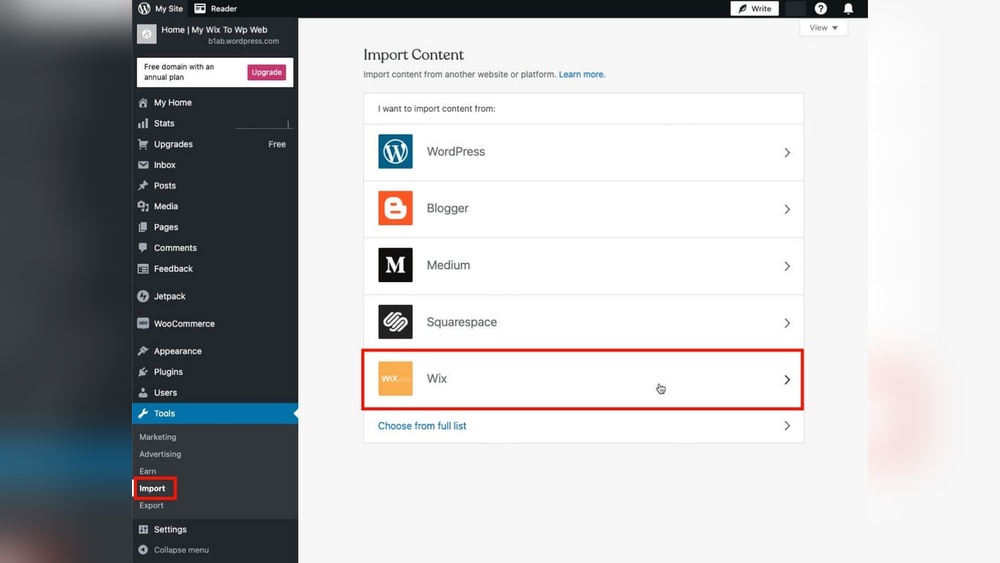
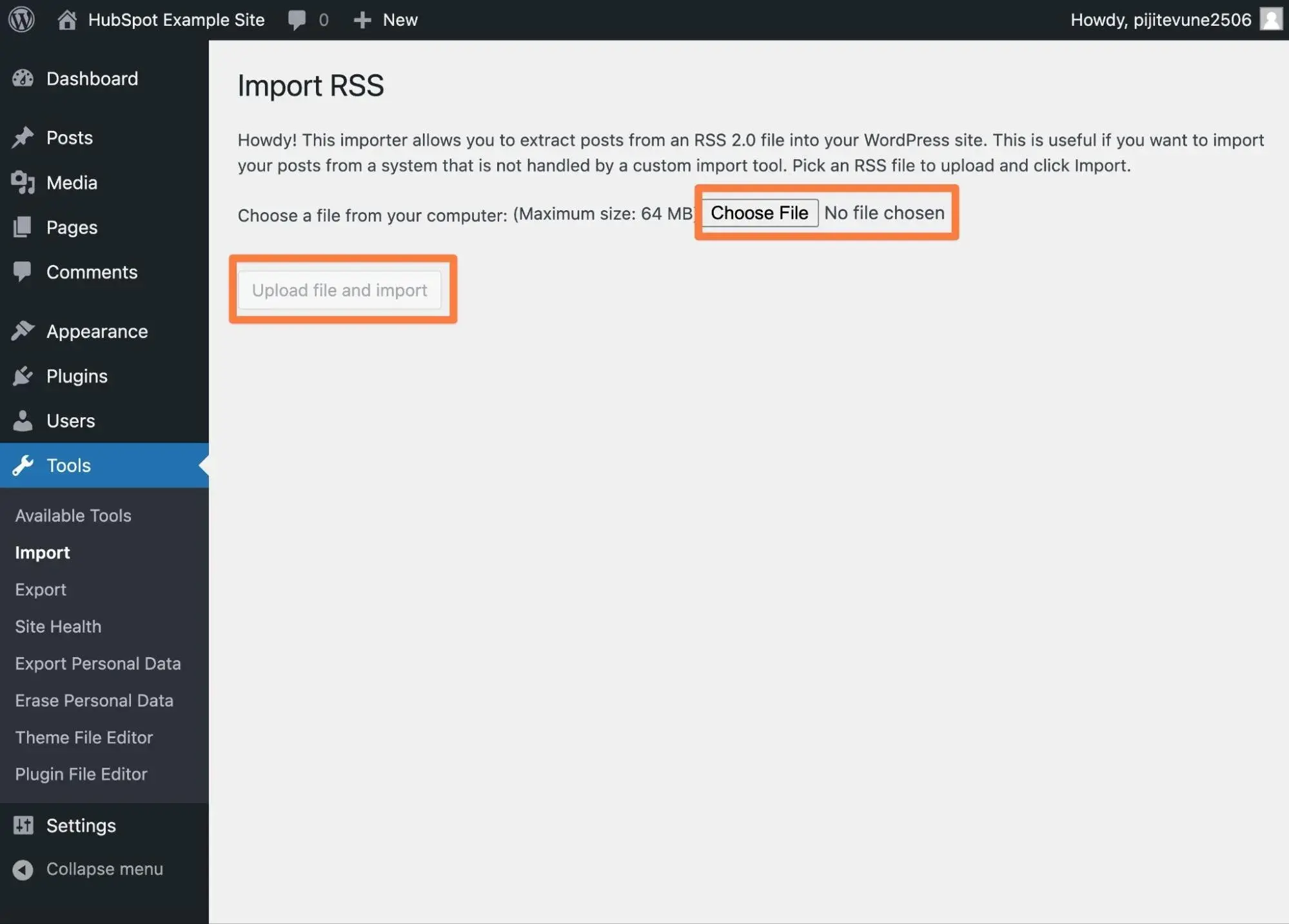
WordPress has an import tool for RSS feeds. Go to your WordPress dashboard and find the Import option. Choose the RSS import tool and upload the XML file from Wix. The posts will appear in your WordPress blog section. Edit each post to fix formatting or add missing details.
Handling Media Files
Images and media do not transfer automatically. Download all images from Wix to your computer. Use an FTP client or WordPress media uploader to add images to WordPress. Update image links in your posts and pages to point to the new files. This step ensures images show correctly on your new site.
Credit: www.wpbeginner.com
Recreating Design And Layout
Recreating the design and layout of your Wix website on WordPress takes time and care. The look and feel of your site help visitors understand your brand. WordPress offers many tools to build a similar or improved design. This section covers choosing a theme, customizing the appearance, and using page builders.
Choosing A WordPress Theme
WordPress themes control your site’s basic design and layout. Many free and paid themes fit different needs. Pick a theme that matches your style and business type. Check if the theme is responsive, so it looks good on phones and tablets. A simple theme can be easier to customize later.
Customizing Your Site Appearance
WordPress lets you change colors, fonts, and layouts easily. Use the built-in customizer to see changes live. Upload your logo and set the site’s background. Adjust menus and widgets to fit your content. Small tweaks can make your site unique and user-friendly.
Using Page Builders
Page builders help create complex layouts without coding. Plugins like Elementor or Beaver Builder offer drag-and-drop tools. You can add columns, images, buttons, and more. These tools help rebuild your Wix pages on WordPress. They give you control over every section of the page.
Setting Up Essential Features
Setting up essential features on your new WordPress site is vital after transferring from Wix. These features help your site work smoothly and attract visitors. You need to focus on installing plugins, configuring SEO settings, and setting up contact forms or e-commerce tools. Each step improves user experience and site performance.
Installing Plugins
Plugins add extra functions to your WordPress site. They help with security, speed, design, and more. Choose plugins carefully. Start with popular ones like Yoast SEO, Akismet, and WooCommerce. Avoid too many plugins. They can slow your site down and cause conflicts. Keep your plugin list clean and updated.
Configuring Seo Settings
Good SEO helps your site rank higher on search engines. Use SEO plugins to guide you. Set titles, descriptions, and keywords for each page. Create clean URLs with simple words. Make sure your site loads fast and works well on phones. These settings attract more visitors and help them find your site easily.
Setting Up Contact Forms And E-commerce
Contact forms let visitors reach you directly. Use plugins like Contact Form 7 or WPForms for easy setup. Customize fields to get needed information. For online stores, WooCommerce is a top choice. It manages products, payments, and shipping. Set these features carefully to give visitors a smooth experience.
Managing Urls And Seo
Managing URLs and SEO is a key step when moving your website from Wix to WordPress. URLs are the addresses people use to find your pages. If these change, visitors may get lost, and search engines might lower your rankings. SEO ensures your site stays visible and ranks well on search results after the move.
Redirecting Wix Urls To WordPress
Redirecting URLs means sending visitors from old Wix links to new WordPress pages. Use 301 redirects for this. They tell search engines the page moved permanently. This keeps visitors from seeing broken links. Map each old URL to its new WordPress version. Many WordPress plugins help set up redirects easily.
Preserving Search Rankings
Search rankings depend on good URLs and content. Keep your content the same on WordPress. Keep titles and descriptions close to the Wix versions. Use the same keywords in your new pages. Avoid changing URLs too much. This helps search engines recognize your site and keep your rankings steady.
Updating Sitemap And Robots.txt
A sitemap lists all pages on your site. Submit your new WordPress sitemap to Google Search Console. This helps search engines find and index your pages fast. Update your robots.txt file to allow search engines to crawl your new site. Check the file for any old Wix rules. Clean and correct settings improve your SEO after the move.
Testing And Launching Your New Site
Testing and launching your new WordPress site is a crucial step after transferring your Wix website. This phase ensures everything works smoothly before visitors arrive. Careful checks help avoid errors and improve user experience.
Take your time to review every detail. Small issues can affect your site’s performance and reputation. Follow the checklist below to prepare your site for a successful launch.
Checking For Broken Links
Broken links harm your site’s credibility and frustrate users. Use tools like Broken Link Checker to scan your site. Fix or remove any links that do not work. Ensure all internal and external links lead to the right pages.
Cross-device Compatibility
Your website must look good on all devices. Test your site on phones, tablets, and desktops. Check for layout issues, slow loading, or unreadable text. Make adjustments to ensure a smooth experience everywhere.
Finalizing Launch Steps
Clear your cache and backup your new site. Set up SEO basics like meta tags and descriptions. Connect your domain to the WordPress hosting. Double-check your contact forms and other interactive features.
Credit: blog.hubspot.com
Post-transfer Maintenance
After transferring your Wix website to WordPress, regular maintenance is key. It keeps your site safe, fast, and reliable. Without proper care, your new WordPress site might face issues. Focus on backups, security, and optimization to keep it running smoothly.
Regular Backups
Backups save your website data in case of problems. Create backups often to avoid losing content. Use WordPress plugins or hosting tools for easy backups. Store copies in different places like cloud storage or your computer. This step protects your site from accidental loss or hacks.
Security Measures
WordPress sites can attract hackers without security steps. Install security plugins to block threats and scan for malware. Use strong passwords and update them regularly. Keep WordPress, themes, and plugins up to date. These actions help prevent attacks and protect your visitors.
Ongoing Optimization
Optimization keeps your site fast and user-friendly. Compress images to reduce loading time. Use caching plugins to speed up pages. Remove unused plugins and themes to avoid clutter. Regularly check site speed and fix any slow parts. A smooth site improves visitor experience and search rankings.
Frequently Asked Questions
Can I Directly Transfer Wix Website To WordPress?
No, Wix does not offer direct transfer to WordPress. You must manually recreate your site or use migration tools to move content.
How To Move Content From Wix To WordPress?
Export your Wix blog posts via RSS feed. Then, import the RSS file into WordPress using its import tool. Manually copy other content.
Will I Lose Seo Rankings After Migration?
If done carefully, you can maintain SEO rankings. Use proper redirects, retain URL structure, and optimize your new WordPress site for SEO.
Is Transferring Wix To WordPress Free?
The transfer process itself can be free, but costs may include hosting, themes, plugins, and professional help if needed.
Conclusion
Transferring a Wix website to WordPress takes some effort and planning. It allows more control and flexibility over your site. You need to move content, set up themes, and adjust settings. The process is doable, even for beginners who follow clear steps.
Take your time and back up your data first. A WordPress site can grow with your needs. This move can help you build a better website in the long run.