
Are you struggling to keep your WordPress site organized as your content grows? Knowing how to archive in WordPress can save you time and make your site easier to navigate.
Imagine your visitors finding exactly what they need without scrolling endlessly. You’ll discover simple, practical steps to create effective archives that boost user experience and help your site stand out. Keep reading, and you’ll unlock the secrets to a cleaner, more professional WordPress site today.
Benefits Of Archiving In WordPress
Archiving content in WordPress offers clear advantages. It helps organize your website better. Archiving saves older posts and pages in a neat way. This makes your site easier to use and manage. Visitors find content faster. Search engines understand your site better too.
Improved Content Management
Archiving keeps your website tidy. Old posts do not clutter your main pages. You can sort content by date, category, or topic. It helps you find and update posts easily. Managing many articles becomes simple and quick.
Enhanced User Experience
Visitors enjoy easy navigation. Archives let users browse older content with no trouble. They find related posts grouped together. This keeps readers on your site longer. A clear archive reduces confusion and frustration.
Better Seo Performance
Search engines like well-structured sites. Archiving creates clear paths to content. It increases the chances of older posts being found. Archives use keywords naturally in titles and links. This improves your site’s ranking in search results.
Credit: rankmath.com
Different Types Of Archives
Archives in WordPress help organize your content. They make it easy for visitors to find posts. Archives group posts by different elements. These groups show content clearly and simply. Understanding the types of archives improves your site’s navigation.
Date-based Archives
Date-based archives group posts by time. Visitors can browse posts by year, month, or day. This type shows your content in a timeline. It helps users find older posts quickly. WordPress creates these archives automatically.
Category Archives
Category archives group posts by topic. Each category collects posts on similar subjects. This helps readers explore topics they like. Categories also improve SEO by organizing content well. You can create and edit categories in WordPress.
Tag Archives
Tag archives group posts by tags or keywords. Tags describe specific details in posts. They help users find content on precise topics. Tag archives offer another way to explore your site. Tags are flexible and easy to use.
Custom Archives
Custom archives group content in unique ways. You can create archives by author, custom post types, or taxonomies. They offer more control over how content shows. Custom archives suit specific website needs. WordPress supports custom archives with some setup.
Preparing Your Content For Archiving
Preparing your content for archiving helps keep your WordPress site clean and easy to navigate. It makes finding old posts and pages simple for you and your visitors. Organizing content before archiving saves time later and improves site performance.
Organizing Posts And Pages
Start by reviewing all your posts and pages. Group similar content together. Create folders or lists to track what you want to archive. Remove any duplicate or outdated posts. Keep only useful and relevant content for archiving. This process makes your archive tidy and easy to manage.
Using Categories And Tags Effectively
Use categories to group posts by main topics. Tags help describe specific details of each post. Assign clear and simple categories. Avoid using too many tags for one post. Consistent categories and tags improve archive navigation. Visitors find content faster, and your site stays organized.
Creating Archives With Built-in WordPress Features
Creating archives in WordPress helps organize your content for easy access. WordPress offers built-in features to build archives quickly. These features work well without complex coding or extra plugins.
You can use archive templates, widgets, and customize URLs. These tools help visitors find posts by date, category, or tags. This section explains how to use these features effectively.
Using Archive Templates
Archive templates display grouped posts automatically. WordPress themes usually include archive.php files for this. This template shows posts by category, date, or author. You can customize it by editing theme files or using child themes. The archive page updates as you add new posts. This keeps your site organized and easy to navigate.
Setting Up Archive Widgets
Archive widgets add archive links to your sidebar or footer. Go to Appearance > Widgets in your dashboard. Find the Archives widget and drag it to a widget area. Visitors see a list of months or categories to browse posts. You can choose dropdown style or a simple list. This method requires no coding and works instantly.
Customizing Archive Urls
Clean URLs improve user experience and SEO. WordPress allows you to change archive URL structures easily. Visit Settings > Permalinks to adjust URL formats. Use simple and descriptive words in URLs. For example, use “/category/news” instead of complicated strings. Clear URLs help search engines and visitors understand your content better.
Archiving With Plugins
Archiving content in WordPress helps keep your site organized and easy to browse. Plugins simplify this task. They add tools to create and manage archives without coding. This saves time and effort, especially for large sites.
Using plugins, you can sort posts by date, category, or author. Some plugins offer extra features like custom archive pages or better search options. Let’s explore how to use these plugins effectively.
Top Plugins For Archiving
Several plugins work well for archiving in WordPress. “Simple Yearly Archive” creates clean, date-based archives. “WP Archive” offers flexible layouts and filters. “Archive Pro” adds custom archive pages with easy controls. Choose one that fits your needs and site style.
Installing And Configuring Plugins
To install a plugin, go to your WordPress dashboard. Click “Plugins” then “Add New.” Search the plugin by name and click “Install Now.” After installation, activate the plugin. Settings usually appear under the “Settings” menu or in a new menu item. Adjust options to match your archive style and preferences.
Automating Archive Creation
Many archiving plugins create archives automatically. They update archive lists as you add new posts. Some plugins let you set rules for how archives appear. For example, you can group posts by month or category. Automation saves time and keeps archives current without manual updates.
Managing Archived Content
Managing archived content in WordPress helps keep your website organized. It ensures old posts remain accessible without cluttering your main pages. Proper management lets you update or remove content as needed. This keeps your archive useful and relevant for visitors.
Editing And Updating Archives
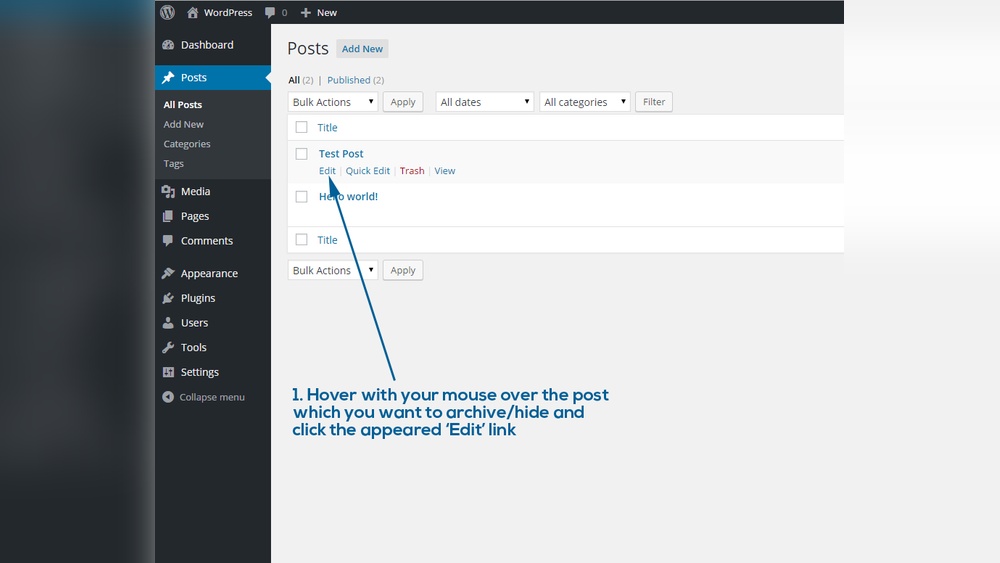
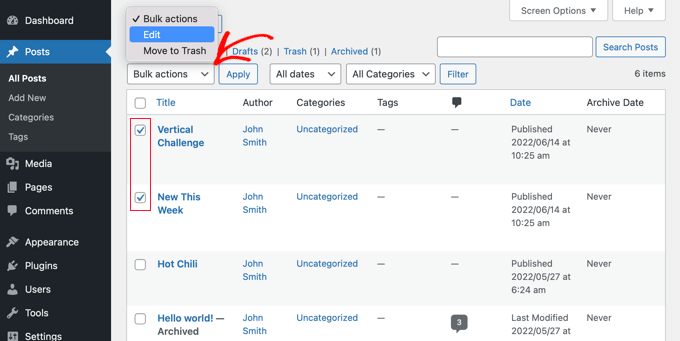
Editing archived posts is simple in WordPress. Go to your dashboard and find the archived item. Click to open it in the editor. Make necessary changes to the text, images, or links. After editing, save the updates. The changes will reflect immediately in the archive section.
Updating archives keeps your content accurate and fresh. You can add new information or correct errors. This helps maintain trust and improves user experience. Regular updates also help with SEO by showing search engines your site is active.
Removing Or Restoring Archived Items
Removing archived posts is easy through the WordPress dashboard. Select the post you want to delete and choose the delete option. This removes the content from your archive and website. Use this for outdated or irrelevant posts to keep archives clean.
Restoring archived items is also possible. Check the Trash folder in your dashboard. Find the post you want to restore and click restore. This moves the post back to the archive or active content. Restoration helps if you delete content by mistake or want to reuse it later.
Tips For Maintaining A Clean Archive
Maintaining a clean archive in WordPress keeps your website organized and efficient. A tidy archive helps visitors find content faster. It also improves your site’s performance and SEO. Regular care prevents clutter and outdated posts from piling up.
Follow simple tips to keep your archive neat and user-friendly. Focus on regular reviews and optimizing how quickly archives load. These steps make your archive more effective and enjoyable for visitors.
Regular Review And Cleanup
Check your archive often for old or irrelevant posts. Delete or update posts that no longer fit your website’s theme. Remove duplicate content to reduce confusion. Keep only useful and accurate information in your archive. This process makes your archive more valuable and easier to navigate.
Optimizing Archive Load Speed
Slow archives frustrate visitors and lower search rankings. Use caching plugins to speed up archive pages. Limit the number of posts shown per page. Compress images and use simple layouts to reduce loading time. Fast archives improve user experience and keep visitors on your site longer.

Credit: www.greengeeks.com
Credit: www.wpbeginner.com
Frequently Asked Questions
What Is The Purpose Of Archiving In WordPress?
Archiving in WordPress organizes older content for easy access. It improves site structure and user experience. Archives help visitors find past posts by date, category, or tag. This method also boosts SEO by creating well-structured internal links.
How Do I Create An Archive Page In WordPress?
To create an archive page, use a WordPress plugin or theme archive template. Customize it via Appearance > Widgets or Theme Editor. You can display posts by date, category, or author. This makes browsing older content simpler for visitors.
Can I Archive Posts Automatically In WordPress?
Yes, WordPress can archive posts automatically using plugins. These tools schedule and categorize old posts for archiving. Automatic archiving saves time and keeps your site organized. It ensures older content remains accessible without manual effort.
Does Archiving Affect WordPress Site Speed Or Seo?
Proper archiving improves SEO by organizing content and enhancing navigation. It does not slow down your WordPress site if done correctly. Using lightweight plugins and optimized templates keeps performance stable while benefiting search rankings.
Conclusion
Archiving in WordPress keeps your site clean and organized. It helps visitors find old posts easily. Use categories and tags to sort content well. Regular archiving improves site speed and user experience. Keep your archive simple and clear for better navigation.
Now, managing your WordPress archive feels less tricky. Start archiving today to keep your site neat.


