
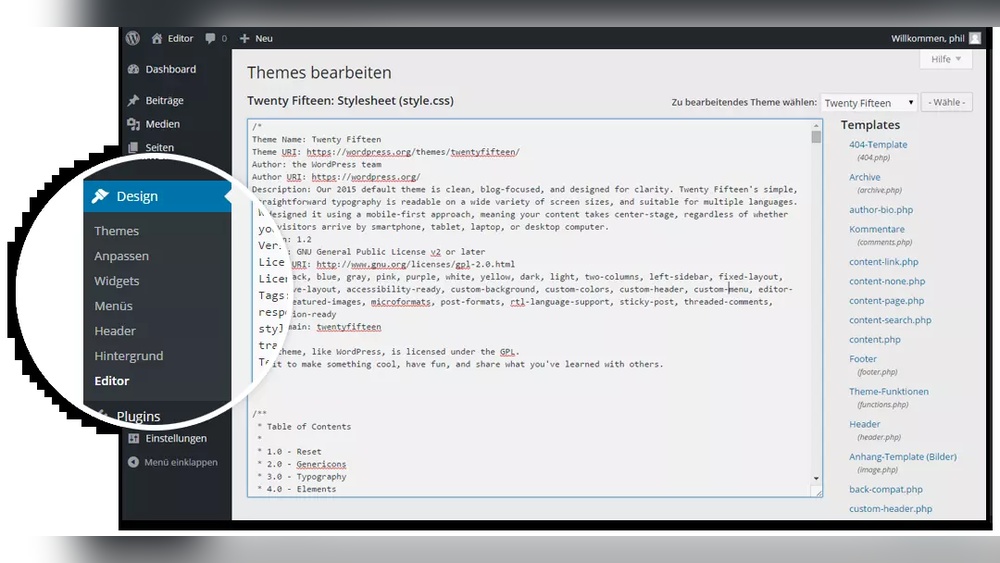
Are you looking to customize your WordPress site but don’t know where to start? Accessing the Theme Editor is your first step toward making your website truly yours.
With just a few clicks, you can dive into your theme’s files and tweak colors, layouts, and styles exactly how you want them. Imagine having full control over your site’s appearance without needing advanced coding skills. Ready to unlock this powerful tool and transform your website?
Keep reading, and you’ll discover simple, clear steps to access the Theme Editor in WordPress—fast and hassle-free.
Accessing The Theme Editor
Accessing the Theme Editor in WordPress allows you to make direct changes to your website’s theme files. This tool helps customize the look and feel of your site without needing extra software. Understanding how to find and use the Theme Editor is important for managing your WordPress site effectively.
Locating The Theme Editor In WordPress
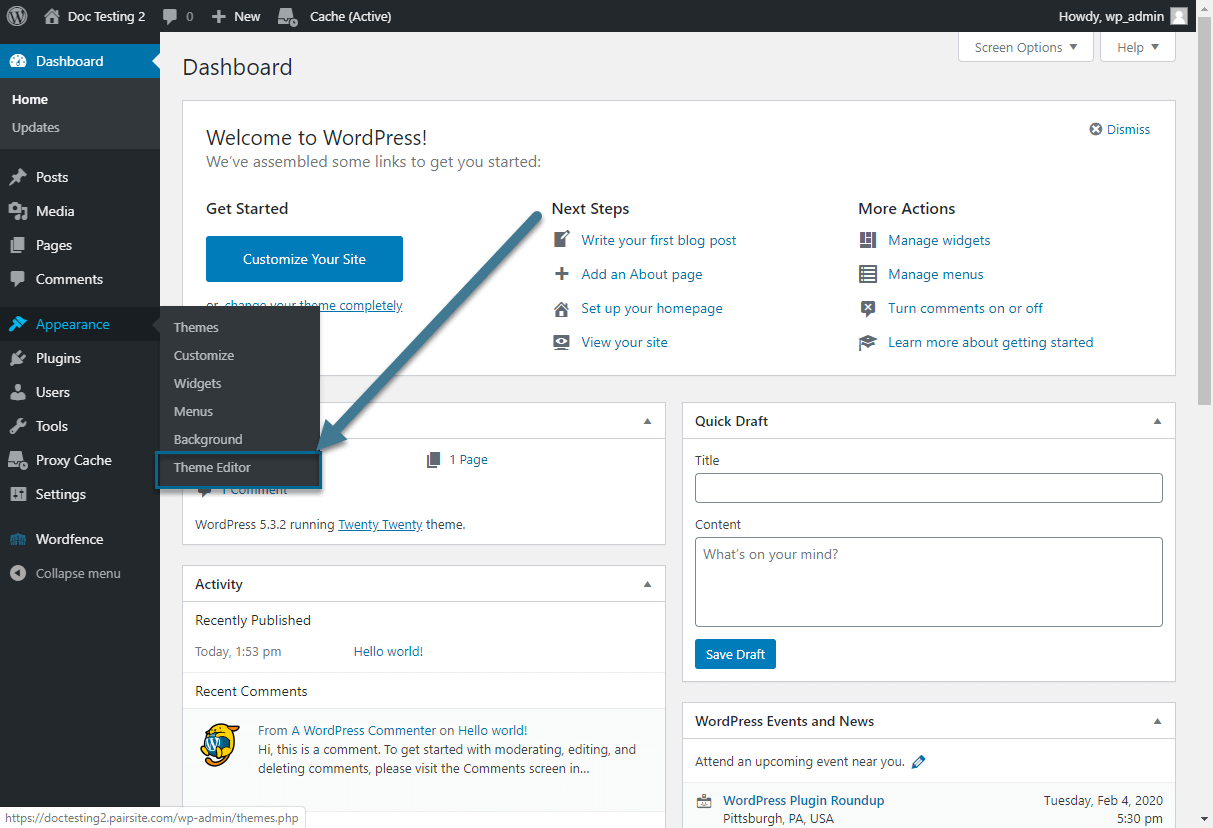
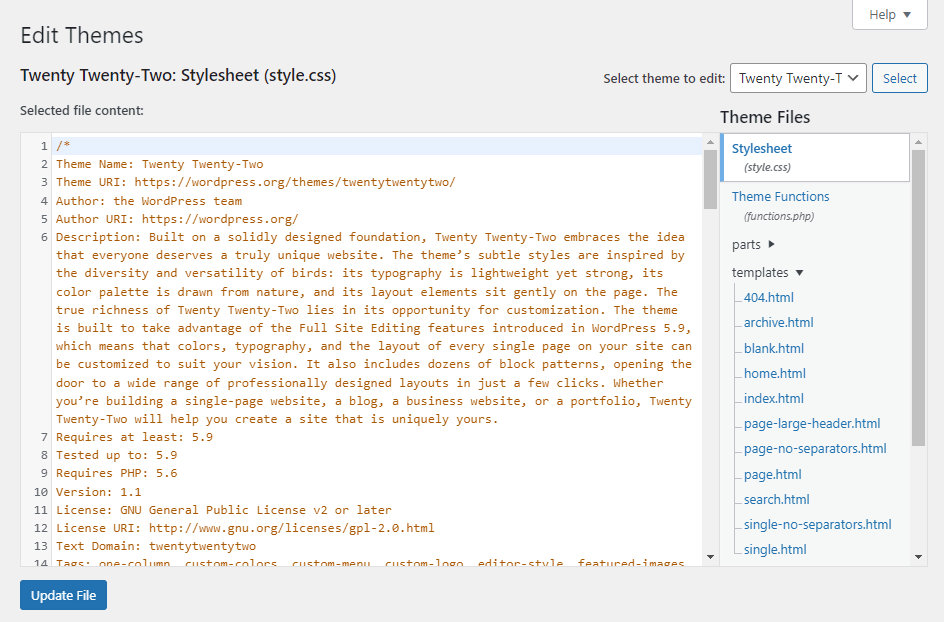
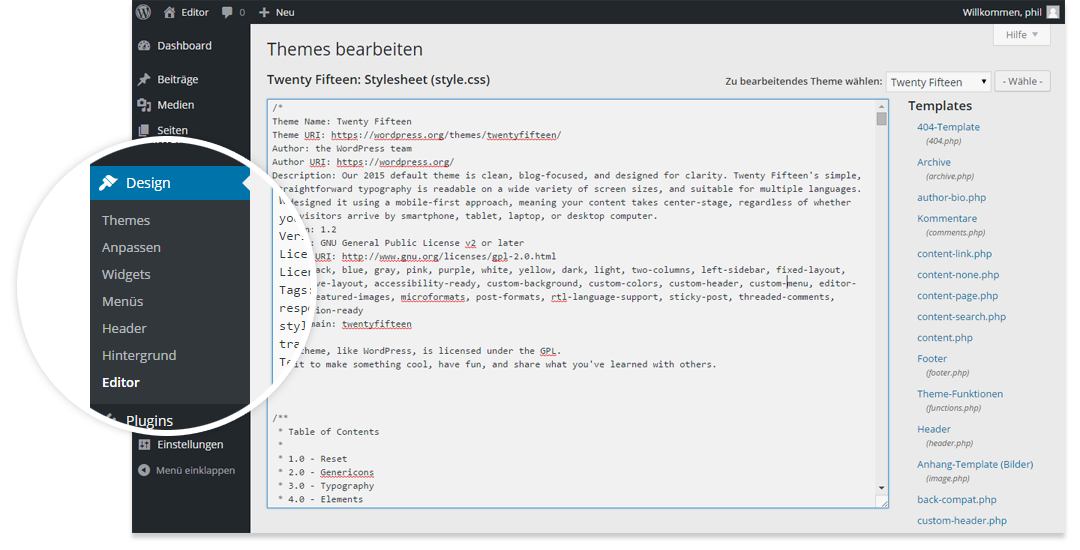
The Theme Editor is part of the WordPress dashboard. You can find it under the Appearance menu. Look for the “Theme Editor” option in the list. Click on it to open the editor. The editor shows the theme files on the right side. You can select any file to edit from there. Be careful when changing code, as it affects your site’s design.
Navigating The WordPress Dashboard
The WordPress dashboard is the main control panel for your website. It shows menus on the left side. These menus help you manage posts, pages, and themes. To access the Theme Editor, first log into your WordPress admin area. The URL usually ends with /wp-admin. Use your username and password to sign in. After login, find the Appearance menu on the left. Click it to reveal submenus including Theme Editor.
Credit: www.pair.com
Preparing For Theme Editing
Editing a WordPress theme requires careful preparation. Making changes directly can break your website. Taking safety steps protects your work and keeps your site live. Prepare your site before opening the theme editor. This ensures no data loss and easy recovery.
Backing Up Your Website
Backing up your website saves a copy of all files and data. Use a trusted plugin or your hosting service to create backups. Store backups in a safe place outside your server. This keeps your site safe from accidental mistakes. Restore your site quickly if an error happens.
Using A Child Theme
A child theme copies your main theme’s design and functions. It lets you make changes without altering the original theme. Updates to the main theme do not erase your edits. Create a child theme before editing to keep changes safe. This method keeps your website stable and easier to manage.
Editing Theme Files Safely
Editing theme files directly in WordPress can be risky. A small mistake might break your site. Always take steps to protect your site before making changes. Create a backup of your files and database. Use a child theme to keep your edits safe from updates. Test changes on a staging site if possible. These practices help avoid downtime and data loss.
Common Files To Edit
Some theme files are often edited to customize a site. style.css controls the design and layout. functions.php adds new features and functions. Template files like header.php, footer.php, and single.php affect different parts of your pages. Knowing which file to edit saves time and reduces errors.
Using Syntax Highlighting And Error Checking
Syntax highlighting shows code in different colors. It makes reading and writing code easier. Use code editors or plugins that support this feature. Error checking spots mistakes before saving changes. It reduces the chance of site crashes. Tools like Visual Studio Code or Sublime Text help with these tasks. They offer better control than the default WordPress editor.
Credit: www.hostinger.com
Making Changes With The Theme Editor
Making changes with the Theme Editor allows you to customize your WordPress site directly. You can edit theme files to adjust the look and functionality. This tool gives you quick access to your theme’s code without using FTP or other software.
It is important to be careful while editing. Small mistakes in code can break your website. Always back up your site before making any changes. The Theme Editor shows files like CSS and PHP that control styles and features.
Modifying Css And Php Files
CSS files control the style and layout of your website. You can change colors, fonts, and spacing by editing CSS. The Theme Editor lets you open style.css and make these updates easily.
PHP files control how your site works behind the scenes. You can add or change functions with these files. Editing PHP needs caution because errors can cause the site to crash. Use the Theme Editor to carefully update templates and functions.
Adding Custom Code Snippets
Custom code snippets add new features or change behavior. You can insert snippets into PHP files or a child theme’s functions.php. This method lets you add small bits of code without altering core files.
Adding code snippets can improve your site’s performance or add tools. Always test new snippets on a staging site first. The Theme Editor provides a simple way to paste and save these codes safely.
Alternatives To The Theme Editor
Editing your WordPress theme can be tricky using the built-in Theme Editor. It has limits and risks, such as breaking your site with wrong code. There are safer and easier ways to change your theme files. These alternatives give you more control and reduce errors.
Using other methods helps keep your site safe while editing. You can work offline or use tools made for coding. These options suit beginners and advanced users alike.
Using Ftp For Theme Editing
FTP stands for File Transfer Protocol. It lets you connect directly to your website’s server. You can download, edit, and upload theme files with an FTP client like FileZilla.
This method keeps your site safe. You edit files on your computer first. No mistakes appear live on your site. After saving, upload the fixed files back to the server.
FTP requires setup. You need your hosting login details and an FTP client. It is good for big changes or many file edits.
Employing A Code Editor Plugin
Code editor plugins add editing tools inside your WordPress dashboard. These plugins offer better features than the default editor.
You get syntax highlighting, error detection, and file management. These help find mistakes fast. Editing happens inside your WordPress admin area, so it is easy to use.
Some popular plugins include Advanced Code Editor and WPide. They improve your coding experience without leaving WordPress.
Credit: www.ionos.com
Troubleshooting And Best Practices
Editing your WordPress theme can improve your website’s look. Sometimes, errors happen. Troubleshooting helps fix these issues fast. Following best practices keeps your site safe and stable. This section covers how to restore backups and avoid common editing mistakes. Use these tips to keep your site running smoothly.
Restoring From Backup
Backups save your website’s files and settings. Always create a backup before editing the theme. If a change breaks your site, restore the backup. This returns your site to its previous state. You can use plugins or hosting tools to make backups. Regular backups prevent data loss and reduce stress.
Avoiding Common Editing Mistakes
Editing code needs care and attention. Small mistakes can cause big problems. Avoid editing core WordPress files. Edit only your theme files. Use a child theme to keep changes safe. Check your code for errors before saving. Test changes on a staging site first. This prevents errors on your live website.
Frequently Asked Questions
What Is The Theme Editor In WordPress?
The Theme Editor allows you to directly edit theme files in WordPress. It helps customize your site’s appearance and functionality quickly without FTP or external tools.
How Do I Access The Theme Editor In WordPress?
Log in to your WordPress dashboard. Navigate to Appearance > Theme Editor. Here, you can select and edit theme files safely.
Is It Safe To Use The WordPress Theme Editor?
Editing code directly can cause errors if done incorrectly. Always back up your site before making changes to avoid potential issues.
Can I Edit Css Using The Theme Editor?
Yes, the Theme Editor lets you modify CSS files to customize your site’s design, colors, fonts, and layout styles easily.
Conclusion
Accessing the WordPress Theme Editor is simple and quick. It lets you change your website’s look and feel directly. Always back up your site before making changes. Small edits can improve your site’s style and function. Take your time and explore safely.
This tool gives you control without extra plugins. Enjoy customizing your site with ease and confidence.


