
Are you wondering if you can change your website name on WordPress? Maybe your brand has evolved, or you want a name that better fits your content.
The good news is, yes—you can change it. But there are some important steps and tips you need to know to make the switch smooth and avoid losing visitors or search rankings. Keep reading, and you’ll discover exactly how to update your website name the right way, so your site stays strong and keeps growing.

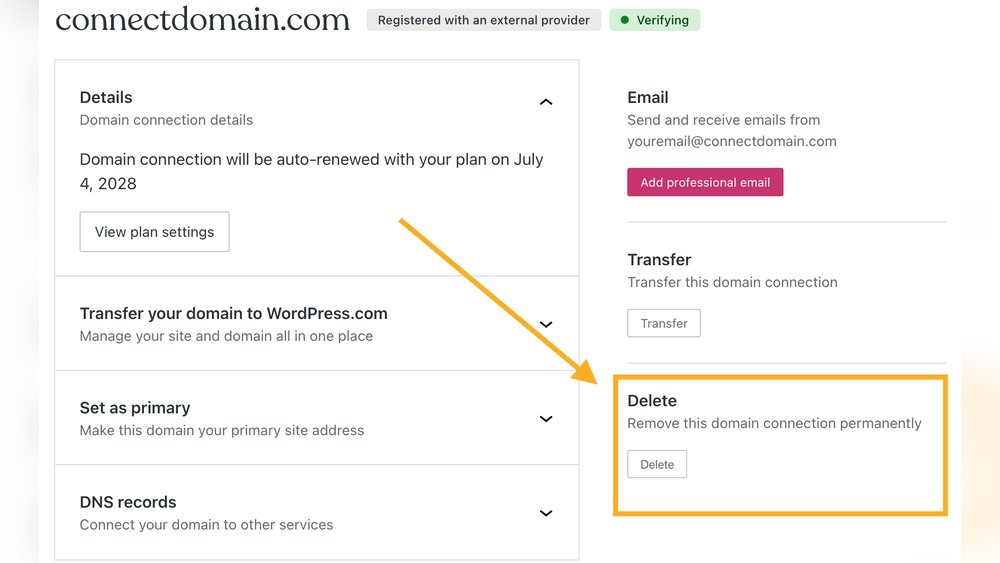
Credit: wordpress.com
Why Change Your Website Name
Changing your website name can feel like a big step. Yet, it often reflects new goals or changes in your business. A new name can give your website a fresh start. It can also help you connect better with your audience. Understanding why to change your website name helps you make the right choice.
Reasons To Rebrand
Sometimes, your current name no longer fits your website’s purpose. You might want to reach a different audience. Your business may have grown or shifted focus. A new name can show these changes clearly. It can also fix issues if the old name was hard to remember or spell. Rebranding can help you stand out in a crowded market.
Impact On Branding And Seo
A website name is key to your brand identity. Changing it can affect how people see your site. It can make your brand more relevant and modern. For SEO, a new name means updating keywords and links. This can boost your search rankings if done right. But it needs careful planning to avoid losing traffic. Good SEO practices keep your site visible during the change.
Credit: wpengine.com
Preparing For The Name Change
Changing your website name on WordPress needs careful preparation. This step helps avoid problems later. It keeps your site safe and running smoothly. Take time to prepare well before making changes.
Two key tasks are backing up your website and checking domain availability. These steps protect your data and ensure your new name is ready to use.
Backup Your Website
Backing up your website saves a copy of all your files and data. This copy is important if something goes wrong during the name change. Use a WordPress plugin or your hosting service to create a backup. Store the backup in a safe place. This way, you can restore your site quickly if needed.
Check Domain Availability
Check if the new website name’s domain is free to use. A domain is the web address people type to visit your site. Use domain registrar websites to search for availability. Choose a domain that matches your new website name. This prevents confusion and keeps your branding consistent.
Changing The Site Title In WordPress
Changing the site title in WordPress helps update your website’s identity. The site title appears in the browser tab and search engines. It tells visitors what your website is about. Keeping it clear and relevant improves user experience and SEO. You can change the title easily without technical skills.
Accessing General Settings
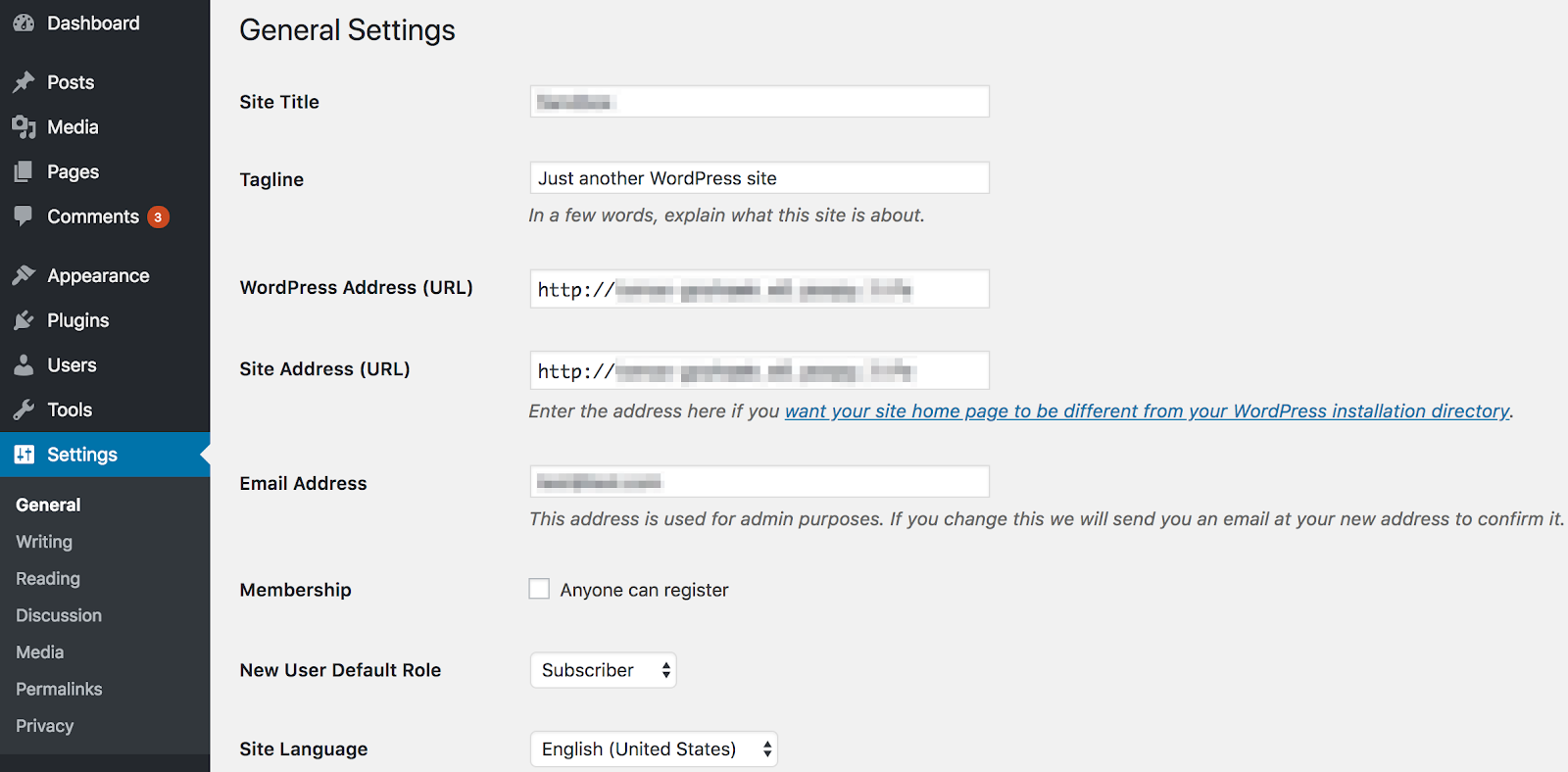
Start by logging into your WordPress dashboard. On the left menu, find and click Settings. Then select General. This page holds the basic site information. Here, you can see the current site title and tagline. It is the place to make quick changes.
Updating Site Title And Tagline
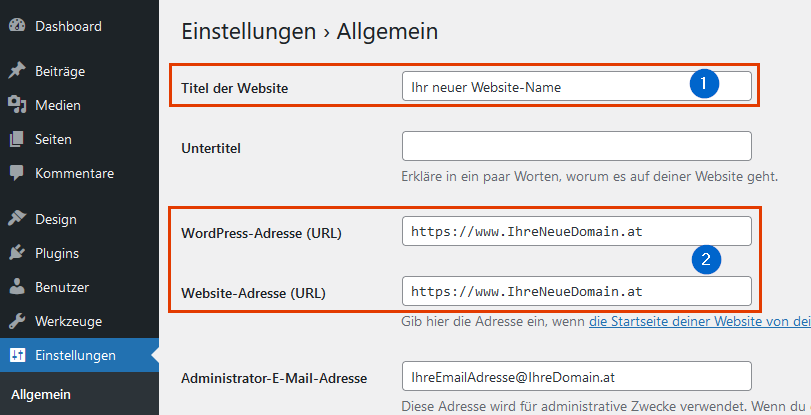
In the General Settings, locate the Site Title field. Click inside the box and type your new website name. Below it, find the Tagline field. The tagline is a short description of your site. Update it to match your new title or theme. After editing, scroll down and click Save Changes. Your new site title now shows across your website and browser tabs.
Updating Your Domain Name
Updating your domain name on WordPress means changing the web address people use to visit your site. This can help refresh your brand or make your site easier to find. Changing a domain requires careful steps to avoid losing visitors or search rankings.
First, you must buy the new domain name you want to use. Then, connect it to your WordPress site. Each part is important for a smooth change.
Purchasing A New Domain
Start by choosing a new domain name that fits your site’s purpose. Use domain registrars like GoDaddy, Namecheap, or Google Domains. Check if your chosen name is available. Buy it for at least one year to secure it.
Keep the name short and easy to remember. Avoid special characters or numbers that confuse visitors. After purchase, you will get access to the domain control panel. This is where you manage your domain settings.
Configuring Domain Settings In WordPress
Log in to your WordPress dashboard. Go to the Settings menu, then select General. Here, find the fields for WordPress Address (URL) and Site Address (URL).
Replace the old domain name with your new domain in both fields. Save the changes. Next, update your domain’s DNS settings with your registrar. Point the domain to your WordPress hosting server.
This step connects the new domain to your website. It may take a few hours for changes to take effect. After that, your site will be accessible through the new domain name.
Redirecting Old Urls
Changing your website name on WordPress means your old URLs will no longer work. This can confuse visitors and hurt your search engine rankings. Redirecting old URLs helps guide visitors to the new site address. It keeps your website traffic steady and maintains SEO value. You can do this by setting up 301 redirects, which tell browsers and search engines that the page has moved permanently.
Setting Up 301 Redirects
Setting up 301 redirects is a simple way to send users from old URLs to new ones. You can do this by editing your .htaccess file if your server uses Apache. Add redirect rules that point old URLs to the new website address. Be careful with syntax to avoid errors. This method is fast and does not require extra plugins. It helps search engines update their indexes quickly.
Using Plugins For Redirects
Plugins make redirecting old URLs easier, especially for beginners. Tools like Redirection or Simple 301 Redirects let you create redirects without coding. Just enter the old URL and the new destination. These plugins also track 404 errors and fix broken links. They provide a user-friendly interface inside WordPress. Using plugins saves time and reduces mistakes when managing redirects.
Credit: faq.world4you.com
Adjusting Seo And Branding Elements
Changing your website name on WordPress affects more than just the title. Adjusting SEO and branding elements is key to keep your site visible and recognizable. This process helps search engines and visitors understand your new identity quickly.
SEO elements like meta tags and descriptions must match your new name. Branding visuals such as logos also need refreshing to reflect the update. These steps ensure your site stays professional and consistent.
Updating Meta Tags And Descriptions
Meta tags and descriptions guide search engines and users about your site. After changing your website name, update these elements to include the new name. Use clear, simple phrases that describe your content well.
Check your homepage and main pages first. Update the title tag to show the new website name. Write new meta descriptions that explain what your site offers. This helps improve click rates and search rankings.
Refreshing Logo And Visuals
Your logo is a visual symbol of your brand. A name change means updating the logo to match the new identity. Create a simple logo that clearly shows the new name or initials.
Update other visuals like banners and icons to keep a consistent look. Consistency builds trust and makes your site easy to recognize. Use the same colors and fonts across your site for a professional feel.
Testing And Troubleshooting
After changing your website name on WordPress, testing and troubleshooting are vital steps. They help ensure your site works well and visitors have a smooth experience. This process checks if everything functions correctly and fixes issues that may arise.
Checking Site Functionality
Start by visiting your website on different devices and browsers. Check if all pages load fast and display correctly. Test key features like menus, buttons, and forms to confirm they work. Make sure your site’s new name shows up in the title and header. Watch for any errors or slowdowns during browsing. This step helps catch problems early.
Fixing Broken Links
Changing your website name can cause broken links. These links lead to pages that no longer exist or have changed URLs. Use tools or plugins to scan your site for broken links. Fix or update these links to point to the right pages. Broken links hurt user experience and search rankings. Regular checks keep your site healthy and reliable.
Notifying Your Audience
Changing your website name on WordPress is a big step. Your audience needs to know about this change. Not telling them can cause confusion or lost visitors. Clear communication keeps your visitors informed and loyal. It helps maintain trust and makes the transition smooth.
Announcing The Change
Start by telling your visitors about the new website name. Write a simple, clear message. Explain why you changed the name. Share this message on your website homepage or blog. Use a banner or popup for better visibility. Make sure the announcement stays live for a few weeks.
Updating Social Media Profiles
Change your website name on all social media accounts. This keeps your brand consistent everywhere. Update your profile name, bio, and links. Post a message about the name change on your social pages. Ask followers to visit the new website. This helps keep your audience connected.
Frequently Asked Questions
Can I Change My WordPress Website Name Easily?
Yes, you can change your WordPress website name anytime. Simply go to Settings > General in your dashboard and update the “Site Title. ” This change reflects your website’s name across the site and browser tabs instantly.
Will Changing My WordPress Site Name Affect Seo?
Changing your site name has minimal SEO impact if done correctly. Ensure your new name matches your brand and update metadata. Avoid frequent changes to maintain search engine consistency and rankings.
Does Changing Website Name Affect My WordPress Domain?
Changing the website name does not change your domain name automatically. To change the domain, you must purchase a new one and update WordPress settings separately.
How Do I Update Website Name On WordPress Dashboard?
Navigate to Settings > General in your WordPress dashboard. Locate “Site Title” and enter your new website name. Save changes to update the name site-wide instantly.
Conclusion
Changing your website name on WordPress is simple and quick. You can update it anytime through the settings. Just remember to check your links and SEO after the change. A new name can refresh your site’s look and feel. Keep your visitors informed about the update.
This helps avoid confusion and keeps trust. Take your time to choose the right name. It reflects your brand and message. Small changes can make a big difference in how people see your website. Stay confident and keep improving.


