
Are you wondering if you can change the font in WordPress to make your site truly stand out? The answer is yes—and it’s easier than you might think.
Your choice of font can shape how visitors feel about your content and keep them hooked longer. You’ll discover simple ways to customize your fonts without needing to be a tech expert. Keep reading, and you’ll learn how to give your WordPress site a fresh, unique look that captures attention instantly.
Credit: blog.hubspot.com
Why Change Fonts In WordPress
Changing fonts in WordPress is more than just a style choice. It affects how visitors see and use your site. Choosing the right font can improve the overall look and feel. It also helps your message come through clearly. Fonts play a key role in creating a good user experience.
Impact On Website Design
Fonts shape the design of your website. They set the tone and mood for your content. A modern font gives a fresh, clean look. A classic font adds a touch of tradition. The right font helps your site look professional and inviting. It makes your pages attractive and easy to explore.
Improving Readability
Readability is crucial for any website. Fonts that are too fancy or small cause strain. Visitors may leave if they struggle to read. Simple, clear fonts help users read quickly. They keep visitors engaged and reduce bounce rates. Good readability means your message reaches more people.
Brand Consistency
Fonts help keep your brand consistent across platforms. Using the same font style builds trust and recognition. It makes your brand look polished and reliable. Consistent fonts match your logo and other materials. This creates a strong, unified brand image that sticks in minds.
Default Font Options In WordPress
WordPress offers some default fonts that you can use on your website. These fonts come with your theme and help you keep your site looking neat and readable. You can choose from these fonts without adding extra tools or codes.
Using the default fonts is easy and fast. They work well for many websites. But knowing what fonts are available and how they work helps you decide if they fit your style.
Theme-based Fonts
Most WordPress themes include a set of fonts. These fonts match the design and style of the theme. You can usually pick from these fonts in the theme settings or the WordPress customizer.
The font choices depend on the theme developer. Some themes offer many fonts. Others have just a few options. These fonts often include simple, safe choices like Arial or Georgia.
Limitations Of Default Fonts
Default fonts can be basic and similar across many sites. This limits how unique your site looks. You might not find the exact style you want.
Changing fonts beyond the default options needs extra tools. Without plugins or custom CSS, font choices stay limited. Also, some themes do not let you change fonts at all.
Using WordPress Customizer To Change Fonts
Using the WordPress Customizer to change fonts is a simple way to update your website’s look. It lets you see changes live without touching code. This tool is built into WordPress and works with many themes. It offers a fast way to pick fonts that match your style and brand.
Accessing The Customizer
First, log into your WordPress dashboard. On the left menu, find and click “Appearance.” Then choose “Customize.” This opens the Customizer panel on the left side of the screen. You will see a live preview of your site on the right side.
Selecting Font Options
Inside the Customizer, look for the section called “Typography” or “Fonts.” This varies by theme. Click on it to see font choices for headings, body text, and menus. Pick the font style and size that suit your site’s look. Some themes offer Google Fonts for free and easy use.
Previewing Changes
As you select fonts, the live preview updates instantly. This helps you check how your text looks on different parts of your site. Take time to read the text in the preview to ensure it is clear and easy to read. Once happy, click “Publish” to save your new fonts.
Installing Font Plugins
Changing fonts in WordPress is easy with font plugins. These plugins help you add new fonts without coding. You can pick fonts that match your site style. Installing and using these plugins takes just a few steps.
Popular Font Plugins
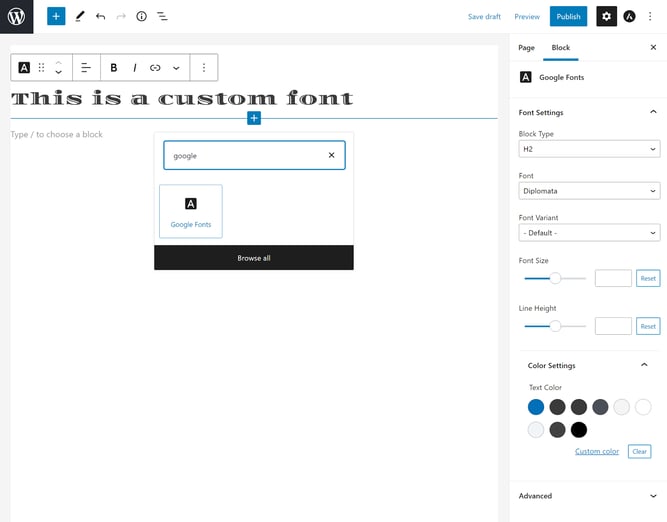
Several font plugins work well with WordPress. Google Fonts Typography is a favorite. It offers many free fonts from Google Fonts. Another option is Easy Google Fonts. This plugin lets you change fonts live on your site. Fonts Plugin by Kevin is also popular. It gives access to many fonts and simple controls.
How To Install A Plugin
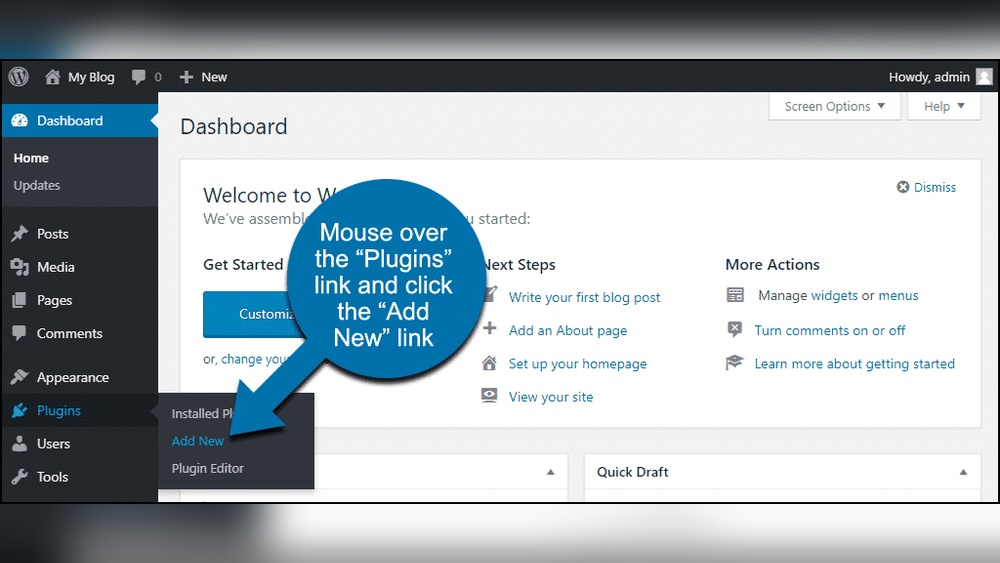
Go to your WordPress dashboard. Click on “Plugins” in the menu. Choose “Add New” to find new plugins. Type the plugin name in the search box. Click “Install Now” next to the plugin. After installing, click “Activate” to start using it. The plugin is now ready for setup.
Configuring Plugin Settings
Open the plugin settings from the dashboard menu. Select the fonts you want for headings and text. Adjust sizes and styles to fit your design. Save changes to apply the new fonts. Check your website to see how fonts look. Change settings anytime to improve your site’s look.
Adding Custom Fonts Via Css
Adding custom fonts via CSS lets you style your WordPress site exactly how you want. It gives you control over font choices beyond the default options. This method uses CSS code to bring new fonts into your design. It works well for those who want unique typography without extra plugins.
You start by uploading font files to your site. Then, you write CSS rules to tell the browser how to use these fonts. Finally, you apply the fonts to specific parts of your website. This approach keeps your site fast and clean.
Uploading Font Files
First, get your font files ready. Common formats include .woff, .woff2, .ttf, and .otf. Upload these files to your WordPress server, usually in the “wp-content/uploads” folder or a custom folder you create. Use the WordPress media library or an FTP client for this. Remember the exact URL of each font file for CSS use.
Writing Css Rules
Next, create CSS rules to load your fonts. Use the @font-face rule to define each font. Specify the font name and the file URL. This tells browsers where to find the font files. You can add this CSS in the WordPress Customizer under “Additional CSS” or in your child theme’s style.css file.
@font-face { font-family: 'CustomFont'; src: url('https://yourwebsite.com/wp-content/uploads/customfont.woff2') format('woff2'), url('https://yourwebsite.com/wp-content/uploads/customfont.woff') format('woff'); font-weight: normal; font-style: normal; } Applying Fonts To Specific Elements
Finally, use CSS to apply your custom fonts. Target headings, paragraphs, or any element by its tag or class. Set the font-family property to your custom font name. This changes the text style only where you want it. For example, use this code to change all headings:
h1, h2, h3 { font-family: 'CustomFont', Arial, sans-serif; } This method keeps your design organized and easy to update. Use custom fonts wisely to improve readability and style.

Credit: wordpress.com
Using Google Fonts With WordPress
Google Fonts offers many free, stylish fonts for your WordPress site. It helps you improve your website’s look and readability. Using Google Fonts is simple and does not slow down your site. You can add fonts in two main ways: manually or with plugins. Both methods give you control over font styles and sizes.
Integrating Google Fonts Manually
To add Google Fonts manually, start by visiting the Google Fonts website. Choose the font you want and copy the provided link code. Next, open your WordPress theme’s header.php file or use the theme customizer’s “Additional CSS” section. Paste the link code inside the
tag or enqueue it in functions.php. Then, use CSS to apply the font to your site’s elements. This method requires basic knowledge of HTML and CSS. It keeps your site clean without extra plugins.Using Plugins For Google Fonts
Several WordPress plugins make adding Google Fonts easy. Plugins like “Easy Google Fonts” let you pick fonts using a visual interface. You can change fonts for headers, paragraphs, and buttons without coding. These plugins often add a new section in the WordPress Customizer. It allows live preview of font changes. This method is great for beginners and saves time. Plugins also handle font loading efficiently to keep your site fast.
Tips For Choosing The Right Font
Choosing the right font for your WordPress site shapes how visitors see your brand. Fonts can show your style and mood. Picking the right one helps keep readers interested and makes your content clear. Consider these tips to find the best font for your website.
Matching Brand Personality
Your font should reflect your brand’s character. A playful brand may use round, soft fonts. A serious brand fits better with strong, simple fonts. Think about your audience and the feeling you want to share. Match your font style to your brand’s voice for a consistent look.
Ensuring Legibility
Fonts must be easy to read on all devices. Choose clear, simple fonts that work well in different sizes. Avoid fonts with too many details or thin lines. Test your font by reading it on phones, tablets, and computers. Good legibility keeps visitors on your site longer.
Balancing Style And Function
Find a font that looks good and works well. Stylish fonts can be fun, but not if they make reading hard. Use decorative fonts sparingly, like in headings. For body text, pick fonts that stay clean and simple. This balance makes your site attractive and easy to use.
Credit: wpmarmalade.com
Troubleshooting Font Issues
Changing fonts in WordPress can sometimes cause unexpected problems. These issues may affect how your text looks on different devices or browsers. Troubleshooting font issues helps keep your website clear and attractive. This section covers common problems and how to fix font display errors.
Common Problems
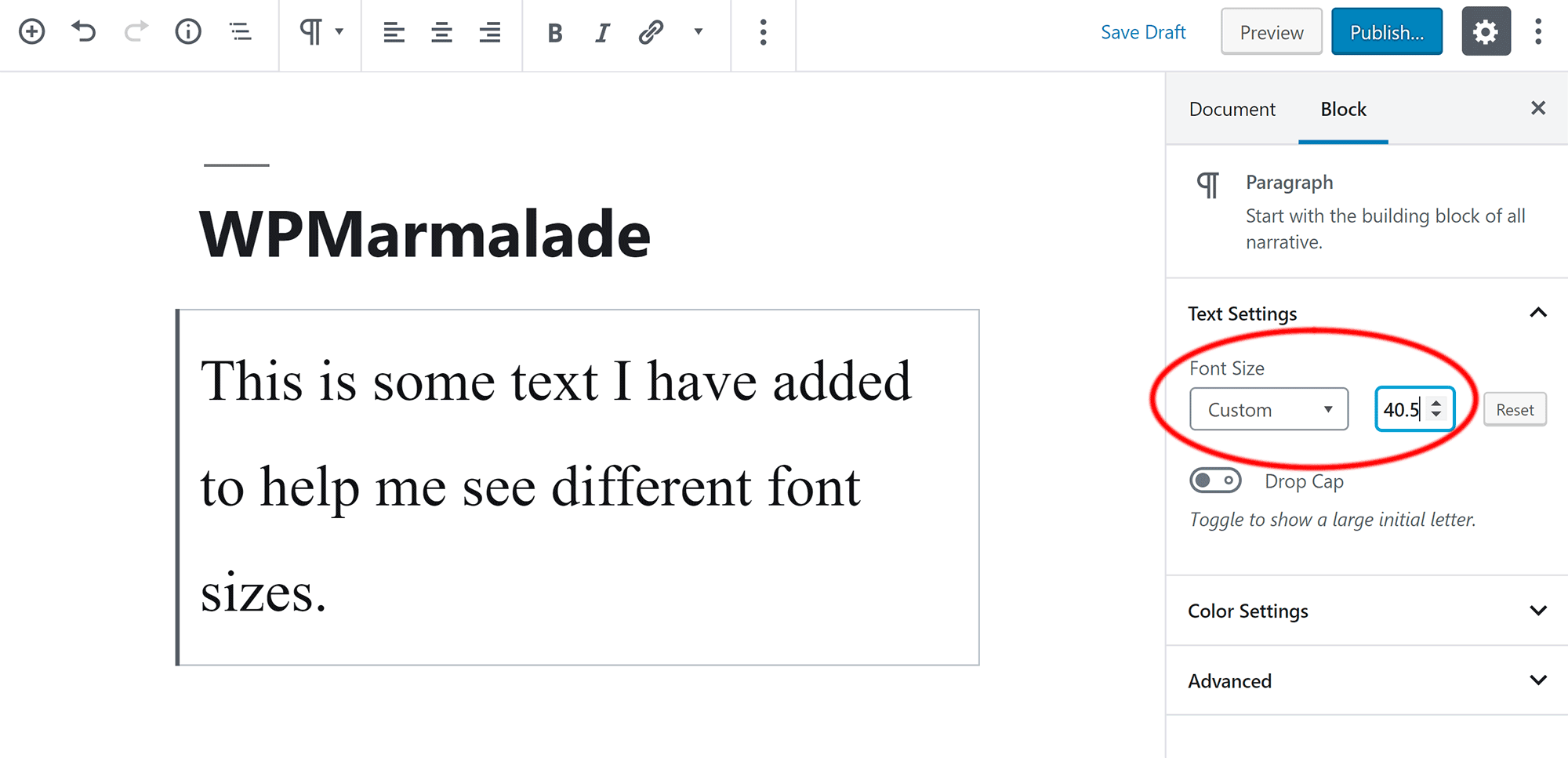
Fonts may not show correctly on your site. Sometimes, fonts appear too small or too large. Text might look blurry or pixelated. Another issue is fonts not loading at all. These problems can happen after theme updates or plugin conflicts. Some fonts may not support certain characters. Different browsers can display fonts differently. Slow loading fonts can hurt user experience.
Fixing Font Display Errors
Clear your browser cache to see recent font changes. Check if the font files are correctly uploaded. Make sure your theme supports custom fonts. Disable plugins one by one to find conflicts. Use standard web fonts for better compatibility. Verify font URLs are correct in your CSS. Try adding fallback fonts in your style sheet. Update your WordPress, theme, and plugins regularly. Test your site on multiple devices and browsers.
Frequently Asked Questions
Can You Change Font In WordPress Without Coding?
Yes, you can change fonts in WordPress without coding. Use built-in theme customizers or plugins like Google Fonts for easy font changes.
Which WordPress Plugins Help Change Fonts Easily?
Popular plugins like Easy Google Fonts and WP Google Fonts let you change fonts easily. They offer many font options without coding.
How To Change Fonts In WordPress Theme Customizer?
Go to Appearance > Customize > Typography or Fonts. Choose your preferred font family, style, and size. Save changes to apply.
Can I Use Custom Fonts In WordPress?
Yes, you can upload and use custom fonts. Use plugins or add custom CSS to include fonts not available in default options.
Conclusion
Changing fonts in WordPress is simple and gives your site a fresh look. You can pick from many fonts to match your style. Different methods like themes, plugins, or custom code make it easy. Choosing the right font helps your readers enjoy your content more.
Try different fonts until you find the best fit. Keep your site clear and easy to read. Small changes can make a big difference in how your site feels. Start customizing your fonts today and improve your website’s appearance.


