
Are you ready to move your domain from Bluehost to a new hosting provider but don’t know where to start? Transferring a domain might sound complicated, but it doesn’t have to be.
In this guide, you’ll find clear, simple steps that make the process smooth and stress-free. By the end, you’ll have the confidence to switch hosts without losing your website’s online identity. Keep reading, and you’ll discover exactly how to take control of your domain transfer with ease.

Credit: chemicloud.com
Prepare Your Domain For Transfer
Preparing your domain for transfer is a crucial step before moving it from Bluehost to another host. This process ensures the transfer goes smoothly without delays or issues. It involves checking the domain’s status, making it ready for transfer, and getting the necessary codes.
These steps help avoid problems during the transfer and keep your website online. Follow each part carefully for the best results.
Check Domain Eligibility
Not all domains can be transferred at any time. Your domain must be older than 60 days from registration or previous transfer. Also, the domain should not be locked or on hold due to unpaid fees or disputes. Check your domain status in the Bluehost control panel to confirm it is eligible for transfer.
Unlock Your Domain
Domains are usually locked to prevent unauthorized transfers. You need to unlock your domain to allow the transfer. In Bluehost, go to the domain settings and find the option to unlock. Once unlocked, the domain becomes ready for the next step in the transfer process.
Obtain Authorization Code
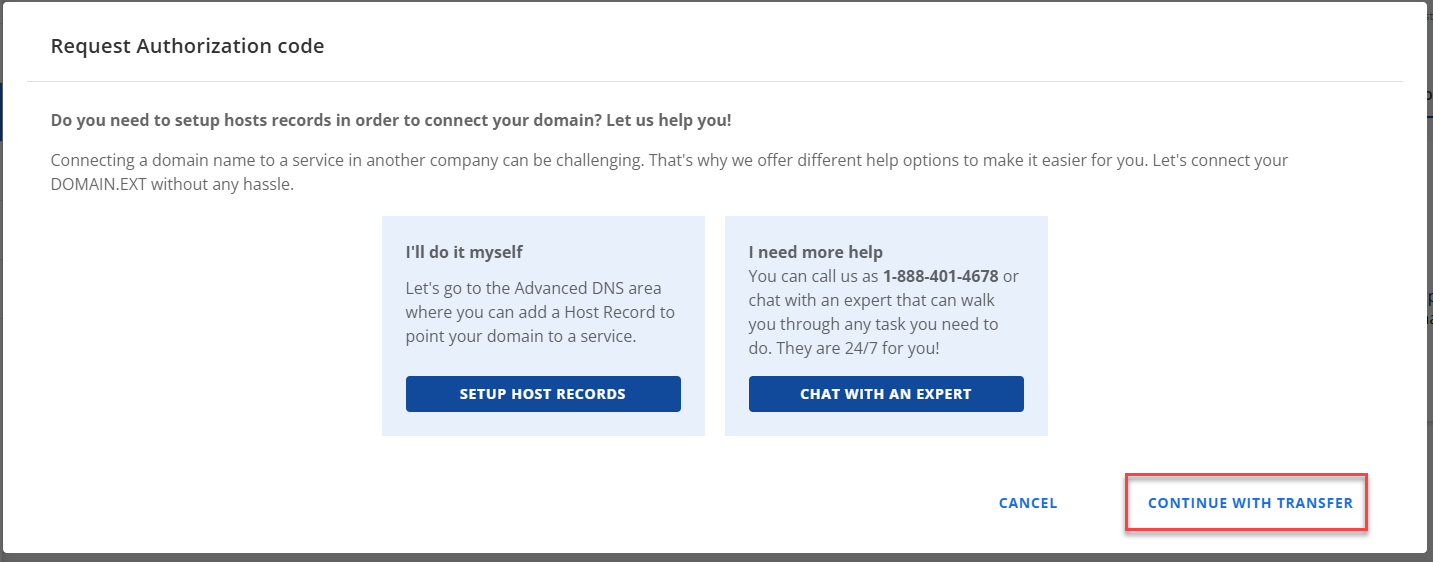
The authorization code, also called EPP code, is needed to move your domain. It acts like a password for the transfer. You can request this code from Bluehost in the domain management area. Keep this code safe as you will need it to authorize the transfer with your new hosting provider.
Credit: www.bluehost.com
Choose Your New Hosting Provider
Choosing the right hosting provider is a key step in transferring your domain from Bluehost. This choice affects your website’s speed, security, and support. A good host keeps your site online and running smoothly. Take time to pick a host that fits your needs and budget. Focus on features like uptime, customer service, and ease of use. This helps ensure a smooth transition and better performance for your site.
Compare Hosting Plans
Start by reviewing different hosting plans available. Look at storage space, bandwidth, and pricing. Check if the host offers shared, VPS, or dedicated hosting. Compare the features each plan provides. Consider the number of websites you can host. Note any extra tools like SSL certificates or backups. Pay attention to the renewal fees too. Choosing the right plan saves money and meets your site’s needs.
Set Up Account With New Host
After selecting a plan, create an account with the new host. Provide your contact details and payment information. Follow the setup instructions carefully. Set up your domain and website files. Confirm your account is active and ready. Keep your login details safe. This step prepares your new host for the domain transfer. Proper setup avoids delays and keeps your site live.
Initiate Domain Transfer
Starting the domain transfer process from Bluehost to a new host is simple. You need to begin by initiating the domain transfer. This step ensures that your domain is ready to move and that the new host can take control. Follow the steps carefully to avoid delays or problems.
Submit Transfer Request
First, go to the new hosting provider’s website. Find the option to transfer a domain. Enter your domain name there. This action tells the new host you want to move your domain from Bluehost. The new host will check if the domain is unlocked and ready for transfer. Make sure your domain is unlocked in Bluehost before this step.
Enter Authorization Code
The authorization code is a key to move your domain. Log in to your Bluehost account and find the domain settings. Request the authorization code, sometimes called an EPP code. Copy this code carefully. Paste it into the new host’s transfer form. This code confirms you own the domain and allow the transfer. Without it, the transfer cannot start.
Confirm Transfer With Bluehost
Confirming your domain transfer with Bluehost is a key step. This ensures Bluehost knows you approve moving your domain to a new host. Without this confirmation, the transfer will not start. The process is simple and involves a few quick actions.
Approve Transfer Email
After you request the transfer, Bluehost sends an approval email. Check the email address linked to your domain account. Open the email from Bluehost and find the approval link. Click this link to confirm you want to transfer your domain. This step protects your domain from unauthorized transfers.
Wait For Transfer Completion
Once you approve the transfer, Bluehost begins processing it. The process can take up to seven days. During this time, do not change your domain settings. Wait patiently while the domain moves to the new host. You will get a notification when the transfer finishes.
Update Domain Settings Post-transfer
After transferring your domain from Bluehost to a new host, updating your domain settings is crucial. This step ensures your website stays live and works correctly. Neglecting this can cause downtime or broken links. Focus on two main tasks: configuring DNS records and checking website functionality.
Configure Dns Records
DNS records connect your domain name to your website’s server. Update these records to point to your new host’s IP address. Common records to update include A, CNAME, MX, and TXT records. Use your new host’s control panel to make changes. Double-check each record for accuracy. Incorrect DNS settings can cause email and website issues.
Check Website Functionality
After updating DNS, test your website thoroughly. Visit your site on different devices and browsers. Look for loading errors, broken links, or missing images. Test contact forms and any interactive features. Ensure emails linked to your domain are working properly. Fix problems immediately to avoid user frustration.
Troubleshoot Common Transfer Issues
Transferring a domain from Bluehost to another host can sometimes face issues. These issues may delay the process or cause errors. Understanding common problems helps solve them quickly. This saves time and avoids frustration.
Handle Transfer Delays
Transfers usually take 5 to 7 days. Delays often happen due to domain lock status. Ensure your domain is unlocked in Bluehost settings. Check if the domain’s contact email is correct. The transfer approval email goes there. Missing this email causes delays. Another delay cause is recent domain registration or transfer. Most domains cannot transfer within 60 days of registration or last transfer. Wait until this period ends before trying again.
Resolve Authorization Errors
Authorization codes, also called EPP codes, are needed to transfer domains. Get this code from Bluehost’s domain management panel. Enter the code exactly when prompted by the new host. Mistyped codes cause authorization errors. Codes may expire after a few days. Request a new code if needed. If errors persist, contact Bluehost support. Ask if any holds or restrictions block the transfer. Clear all holds before proceeding.

Credit: www.youtube.com
Frequently Asked Questions
How Do I Unlock My Domain On Bluehost?
To transfer your domain, first log into Bluehost. Go to the Domain Manager and unlock the domain you want to transfer. Unlocking allows other hosts to initiate the transfer process.
What Is The Domain Transfer Authorization Code?
The authorization code, or EPP code, is a unique password for your domain. You get it from Bluehost’s Domain Manager. This code is required by your new host to approve the transfer.
How Long Does A Domain Transfer From Bluehost Take?
A domain transfer typically takes 5 to 7 days. It depends on the domain extension and registrar response times. You can speed it up by approving transfer emails promptly.
Will My Website Go Down During The Domain Transfer?
No, your website remains active during the transfer. Only the domain registration changes hands. Ensure your hosting stays active to avoid downtime during the process.
Conclusion
Transferring your domain from Bluehost is simple with clear steps. Start by unlocking the domain and getting the authorization code. Then, begin the transfer with your new host. Keep track of emails to approve the move. The process usually takes a few days to finish.
Stay patient and double-check all details. This helps avoid delays or problems. Moving your domain lets you choose the best service for your needs. Follow these easy steps for a smooth transfer every time.


