
Have you ever wanted to customize your WordPress site but felt overwhelmed by the theme editing process? You’re not alone.
Editing WordPress themes might sound complicated, but with the right guidance, you can transform your site to perfectly match your vision. Imagine having the power to tweak your site’s appearance and functionality, making it uniquely yours. This article will guide you through the steps to edit WordPress themes, demystifying the process and empowering you to make the changes you desire.
Whether you’re looking to adjust colors, modify layouts, or add unique features, you’ll find it’s simpler than you think. Ready to take control of your WordPress theme and make your site stand out? Let’s dive in and explore how easy it can be.
Choosing The Right Theme
Free themes are a good start. They cost nothing and are easy to find. Premium themes often have more features. They offer better support. Free themes may lack updates. This can cause problems later. Premium themes usually update often. They may be more secure. But they can be expensive. Choose based on your needs and budget.
A site must look good on all devices. This means phones, tablets, and computers. Responsive design is key. It changes the layout to fit any screen. Most themes today are responsive. Always test a theme on different devices. Check if buttons and text are easy to use. This helps users have a good experience. A good theme adapts smoothly.
Credit: www.greengeeks.com
Setting Up A Child Theme
A child theme lets you change a theme safely. It keeps the original theme safe. If you update the main theme, child theme changes stay. This is useful for custom tweaks. It saves you from losing changes during updates. Child themes help you experiment easily. They are great for learning and testing.
First, make a new folder. Name it with your theme name and add “-child”. Create a style.css file inside. Add a simple code to link it to the main theme. Use a template tag for the main theme’s name. Next, make a functions.php file. Add a code to load styles from the parent theme. Now, activate the child theme in WordPress. Your child theme is ready to use.
Customizing Theme Files
CSS makes your website look nice. Change colors and fonts to match your style. You can make text bigger or smaller. Change the background color too. Look for the style.css file in your theme folder. Open it with a text editor. Find the lines you want to change. Make small changes to see what happens. Save the file and check your site. Experiment with different styles until you like it.
HTML is the structure of your site. PHP makes it work well. To change these, open the theme folder. Look for files like header.php or footer.php. Open them in a text editor. Change only small parts. This keeps your site safe. Add or remove parts as needed. Be careful with PHP code. It controls important functions. After changes, save the file. Check your website to see the result.
Credit: kinsta.com
Using Theme Customizer
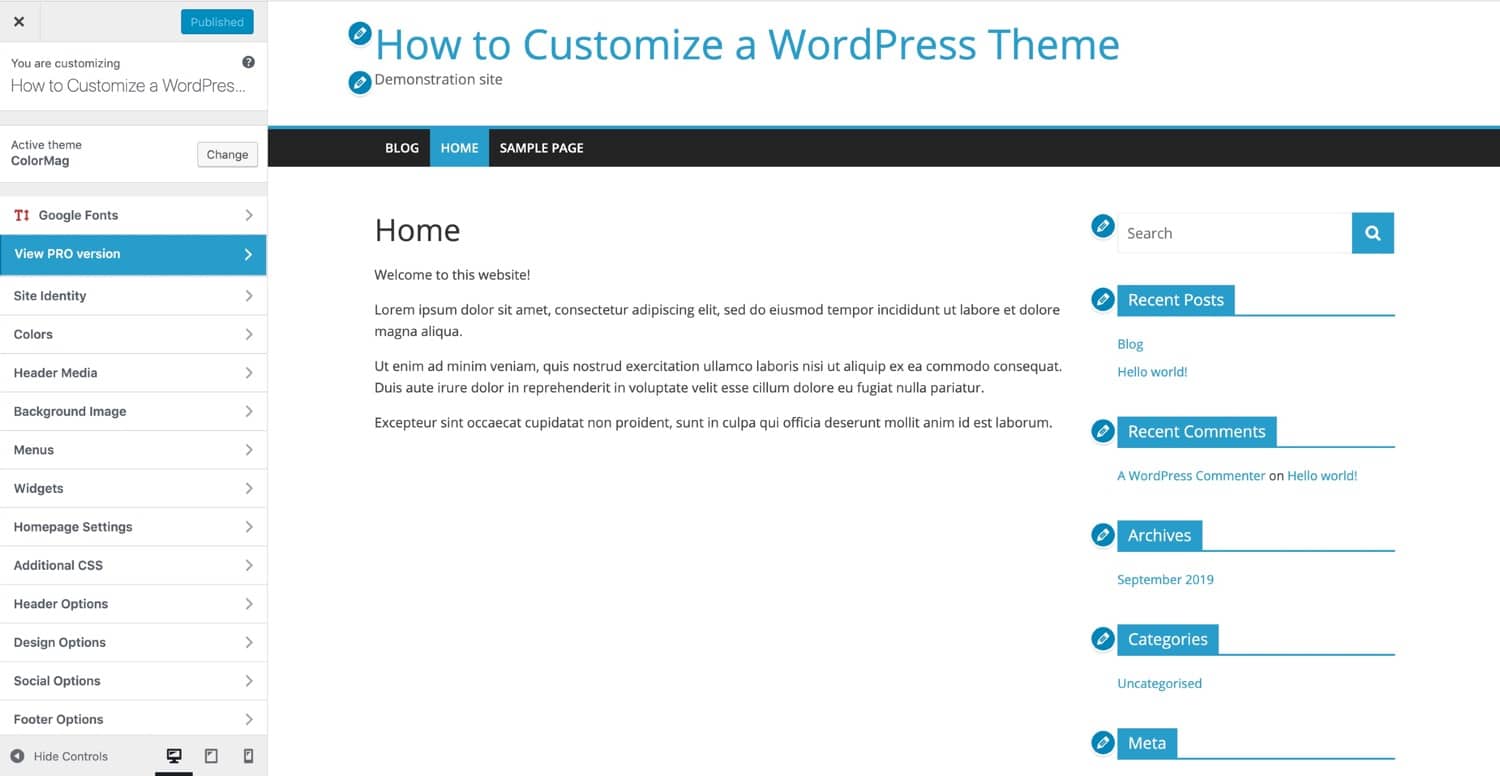
Explore WordPress themes with the Theme Customizer. Easily adjust colors, fonts, and layouts without coding. Personalize your site with live previews for immediate visual feedback.
Accessing The Theme Customizer
Start by logging into your WordPress dashboard. Find the Appearance tab on the left side. Click on it to see options. Select Customize to open the Theme Customizer. This tool lets you make changes easily. You can see changes live before saving them. It’s a safe way to edit themes without coding.
Key Features And Options
The Theme Customizer has many features. You can change colors, fonts, and layouts. Adjust site title and tagline. Upload a new logo or header image. Change the menu and widgets. Preview changes instantly. Save when satisfied. It makes editing simple and quick.
Installing Plugins For Extra Features
Essential Plugins for Customization allow you to change how your site looks. They add new tools and options. One plugin can help you with colors. Another plugin can help with fonts. These plugins make your site look unique. Some plugins are free. Some plugins cost money. Choose plugins that suit your needs.
Integration with Page Builders is important. Page builders help create pages. They make the process easy. Some popular page builders are Elementor and Beaver Builder. They have drag-and-drop features. This means you can build pages without coding. Plugins can work with these builders. This makes editing themes simple and fun.
Leveraging WordPress Hooks
WordPress uses hooks to let you change themes easily. Hooks are like signals. They tell WordPress what to do at certain times. There are two types: actions and filters. Actions let you add or change code. Filters let you change data before it is shown. Both are important for customizing themes.
Some hooks you might use often include wp_head and wp_footer. The wp_head hook lets you add code to the head section. The wp_footer hook lets you add code to the footer. Another common hook is the_content. It lets you change the content of posts. Learning these hooks helps you edit themes better.
Testing And Debugging
Tools for Theme Testing help check your theme’s performance. Theme Check is a popular tool. It finds errors in your theme. Use Debug Bar to see detailed reports. It shows warnings and errors. Query Monitor helps track database queries. It improves your theme’s speed. These tools are easy to use. They make testing simple.
Fixing Common Issues in WordPress themes can be tricky. Themes may have broken links. Check all links regularly. Images may not load. Optimize your images to fix this. Themes may have missing styles. Ensure all stylesheets are loaded. Javascript errors can break your theme. Use browser tools to find these errors. Fix them quickly to keep your theme running well.
Credit: www.wpzoom.com
Best Practices For Theme Editing
Keep your code clean and simple. Avoid adding unnecessary elements. Always use proper indentation and spacing. This makes the code easy to read. Regularly check for any errors or bugs. Fix them quickly to maintain quality. Use comments to explain complex parts. This helps others understand your code.
Test your theme on different browsers. Ensure it works well everywhere. Check the theme on various devices like phones and tablets. Make sure it looks good on all screens. Regular updates are important. They help fix bugs and improve compatibility. Use a child theme for changes. This keeps the original theme safe.
Resources For Further Learning
Many websites offer free tutorials on WordPress themes. These guides help users understand theme editing. They include step-by-step instructions. Some popular sites are WPBeginner and ThemeIsle. They provide simple lessons for theme editing. Video tutorials are also available on platforms like YouTube. These videos show live demos of editing themes. This makes learning easy and fun.
Community forums are great places for help. WordPress has a large community. Users can ask questions and get answers. The WordPress Support Forum is very active. Many experts share their knowledge here. Reddit also has helpful threads on WordPress themes. Joining these forums can improve your skills. It’s a way to learn from others and share your own tips.
Frequently Asked Questions
How Do I Edit An Existing WordPress Theme?
To edit a WordPress theme, access the WordPress dashboard. Navigate to Appearance > Theme Editor. Select the desired file, make changes, and save. Always backup your theme before editing. Utilize child themes to preserve modifications during updates. Consider using FTP or code editors for complex edits.
Why Can’t I Edit My WordPress Theme?
You might lack the necessary permissions to edit your WordPress theme. Ensure you’re logged in as an admin. Check if the theme is customizable or if editing files is restricted by your hosting provider. Sometimes, caching plugins can prevent changes from appearing.
Update your theme or consult your hosting support for help.
How Do I Go To The Theme Editor In WordPress?
Navigate to your WordPress dashboard. Click on “Appearance” in the left menu. Select “Theme Editor” to access it. Ensure you have backups, as editing code can impact your site.
How Do I Change WordPress Themes?
To change a WordPress theme, log into your dashboard. Navigate to “Appearance” and select “Themes. ” Choose a new theme from available options and click “Activate. ” Ensure the new theme is compatible with your plugins. Backup your site before making changes to prevent data loss.
Conclusion
Editing WordPress themes can feel tricky at first. But with practice, it gets easier. Start by exploring theme settings. Use the customizer tool. Tweak styles to match your vision. Always remember to back up your site. Mistakes happen. A backup saves the day.
Experiment with coding slowly. Small changes can make a big impact. Stay patient and enjoy the process. Learning is gradual. Each step brings you closer to a unique site. Keep experimenting and refining. Your WordPress site will reflect your style beautifully.
Happy editing!


