
Are you ready to take your WordPress website to the next level? Accessing Elementor is the first step to creating stunning, professional-looking pages without needing any coding skills.
Imagine being able to design your site exactly the way you want, with simple drag-and-drop tools right at your fingertips. You’ll discover exactly how to access Elementor in WordPress quickly and easily, so you can start building your dream website today.
Keep reading, and you’ll be amazed at how simple it really is!
Credit: blog.hubspot.com
Installing Elementor Plugin
Installing the Elementor plugin is the first step to build custom pages in WordPress. This plugin helps you create designs without coding. The process is simple and quick. Follow the steps below to add Elementor to your WordPress site.
Finding Elementor In WordPress Repository
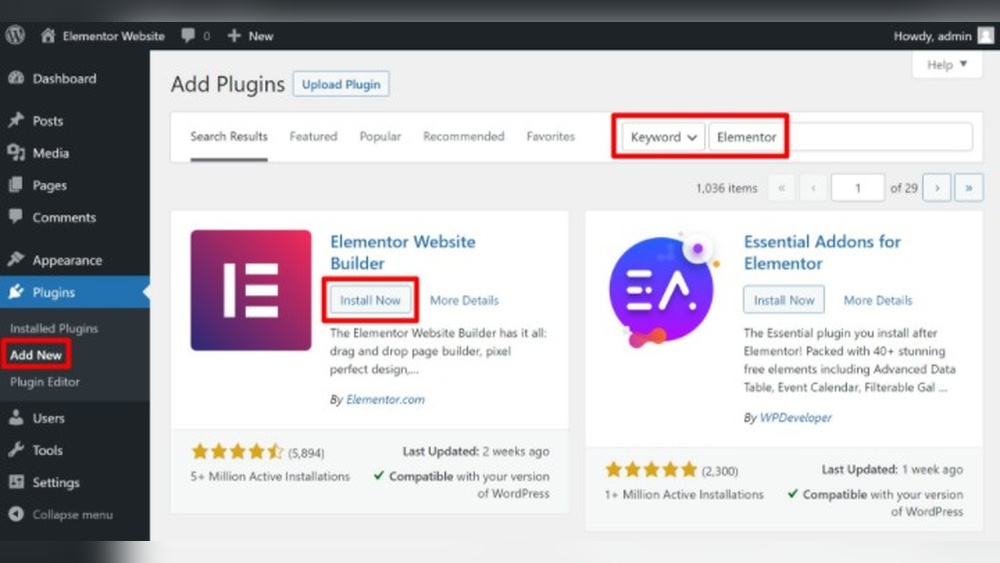
Log in to your WordPress dashboard. Go to the “Plugins” menu and click “Add New.” Use the search box on the top right. Type “Elementor” and press Enter. The Elementor Page Builder will appear in the results. Check the plugin details to confirm it is the correct one.
Step-by-step Installation Process
Click the “Install Now” button next to Elementor. WordPress downloads the plugin files automatically. Wait a few seconds for the process to finish. Do not close the page or press back. The button will change to “Activate” once installation completes.
Activating The Plugin
Click the “Activate” button to enable Elementor. The plugin is now ready to use. You will see a new menu item labeled “Elementor” in the dashboard. This means Elementor is active and ready for page building.
Accessing Elementor Editor
Accessing the Elementor editor is the first step to creating beautiful pages in WordPress. This editor offers a simple way to design without coding. You can see changes live as you make them. Getting started is quick and easy, even for beginners.
Understanding how to open pages, navigate the interface, and use the dashboard will save time. These basics help you work smoothly and build your site faster.
Opening Pages With Elementor
To open a page with Elementor, go to your WordPress dashboard. Click on “Pages” or “Posts” depending on what you want to edit. Find the page you want to work on. Hover over it and click “Edit with Elementor.” The page will open in the Elementor editor. Now, you can start customizing the layout and content.
Navigating The Elementor Interface
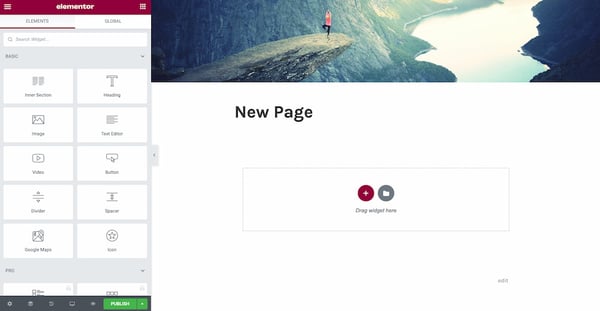
The Elementor interface is clean and user-friendly. On the left, you see a panel with widgets and settings. The main area shows your page preview. Click on any element in the preview to edit it. Use drag and drop to move elements around. The interface updates changes instantly, so you always see the result.
Using The Elementor Dashboard
The Elementor dashboard helps manage your designs. Access it from the WordPress menu under “Elementor.” Here, you can create new templates or manage saved ones. The dashboard also shows settings for global styles and tools. It is the control center for your Elementor experience. Keeping familiar with this area makes editing easier and faster.
Creating Your First Page
Creating your first page in Elementor is an exciting step. It lets you build a website that looks just right. Elementor offers a simple way to design pages without coding. You can choose from ready templates or start with a blank page. Then, add elements called widgets. These widgets bring your page to life. Finally, save and preview your work to see how it appears live.
Choosing A Template Or Starting Blank
Elementor gives two main options for starting your page. You can select a ready-made template. These templates have layouts and styles ready for use. They help save time and offer design ideas. Or, you can start with a blank page. This choice gives full control to build from scratch. Pick the option that fits your needs best.
Adding And Customizing Widgets
Widgets are the building blocks of your page. You find them in the Elementor sidebar. Drag and drop widgets onto your page area. Common widgets include text, images, buttons, and videos. Customize each widget by clicking on it. Change colors, fonts, sizes, and more. Adjust settings until the widget looks right.
Saving And Previewing Your Work
Save your work often to avoid losing progress. Elementor has a save button at the bottom. After saving, use the preview option to see your page. This shows how visitors will view it on desktop and mobile. Make changes if needed, then save again. Repeat until you are happy with the design.
Credit: elementor.com
Managing Elementor Settings
Managing Elementor settings helps customize your website easily. These settings control the look and feel of your pages. You can change colors, fonts, layouts, and other options to fit your style. Adjusting settings properly ensures a smooth user experience.
Adjusting Global Settings
Global settings affect your whole website at once. Change the default fonts and colors here. This saves time by keeping styles consistent across pages. You can also set global typography and button styles. These basic settings create a strong design foundation.
Configuring Style And Layout
Style and layout settings control page spacing and element alignment. Adjust margins, padding, and container widths for better balance. You can set background colors or images for sections. These options help your content look neat and organized.
Enabling Advanced Features
Advanced features add more control and flexibility. Turn on custom CSS to style elements uniquely. Enable responsive controls to adjust views on different devices. You can also activate motion effects for animations. These features improve your site’s interaction and design.
Troubleshooting Access Issues
Accessing Elementor in WordPress should be simple. Sometimes, users face problems opening or using the plugin. Troubleshooting access issues helps find and fix these problems fast. This section explains common problems and how to solve them. It also covers plugin conflicts and cache clearing.
Common Problems And Fixes
Elementor may not load or show a blank screen. This often happens due to outdated WordPress or Elementor versions. Check both and update to the latest. Sometimes, your user role lacks permission to use Elementor. Make sure your role has editing rights. Another issue is low PHP memory limit. Increase memory in your hosting settings or contact support.
Plugin Conflicts
Some plugins do not work well with Elementor. This causes errors or loading issues. Disable all other plugins except Elementor. See if the problem goes away. If yes, enable plugins one by one to find the conflict. Once found, keep the conflicting plugin off or find an alternative. Always keep plugins updated to avoid issues.
Clearing Cache And Refreshing
Cache can cause old data to show in Elementor. Clear your browser cache first. Use a different browser or open a private window to test. Clear any caching plugin in WordPress. Also, clear server cache if available. After clearing, reload your page and try accessing Elementor again. This simple step often fixes loading problems.

Credit: happyaddons.com
Tips For Beginners
Starting with Elementor can feel tough. The tool has many options and features. This section offers simple tips for beginners. These tips help you work faster and design better pages. They also guide you to useful learning sources. Follow these tips to build your website with ease.
Shortcuts And Time-savers
Use keyboard shortcuts to speed up your work. Press Ctrl + D to duplicate elements quickly. Hold Shift while dragging to keep items aligned. Save sections or widgets as templates for reuse. This saves time on future pages. Use the Navigator to find elements fast. It helps you manage complex layouts without scrolling.
Best Practices For Design
Keep your design simple and clean. Use consistent colors and fonts across pages. Leave enough space between elements for easy reading. Use headings to organize your content clearly. Add images that relate to your text. Avoid too many animations or effects. Test your site on phones and tablets. Make sure everything looks good and works well.
Resources For Learning More
Explore Elementor’s official tutorials for clear guidance. Join forums or Facebook groups to ask questions. Watch short videos to see steps in action. Try free courses that teach the basics. Read blogs for tips and tricks from experts. Practice often to improve your skills. Use these resources to build confidence and learn faster.
Frequently Asked Questions
How Do I Install Elementor On WordPress?
To install Elementor, log into your WordPress dashboard. Go to Plugins > Add New, search for “Elementor,” then click Install and Activate. This process adds the Elementor page builder to your site, allowing easy drag-and-drop design.
Where Can I Find Elementor After Activation?
After activation, Elementor appears in your WordPress dashboard menu. You can access it via Pages or Posts by clicking “Edit with Elementor. ” This opens the Elementor editor for designing your content visually.
Is Elementor Free To Use On WordPress?
Yes, Elementor offers a free version with essential features. However, the Pro version includes advanced widgets and templates for more design flexibility and professional results.
Can I Use Elementor With Any WordPress Theme?
Elementor works with most WordPress themes. For best compatibility, use themes optimized for page builders like Hello Elementor, ensuring smooth design and performance.
Conclusion
Accessing Elementor in WordPress is simple and quick. Just install the plugin and activate it. Then, open any page or post and click “Edit with Elementor. ” The user-friendly interface helps you design pages easily. No special skills are needed to start.
Keep practicing to improve your design skills. Elementor makes building websites fun and flexible. Start creating your site today and see the difference.


