Are you tired of your current WordPress home page and want to give your website a fresh new look? Changing your home page might sound tricky, but it’s simpler than you think.
Whether you want to showcase your latest blog posts, highlight your business, or create a custom welcome page, you have full control over what visitors see first. In this guide, you’ll discover step-by-step how to change your WordPress home page quickly and easily—no technical skills needed.
Keep reading, and you’ll be able to make your website truly yours in just a few clicks.
Credit: cyberchimps.com
Accessing WordPress Settings
Accessing WordPress settings is the first step to change your home page. You need to enter your website’s control panel. This area lets you adjust many important features. It is where you tell WordPress what your front page should be. Follow the simple steps below to find the right settings quickly.
Logging Into Your Dashboard
Open your web browser and go to your website’s login page. Usually, it is yourdomain.com/wp-admin. Enter your username and password carefully. Click the “Log In” button to access your dashboard. This dashboard is the main control panel of your site. From here, you can manage pages, posts, and settings.
Navigating To Reading Settings
Look at the left menu on your dashboard. Find and click on “Settings.” A list will appear below it. Select the option called “Reading.” This section controls what visitors see first on your site. Here, you can set a specific page as your home page. You will also find options for how many posts show on the front page.
Choosing Your Homepage Type
Choosing the right homepage type helps visitors understand your site quickly. Your homepage is the first thing people see. It sets the tone and guides users to important content. WordPress offers two main homepage types to choose from. Each type serves a different purpose. Pick one that fits your website goals and style.
Setting A Static Page
A static page shows fixed content on your homepage. This page stays the same until you change it. Use it to highlight important information like your business or services. Static pages look clean and professional. You control exactly what visitors see first. Create a new page for the homepage, then set it in WordPress settings. This method works well for businesses and portfolios.
Selecting Your Latest Posts
The latest posts homepage shows your newest blog articles first. This setup keeps your homepage fresh and updated. It helps visitors find recent news or updates easily. WordPress automatically lists posts in reverse order. This type suits blogs and news sites. Visitors get a quick look at your latest content. No need to update the homepage manually.
Creating A New Homepage
Creating a new homepage in WordPress lets you control what visitors see first. This is important for making a good impression. You can design it to show your latest posts, a welcome message, or special offers. Follow simple steps to create a homepage that fits your site’s style and purpose.
Adding A New Page
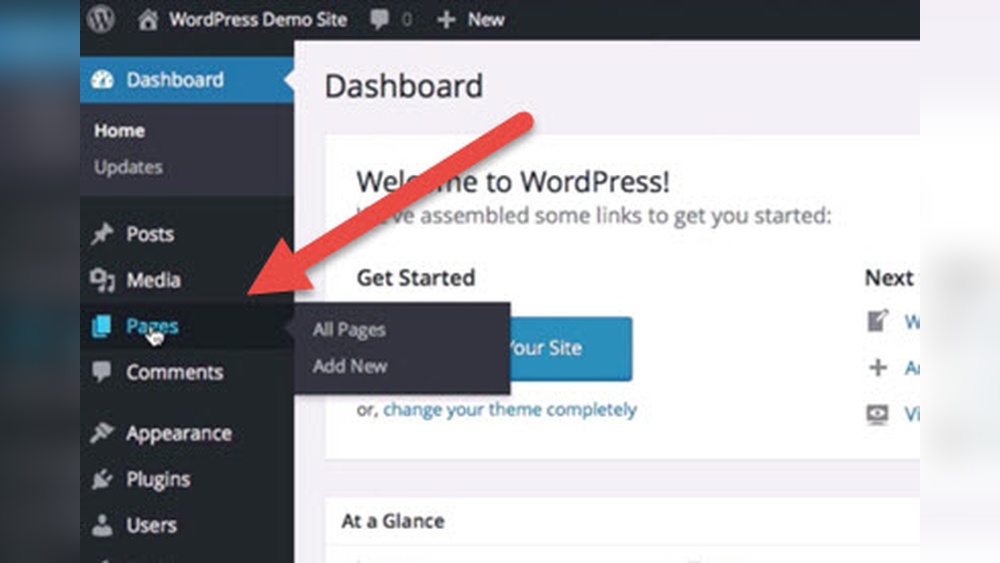
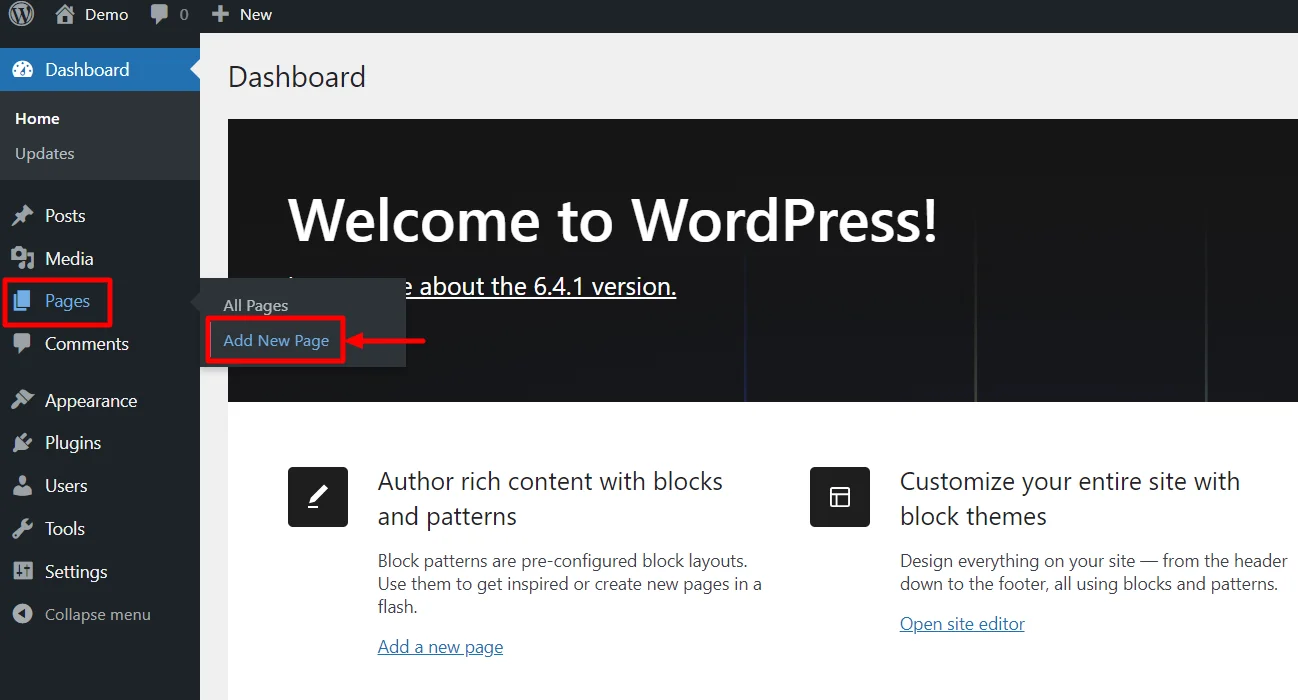
Start by adding a new page in WordPress. Go to your dashboard and select “Pages” then “Add New.” Give the page a clear name like “Home” or “Welcome.” You do not need to add content right away. Save the page as a draft or publish it. This page will become your new homepage.
Designing Your Homepage
Design the homepage to match your brand. Use WordPress blocks to add text, images, and buttons. Keep the layout simple and easy to read. Use headings and short paragraphs for clarity. Preview your page on different devices to ensure it looks good everywhere. A clean design helps visitors find information quickly.
Credit: www.greengeeks.com
Assigning The Homepage
Assigning the homepage in WordPress is a simple but important step. It lets you choose which page visitors see first. This helps you control what message you share. It also improves site navigation and user experience.
By setting a specific page as your homepage, you create a clear starting point. This is useful for blogs, business sites, or portfolios. You can highlight key content or offers right away. The process does not require coding skills.
Selecting The Page As Homepage
Go to your WordPress dashboard. Click on “Settings” and then “Reading.” Look for the section labeled “Your homepage displays.” Choose the option “A static page.”
Next, select the page you want to show as your homepage from the dropdown menu. This list shows all published pages on your site. Pick the one that fits your goals best. This page will now greet every visitor.
Saving Your Changes
After selecting your homepage, scroll down to find the “Save Changes” button. Click it to apply your new settings. This step is crucial to make the change live.
Visit your website’s main URL to see the new homepage in action. If it does not appear, clear your browser cache and refresh. Your homepage is now set and ready for visitors.
Customizing Homepage Appearance
Customizing your homepage appearance helps create a unique and inviting website. The homepage is the first thing visitors see. It should reflect your style and message clearly. WordPress offers simple ways to change how your homepage looks. You can use tools that require no coding skills. This makes it easy for beginners to create a professional site.
Using Page Builders
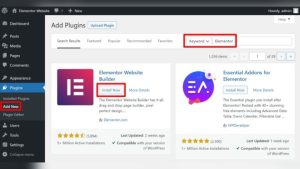
Page builders are plugins that let you design pages visually. They use drag-and-drop features. You can add text, images, buttons, and more with ease. Popular page builders include Elementor and Beaver Builder. These tools show real-time changes as you edit. This helps you see how your homepage will look. You can choose layouts and customize colors quickly. Page builders work well for detailed and creative homepage designs.
Adjusting Theme Settings
Themes control your site’s basic look and feel. Most WordPress themes include homepage settings. You can adjust colors, fonts, and layout options here. Some themes offer built-in homepage sections like sliders or featured posts. Access these options in the WordPress Customizer under “Appearance.” Changes made here apply site-wide or only to the homepage. Adjusting theme settings is simple and does not need extra plugins.
Troubleshooting Common Issues
Troubleshooting common issues can help you fix problems fast. Changing your WordPress homepage might seem easy but sometimes it does not update as expected. Small errors or settings may cause delays or problems.
Knowing what to check helps you save time and avoid frustration. Focus on key areas that often cause homepage issues. Clear steps make the process smooth and stress-free.
Homepage Not Updating
Your homepage may not show changes immediately. This happens if your browser cache holds old data. Clear your browser cache to see the newest version.
Sometimes, caching plugins on WordPress keep the old homepage live. Disable or clear cache in these plugins to refresh your site. Check if your changes appear after this step.
Also, confirm that you saved the correct page as the homepage in settings. Go to Settings > Reading and check the homepage selection. This simple step often fixes the problem.
Permalink Settings Check
Permalinks affect how WordPress shows your pages and posts. Incorrect permalink settings may stop your homepage from updating properly.
Go to Settings > Permalinks in your WordPress dashboard. Choose a permalink structure or reset it by saving changes again. This action refreshes permalink rules.
After updating permalinks, clear any caches and reload your homepage. This step helps WordPress recognize your homepage changes. It ensures links work correctly and pages load as expected.

Credit: docs.themeisle.com
Frequently Asked Questions
How Do I Set A Static Home Page In WordPress?
To set a static home page, go to WordPress Dashboard > Settings > Reading. Select “A static page” and choose your desired page from the “Homepage” dropdown. Save changes to apply the new home page.
Can I Use A Blog As My WordPress Home Page?
Yes, you can use your blog as the home page by selecting “Your latest posts” under Settings > Reading. This displays blog posts on the home page.
How Do I Change My WordPress Home Page To A Custom Page?
Create a new page under Pages > Add New. Then, set it as your home page via Settings > Reading by selecting the page under “Homepage. “
Will Changing My Home Page Affect Seo In WordPress?
Changing your home page may impact SEO if URLs or content change. Ensure proper redirects and optimize new content to maintain SEO value.
Conclusion
Changing your WordPress home page is simple and quick. You can choose any page to greet your visitors first. Just follow the steps and adjust settings in your dashboard. This lets you control what people see right away. Keep your site fresh by updating the home page often.
Enjoy making your website look just the way you want. Try it out and see the difference today.