
Are you looking to boost your website’s traffic and keep visitors engaged longer? Adding internal links in WordPress is one of the easiest and smartest ways to do just that.
By connecting your pages and posts, you help your readers find more valuable content while improving your site’s SEO. In this guide, you’ll learn simple, step-by-step methods to add internal links that work. Keep reading to discover how a few clicks can make a big difference for your website’s success.
Credit: ultimateblocks.com
Benefits Of Internal Linking
Internal linking is a key part of building a strong WordPress site. It connects pages and posts within your website. This helps both visitors and search engines navigate your content easily. Using internal links wisely brings several important benefits for your site’s growth and user engagement.
Improving Seo Rankings
Search engines use links to find and rank your pages. Internal links help spread ranking power across your site. They show search engines which pages are important. This can boost your page rankings in search results. Well-placed links also help search engines understand your site’s structure.
Enhancing User Experience
Internal links guide visitors to related content. This keeps users engaged and reduces bounce rates. Visitors find helpful information quickly without searching. Clear navigation makes your site easier to use. Users enjoy a smooth experience and stay longer.
Increasing Page Views
Linking between pages encourages visitors to explore more content. This increases the number of pages viewed per visit. More page views can lead to higher ad revenue or sales. Internal links create a natural flow through your site. This keeps visitors interested and active on your pages.
Credit: www.elegantthemes.com
Types Of Internal Links
Internal links connect different pages within your WordPress site. They help visitors find related content easily. They also improve SEO by spreading link authority across your site. Understanding types of internal links guides better linking strategies.
Contextual Links
Contextual links are placed inside your content. They connect related articles or pages naturally. These links offer extra information to readers. Search engines find these links valuable for ranking. Use clear anchor text that describes the linked page.
Navigational Links
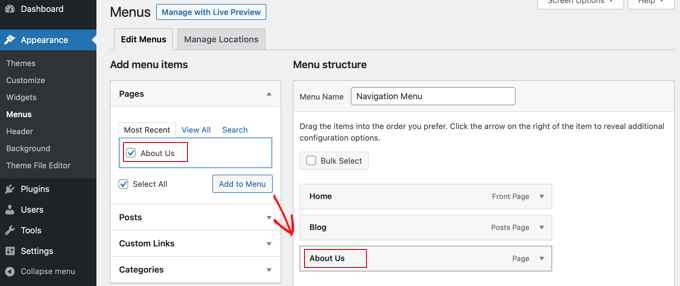
Navigational links appear in menus and headers. They help users move through your website quickly. These links organize your site structure. They improve user experience by making pages easy to find. Keep menus simple and logical for better navigation.
Footer And Sidebar Links
Footer and sidebar links show at the bottom or side of pages. They often include important pages like contact or privacy policy. These links offer additional navigation options. Use them to highlight key pages or categories. Keep the list short to avoid clutter.
Choosing Pages To Link
Choosing the right pages to link inside your WordPress site helps guide visitors and improve SEO. It also spreads the value of your content across different pages. Pick pages that support your main topic and add useful information for readers.
Identifying High-value Content
High-value content answers questions or solves problems for your visitors. Check your site analytics to find pages with many views or longer reading times. These pages show strong interest from users. Linking to them increases their visibility and authority.
Focus on pages with clear, helpful information. Blog posts, guides, and product pages often make good targets. Avoid linking to outdated or weak content. Keep your internal links relevant to the topic on the current page.
Using Anchor Text Effectively
Anchor text is the clickable part of a link. Use words that explain what the linked page is about. Short, clear phrases work best. Avoid vague terms like “click here” or “read more.”
Good anchor text improves SEO by showing search engines the linked page’s topic. It also helps readers decide if they want to follow the link. Match the anchor text with the content on the linked page for best results.
Credit: www.wpbeginner.com
Methods To Add Internal Links In WordPress
Internal linking improves SEO and site navigation. It helps visitors find related content easily. WordPress offers several ways to add internal links. Each method suits different needs and skills. Explore these methods to choose the best for your site.
Manual Linking In The Editor
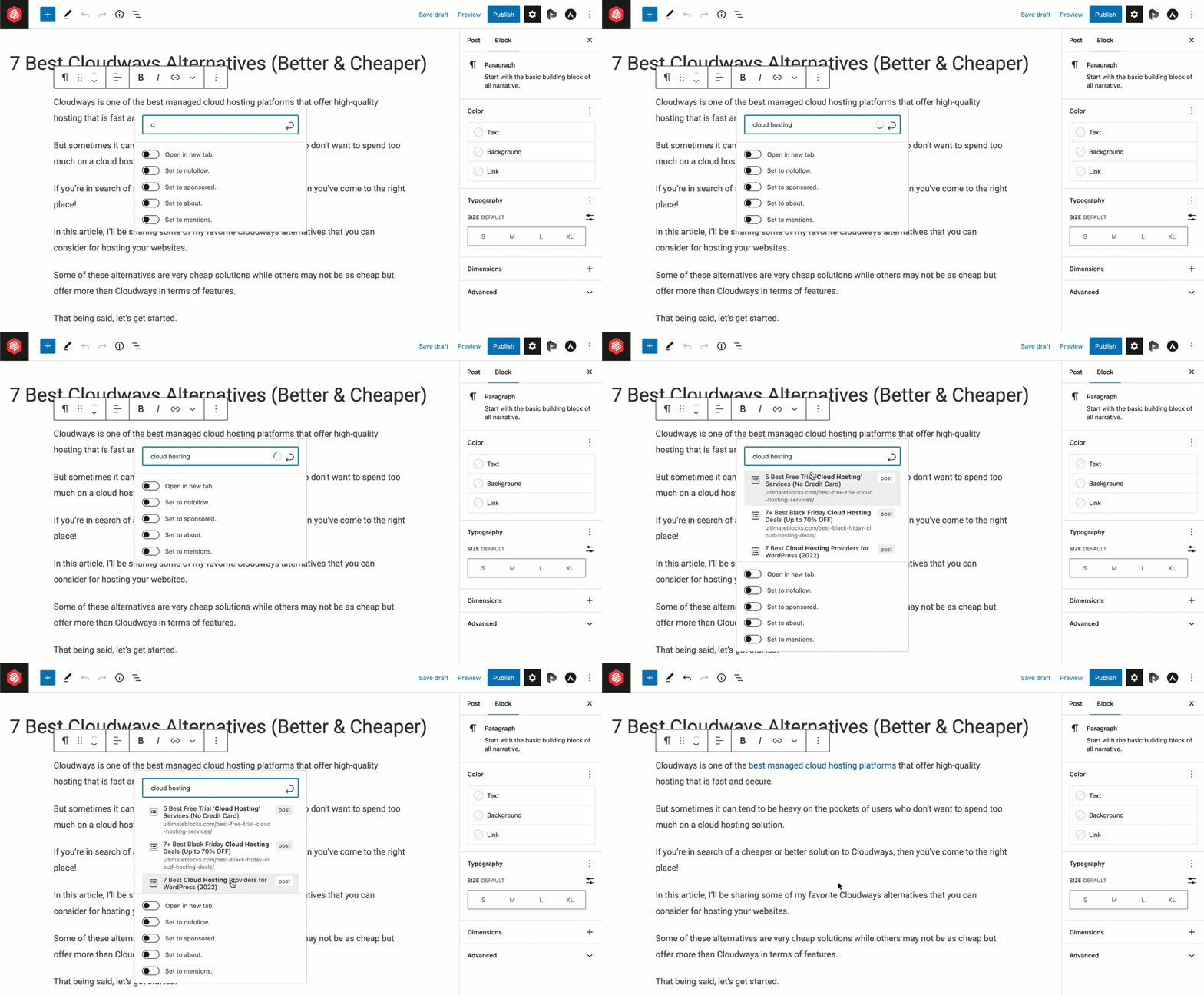
Manual linking lets you control every link in your content. Highlight the text you want to link. Click the link icon in the WordPress editor toolbar. Enter the URL of the page or post you want to connect. Confirm to create the link. This method is simple and precise. It works well for a few links or specific pages.
Using Link Suggestions
WordPress and some themes suggest links automatically. While editing, the editor may show related posts or pages. Select one to insert a link quickly. Suggestions save time and help find relevant content. This method works best for those who want faster linking. It also improves user engagement by connecting related topics.
Employing Plugins For Automation
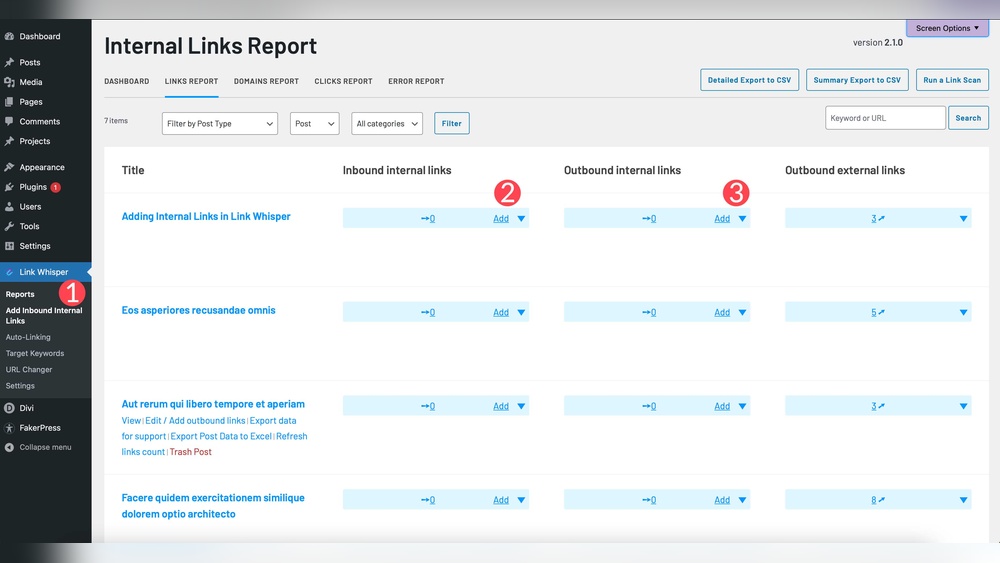
Plugins can add internal links without manual effort. They scan your content for keywords and link them automatically. Popular plugins offer settings to control link frequency and target pages. This method suits large websites with many posts. Automation keeps your links consistent and updated. Choose a plugin that fits your site’s needs and is easy to manage.
Best Practices For Internal Linking
Internal linking helps guide visitors to other useful pages on your site. It improves navigation and boosts SEO by spreading link authority. Follow these best practices to get the most from your internal links.
Avoiding Overlinking
Use internal links wisely. Too many links on one page can confuse visitors. It also looks spammy to search engines. Focus on linking only to relevant pages that add real value. Limit the number of links to keep the content clean and easy to read.
Maintaining Link Relevance
Link only to pages that match the topic of your content. Irrelevant links reduce user trust and hurt SEO. Choose anchor text that clearly describes the linked page. This helps users and search engines understand the connection. Keep links natural and meaningful.
Regularly Updating Links
Check your internal links often. Broken or outdated links frustrate visitors and reduce SEO benefits. Update links to newer pages or remove those that no longer exist. Use tools to find broken links quickly. Keeping links fresh improves user experience and site health.
Tools To Analyze Internal Linking
Analyzing internal links helps improve website structure and SEO performance. It shows which pages connect well and which need more links. Using the right tools saves time and makes the process easier. These tools scan your site and offer clear insights.
Seo Audit Tools
SEO audit tools check your website for internal linking issues. They find broken or missing links fast. Tools like Ahrefs, SEMrush, and Screaming Frog offer detailed reports. These tools highlight pages with few or no links. They help balance link distribution across your site. Reports often include suggestions to improve linking strategies.
WordPress Plugins For Link Analysis
WordPress plugins provide easy ways to analyze internal links inside your dashboard. Plugins like Yoast SEO and Link Whisper show link counts and suggestions. They help add links while you write posts. These plugins track link changes and spot errors quickly. They save time and improve internal linking without leaving WordPress.
Frequently Asked Questions
What Are Internal Links In WordPress?
Internal links are hyperlinks connecting one page or post to another within the same WordPress site. They help users navigate and improve SEO by distributing page authority.
How Do I Add Internal Links In WordPress Posts?
To add internal links, highlight text in the editor, click the link icon, and search for related posts or pages. Select and insert the desired link easily.
Why Are Internal Links Important For Seo?
Internal links boost SEO by spreading link equity across your site. They help search engines understand content hierarchy and improve site crawlability.
Can Internal Links Improve User Experience On WordPress?
Yes, internal links guide visitors to related content, increasing engagement and reducing bounce rates. They make navigation intuitive and keep users longer on your site.
Conclusion
Adding internal links in WordPress helps visitors find related content easily. It also improves your website’s SEO by connecting pages. Use clear anchor text that matches the linked page. Keep links relevant and useful for readers. Regularly update your links to keep your site fresh.
Simple steps lead to better navigation and higher search rankings. Start linking your content today to make your website stronger. Small changes make a big difference over time.


