
Are you tired of the same old font on your WordPress site? Changing the font can transform your website’s look and feel, making it more appealing and engaging for your visitors.
Fonts play a crucial role in how your content is perceived; they can evoke emotions, convey a brand’s personality, and even influence readability. Imagine your site standing out, attracting more readers, and keeping them hooked, all because of a simple font change.
You’ll discover the easy steps to change your WordPress theme font, unlocking a world of possibilities for your site’s design. Get ready to enhance your website’s appearance and captivate your audience effortlessly!
Choosing The Right Font
Readability is key. Fonts must be easy to read. Use simple fonts. Avoid fancy styles. Simple is better. It helps everyone understand.
Fonts must match your Brand Identity. Choose fonts that show your brand. Your font must fit your brand style. It helps people know your brand.
Many places offer Font Resources. Some are free. Some cost money. Google Fonts is popular. Adobe Fonts has many options too. Explore these sites. Find the best font for you.
Using WordPress Customizer
First, log in to your WordPress dashboard. Look for the Appearance option. Click on it. Then select Customizer. This will open the WordPress Customizer.
Inside the Customizer, find the Typography section. It might be under different names. Some themes label it as Fonts or Text. Click to access the options.
Here, you can choose different fonts. Click on the font you like. You will see a preview immediately. Make sure the font is readable. Some fonts might look nice but hard to read. Choose wisely.
Implementing Custom Fonts With Plugins
Enhance your WordPress site by changing fonts with easy-to-use plugins. Customize your theme’s typography to match your brand. These plugins offer simple steps to upload and apply your chosen fonts without coding.
Explore Font Plugins
WordPress offers many font plugins to choose from. These plugins help users change font styles easily. Some popular ones include Google Fonts and FontPress. Each plugin provides unique features. Users can select fonts that suit their website’s theme. It’s important to check reviews before choosing a plugin.
Install And Activate Plugins
Begin by visiting the WordPress dashboard. Locate the ‘Plugins’ section and click ‘Add New’. Search for the desired font plugin. Once found, click ‘Install’. After installation, activate the plugin. Activation makes the plugin ready for use. Without activation, the plugin will not work.
Configure Plugin Settings
Access the plugin settings from the WordPress dashboard. Adjust the font style and size as needed. Some plugins offer color options too. Experiment with different settings for the best look. Remember to save changes after configuring. This ensures the new font displays correctly on the website.
Credit: www.inmotionhosting.com
Utilizing Google Fonts
Google Fonts offers a wide selection of free fonts. Start by visiting the Google Fonts website. Browse through the list of fonts. Choose a font that you like. Click on the font to see more details. Copy the provided embed code. Keep this code for later use.
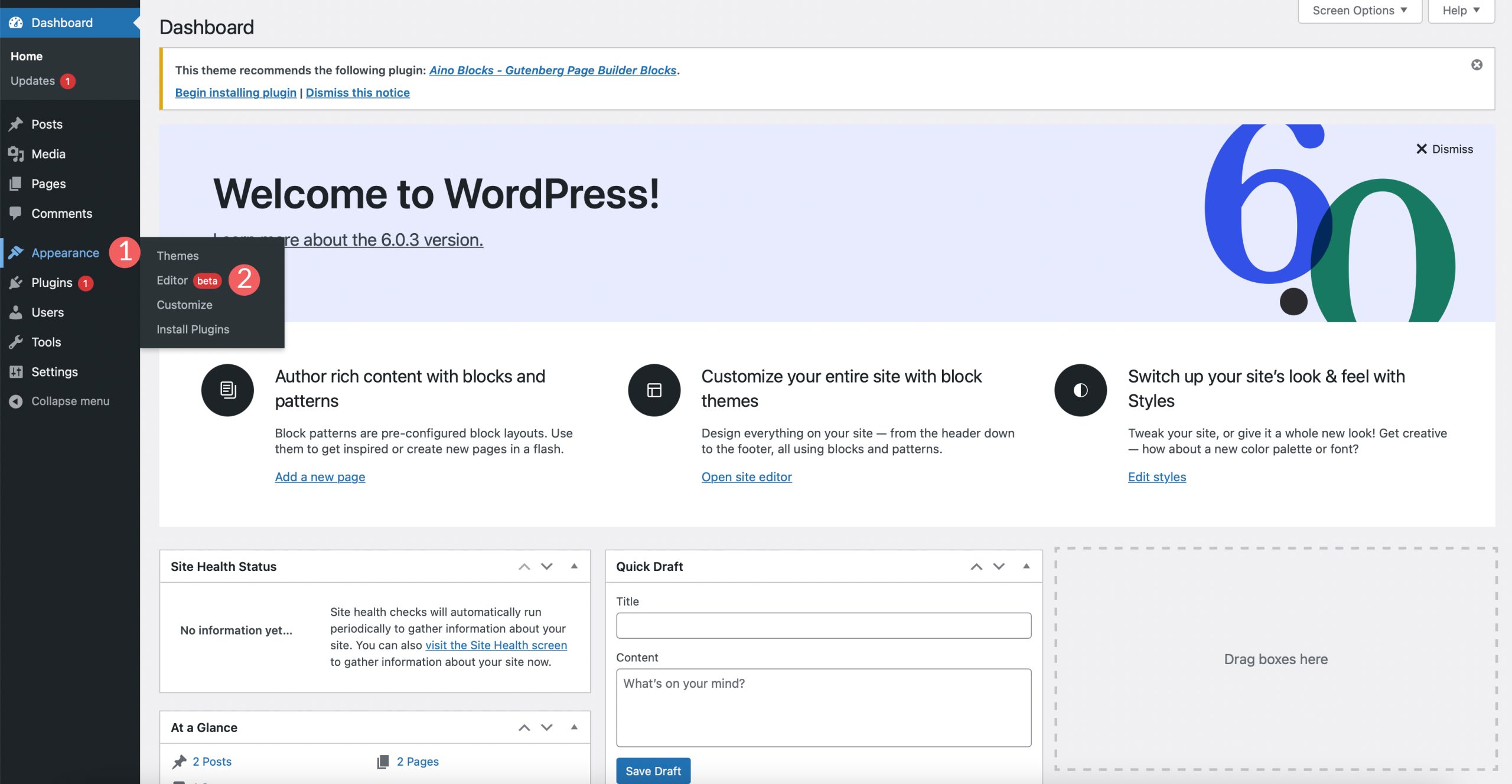
Open your WordPress dashboard. Navigate to Appearance and click on Theme Editor. Find the header.php file. Paste the Google Fonts embed code into the file. Save your changes. This adds the font to your theme.
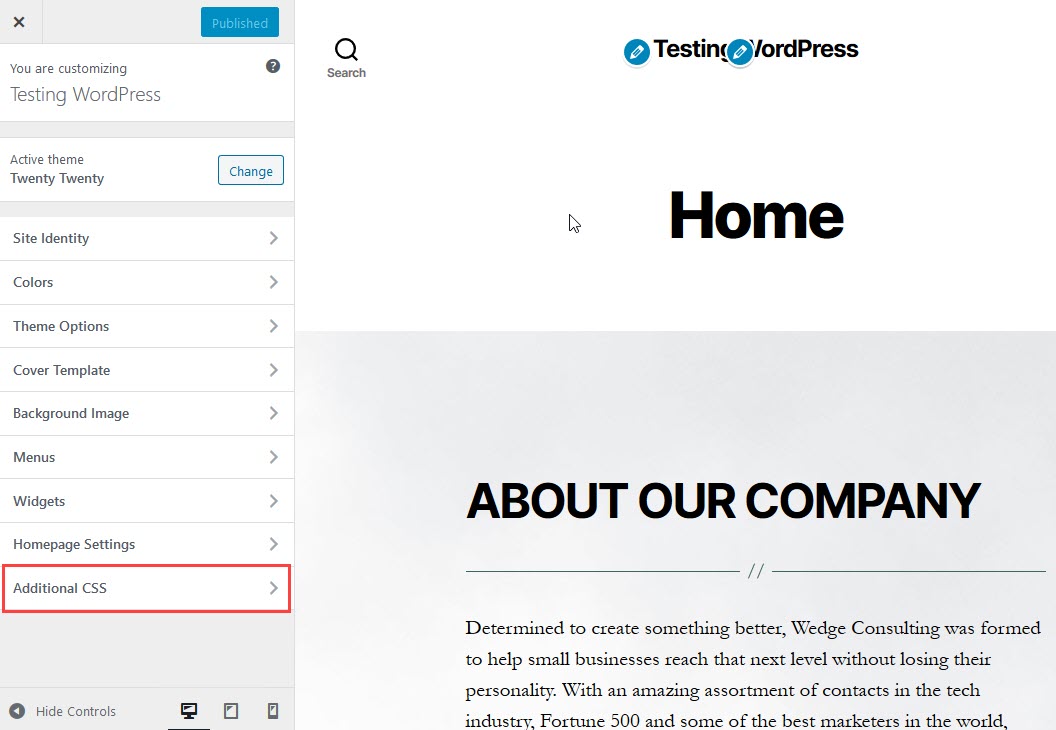
Go back to the WordPress dashboard. Access the Additional CSS section. Use CSS to apply the new font. For example, type body { font-family: 'Your Font Name', sans-serif; }. Replace ‘Your Font Name’ with the font you chose. Save your changes. Now, your site uses the new font.
Editing Theme Code For Font Changes
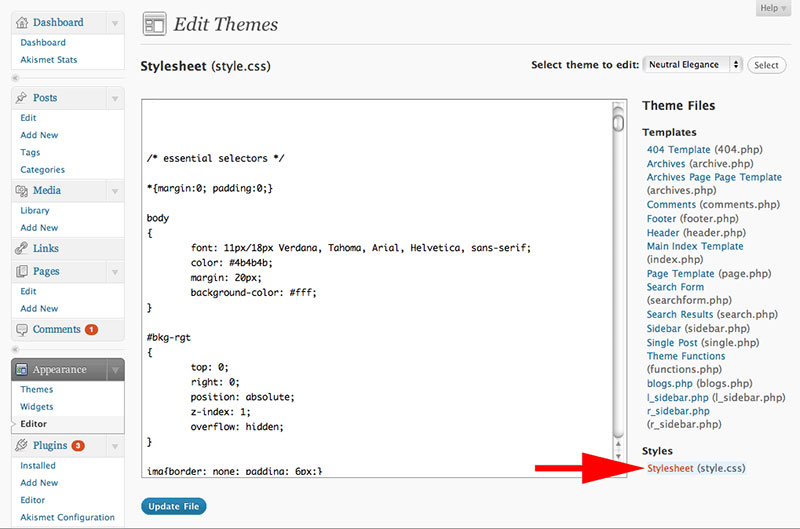
Changing the font in a WordPress theme involves editing the theme’s code. Access the theme editor through the WordPress dashboard. Locate the CSS file and adjust the font-family property to your preferred font style. Save changes and refresh your site to see the new font.
Locate Theme Files
Theme files are inside the WordPress dashboard. Navigate through Appearance and then Theme Editor. The main file is named style.css. This file controls fonts and styles. Look for the folder that matches your theme name. This folder contains all theme files.
Modify Css For Font Styles
Open the style.css file. Find the section that mentions font-family. Change the font name to your desired font. Save changes to update the look. Use simple fonts like Arial or Times. These are easy to read.
Use Child Theme For Safe Edits
Creating a child theme is smart. It protects your changes from updates. Make a new folder in the theme directory. Copy the style.css file into this folder. Now, modify this copy. This keeps original files safe.
Credit: wpdatatables.com
Testing And Adjusting
Explore font options in your WordPress theme to enhance design. Test different fonts for readability and style. Adjust settings to fit your brand’s aesthetic and ensure content remains accessible to your audience.
Check Compatibility Across Devices
Fonts should look good on all devices. Use a smartphone and a computer. Check how the font appears. Consistency is key for a pleasant reading experience. If a font looks bad on a device, it can confuse readers. Make sure the text is clear and easy to read everywhere.
Fine-tune Font Sizes And Spacing
Adjust the font size to suit your audience. Big fonts are easy to read. Spacing between lines should be comfortable. Too little spacing can make text hard to follow. Keep text neat and tidy. Balance is important.
Ensure Consistency Across Pages
Use the same font style on every page. This makes the site look professional. Different fonts can confuse visitors. Uniformity helps readers know they are on the same site. It creates a smooth browsing experience.
Troubleshooting Common Issues
Changing the font in a WordPress theme can fix common design issues. Head to the theme settings and locate typography options for easy customization. Experiment with different font styles to enhance your website’s look and readability.
Resolve Missing Fonts
Missing fonts can make your website look strange. Check if the font files are uploaded correctly. Visit your theme’s folder and see if they are there. If not, upload them again. Ensure your CSS file links to these fonts. Look for the @font-face rule in your CSS. This rule should have the right file path.
Fix Style Conflicts
Style conflicts change how text looks. Different plugins may cause this. Check your plugins and see which one causes trouble. Disable each plugin one by one. See if the problem goes away. You can also check the CSS of your theme. Look for any conflicting styles. Correct them if needed.
Address Performance Concerns
Fonts can slow down your site. Use only the fonts you need. Too many fonts make the site load slowly. Pick essential fonts. Use Google Fonts if possible. They are fast and reliable. Minimize font sizes to help with speed. Your site will run quicker.
Credit: www.elegantthemes.com
Frequently Asked Questions
How Do I Change The Font In A WordPress Theme?
To change the font in a WordPress theme, use the Customizer. Navigate to Appearance > Customize. Select Typography settings. Choose your desired font and save changes. Alternatively, install a plugin like Google Fonts for more options. Always ensure compatibility with your theme and check the results on different devices.
How Do I Change The Font In A Theme?
Access your theme’s settings or customizer. Navigate to typography or fonts section. Choose your desired font. Save changes. Refresh your site to see the new font.
How Do I Change The Font In WordPress Without Plugins?
Edit your theme’s stylesheet in WordPress. Go to Appearance > Theme Editor > style. css. Locate the font-family property and change the font. Save changes to apply the new font.
How To Change Font On WordPress For Free?
Change fonts for free by using the WordPress Customizer. Navigate to Appearance > Customize > Typography. Select your desired font from Google Fonts or theme options. Save changes to update your site’s appearance. Use plugins like Easy Google Fonts for more customization options.
Always check compatibility with your theme.
Conclusion
Changing fonts in WordPress is straightforward and rewarding. Start by accessing your theme settings. Select a font that complements your site’s style. Check for readability and user engagement. A good font enhances user experience and makes content inviting. Experiment with different options until you find the perfect match.
Keep your audience in mind. Choose fonts that are easy to read. Avoid overly complex styles. Regular updates can keep your site fresh and engaging. Remember, the right font can make a big difference. Your site deserves a look that’s both appealing and functional.
Happy customizing!


