
Have you ever made a change in WordPress and instantly wished you could take it back? Maybe you updated a page, edited a post, or tweaked your site’s design—and suddenly things didn’t look or work the way you wanted.
Don’t worry, you’re not alone. Knowing how to undo changes quickly can save you time, stress, and even keep your website running smoothly. You’ll discover simple, step-by-step ways to reverse your WordPress changes, so you can fix mistakes and regain control with confidence.
Keep reading to learn how easy it can be to undo changes and protect your site.
Credit: wpforms.com
Undo Changes With Revisions
WordPress saves every change you make to your posts and pages. This feature is called Revisions. It helps you undo changes without stress. You can see past versions and pick the one you want. This way, you never lose your work or important content.
Revisions keep your editing process safe. They let you compare different versions side by side. Undoing changes becomes simple and fast. This tool is built into WordPress, so no extra plugins are needed.
Accessing Post Revisions
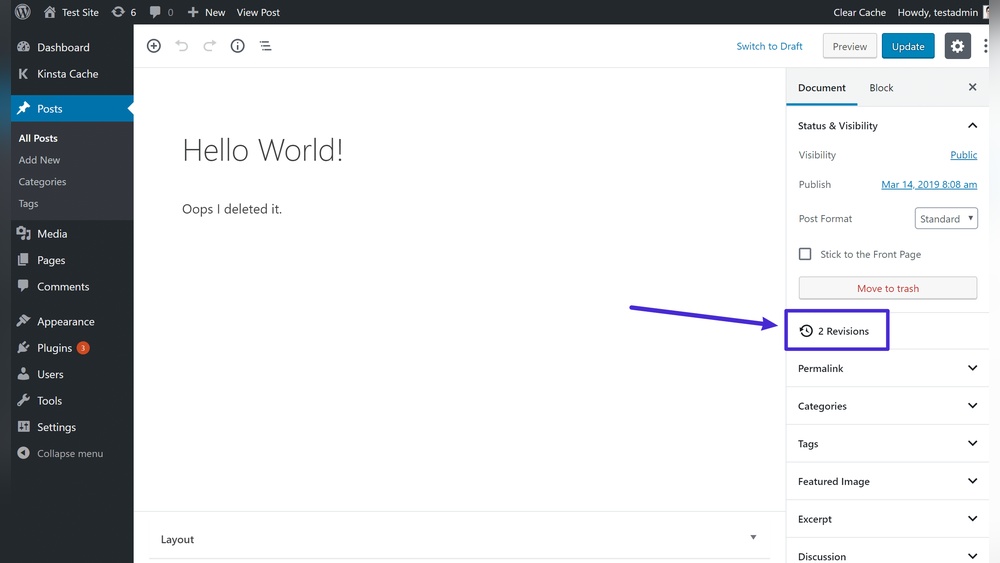
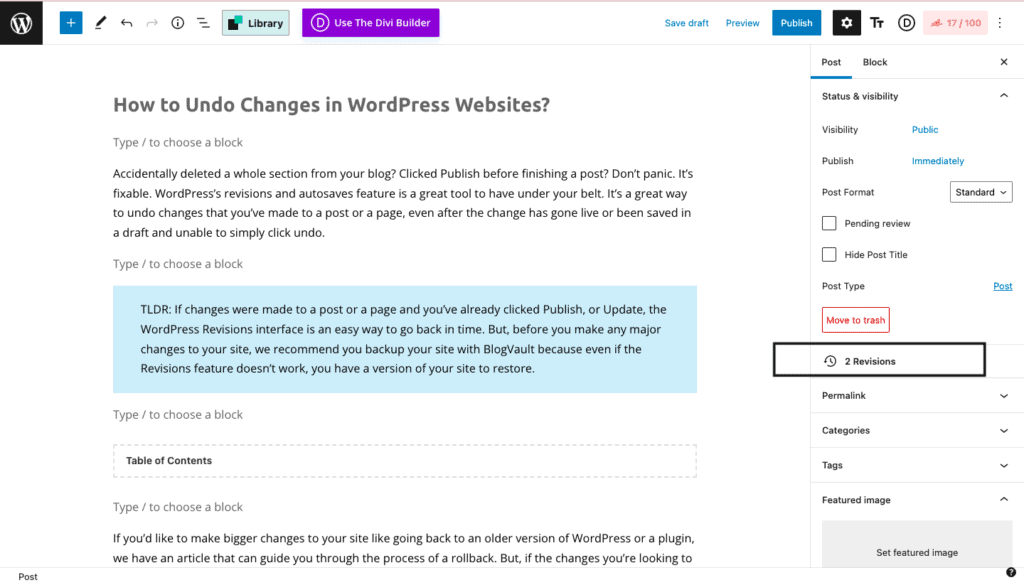
Open the post or page you want to edit. On the right side, find the “Revisions” section. Click on the link showing the number of revisions. This opens the Revisions screen.
Here, you see a timeline of all saved versions. Use the slider or arrows to move through them. Each version shows the content and what changed.
Restoring Previous Versions
Find the version you want to restore. Check the content carefully to make sure it is correct. Click the “Restore This Revision” button below. WordPress will replace the current content with the older version.
This action can be undone by restoring another revision later. You can repeat this process until your post looks right. Revisions make fixing mistakes quick and safe.
Use The Undo Button In The Editor
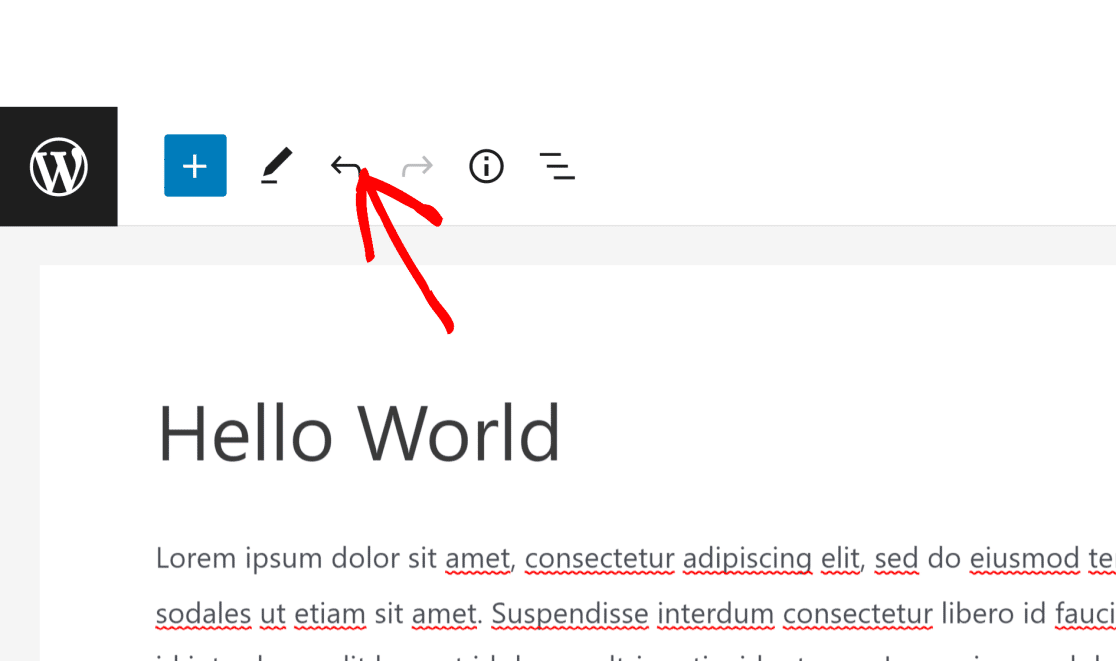
The Undo button in the WordPress editor helps fix mistakes quickly. It lets you go back step-by-step to previous changes. This tool is very useful when you type or format something wrong. You can easily reverse your last action with just one click.
Using the Undo button saves time and keeps your content safe. It works inside the editor, so no need to reload or lose your work. This feature is simple and handy for all users, even beginners.
Undo And Redo Shortcuts
Keyboard shortcuts make undoing faster. Press Ctrl + Z on Windows or Cmd + Z on Mac to undo. To redo an action, press Ctrl + Y or Cmd + Shift + Z. These shortcuts work inside the WordPress editor. They help fix errors without using the mouse.
Limitations Of The Undo Feature
The Undo button has limits. It only works during the current editing session. If you refresh the page, undo history clears. It cannot recover changes from previous sessions. Big edits or plugins might affect its function. Always save your work often to avoid loss.
Restore From Backups
Restoring your WordPress site from backups is a reliable way to undo unwanted changes. Backups save your website’s data at a specific point in time. This allows you to return your site to that saved state. Restoring from backups can fix errors or undo updates that caused problems.
There are two main methods to restore backups in WordPress. One uses plugins to automate the process. The other involves manually restoring files and databases. Both methods work well, depending on your setup and comfort level.
Using Plugin Backups
Many WordPress users rely on backup plugins for easy restoration. Plugins like UpdraftPlus, BackupBuddy, or Jetpack create regular backups. These tools store copies of your files and database safely. To restore, open the plugin’s dashboard in WordPress.
Select the backup you want to restore from the list. Most plugins let you choose full or partial restoration. Partial means only files or database, not both. Click the restore button, and the plugin handles the rest. The process may take a few minutes. Wait until it finishes, then check your site.
Manual Backup Restoration
Manual restoration requires access to your hosting control panel or FTP. First, locate your backup files. These usually include your WordPress files and a database export.
Upload your saved WordPress files to the server. Overwrite the current files to revert to the old version. Next, restore your database using phpMyAdmin or a similar tool. Import your backup SQL file to replace the current database.
Manual restoration takes more steps but works without plugins. It is useful if your site has custom settings or if plugins are unavailable. Always keep a copy of your current site before restoring manually. This ensures you can undo mistakes if needed.
Credit: blogvault.net
Revert Theme And Plugin Changes
Reverting theme and plugin changes in WordPress helps fix issues caused by updates or modifications. Sometimes updates bring bugs or conflicts. Undoing these changes keeps your site stable and running smoothly. You can roll back to a previous version safely. This section explains how to do it step-by-step.
Rolling Back Theme Updates
To undo a theme update, first back up your site. Use a plugin like WP Rollback to switch to an earlier version. It is easy and does not require coding skills. Simply select the theme and choose the version you want. The plugin downloads and installs the older version quickly. Check your site after the rollback to ensure it works well.
Manual rollback is possible by downloading the old theme version. Upload it via FTP or the WordPress dashboard. Replace the current theme files with the older ones. Always save a copy of the current theme before replacing. This method needs more care to avoid errors.
Undoing Plugin Modifications
Plugin updates can cause issues too. Use WP Rollback for plugins as well. Select the plugin and pick a previous version. The plugin handles the rest automatically. It saves time and lowers risk.
Manual rollback involves downloading the old plugin version from the WordPress repository. Then upload it to replace the current plugin files. Deactivate the plugin before replacing it. Reactivate after upload to test if the issue is fixed. Always back up your site before making changes.
Fixing Css And Code Edits
Fixing CSS and code edits in WordPress is important for keeping your site looking right and working well. Sometimes, changes cause problems or don’t look as expected. Undoing these changes quickly helps avoid downtime and keeps visitors happy.
Whether you changed the style or added new code, WordPress offers ways to revert your edits safely. This section explains how to undo CSS changes and code snippets without stress.
Undoing Css Changes
CSS controls how your site looks. Changing it can affect colors, fonts, and layout. To undo CSS changes, first check the Customizer or Additional CSS section. WordPress saves previous versions here. You can delete new styles or replace them with old code.
If you edited CSS files directly, use a backup or version control tool. Some themes have a reset button to restore default styles. Clearing your browser cache also helps see the original design after undoing changes.
Reverting Code Snippets
Code snippets add new features or functions. They live in theme files or plugins. Undoing code snippets means removing or editing the added code. Use a child theme to keep your main theme safe.
Access your site files with an FTP client or the WordPress file editor. Find the snippet and delete or comment it out. Always save a copy before changing code. If unsure, restore from a backup or ask for help.
Preventing Future Mistakes
Preventing future mistakes in WordPress saves time and stress. Small errors can cause big problems later. Taking steps now helps keep your site safe and easy to fix.
Enabling Revision Limits
WordPress saves many versions of your posts and pages. This feature lets you go back to an earlier version if needed. But too many revisions can slow your site down. Set a limit on how many revisions WordPress keeps. This keeps your site fast and organized. Use a plugin or add a simple code to your wp-config.php file. Set a number that fits your editing style. This way, you keep important changes but avoid clutter.
Regular Backup Practices
Backups are your safety net. They copy your whole website and save it somewhere safe. If something goes wrong, you can restore your site quickly. Schedule backups often, like daily or weekly. Use a reliable plugin or your hosting service’s backup tools. Store backups off your website server, like on cloud storage or a hard drive. Test backups by restoring them sometimes. This ensures they work when you need them. Regular backups protect your content and your peace of mind.
Credit: duplicator.com
Frequently Asked Questions
How Can I Undo Recent Edits In WordPress?
You can undo recent edits using WordPress Revisions. Open the post or page editor, click ‘Revisions,’ and restore a previous version easily to revert unwanted changes.
Is There A Way To Recover Deleted Content In WordPress?
Yes, deleted posts or pages go to the Trash folder. Go to the Trash, select the content, and click ‘Restore’ to recover it quickly.
Can I Undo Theme Or Plugin Changes In WordPress?
Undo theme or plugin changes by restoring backups. Use a backup plugin or hosting backup service to revert your site to a previous stable state safely.
How Do I Revert WordPress Post To A Previous Version?
Access the Revisions feature in the post editor. Compare versions side-by-side and click ‘Restore This Revision’ to revert to your preferred earlier draft.
Conclusion
Undoing changes in WordPress is simple and quick. You can use the built-in revision tool to restore past versions. Backups also help keep your site safe from mistakes. Always save your work before making big edits. This way, you can easily fix errors without stress.
Understanding these steps makes managing your site easier. Keep practicing, and you will feel more confident. WordPress gives you control to correct your content anytime. No need to worry about accidental changes anymore.


