
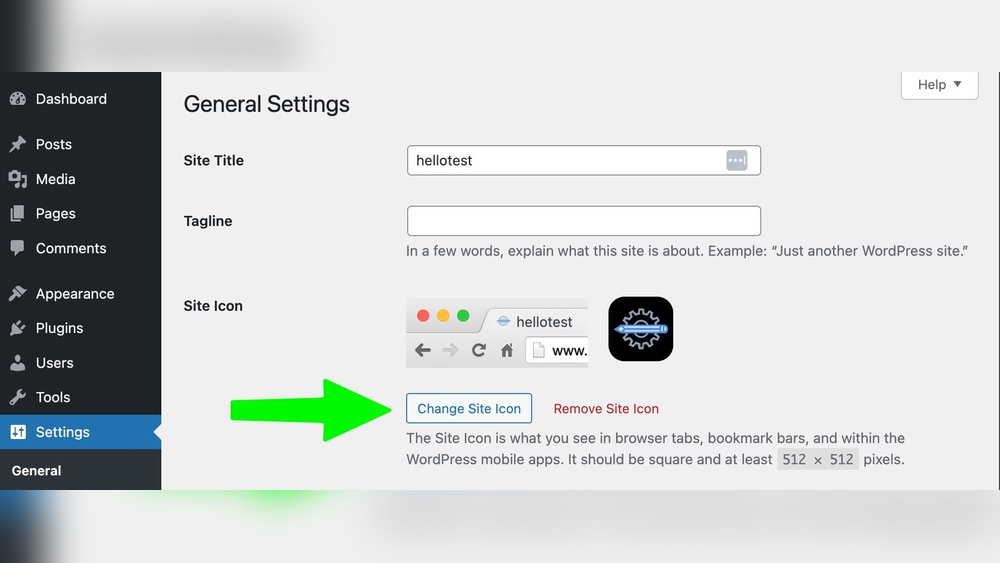
You want your website to stand out and look professional, right? One simple way to do that is by adding a site icon to your WordPress site.
That tiny image in the browser tab might seem small, but it makes a big difference. It helps visitors recognize your site quickly and builds trust. If you’re wondering how to add your own site icon but don’t know where to start, you’re in the right place.
Keep reading, and I’ll show you exactly how to do it—step by step, with no confusion. Your site’s new look is just a few clicks away.
What Is A Site Icon
A site icon is a small image that represents your website. It appears in browser tabs, bookmark bars, and mobile devices. This tiny image helps visitors recognize your site quickly.
Site icons are also called favicons. They improve user experience by making your website easy to spot among many open tabs. A good site icon builds trust and brand identity.
What Does A Site Icon Look Like?
Site icons are usually simple images or logos. They are square and small, often 512×512 pixels. The design should be clear and easy to see at small sizes.
Why Is A Site Icon Important?
Site icons help users find your site faster in a crowded browser. They add professionalism and polish to your website. Without one, your site may look incomplete or less trustworthy.
Where Does The Site Icon Appear?
The site icon shows in browser tabs next to the page title. It also appears in bookmarks and on mobile home screens. Some browsers show it in history lists and shortcuts.
How Does A Site Icon Help Seo?
Site icons do not directly affect search rankings. They improve user experience and brand recognition. A better user experience can lead to more visits and shares, indirectly helping SEO.

Credit: wordpress.com
Why Site Icons Matter
Site icons are small but powerful elements for any website. They help visitors quickly recognize your brand. A clear, unique site icon builds trust and makes your site look professional.
These icons appear in browser tabs, bookmarks, and mobile devices. They make your site easy to find among many open tabs. Without a site icon, your site looks generic and less credible.
Enhances Brand Recognition
A site icon shows your logo or symbol in browser tabs. Visitors see your brand every time they visit. This constant exposure helps people remember your site.
Improves User Experience
Site icons make it easy to spot your website quickly. Users can find your tab without reading text. This saves time and reduces frustration on busy screens.
Boosts Professional Appearance
Sites with icons look well-maintained and trustworthy. A missing icon can make your site seem unfinished. Adding one shows you care about details.
Supports Mobile And Bookmark Visibility
Site icons appear on mobile home screens and bookmarks. They help your site stand out among many saved pages. This makes returning visitors more likely.
Preparing Your Site Icon
Preparing your site icon is an important step for your WordPress website. A site icon helps visitors recognize your brand quickly. It appears in browser tabs, bookmarks, and on mobile devices. Creating a clear and properly sized icon improves your site’s professionalism and user experience.
Recommended Size And Format
Choose an icon size of 512 by 512 pixels. This size works well across different devices. Use PNG or JPEG formats for the best quality. PNG is ideal if your icon has transparency. Make sure the image is sharp and not blurry. Avoid very large files to keep your site fast.
Design Tips For Clarity
Keep your design simple and easy to recognize. Use bold shapes and clear lines. Avoid too much detail that can be lost in small sizes. Use high contrast colors to make the icon stand out. Test the icon at smaller sizes to ensure it stays clear.
Creating A Transparent Background
A transparent background helps your icon blend with browser themes. Use image editing tools like Photoshop or free options like GIMP. Save your icon as a PNG with transparency enabled. Avoid white or colored backgrounds that may clash with site colors. This keeps the icon clean and professional.

Credit: docs.fontawesome.com
Adding A Site Icon In WordPress
Adding a site icon in WordPress helps your website look professional. The site icon appears in browser tabs and bookmarks. It also shows on mobile devices, helping users recognize your site easily. The process is simple and takes just a few steps.
Accessing The Customizer
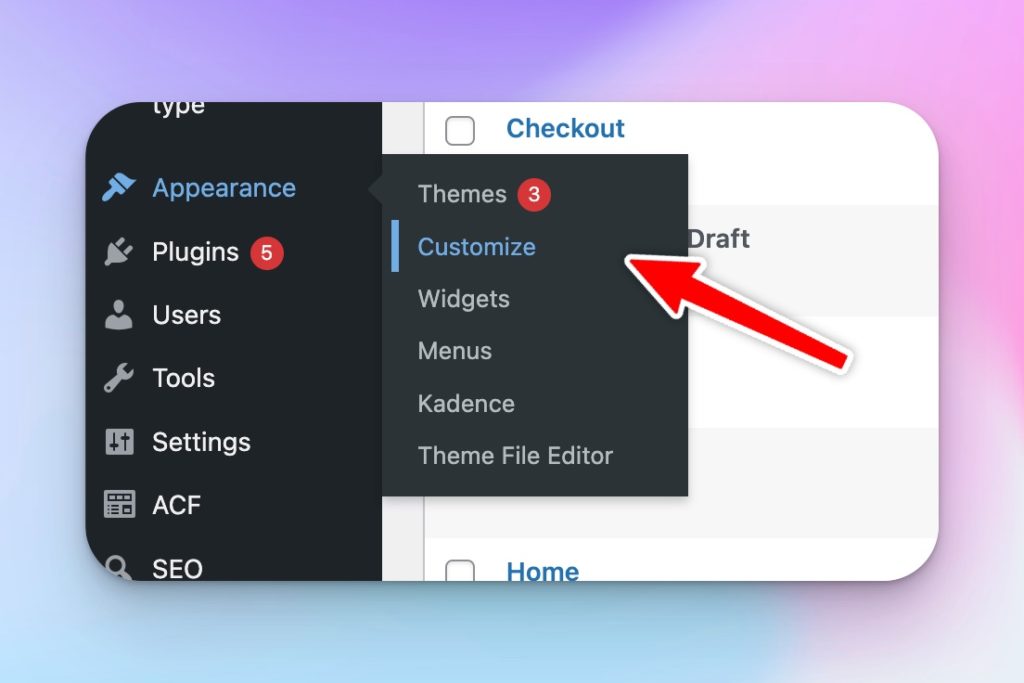
Start by logging into your WordPress dashboard. Find the “Appearance” menu on the left side. Click on “Customize” to open the WordPress Customizer. This area lets you change many parts of your site visually. Look for the “Site Identity” section. This is where you will add your site icon.
Uploading Your Icon
In the “Site Identity” section, locate the “Site Icon” option. Click on the “Select Site Icon” button. Choose an image from your media library or upload a new one. The recommended size is at least 512×512 pixels. This size ensures your icon looks clear on all devices. After selecting your image, crop it if needed. Confirm the selection to set it as your site icon.
Previewing And Saving Changes
Check the preview on the right side of the Customizer. The site icon will show in the browser tab mockup. Make sure it appears sharp and fits well. If it looks good, click the “Publish” button. This saves your changes and updates your site icon. Your new icon will now display on all browsers and devices.
Troubleshooting Common Issues
Adding a site icon in WordPress is simple, but sometimes issues appear. These problems can stop your icon from showing or affect its look. This section helps you fix common troubles fast. Clear steps make your site icon work perfectly.
Icon Not Showing
Check if you uploaded the icon correctly. Use an image size of 512×512 pixels. Refresh your site after adding the icon. Sometimes, WordPress needs time to update the change. Disable any caching plugins temporarily to see if they block the icon. Also, try another browser to check if the problem stays. Make sure your theme supports site icons. Some themes may hide the icon by default.
Image Quality Problems
Use a clear, simple image for your icon. Avoid small details that can blur at small sizes. Save the image as a PNG or ICO file for best results. Compress the file lightly to keep quality without slowing your site. Check the icon on different devices to ensure it looks sharp. If it looks pixelated, try a higher resolution image or a different format.
Browser Cache Tips
Browsers keep old site icons in cache. This stops new icons from showing right away. Clear your browser cache to see the new icon. On mobile, close and reopen the browser. Use private or incognito mode to check changes faster. Ask visitors to do the same if they report missing icons. Regularly clear your site cache if you use caching plugins.
Enhancing Branding With Site Icons
Site icons play a key role in branding your WordPress site. They create a visual identity that visitors easily recognize. A well-designed icon builds trust and professionalism. It also helps your site stand out in crowded web spaces. Using a site icon shows attention to detail and care for user experience.
Site icons appear in browser tabs, bookmarks, and more. This small image leaves a big impression on users. It ties your website’s look with your brand’s style. Consistent branding increases user loyalty and return visits.
Consistency Across Devices
Site icons keep your brand uniform on all devices. They look the same on desktops, tablets, and phones. This consistency helps users identify your site quickly. Without a site icon, browsers show generic images or blanks. That can confuse visitors and weaken your brand.
Using the right icon size ensures clear display on any screen. WordPress automatically adjusts the icon for different devices. This saves time and ensures your brand stays sharp everywhere.
Using Site Icons For Mobile Apps
Site icons also appear when users save your site to their phone home screens. They act like app icons, making your site easy to find. A clear and attractive icon encourages users to return. It gives your site an app-like feel without extra coding.
Good icons improve user experience on mobile devices. They make your site look professional and trustworthy. This small detail can increase mobile traffic and engagement.
Leveraging Icons In Marketing
Site icons support your marketing efforts outside your website. They appear in social media shares and browser bookmarks. This helps spread brand awareness with every visit and share. Consistent icons build recognition over time.
Using your icon in emails and ads strengthens your brand message. It creates a visual link between your website and marketing materials. This connection improves recall and encourages user action.
Credit: smartwp.com
Frequently Asked Questions
What Is A Site Icon In WordPress?
A site icon, or favicon, is a small image representing your website. It appears in browser tabs, bookmarks, and mobile devices, helping users identify your site quickly.
Why Should I Add A Site Icon To My WordPress Site?
Adding a site icon improves brand recognition and professionalism. It helps users find your site easily among many open tabs or bookmarks.
How Do I Upload A Site Icon In WordPress?
Go to WordPress Dashboard > Appearance > Customize > Site Identity. Click “Select Site Icon,” upload your image, and save changes to set your site icon.
What Size And Format Should My WordPress Site Icon Be?
WordPress recommends a square image of at least 512×512 pixels. Use PNG, JPG, or ICO formats for best compatibility across devices and browsers.
Conclusion
Adding a site icon in WordPress helps your website look professional. It makes your site easy to recognize on browser tabs and bookmarks. The process is simple and quick to follow. Just upload your image, and WordPress does the rest.
This small change improves your site’s identity and trustworthiness. Keep your site icon clear and simple for the best result. Try it today and see the difference it makes.


