
Are you looking to make your WordPress site more engaging by adding events? Whether you want to promote a webinar, a local meetup, or a product launch, adding events can draw more visitors and keep your audience informed.
But how do you do it quickly and without hassle? In this guide, you’ll discover simple, step-by-step ways to add events in WordPress that grab attention and boost your site’s value. Keep reading, and you’ll be ready to create event listings that your visitors won’t want to miss.
Credit: wordpress.org
Choosing The Right Event Plugin
Choosing the right event plugin is key to managing events smoothly on WordPress. The plugin you pick shapes how easy it is to create, display, and handle events. Some plugins fit simple needs, while others offer many advanced tools. Consider your site’s goals and the features you need before deciding.
Popular Event Plugins
Many event plugins stand out for WordPress users. The Events Calendar is widely used for its clean design and user-friendly interface. Event Organiser offers detailed scheduling options. WP Event Manager is lightweight and easy to customize. Each has a strong user base and regular updates.
Features To Look For
Focus on features that match your event needs. A good plugin should allow easy event creation and editing. Look for calendar views like monthly, weekly, or list style. Ticketing and payment support matter if you sell tickets. Reminder emails and RSVP options help manage attendees. Mobile-friendly design is essential for all users.
Free Vs Premium Options
Free plugins work well for small or simple events. They offer basic features like event listing and calendar views. Premium versions add value with extra tools. These include advanced ticketing, recurring events, and custom fields. Premium support can save time if issues arise. Weigh your budget against the features you truly need.

Credit: conetix.com.au
Installing And Activating The Plugin
Installing and activating a plugin is the first step to add events in WordPress. Plugins add new features to your website without coding. This guide explains how to install and activate an event plugin easily.
Accessing The WordPress Dashboard
Start by logging into your WordPress admin area. Use your username and password to access the dashboard. The dashboard is where you manage your site’s content and settings.
Searching For Plugins
Find the “Plugins” menu in the dashboard sidebar. Click “Add New” to open the plugin search page. Type keywords like “event” or “calendar” in the search bar. This shows a list of event plugins available for your site.
Plugin Installation Process
Look through the plugin options and choose one that fits your needs. Click the “Install Now” button next to your chosen plugin. WordPress downloads and installs the plugin files automatically. Wait for the installation to finish before moving on.
Activating The Plugin
After installation, click the “Activate” button. Activation makes the plugin work on your website. You can now start adding and managing events with the new plugin tools. Check the plugin settings to customize it for your events.
Setting Up Your First Event
Setting up your first event in WordPress is simple and straightforward. This guide walks you through each step. You will learn how to create a new event, add important details, set the date and time, and choose the right location. Follow these steps to make your event stand out and attract attendees.
Creating A New Event
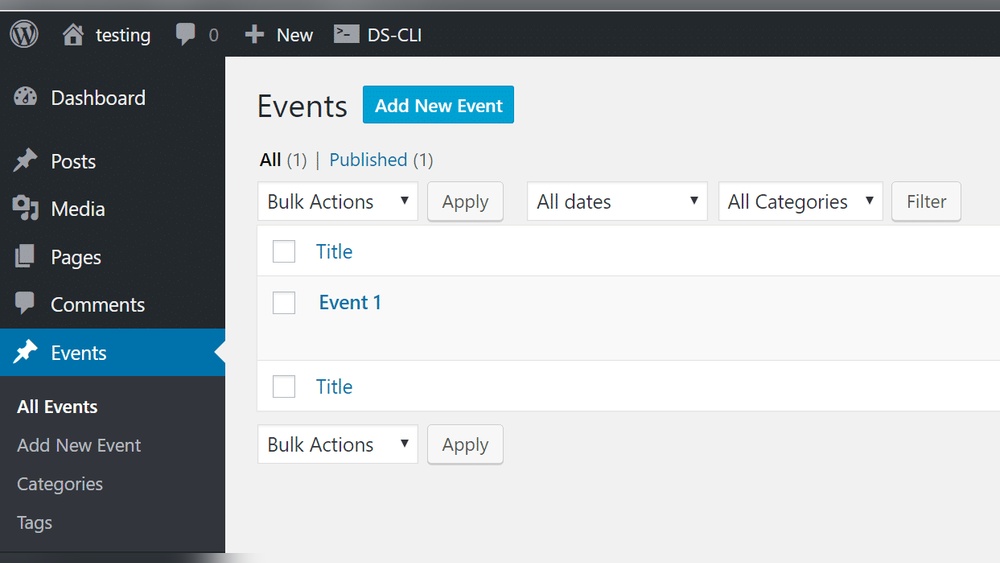
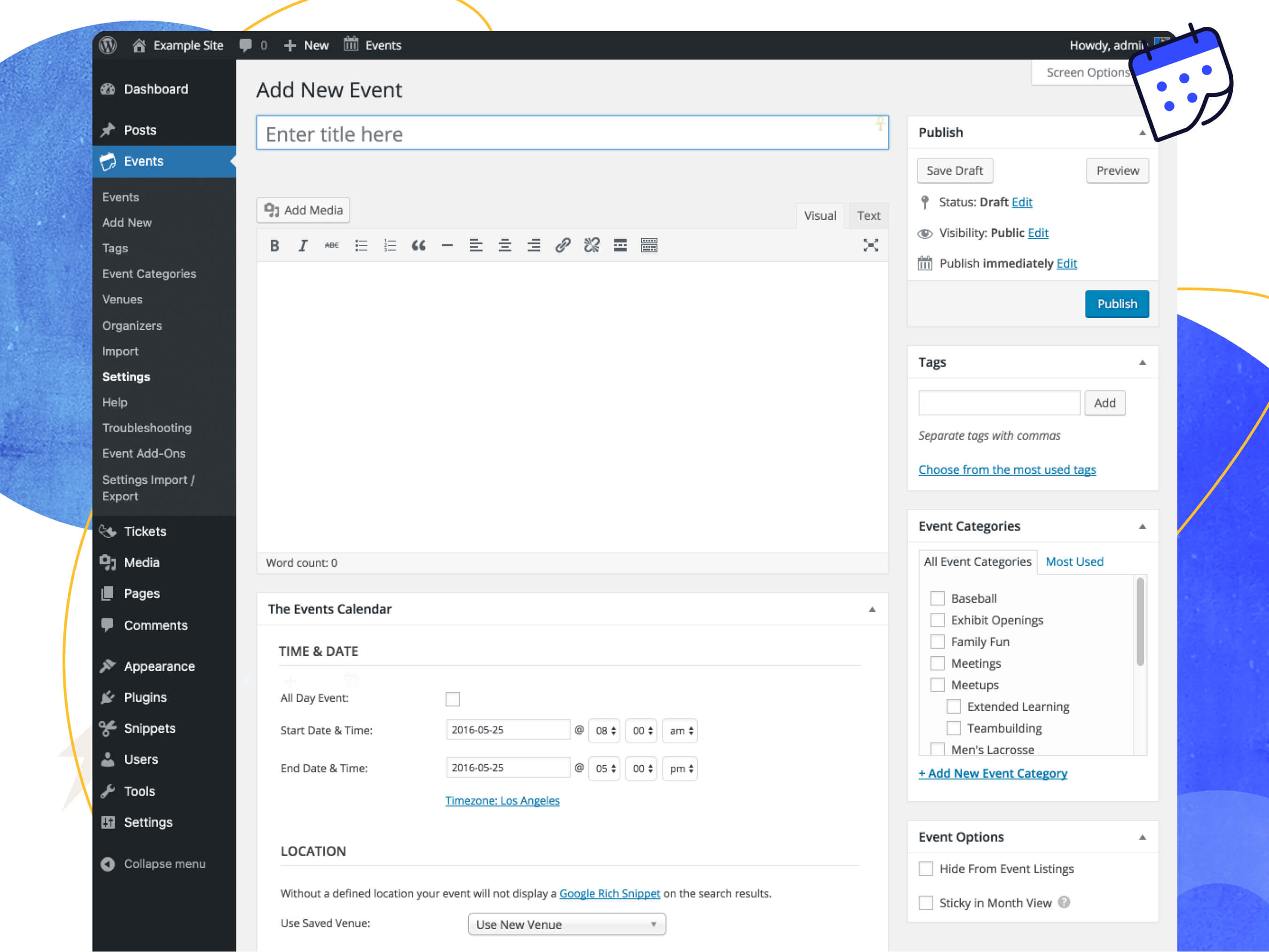
Start by logging into your WordPress dashboard. Look for the event plugin or events section. Click on “Add New” to create a fresh event. Give your event a clear and catchy title. This title will appear on your website and attract visitors. Keep it short but descriptive.
Adding Event Details
Next, add a detailed description of your event. Explain what the event is about and who should attend. Use simple language to make it easy to read. Include any special instructions or features, like guest speakers or activities. This helps visitors understand the event better.
Setting Date And Time
Set the start and end dates for your event. Make sure the times are correct to avoid confusion. Many event plugins offer a calendar view to pick dates easily. Double-check your time zone settings. This ensures attendees see the right schedule.
Location And Venue Options
Add the event location to help attendees find it. You can type the address manually or select it from a map. Some plugins allow adding multiple venues if your event has more than one place. Include details like room number or floor if needed. Clear location info improves attendance and user experience.
Customizing Event Appearance
Customizing the look of your events helps make them more attractive. It also makes your event page match your website style. Simple changes can improve visitor experience and boost engagement. Below are ways to adjust event appearance in WordPress easily.
Choosing Event Templates
Event templates control how your event details show on the page. Many WordPress event plugins offer ready-made templates. Pick one that fits your website’s style and purpose. Test different templates to see which displays your events best. Templates save time by organizing information clearly.
Adding Images And Media
Images and media catch visitor attention quickly. Add photos of the venue, speakers, or past events. You can also include videos to give more event details. Use clear and relevant images to keep visitors interested. Media improves the overall feel of the event page.
Configuring Event Colors And Styles
Colors and styles set the mood of your event page. Match colors to your brand or event theme for consistency. Change fonts, backgrounds, and button styles to make events stand out. Most event plugins let you customize these settings easily. Proper styling helps visitors focus on important details.
Managing Event Registrations
Managing event registrations is a key step in organizing successful events on WordPress. It helps you keep track of who will attend and what they need to pay. This process makes event planning easier and more organized. You can control registration forms, ticket prices, and attendee lists.
These tools help you collect the right information from guests. They also make sure payments are handled correctly. Managing registrations well leads to smoother events and happier attendees.
Enabling Registration Forms
Start by enabling registration forms on your event page. These forms collect important details like names and emails. Use simple fields to avoid confusion for visitors. Most WordPress event plugins offer easy form setup. Turn on the registration option in your event settings. Customize the form to gather all necessary information.
Setting Ticket Prices
Set ticket prices to match your event type and costs. Create different ticket options if needed. For example, early bird or VIP tickets. Enter prices clearly in the event plugin settings. Make sure visitors see the total cost before they register. This step helps avoid payment problems later.
Managing Attendee Lists
Keep track of attendees using your WordPress dashboard. View all registered guests in one place. Export the list to spreadsheets for easy use. Check off attendees as they arrive at your event. This process helps you stay organized and prepared. It also gives you data for future events.
Displaying Events On Your Website
Displaying events on your website helps visitors see what is coming up. It keeps your audience informed and engaged. You can show events in many ways. Using WordPress tools, you can create neat and clear event displays that match your site style.
Using Shortcodes
Shortcodes are small code snippets that add content quickly. Many event plugins offer shortcodes for showing events. Copy the shortcode and paste it into any page or post. The event list or calendar will appear automatically. This method works well for users who want fast results without coding.
Adding Events To Pages Or Posts
Events can be added directly inside pages or posts. Use the WordPress editor to insert event blocks or widgets. Some plugins add special blocks for events. You can write event details and format them nicely. This way, events fit naturally with other content on your site.
Creating Event Calendars
Event calendars show multiple events in a clean layout. Visitors can see events by day, week, or month. Many plugins help build calendars with easy drag-and-drop tools. Calendars make it simple to browse upcoming events. They improve user experience and keep your site organized.
Promoting Your Events
Promoting your events is key to attracting more attendees. Good promotion helps spread the word and builds excitement. Use simple strategies to reach more people easily. Focus on channels where your audience spends time. Share event details clearly and often. This boosts attendance and makes your event a success.
Integrating Social Media
Share your event on popular social platforms. Post regularly to keep followers interested. Use eye-catching images and clear event details. Encourage sharing to reach a wider audience. Join groups related to your event topic. Engage with comments to build trust and interest.
Using Email Notifications
Send emails to your mailing list about upcoming events. Include all important details in a short message. Remind subscribers as the event date nears. Personalize emails for better connection. Use clear subject lines to increase open rates. Follow up after the event to thank attendees.
Seo Tips For Event Pages
Use clear titles with event keywords. Write detailed descriptions that explain the event well. Add location and date in visible places. Use headings to organize content for easy reading. Include alt text on all images. Keep URLs simple and relevant to the event. These steps help your event page rank higher in search results.
Troubleshooting Common Issues
Troubleshooting common issues helps keep your WordPress events running smoothly. Problems can stop your events from showing or cause errors during registration. Fixing these quickly improves user experience and saves time.
Below are some typical problems and simple ways to solve them.
Plugin Conflicts
Plugins can sometimes clash and cause errors in your event system. Turn off other plugins one by one to find the conflict. Clear your site cache after disabling each plugin. Update all plugins to their latest versions. Use only trusted plugins that work well with your event plugin.
Event Display Problems
Events may not show correctly on your site. Check if your event plugin settings are correct. Make sure your theme supports the event plugin. Try switching to a default WordPress theme to test display issues. Clear browser and site cache to fix loading problems. Ensure your events have all required information filled out.
Registration Errors
Registration problems can block users from signing up. Confirm your payment and registration settings are set up right. Check if email notifications are enabled and working. Test the registration form yourself to find issues. Look for plugin updates that fix registration bugs. Ensure no fields in the form are missing or incorrect.

Credit: wp-events-plugin.com
Frequently Asked Questions
How Do I Add An Event In WordPress Without A Plugin?
You can add events manually by creating a custom post type or using the default posts and pages. However, using a plugin is easier and offers better event management features.
What Is The Best Plugin To Add Events In WordPress?
The best plugin for adding events is “The Events Calendar. ” It is user-friendly, SEO optimized, and offers powerful event management tools suitable for all websites.
Can I Customize Event Details In WordPress?
Yes, most event plugins allow you to customize event details such as date, time, location, and description. You can also add images and ticketing options.
How Do I Display Events On My WordPress Homepage?
You can use shortcode or widget options provided by event plugins to showcase upcoming events on the homepage. This helps visitors easily find event information.
Conclusion
Adding events to WordPress is simple and useful. You can share important dates and activities with your visitors. Just follow the steps carefully to create events that stand out. Keep your event details clear and easy to find. Using plugins can help you add more features.
Regularly update your events to keep your site fresh. This way, visitors stay informed and engaged. Start adding events today to make your WordPress site more interactive. It’s a small effort with great results.


