
Are you ready to turn your WordPress site into a powerful online store? Adding a shop page can seem tricky at first, but it’s easier than you think.
Imagine having a dedicated space where your visitors can browse and buy your products with just a few clicks. In this guide, you’ll discover simple steps to create a shop page that looks great and works smoothly. By the end, you’ll have everything set up to start selling confidently.
Let’s dive in and make your website work harder for you!
Credit: wpmet.com
Choosing The Right Plugin
Choosing the right plugin is key to creating a successful shop page on WordPress. The plugin controls how your products display and how customers buy them. It affects your site’s speed, security, and ease of use. Pick one that fits your needs and skill level. The best plugin makes managing your shop simple and smooth.
Woocommerce Setup
WooCommerce is the most popular plugin for WordPress shops. It works well with many themes and offers many features. You can add products, set prices, and manage orders easily. It supports different payment methods and shipping options. WooCommerce is free, but some add-ons cost extra. Setting it up is straightforward, even for beginners.
Alternative E-commerce Plugins
Other plugins may suit your shop better, depending on your needs. Easy Digital Downloads is good for selling digital products. WP EasyCart offers simple setup and good support. Ecwid lets you add a shop to any website, including WordPress. Each plugin has unique features and pricing. Check reviews and test demos before choosing one.
Credit: docs.themeisle.com
Installing And Activating The Plugin
Installing and activating the right plugin is the first step to add a shop page on WordPress. This process sets up the tools you need to sell products online. Plugins add new features without coding. Follow simple steps to get your shop running quickly.
Accessing The WordPress Dashboard
Start by logging into your WordPress dashboard. Use your website address followed by “/wp-admin”. Enter your username and password. The dashboard is the control center for your site. Here, you manage all settings and content.
Plugin Installation Process
Inside the dashboard, find the menu on the left side. Click on “Plugins” and then select “Add New”. Use the search bar to find the shop plugin you want. Popular choices include WooCommerce. Click “Install Now” next to the plugin name. Wait a few seconds for the installation to complete.
Activating The Plugin
After installation, click the “Activate” button. This enables the plugin on your site. Activation allows the plugin to start working immediately. Once active, you will see new options for setting up your shop. Your site is now ready for the next steps in creating a shop page.
Configuring Shop Settings
Configuring your shop settings is an important step in creating a functional online store. These settings control how your store looks and operates. Adjusting them carefully helps you provide a smooth shopping experience for customers.
General Settings
Start with the general settings to set your store’s basic details. Enter your store address and currency. Choose the unit of measurement for products, like weight and size. Set the default customer location to help calculate taxes and shipping. This setup ensures your store matches your business needs.
Payment Gateways
Payment gateways let customers pay for products securely. Select popular options like PayPal, Stripe, or credit card payments. Enable the gateways that suit your business and region. Test payment methods before going live to avoid issues. Clear payment options increase trust and sales.
Shipping Options
Shipping settings control how products reach customers. Define shipping zones by regions or countries. Set shipping methods such as flat rate, free shipping, or local pickup. Add shipping costs based on weight or price. Proper shipping setup keeps customers informed and satisfied.
Creating Your Shop Page
Creating your shop page is an important step in setting up an online store on WordPress. This page will display your products and help visitors browse and buy items easily. Follow these simple steps to create a clear and attractive shop page that fits your site’s style.
Adding A New Page
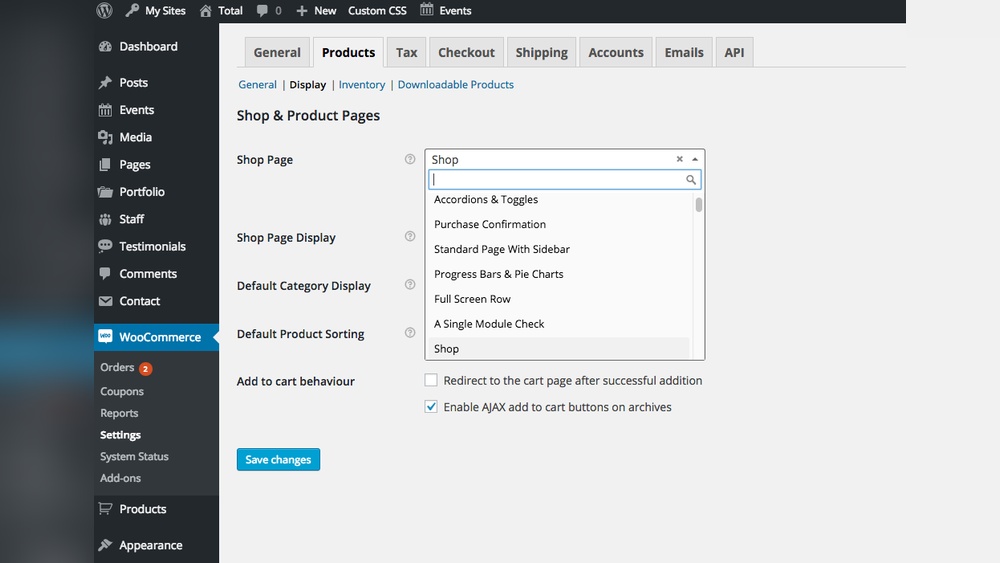
Start by logging into your WordPress dashboard. Go to the Pages section and click on “Add New.” Name the page something like “Shop” or “Store.” Save or publish the page. This page will serve as the main place for your products.
Setting The Shop Page Template
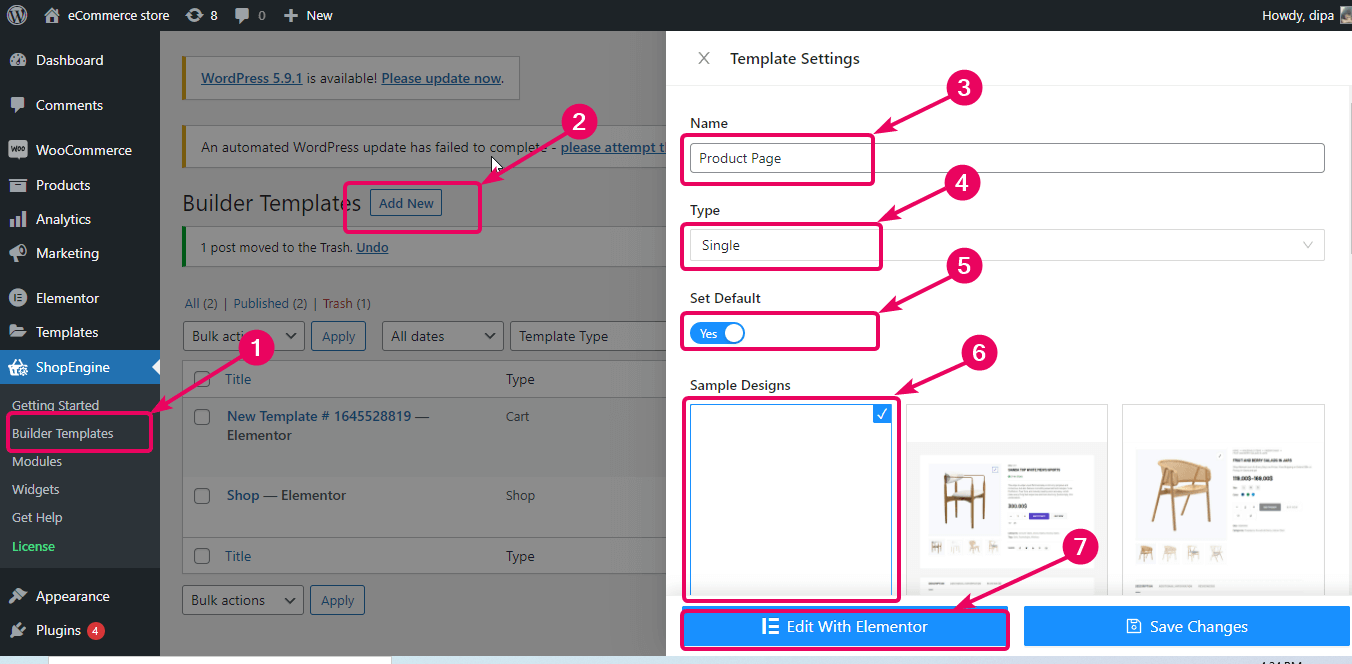
Most WordPress themes or WooCommerce use a special template for shop pages. In the page editor, look for a template option in the settings or sidebar. Select the “Shop” template if available. This template arranges products neatly and supports online store functions.
Customizing Page Layout
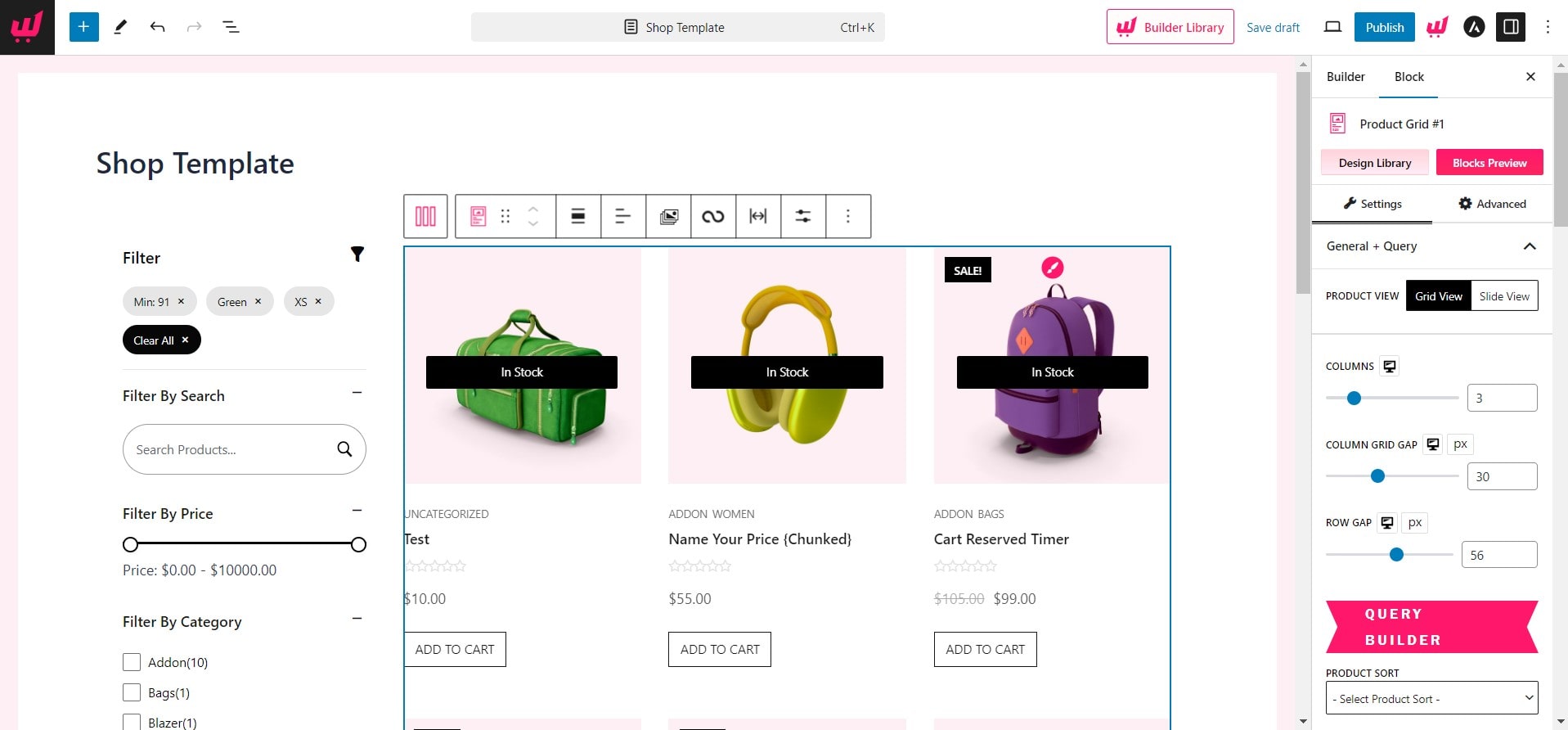
Customize the layout to match your brand. Choose how many products show per row and how many rows appear. Add a sidebar or keep it full width. Adjust colors, fonts, and spacing using your theme or a page builder plugin. Make the shop easy to navigate and visually appealing.
Adding Products To Your Shop
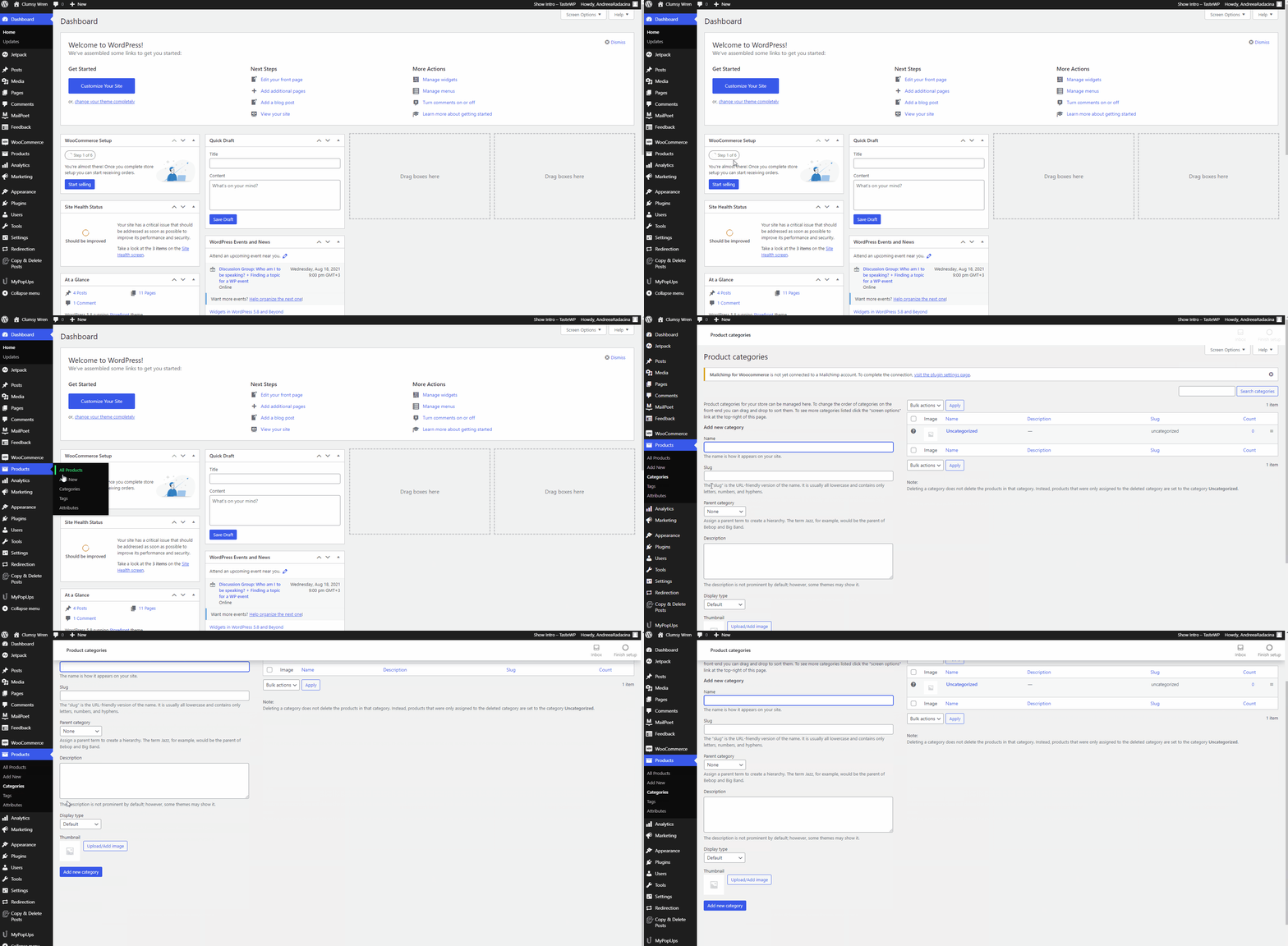
Adding products to your WordPress shop is the next step after setting up your store page. This lets visitors see what you sell and decide what to buy. Each product you add needs clear details and settings.
Organizing your products well helps customers find what they want fast. It also keeps your shop running smoothly. You will learn about different product types, how to fill in product details, and how to manage your stock.
Product Types
WordPress with WooCommerce supports different product types. Simple products are single items with no options. Variable products have choices like size or color. Grouped products are collections of related items. External or affiliate products link to other stores. Choose the right type for each product to show correct options.
Adding Product Details
Fill in the product name and description clearly. Upload good photos to show the product well. Set the price and sale price if you want discounts. Add categories and tags for better organization. Use short descriptions to highlight key features. Clear details help buyers make decisions quickly.
Managing Inventory
Keep track of how many items you have. Enable stock management to update quantities automatically. Set low stock alerts to know when to restock. Mark products as out of stock when none remain. Managing inventory prevents overselling and keeps customers happy.
Designing Your Shop For Better User Experience
Designing your shop for a better user experience helps visitors find products easily. A clean, simple design keeps customers interested and encourages them to buy. Focus on making your shop easy to use and visually appealing.
Clear navigation and fast loading pages make shopping smooth. Good design builds trust and makes customers come back.
Choosing A Compatible Theme
Pick a theme that works well with your shop plugin. It should support all shop features like product pages and carts. A compatible theme avoids problems and improves site speed.
Choose a theme with a simple layout. This helps customers focus on products. Look for themes that get regular updates and good reviews.
Customizing Appearance
Use your brand colors and fonts to create a unique look. Keep text easy to read with clear fonts and good size. Add high-quality images for products to show details well.
Organize products into categories. Use clear labels and buttons. This makes shopping faster and less confusing for users.
Mobile Responsiveness
Many people shop on phones or tablets. Your shop must look good on all screen sizes. A mobile-friendly design adjusts layout and images automatically.
Test your shop on different devices. Make sure buttons are easy to tap and text is easy to read. Mobile responsiveness improves user experience and sales.
Testing Your Shop Page
Testing your shop page is a vital step before going live. It ensures everything works smoothly and customers have a good experience. This process helps catch errors early, avoiding lost sales and unhappy buyers.
Checking Functionality
Start by browsing your shop page like a customer. Verify that product images load correctly. Check if product descriptions and prices appear as expected. Test filters and sorting options to confirm they work. Make sure the add-to-cart button functions on every product. Also, check navigation links to other pages.
Placing Test Orders
Create a test product or use an existing one for a trial purchase. Go through the entire checkout process. Enter fake but valid payment details if possible. Confirm that order confirmation emails send correctly. Check the order details in your WordPress dashboard. This step confirms your payment and order systems operate well.
Troubleshooting Common Issues
Look for broken links or missing images first. Fix any error messages during checkout immediately. Clear your browser cache if updates don’t show. Disable conflicting plugins if the shop page acts oddly. Update your WordPress and WooCommerce plugins regularly. Keep your website’s theme compatible with the shop plugin.
Promoting Your Shop
Promoting your shop is key to attracting visitors and making sales. It helps your products reach more people. Effective promotion builds trust and grows your customer base.
Focus on strategies that bring steady traffic. Use methods that fit your shop’s style and audience. Consistent effort makes a big difference over time.
Seo Tips
Optimize your shop page with clear keywords. Use product names and descriptions people search for. Write short, simple sentences for easy reading.
Include alt text for all images to improve search visibility. Use headings and bullet points to organize content. Keep URLs clean and descriptive.
Update your content regularly to stay relevant. Fast loading speed and mobile-friendly design help SEO too.
Social Media Integration
Link your shop to social media accounts. Share product updates and special offers often. Use clear images and simple captions.
Engage with followers by answering questions quickly. Post stories and videos to show your products in use. Add social share buttons on product pages.
Consistent posting keeps your shop visible and builds trust. Choose platforms your audience uses most.
Using Email Marketing
Collect emails from visitors with a signup form. Send regular newsletters with new products and discounts. Write short, friendly messages that invite action.
Segment your list to send relevant offers to different groups. Use clear subject lines to increase open rates. Include direct links to your shop in every email.
Email marketing builds repeat customers and keeps your shop top of mind.
Credit: www.wpxpo.com
Frequently Asked Questions
How Do I Create A Shop Page On WordPress?
To create a shop page, install WooCommerce plugin, activate it, and follow the setup wizard. Then, add products and publish the shop page.
Can I Customize My WordPress Shop Page Design?
Yes, you can customize your shop page using WordPress themes and page builders. WooCommerce-compatible themes offer specific shop layout options.
What Payment Options Are Available For WordPress Shops?
WordPress shops using WooCommerce support multiple payment gateways like PayPal, Stripe, credit cards, and bank transfers for secure transactions.
How Do I Add Products To My WordPress Shop?
Go to WooCommerce > Products > Add New. Enter product details, set prices, add images, and publish to display products.
Conclusion
Adding a shop page on WordPress is simple and clear. Follow the steps carefully to set up your store. Choose the right plugin and customize your page well. Keep your product info easy to read and organize. Test your shop to make sure everything works smoothly.
A well-made shop page can help visitors find and buy products easily. Take your time, and don’t rush the process. Soon, your WordPress site will have a functional and attractive shop page. Ready to start selling?


