
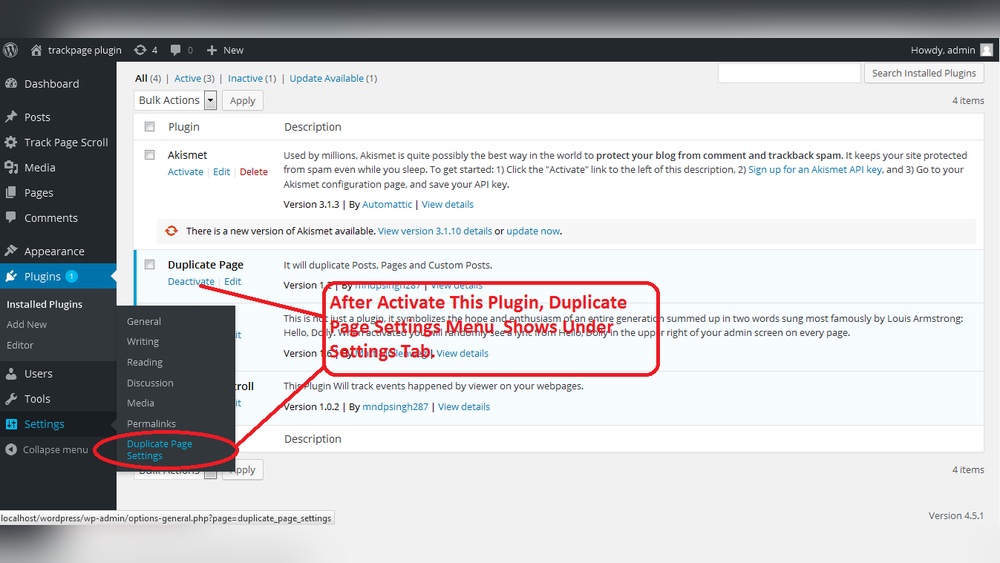
Are you thinking about duplicating your WordPress site but aren’t sure where to start? Whether you want to create a backup, build a staging site, or launch a new project quickly, copying your site can save you a lot of time and effort.
But how do you do it right without breaking anything? This guide will walk you through simple, clear steps to safely duplicate your WordPress site. By the end, you’ll feel confident handling your site like a pro. Ready to make your website work smarter for you?
Let’s dive in.
Credit: wordpress.org
Reasons To Duplicate A WordPress Site
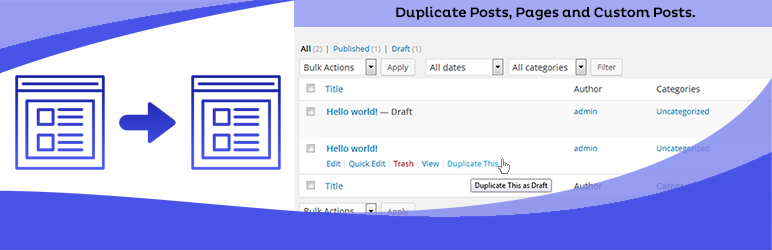
Duplicating a WordPress site has many practical uses. It helps keep your website safe, improves your work process, and makes moving your site easier. Understanding these reasons helps you decide when and why to copy your site.
Backup And Security
Creating a duplicate of your WordPress site acts as a backup. It protects your content from loss due to hacking or errors. You can restore your site quickly if something goes wrong. Regular backups reduce stress and save time during problems.
Testing And Development
A duplicate site lets you try new features safely. Test plugins, themes, or updates without risking the live site. Developers use copies to build and fix sites before showing changes. It keeps your main site stable and visitors happy.
Site Migration
Moving your website to a new host or domain is easier with a duplicate. It copies all files and settings exactly. This process lowers the chance of errors or broken links. A duplicate helps you switch hosts smoothly without downtime.
Credit: www.hostinger.com
Methods To Clone A WordPress Site
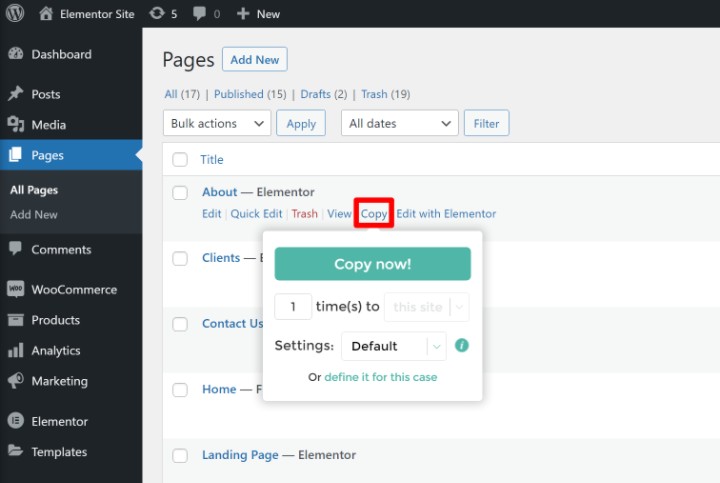
Cloning a WordPress site means making an exact copy of your website. This helps in testing, redesigning, or moving your site without risk. Several methods exist to duplicate your WordPress site. Each method suits different needs and skill levels. Choose the one that fits your situation best.
Using Plugins
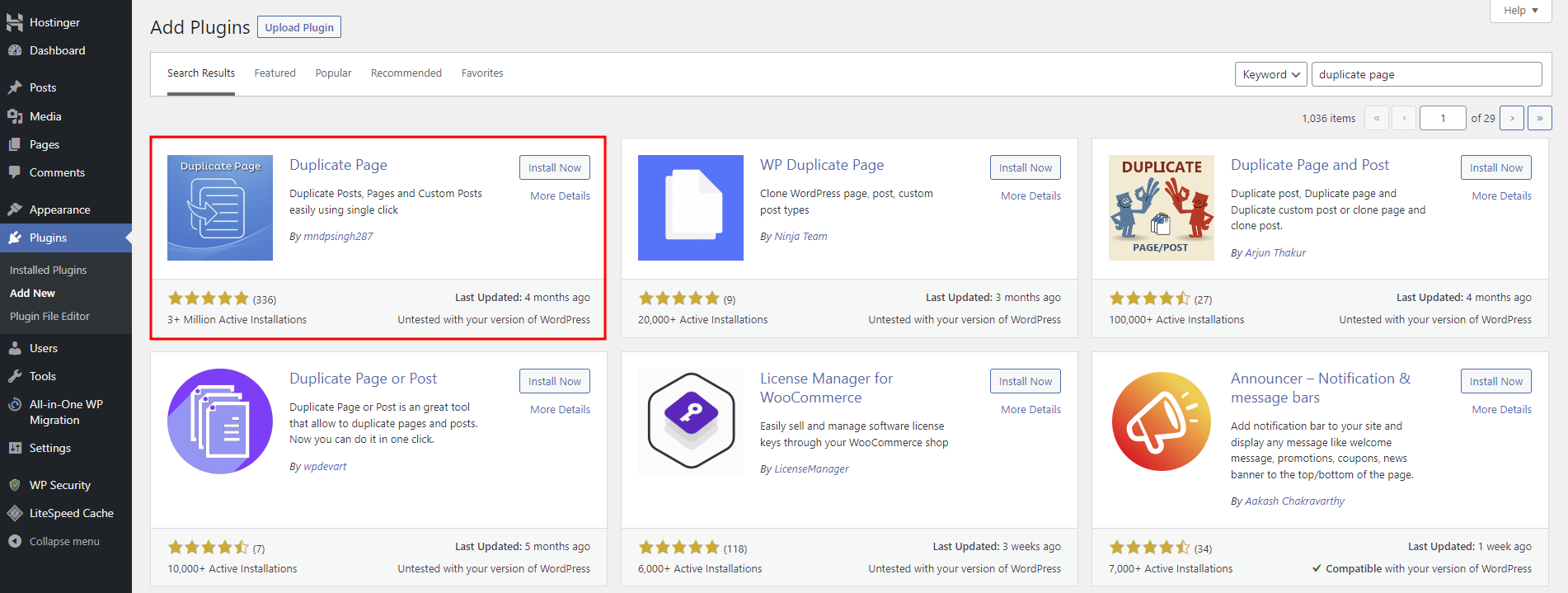
Plugins simplify the cloning process. They copy files and databases automatically. Popular plugins like Duplicator and All-in-One WP Migration make this task easy. Just install, follow instructions, and create a backup. Then, upload the backup to a new location. Plugins save time and reduce errors.
Manual Duplication
Manual duplication requires more effort but offers full control. Start by copying all WordPress files via FTP. Export your database using phpMyAdmin. Import the database into the new hosting account. Update the wp-config.php file with new database details. Change site URLs in the database for the new site. This method works well for experienced users.
Using Hosting Tools
Many hosting providers offer site cloning features. These tools are built into hosting dashboards. They automate copying your website to another folder or domain. This option is fast and reliable. It requires minimal technical knowledge. Check if your host provides this feature before starting.
Popular Plugins For Cloning
Cloning a WordPress site is easier with the right plugins. These tools help copy your website quickly and safely. They save time and avoid mistakes during manual copying. Below are popular plugins that many users trust for site cloning.
Duplicator
Duplicator is a well-known plugin for copying WordPress sites. It creates a package with all site files and the database. You can move this package to a new location. The plugin also helps with backups and migrations. It works well for small and large sites.
All-in-one Wp Migration
All-in-One WP Migration offers a simple way to export your entire site. It includes themes, plugins, and media files. You can upload the export file to a new WordPress setup easily. The plugin supports most hosting providers and works without technical skills.
Wp Staging
WP Staging creates a staging site on your current server. It copies your site for testing changes safely. This plugin is useful for developers and site owners. It keeps the live site untouched while you work on the clone. The free version covers basic cloning needs well.
Step-by-step Plugin Cloning
Step-by-step plugin cloning simplifies duplicating your WordPress site. This method uses a plugin to copy all site files and database information. It saves time and avoids manual errors. Follow these clear steps to clone your site easily.
Install And Activate Plugin
First, find a cloning plugin in the WordPress plugin directory. Popular choices include Duplicator or All-in-One WP Migration. Click “Install” and then “Activate” to enable the plugin on your site. The plugin will appear in your WordPress dashboard menu.
Create A Site Package
Open the plugin from the dashboard. Choose the option to create a new package or backup. The plugin will scan your site for files and database data. After scanning, click “Build” to generate a package file. This file contains everything needed to clone your site.
Import To New Location
Go to the new WordPress installation or hosting account. Install the same cloning plugin there. Upload the package file created earlier. Follow the plugin’s instructions to import the site data. The plugin will restore your site to the new location.
Manual Cloning Process
Duplicating a WordPress site by hand helps you control every step. It suits those who want to understand how their site works behind the scenes. This process needs careful action but gives full control over the copy.
Exporting Database
Start by exporting your WordPress database. Use phpMyAdmin or a similar tool from your hosting panel. Select your WordPress database, then choose the export option. Save the file in SQL format on your computer. This file holds all your site content and settings.
Copying Files Via Ftp
Connect to your old site using an FTP client. Download all WordPress files, including themes and plugins. Make sure to copy the wp-content folder fully. This step moves your site’s design and functionality to the new location.
Configuring Wp-config.php
Open the wp-config.php file from your copied files. Change the database name, user, and password to match the new database. This file links your WordPress files to the correct database. Save the changes before uploading to the new server.
Importing Database To New Site
Access phpMyAdmin on your new hosting account. Create a new database and user with full permissions. Import the SQL file saved earlier into this new database. This action recreates your original site’s content and settings in the new environment.
Common Issues And Fixes
Duplicating a WordPress site can save time but often brings common issues. These problems can affect your site’s performance and user experience. Knowing how to fix them makes the process smoother. This section covers some frequent issues and easy fixes.
Broken Links And Urls
Broken links appear when URLs do not update after duplication. Links may still point to the old site. This causes 404 errors and bad user experience. Fix this by using a search and replace tool. Update all old URLs with the new site address. Plugins like Better Search Replace help automate this task. Check links manually to ensure accuracy.
Permalink Problems
Permalinks control your site’s URL structure. After duplication, permalinks may break or show 404 errors. This happens because WordPress keeps old permalink settings. To fix this, go to Settings > Permalinks and click “Save Changes.” This refreshes the permalink structure. Clear your site cache to see the updates. Proper permalinks improve SEO and navigation.
Plugin Conflicts
Plugins can cause conflicts after site duplication. Some plugins store site-specific data that needs updating. Conflicts may cause errors or slow down your site. Deactivate all plugins and reactivate them one by one. This helps identify the problem plugin. Update all plugins to their latest versions. Use only necessary plugins for better site health.
Tips For Smooth Cloning
Cloning a WordPress site requires careful steps to avoid problems. Following these tips helps ensure the process goes smoothly. Each step protects your site and saves time. This way, you keep your site safe and working well.
Check Php And WordPress Versions
Make sure the PHP version on the new server matches the old one. Different PHP versions can cause errors. Also, check the WordPress version. Running the same version avoids compatibility issues. This step keeps your plugins and themes working properly.
Backup Before Cloning
Always create a full backup of your site before cloning. This includes files, themes, plugins, and the database. Backups protect your content if something goes wrong. Store the backup safely in multiple places. It acts as a safety net during the cloning process.
Test The Cloned Site Thoroughly
After cloning, check the new site carefully. Test all pages, links, and forms. Look for missing images or broken features. Confirm plugins and themes work as expected. Testing early helps catch problems before the site goes live. It ensures a smooth experience for visitors.
Credit: elementor.com
Frequently Asked Questions
Can I Duplicate A WordPress Site Easily?
Yes, you can duplicate a WordPress site using plugins like Duplicator or manually via hosting tools. It copies files and databases to create an exact replica.
What Are The Best Tools To Duplicate WordPress?
Popular tools include Duplicator, All-in-One WP Migration, and UpdraftPlus. These plugins simplify backup, migration, and duplication processes efficiently.
Is Duplicating A WordPress Site Safe?
Yes, duplicating is safe if done correctly. Always backup your site first and use trusted plugins to avoid data loss or errors.
Can I Duplicate WordPress To A New Domain?
Yes, duplicating a WordPress site to a new domain is common. Update URLs in the database and configure domain settings for proper functionality.
Conclusion
Duplicating a WordPress site is possible and often helpful. It saves time and keeps your work safe. Use trusted tools or plugins to copy your site easily. Always back up your site before making changes. Test the duplicate to ensure it works well.
This process helps with site updates and design changes. Keep your site secure by using strong passwords and updates. Duplicating your WordPress site can simplify your website management. Try it carefully and enjoy the benefits.


