
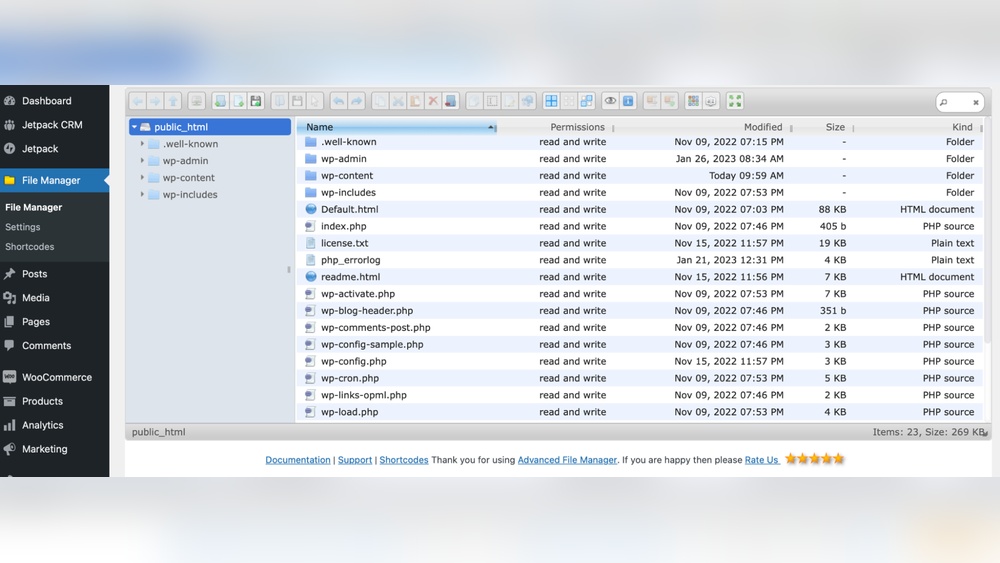
Are you struggling to find the php.ini file for your WordPress site? This file controls important settings that affect how your website runs.
Knowing exactly where to locate and edit php. ini can boost your site’s performance and fix common issues. You’ll discover simple steps to find your php. ini file quickly, even if you’re not a tech expert. Keep reading to take control of your WordPress setup and make your site work just the way you want.
Credit: www.wpbeginner.com
Php.ini Role In WordPress
The php.ini file controls how PHP works on your WordPress site. It sets rules for PHP behavior. This file can change how fast your site runs and how much it can handle. Knowing its role helps keep WordPress stable and secure.
Why Php.ini Matters
php.ini sets the limits PHP follows on your server. It controls memory use, upload size, and script time. These limits stop errors and crashes. It also helps WordPress run smoothly under different loads. Without proper settings, your site may slow down or break.
Common Php.ini Settings
Many PHP settings affect WordPress performance. memory_limit controls how much memory PHP can use. upload_max_filesize sets the biggest file you can upload. max_execution_time decides how long PHP scripts run before stopping. Adjusting these helps handle bigger sites or more visitors.

Credit: jetpack.com
Locating Php.ini File
Finding the php.ini file is important for managing your WordPress site’s PHP settings. This file controls many PHP options like upload size, execution time, and memory limits. Knowing where it is helps you make necessary changes for better site performance.
This section explains simple ways to locate the php.ini file on your server. It covers using a PHP info page, common default paths, and checking your hosting environment.
Using Php Info Page
Create a new file called phpinfo.php in your WordPress root folder. Add this line: php phpinfo(); ?. Visit this file in your browser. It shows all PHP settings.
Look for the “Loaded Configuration File” entry. This shows the full path to the active php.ini file. It helps identify which file your server uses.
Default Php.ini Paths
Most servers place php.ini in standard locations. Common paths include /etc/php.ini, /etc/php/7.x/apache2/php.ini, or /usr/local/lib/php.ini.
Shared hosting may store it in different folders. Knowing these default paths helps narrow down your search quickly.
Checking Hosting Environment
Hosting providers often customize PHP setups. Some hide or rename the php.ini file for security. Check your hosting control panel for PHP settings or file managers.
Contact support if you cannot find the file. They can tell you the exact location or assist with necessary changes.
Editing Php.ini Safely
Editing the php.ini file in WordPress requires care. This file controls many settings for your website’s PHP environment. Making changes without caution can break your site or cause errors. Safe editing protects your site’s stability and security. Follow steps that reduce risks and help fix problems easily.
Backup Before Changes
Always create a backup of your php.ini file before editing. A backup lets you restore the original file if something goes wrong. Save a copy on your computer or server. This step prevents data loss and downtime. It is the first and most important safety measure.
Using File Manager
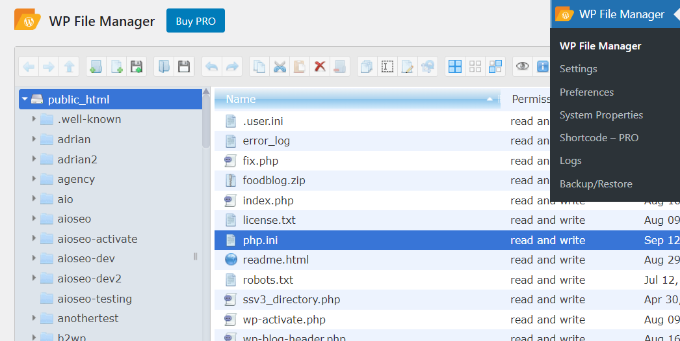
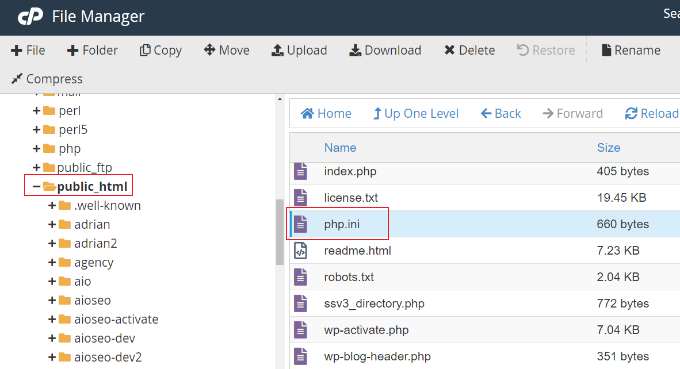
Many hosting control panels offer a File Manager tool. Use this to find and edit the php.ini file directly. Navigate to your site’s root or PHP folder. Download the file to your computer before editing. After changes, upload it back and replace the old file. File Manager is user-friendly and fast for small edits.
Editing Via Ssh Or Ftp
SSH and FTP provide secure access to your server files. Use an FTP client or SSH terminal to connect to your server. Locate the php.ini file in the correct directory. Download it to edit with a plain text editor like Notepad. Upload the edited file back carefully. SSH and FTP allow precise control over file permissions and transfers.
Key Php.ini Settings For WordPress
The php.ini file controls many important settings for WordPress. These settings affect how your site runs and handles tasks. Knowing key php.ini settings helps you keep WordPress fast and stable.
Some settings impact memory use, file uploads, and script execution time. Adjusting these values can fix common WordPress errors. Below are the main php.ini settings to check.
Memory Limit
The memory limit controls how much RAM PHP can use. WordPress needs enough memory to run plugins and themes smoothly. A low limit causes errors like “Allowed memory size exhausted.”
Set memory_limit to at least 128M for most sites. Larger sites may need 256M or more. Increase this value in php.ini to avoid crashes.
Upload File Size
This setting controls the largest file you can upload to WordPress. It affects media files, plugins, and themes.
Two values matter: upload_max_filesize and post_max_size. Both should be set high enough for your needs. Common values are 64M or 128M.
Max Execution Time
The max execution time limits how long a PHP script can run. WordPress sometimes runs long tasks like backups or updates.
Set max_execution_time to 60 seconds or more. This prevents scripts from stopping too soon. Increasing this helps avoid timeout errors.
Alternatives To Php.ini Editing
Editing the php.ini file is not always easy or possible. Many WordPress users face restrictions on shared hosting. Thankfully, there are other ways to change PHP settings. These alternatives let you adjust settings without direct access to php.ini.
These methods work well for common tasks like increasing upload size or memory limits. They are simple and effective. Let’s explore three useful options.
Using .htaccess File
The .htaccess file controls server settings for your WordPress site. You can add PHP directives here. For example, increase upload limits or max execution time.
Place the file in your WordPress root folder. Add lines like:
php_value upload_max_filesize 64M php_value post_max_size 64M php_value max_execution_time 300 This method works only if your server allows .htaccess overrides. Check with your host if unsure.
Modifying Wp-config.php
The wp-config.php file holds WordPress settings. You can add code to change PHP limits here. This method is safer and easier than editing php.ini.
Example:
@ini_set('upload_max_filesize' , '64M'); @ini_set('post_max_size', '64M'); @ini_set('max_execution_time', '300'); Add these lines before the / That's all, stop editing! / comment. It helps override default PHP values.
Contacting Hosting Support
Many hosting providers offer help to adjust PHP settings. They can edit php.ini or make changes for you. This is the safest option for beginners.
Contact support via chat, email, or ticket system. Explain your needs clearly. They usually respond quickly with solutions or instructions.
Troubleshooting Php.ini Issues
Php.ini is a key file for PHP settings on your WordPress site. Sometimes, changes to this file do not work as expected. Troubleshooting these issues helps keep your site running smoothly.
Understanding common problems with the php.ini file saves time and frustration. This section covers frequent errors and how to fix them.
Changes Not Taking Effect
Sometimes, you edit php.ini, but the site ignores the updates. This often happens because the wrong php.ini file is edited. Servers can have multiple copies in different folders.
Check the exact path of the active php.ini using a PHP info file. Clear your browser cache and restart the web server. These steps ensure changes apply correctly.
Permission Denied Errors
Permission errors occur when the server blocks access to php.ini. File permissions might be too strict. The server user needs read access to the file.
Set correct permissions with 644 for the file and 755 for the folder. Use your hosting control panel or FTP client to adjust these settings. Avoid setting permissions too open for security reasons.
Restoring Original Settings
Restoring php.ini is useful if new settings cause problems. Keep a backup of the original file before editing. Replace the edited file with the backup to revert changes.
Restart the web server to apply the original settings again. This step helps your site return to a stable state quickly.
Credit: www.wpbeginner.com
Frequently Asked Questions
Where Is The Php.ini File Located In WordPress?
The php. ini file location varies by server setup. Usually, it’s in the root directory or a folder like /etc/php/. You can also find it via your hosting control panel or by creating a PHP info file with phpinfo().
How Can I Find Php.ini Using WordPress?
Create a PHP file with phpinfo(); upload it to your WordPress directory. Access it via browser. The loaded configuration file path shows the php. ini location.
Can I Edit Php.ini For WordPress Performance?
Yes, editing php. ini can optimize WordPress. Adjust settings like memory_limit, max_execution_time, and upload_max_filesize for better performance and upload capacity.
Why Is Php.ini Important For WordPress?
Php. ini controls PHP settings that affect WordPress functionality. It manages memory limits, file uploads, and execution time, ensuring your site runs smoothly and securely.
Conclusion
Finding the php. ini file in WordPress helps control your site’s settings. It affects how your website runs and loads. Knowing its location lets you fix issues or improve performance. Many hosting providers place it in different folders. Always check your hosting control panel or ask support if unsure.
Editing it carefully keeps your site stable and secure. Small changes can make a big difference in your site’s speed and functions. Take your time to learn where php. ini lives for better website management.


