
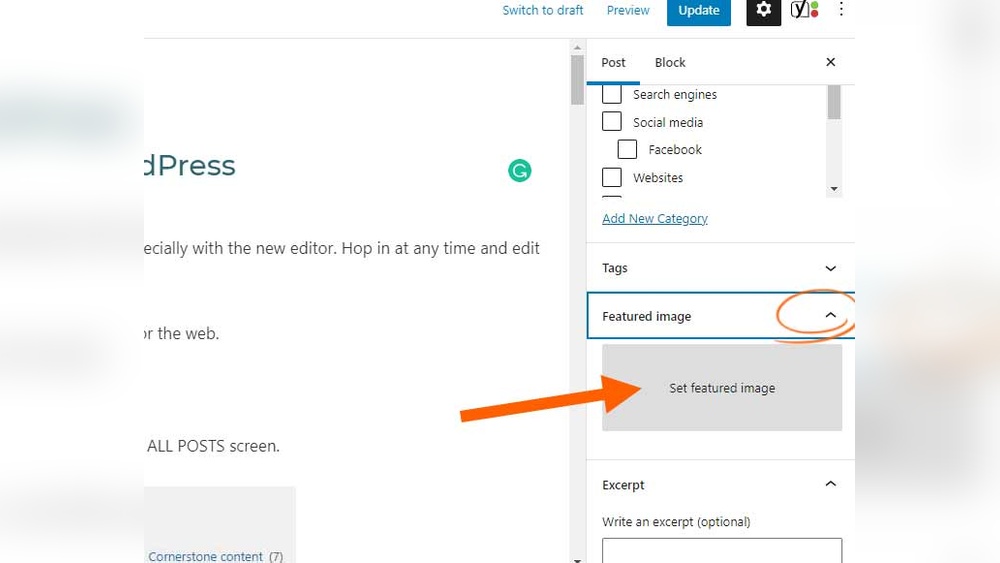
Are you wondering how to edit your WordPress blog quickly and easily? Whether you want to fix a typo, add new content, or change the look of your posts, knowing the right steps can save you time and frustration.
Imagine being able to update your blog exactly how you want, without any hassle. In this guide, you’ll discover simple tips and tricks that make editing your WordPress blog smooth and stress-free. Keep reading, and you’ll feel confident making changes that keep your blog fresh and engaging.
Accessing The WordPress Dashboard
Accessing the WordPress dashboard is the first step to edit your blog. It is the control center for all your website tasks. Here, you can add posts, change settings, and manage your content. Understanding how to reach and use the dashboard makes blogging easier.
Logging In
To start, open your web browser. Type your website’s URL followed by /wp-admin. For example, www.yoursite.com/wp-admin. Press Enter, and you will see the login page. Enter your username and password. Click the “Log In” button. This action takes you to the dashboard. Keep your login details safe and private.
Navigating The Dashboard
The dashboard has a menu on the left side. This menu shows all main options like Posts, Pages, and Settings. Click “Posts” to edit or add new blog posts. “Pages” helps you change static pages like About or Contact. The top bar has quick links to view your site or add new content. Explore each section slowly to learn its purpose.
Editing Blog Posts
Editing blog posts on WordPress is simple and helps keep your content fresh. You can update your ideas, fix errors, and improve your writing anytime. This keeps readers interested and boosts your site’s visibility.
Start by locating the post you want to change. Then, use WordPress’s block editor to make updates easily. Small text changes can make a big difference in how your post reads.
Finding Your Posts
Log in to your WordPress dashboard. Click on the “Posts” menu. This shows a list of all your blog posts. Use the search bar to find a specific post. Click the post title to open it for editing.
Using The Block Editor
The block editor divides your post into blocks. Each block is a piece of content like text, image, or video. Click on a block to edit it. Move blocks up or down to change order. Add new blocks by clicking the plus sign.
Making Text Changes
Click inside a text block to start editing. Delete, add, or change words as needed. Use the toolbar above the block for bold, italics, or links. Preview your changes before saving. Click “Update” to save the edited post.
Updating Images And Media
Images and media make your blog lively and interesting. Updating them keeps your content fresh and relevant. It also helps attract more visitors and improves your site’s look. Easy steps let you replace old images, add new ones, and make sure your site loads fast.
Replacing Images
To replace an image, open your WordPress editor. Click on the image you want to change. Select the “Replace” option. Upload a new image from your computer or media library. Make sure the new image fits well with your content. Save your changes to update the blog post.
Adding New Media
Adding new media is simple. Click on the “Add Media” button above the editor. Choose images, videos, or audio files from your library or upload new ones. Insert them where you want in the post. Use captions to describe the media. This helps readers understand your content better.
Optimizing Media For Speed
Large media files can slow your website. Resize images before uploading to reduce file size. Use tools like JPEG or PNG for pictures. Compress videos to lower their size. Add alt text to improve SEO and accessibility. Fast media improves user experience and keeps visitors happy.

Credit: www.youtube.com
Changing Blog Settings
Changing blog settings in WordPress helps you control how your content appears. It also affects how visitors find and interact with your posts. Adjusting settings keeps your blog organized and user-friendly. Small changes can improve your blog’s reach and clarity.
Modifying Titles And Tags
Titles are the first thing readers see. Clear titles attract more visitors. Edit your post title to match the content better. Use tags to group similar posts. Tags help readers find related topics easily. Add or remove tags to keep your blog tidy.
Adjusting Categories
Categories organize your posts into broad topics. Assign each post to one or more categories. Choose categories that fit your blog theme. You can add new categories or rename old ones. Proper categories improve navigation and user experience.
Managing Comments
Comments allow readers to share their thoughts. You can control who can comment on your posts. Enable or disable comments for each post. Approve comments before they appear publicly. Managing comments keeps your blog safe and respectful.
Saving And Previewing Edits
Saving and previewing edits is a key part of managing your WordPress blog. It helps avoid mistakes and lets you see changes before they go live. This step keeps your blog professional and error-free.
Always save your work often. WordPress offers simple tools to save drafts and preview changes. This way, you control exactly what your readers see.
Using The Preview Mode
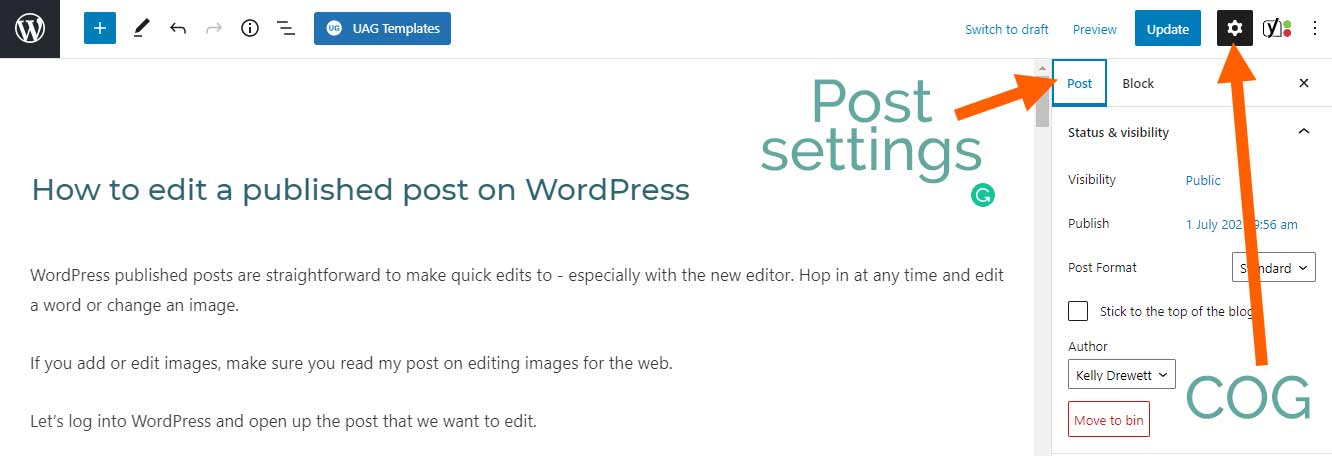
Preview mode shows your edits without publishing them. Click the “Preview” button on the editor screen. A new tab opens, displaying your post as visitors will see it.
This feature helps spot layout or text issues early. Make changes in the editor, then preview again. Repeat until everything looks right.
Publishing Updates
After reviewing, save your final changes. Press the “Update” or “Publish” button. This makes your edits visible to all visitors.
Publishing instantly updates your live blog. Use it only when you are sure about the changes. This keeps your blog fresh and accurate.
Credit: kaydee.net
Using Plugins For Easy Editing
Plugins make editing WordPress blogs simple and fast. They add new features without coding. Many plugins offer easy tools for text, images, and layouts. These tools help create professional posts with little effort.
Using plugins saves time. They let you focus more on writing and less on design. Many plugins include drag-and-drop editors and live previews. This way, you see changes before publishing.
Popular Editing Plugins
Some plugins are famous for easy editing. Elementor is a popular drag-and-drop page builder. It lets you design pages visually. Another is Beaver Builder, known for user-friendly controls. Classic Editor restores the old WordPress editor. TinyMCE Advanced adds more buttons to the editor toolbar. These plugins suit beginners and experts.
Installing And Activating Plugins
Start by logging into your WordPress dashboard. Go to the Plugins menu and click “Add New.” Type the plugin name in the search box. Click “Install Now” to add the plugin. After installation, click “Activate” to use it. Once active, the plugin settings appear in the dashboard. Adjust settings to match your editing needs. This process takes only a few minutes.
Tips For Quick Updates
Keeping your WordPress blog updated is important for readers and search engines. Quick updates help maintain fresh content without spending too much time. These tips will make editing faster and easier.
Keyboard Shortcuts
Keyboard shortcuts save time by reducing mouse clicks. Use shortcuts like Ctrl + S to save your work fast. Press Ctrl + Z to undo mistakes quickly. Learning a few shortcuts helps you edit posts faster. It makes the editing process smooth and less tiring.
Drafting Before Publishing
Always write your posts in draft mode first. Drafting lets you check for errors and improve your writing. You can take breaks and return without losing work. It avoids publishing mistakes on your live site. Review drafts carefully to ensure content quality before publishing.
Credit: www.theblogstarter.com
Frequently Asked Questions
How Do I Access The WordPress Blog Editor?
Log in to your WordPress dashboard. Click on “Posts” or “Pages,” then select the post to edit. Click “Edit” to open the editor and start making changes.
Can I Edit My WordPress Blog On Mobile Devices?
Yes, WordPress offers mobile apps for iOS and Android. These apps allow you to edit posts, add media, and manage comments easily from your phone or tablet.
How Do I Update Images In My WordPress Blog?
Open the post editor and click on the image you want to change. Use the media library to upload or select a new image, then save your changes.
What Is The Best Way To Save Changes In WordPress?
Always click the “Update” or “Publish” button after editing. This ensures your changes are saved and visible to your readers immediately.
Conclusion
Editing your WordPress blog is simple and quick. You can change text, images, and layout anytime. Always save your work to avoid losing changes. Try different styles to find what fits best. Regular updates keep your blog fresh and interesting.
Practice makes editing easier and more natural. Keep exploring WordPress tools for better results. Your blog reflects your voice—make it clear and neat. Start editing today and enjoy the process!


