
Do you want to boost engagement on your WordPress blog without complicated tools or code? Adding a like button to your posts is one of the easiest ways to let your readers show appreciation instantly.
Imagine your visitors clicking a simple button to tell you they love your content—this not only encourages them to stay longer but also helps you understand what resonates best. You’ll learn step-by-step how to add a like button to your WordPress blog posts quickly and effortlessly.
Ready to turn your readers into active fans? Let’s dive in!
Choose The Right Like Button Plugin
Choosing the right like button plugin is important for your WordPress blog. It can help increase user interaction and make your posts more engaging. The right plugin fits your needs without slowing down your site.
Popular Plugin Options
Several plugins offer easy ways to add like buttons. WP Like Button and Like Button Rating are widely used. They provide simple setup and good customization. Another option is WP ULike, which supports different content types. These plugins have many downloads and positive reviews.
Key Features To Look For
Look for plugins that are easy to use and customize. The plugin should allow you to change button style and position. It should also provide real-time like counts. Check if the plugin supports guest and registered user likes. A plugin with spam protection is helpful. Fast loading speed is a must for good user experience.
Compatibility With WordPress Versions
Choose a plugin compatible with your WordPress version. Check the plugin’s last update date to ensure it works well. Outdated plugins might cause errors or security issues. Read user reviews to find any compatibility problems. Always test the plugin on a staging site before live use.

Credit: www.youtube.com
Install And Activate The Plugin
Installing and activating a plugin is the first step to add a like button to your WordPress blog posts. This process is simple and does not require coding skills. Just follow clear steps to get your plugin up and running quickly.
Accessing The Plugin Directory
Log in to your WordPress dashboard. Look for the “Plugins” menu on the left side. Click on “Add New” to open the plugin directory. This directory contains thousands of free plugins. Use the search bar to find a like button plugin. Type keywords like “like button” or “post likes.” The list will show plugins matching your search.
Step-by-step Installation
Find a plugin with good ratings and many active installations. Click the “Install Now” button next to the plugin name. WordPress will download and install the plugin automatically. Wait for the process to finish before moving to the next step. This usually takes only a few seconds.
Activating The Plugin
Once installed, the “Install Now” button changes to “Activate.” Click this button to turn on the plugin. Activation makes the plugin ready to use on your site. Check the plugin settings to customize the like button. Your blog posts will soon have a new interactive feature.
Configure Like Button Settings
Configuring the like button settings is a key step after installing it on your WordPress blog. This process lets you control how the button looks and works. It helps improve user interaction and fits the button nicely into your site design. Below are important settings to adjust for the best results.
Customizing Button Appearance
Choose a style that matches your blog’s design. You can pick the button shape, color, and size. A bright color can attract more clicks. Make sure the button is clear but not distracting. Test different looks to find what fits your site.
Setting Placement Options
Decide where the like button will show on your posts. Common spots are at the top, bottom, or both. Placing it near the post title catches attention early. Putting it at the end invites readers to respond after reading. Positioning affects how often visitors use the button.
Enabling User Interaction Features
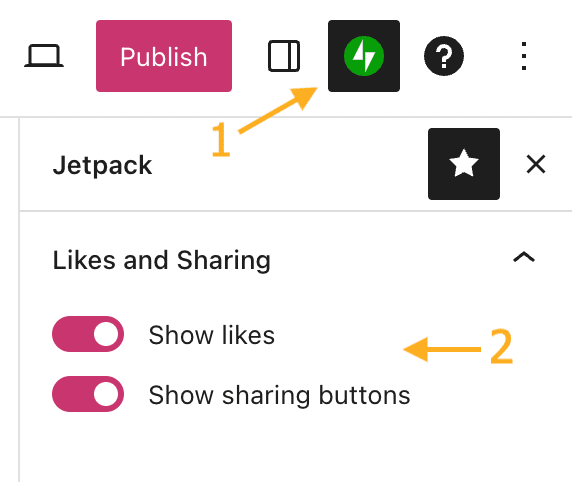
Turn on features that let users interact more with the button. For example, show the total number of likes. Allow users to like only once or multiple times. You can also enable notifications for new likes. These options boost engagement and make the feature more fun.
Add Like Button To Blog Posts
Adding a like button to your WordPress blog posts helps visitors show their appreciation. It encourages user interaction and can boost your site’s engagement. A like button is easy to add with different methods. Choose one that fits your skill level and site design.
Automatic Insertion Methods
Many plugins offer automatic insertion of like buttons. Once installed and activated, they add the button to every post. No coding needed. You set options in the plugin settings to control placement. This method saves time and works well for most users.
Manual Placement Using Shortcodes
Shortcodes let you place a like button exactly where you want it. Copy the shortcode from your plugin or theme. Paste it into the post content or template files. This method gives full control over button location. It is good for custom layouts or special posts.
Using Widgets For Sidebar Likes
Widgets can add like buttons in sidebars or footer areas. Go to Appearance > Widgets in your WordPress dashboard. Drag the like button widget to a sidebar. This shows likes on all pages with that sidebar. It is a simple way to increase visibility without changing posts.
Test The Like Button Functionality
Testing the like button on your WordPress blog is important. It ensures the button works correctly and improves user experience. This step helps catch any problems before visitors see them. Proper testing makes your blog more interactive and trustworthy.
Checking Button Responsiveness
Click the like button on different devices and browsers. It should respond immediately to each click. The button must change color or icon to show it is active. Test on phones, tablets, and desktop computers. Quick feedback keeps visitors engaged and happy.
Verifying Like Counts
Watch the number near the like button. It should increase each time you click. Refresh the page to confirm the count stays the same. Test with different users or browsers if possible. Accurate counts build trust and show real popularity.
Troubleshooting Common Issues
If the button does not respond, clear your browser cache. Check plugin settings for conflicts or errors. Disable other plugins one by one to find problems. Look for JavaScript errors in your browser’s console. Fixing these issues ensures smooth functionality.
Credit: wordpress.com
Enhance Engagement With Additional Features
Adding a like button to your WordPress blog posts helps visitors interact with your content. You can boost this engagement by adding extra features. These features make your blog more interactive and keep readers coming back. They also give you insights into what your audience enjoys the most.
Displaying Most Liked Posts
Show your readers which posts are the most liked. This feature highlights popular content easily. It encourages visitors to explore posts that others enjoyed. You can add a widget or a section on your blog to display these posts. This also helps new visitors find your best content quickly.
Integrating With Social Media
Connect the like button with social media platforms. This allows users to share their favorite posts directly. Social sharing helps spread your blog to a wider audience. It increases traffic and brings more potential readers. Social integration also makes your blog feel more connected and modern.
Using Analytics To Track Likes
Track how many likes each post receives. Analytics tools show which content performs best. This data helps you understand your audience’s preferences. You can use this information to improve future posts. Tracking likes also lets you measure engagement over time easily.
Credit: www.hostgator.com
Frequently Asked Questions
How Do I Add A Like Button To WordPress Posts?
You can add a like button using plugins like WP ULike or Like Button Rating. Install, activate, and configure the plugin settings to display the button on posts.
Which Plugin Is Best For WordPress Like Buttons?
WP ULike and Like Button Rating are popular, user-friendly plugins. They offer customization, analytics, and easy integration for WordPress blogs.
Can I Track Likes On WordPress Posts?
Yes, most like button plugins provide analytics. You can monitor post popularity and user engagement directly from your WordPress dashboard.
Is Adding A Like Button Good For Seo?
Yes, like buttons increase user engagement and social proof. Higher engagement can improve your site’s SEO ranking and visibility.
Conclusion
Adding a like button boosts reader interaction on your blog. It helps you see what content readers enjoy most. The process is simple and quick to follow. Choose a plugin or manual code that fits your needs. Test the button to make sure it works well.
Keep your blog fresh and engaging with this small feature. Watch your audience grow as they share their likes. Start adding a like button today and connect better.


