
Are you wondering if you can use WordPress without a host? It’s a question many beginners ask when starting their website journey.
Imagine building your site without worrying about hosting fees or complicated setups. Sounds great, right? But is it really possible? You’ll discover the truth about using WordPress without a host and what it means for your website’s future. Keep reading to find out if this option fits your needs and how it can impact your online presence.
WordPress Hosting Basics
Understanding WordPress hosting is important before starting a website. Hosting means where your website lives on the internet. It keeps your site online and lets people visit it anytime. WordPress hosting is special web hosting designed for WordPress sites. It makes your website run smoothly and safely.
Choosing the right hosting affects your site’s speed and security. It also impacts how easy it is to manage your website. Knowing the basics helps you decide if you need hosting and what type fits your needs.
Types Of WordPress Hosting
Shared hosting is the most common and affordable choice. Many websites share one server. It is good for small or new sites. Performance can slow down if many sites use the server.
VPS hosting gives more power and control. You get a part of a server with dedicated resources. It suits growing websites that need more speed and security.
Dedicated hosting means you have a whole server for your site. It offers the best performance and control. It costs more and is ideal for large websites.
Managed WordPress hosting handles all technical tasks. The host manages updates, backups, and security. It is perfect for users who want less hassle.
Role Of A Web Host
A web host stores your website files on a server. It connects your site to the internet. Without a host, no one can visit your website online.
The host manages server maintenance and uptime. Good uptime means your site is rarely offline. Web hosts also provide security to protect your site.
Many hosts offer tools to install WordPress easily. They help with backups and site speed. Support teams assist when technical problems occur.
Choosing a reliable host ensures your website loads fast and stays safe. It creates a better experience for your visitors.

Credit: www.youtube.com
Options To Use WordPress Without Hosting
Using WordPress without hosting is possible. You can explore different options to create and test websites. These methods help beginners learn WordPress without paying for hosting services. They also allow developers to build sites offline or on portable devices.
WordPress.com Free Plan
WordPress.com offers a free plan to create websites online. It does not need separate hosting. Your site runs on WordPress.com servers. You get a subdomain like yoursite.wordpress.com. The free plan includes basic themes and plugins. It suits small blogs or personal projects. There are limitations on customization and storage. Still, it is easy to start and manage.
Local Development Environments
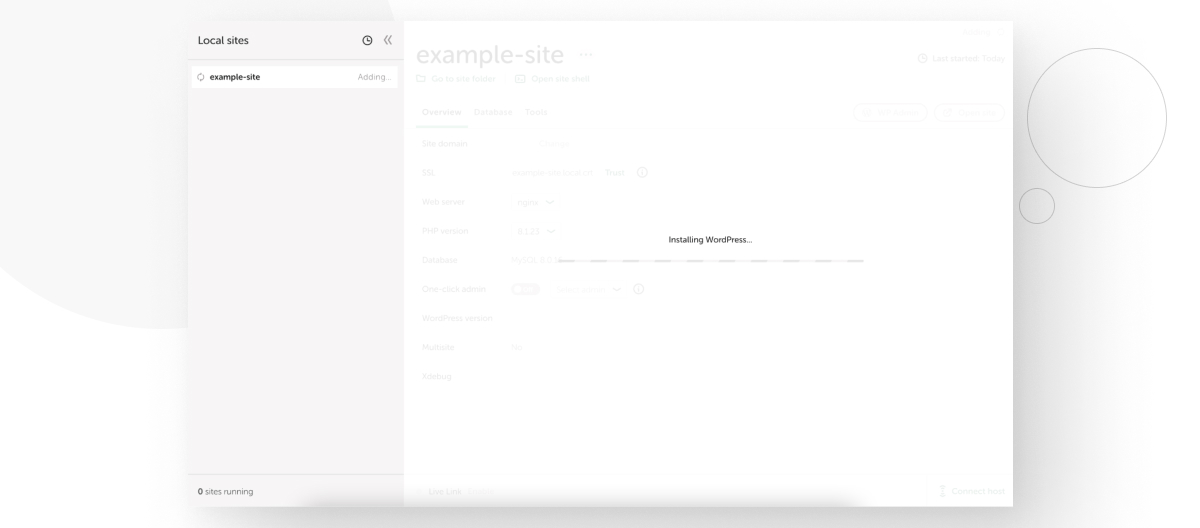
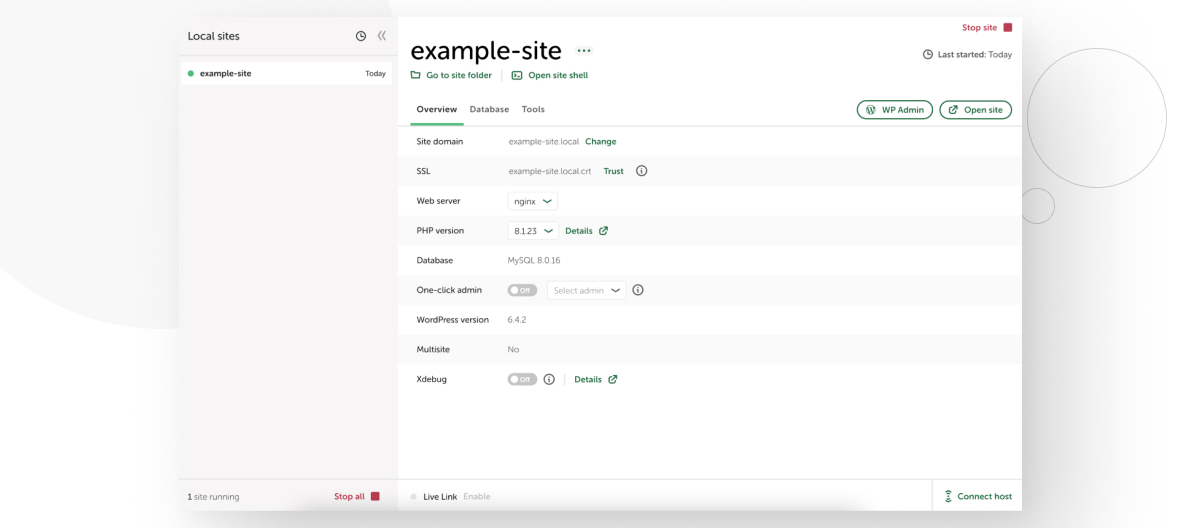
Local development environments let you run WordPress on your computer. Tools like XAMPP, MAMP, or Local by Flywheel create a local server. You install WordPress just like on a live site. This method works without internet access. It allows testing themes and plugins safely. You can build and edit your site before publishing it. Local environments offer full control and no costs.
Using Usb Or Portable Servers
USB or portable servers make WordPress portable. You install a server stack on a USB drive. Then run WordPress from any computer. This setup is good for presentations or demos. It keeps your site and files together on one device. You do not depend on internet or hosting services. Portable servers need some technical setup but offer flexibility.
Pros And Cons Of Going Host-free
Choosing to run WordPress without a host comes with both good and bad points. It can seem like a smart way to save money and stay in control. At the same time, it brings some challenges that might slow you down or cause extra work. Understanding the pros and cons helps you decide if this path suits your needs.
Benefits Of Host-free WordPress
One big benefit is cost savings. No need to pay monthly fees for hosting services. You keep full control over your files and data. This setup allows you to customize your site freely without restrictions. You can test changes on your local computer before going live. It also helps you learn more about how WordPress works behind the scenes. For small personal projects, this method can be simple and effective.
Limitations And Challenges
Without a host, your site cannot be reached by others online. It stays only on your local machine. To share your site, you need complex steps or extra software. Security becomes your responsibility, with no hosting company to help. Backups and updates must be done manually. Performance can be poor if your computer is slow or offline. Support and troubleshooting might be harder without hosting experts.
Credit: wcanvas.com
Setting Up WordPress Locally
Setting up WordPress locally allows you to build and test websites on your own computer. This method does not need an online host. It gives you full control over your site in a private environment. You can experiment with themes, plugins, and designs without any risk.
Local setup is perfect for learning WordPress or developing before going live. The process involves installing a local server, configuring WordPress, and managing your local sites. Each step is simple and takes only a few minutes.
Installing Local Servers
Local servers create a web environment on your computer. Popular options include XAMPP, WampServer, and Local by Flywheel. Download and install one of these tools to start. They provide all necessary software like Apache, MySQL, and PHP. These components are essential for WordPress to run smoothly.
After installation, launch the server control panel. Start the Apache and MySQL services. This action activates your local server. You can now install WordPress on your computer.
Configuring WordPress
Download the latest WordPress package from the official website. Extract the files into your local server’s root folder. For XAMPP, this is usually the “htdocs” folder. Next, create a new database using phpMyAdmin. Assign a name and leave other settings default.
Open your browser and visit “localhost/your-folder-name”. WordPress will prompt you to configure the site. Enter the database name, username, and password. Use “root” as username and leave password blank for XAMPP. Complete the setup by adding site title and admin details.
Managing Local Sites
Local WordPress sites act like live websites but stay on your computer. You can add new themes and plugins freely. Test updates or custom code without affecting a live site. Backup your local files and database regularly to avoid data loss.
Use the local server dashboard to start or stop your sites easily. Rename or delete site folders to organize projects. Local setup improves your WordPress skills and speeds up development time.
Alternatives To Traditional Hosting
Traditional hosting means renting space on a server to store your WordPress site. This can be costly and may require technical skills. Many website owners want simpler, cheaper ways to run WordPress without a host. Several alternatives exist that let you use WordPress in different ways. These options can reduce costs and give more control over your site.
Static Site Generators With WordPress
Static site generators create simple, fast websites. They turn WordPress content into static HTML files. These files do not need a live server to run. This method improves site speed and security. Popular static site tools work well with WordPress. They let you build and update your site using WordPress’s editor. Then, you export the site as static pages to host anywhere.
Using Cloud Storage
Cloud storage services like Google Drive or Dropbox can host WordPress files. This method stores your site data in the cloud. You upload WordPress files and access them online. It is cheaper than traditional hosting. Cloud storage also offers easy backups and sharing. This setup works best for small or simple WordPress sites. It may need some technical setup to connect WordPress to cloud services.
Headless WordPress Solutions
Headless WordPress separates the backend from the frontend. WordPress works only as a content manager. The frontend uses a different system or framework. This approach allows more design freedom and speed. You can host the frontend on any platform. The backend can be on WordPress.com or self-hosted. Headless WordPress suits developers and advanced users. It is a flexible way to use WordPress without traditional hosting.
When To Choose Hosting Over Host-free
Choosing between hosting WordPress yourself or using a free host can be tricky. Free hosts may seem easy and cheap. But they often come with limits. Your website’s needs might grow fast. Then, hosting with a reliable company becomes better. Here are key points to help decide when to pick hosting over free options.
Scalability Needs
Free hosting usually limits your website size and traffic. If your site grows, it may slow down or stop working. Paid hosting offers space and resources that grow with your site. It can handle more visitors and bigger files. Choose hosting if you expect your website to expand.
Security Considerations
Free hosts provide basic security, but often not enough. Paid hosting includes stronger protection against hacking and malware. It offers backups and updates to keep your site safe. For business or personal sites with private data, paid hosting is safer.
Performance Requirements
Speed matters for user experience and search rankings. Free hosts may have slow servers and limited bandwidth. Paid hosting uses better hardware and faster networks. This keeps your site loading quickly for visitors. Pick hosting to ensure smooth and fast performance.
Future Of Host-free WordPress
WordPress without a traditional host is gaining interest. It offers new ways to build websites. The future holds many possibilities for this approach.
Developers and users want more control and lower costs. This pushes the growth of host-free WordPress methods. Understanding new tech and hosting trends helps predict what is next.
Emerging Technologies
Decentralized networks like IPFS allow hosting without central servers. Static site generators turn WordPress content into fast, simple pages. Cloud platforms provide serverless options to run WordPress code. These technologies reduce reliance on traditional hosts. They make websites faster and more secure.
Trends In Web Hosting
Hosting is moving toward automation and scalability. Managed WordPress services focus on ease and speed. Some offer hybrid models, mixing hosting and serverless features. Edge computing brings content closer to users. These trends support smoother host-free experiences. The gap between hosted and host-free WordPress narrows.
Credit: wcanvas.com
Frequently Asked Questions
Can I Use WordPress Without Paying For Hosting?
Yes, you can use WordPress locally on your computer without hosting. However, your site won’t be publicly accessible online without hosting.
Is WordPress.com Free To Use Without A Host?
WordPress. com offers free hosting with subdomain limitations. It’s a hosted platform, so you don’t need separate hosting services.
How To Install WordPress Without A Web Host?
You can install WordPress locally using software like XAMPP or MAMP. This allows offline development but not public access.
What Are The Drawbacks Of No Hosting For WordPress?
Without hosting, your site won’t be live on the internet. It limits audience reach and professional website functionality.
Conclusion
You can use WordPress without a host by installing it locally. This option works well for testing or learning. Yet, to make your site live online, a host is needed. Hosting gives your website a place on the internet. Without it, others cannot visit your site.
Choose hosting based on your needs and budget. Keep your site safe with regular updates. Start small, grow your site step by step. WordPress offers flexibility for every user’s goal.


