

Are you ready to get your website live but unsure how to connect your domain to your SiteGround hosting? Linking your domain to SiteGround is a crucial step that can feel confusing if you’re new to it.
But don’t worry — this guide will walk you through the process in simple, clear steps. By the end, you’ll have your website up and running smoothly, reaching your visitors without any hassle. Keep reading to discover exactly how to link your domain to SiteGround and take control of your online presence today.
Choose Your Domain
Choosing your domain is the first step to start your website. The domain is your site’s address on the internet. It helps people find your site easily. Picking a good domain name matters a lot. It should be easy to remember and type. A clear domain also builds trust with visitors.
Select A Domain Registrar
A domain registrar is a company that sells domain names. Pick a registrar with good reviews and fair prices. Popular registrars include GoDaddy, Namecheap, and Google Domains. Check if the registrar offers extra services like privacy protection. These services keep your personal data safe from spammers.
Register Your Domain
Registering your domain means buying the right to use it. Start by searching if your chosen domain name is available. If it’s free, add it to your cart. Fill in your contact information accurately. Then, complete the purchase by paying the fee. You usually register a domain for one year. You can renew it later to keep your site live.
Credit: sendlayer.com
Set Up Your Siteground Account
Setting up your SiteGround account is the first step to link your domain to hosting. This process helps you get your website online quickly and securely. Follow simple steps to create your account and select the right hosting plan.
Create A Siteground Account
Start by visiting the SiteGround website. Click on the sign-up or get started button. Enter your email and choose a strong password. Fill in your personal details carefully. Confirm your email address through the link sent to you. Your SiteGround account is now ready for use.
Choose A Hosting Plan
SiteGround offers multiple hosting plans. Each plan suits different website needs and traffic levels. Pick a plan that fits your budget and website size. Consider starting with a basic plan for small websites. Upgrade later as your site grows. Review plan features like storage, speed, and security. Select the plan and proceed to payment.
Access Siteground Dashboard
Accessing the SiteGround dashboard is the first step to link your domain to hosting. The dashboard is where you manage all your hosting settings. It offers tools to control your website, domains, and emails easily.
Understanding how to find and use the dashboard will save time and reduce errors. Follow the simple steps below to start.
Login To Siteground
Go to the SiteGround website and click on the login button. Enter your email and password to access your account. Use the credentials you created during signup. If you forget your password, use the reset option to get a new one. Once logged in, you will see the main dashboard page.
Navigate To Site Tools
From the dashboard, find your active hosting plan. Click on the ‘Site Tools’ button next to your domain name. Site Tools is where you manage your website files, databases, and domain settings. This area is essential for linking your domain to the hosting properly.
Credit: sendlayer.com
Update Domain Nameservers
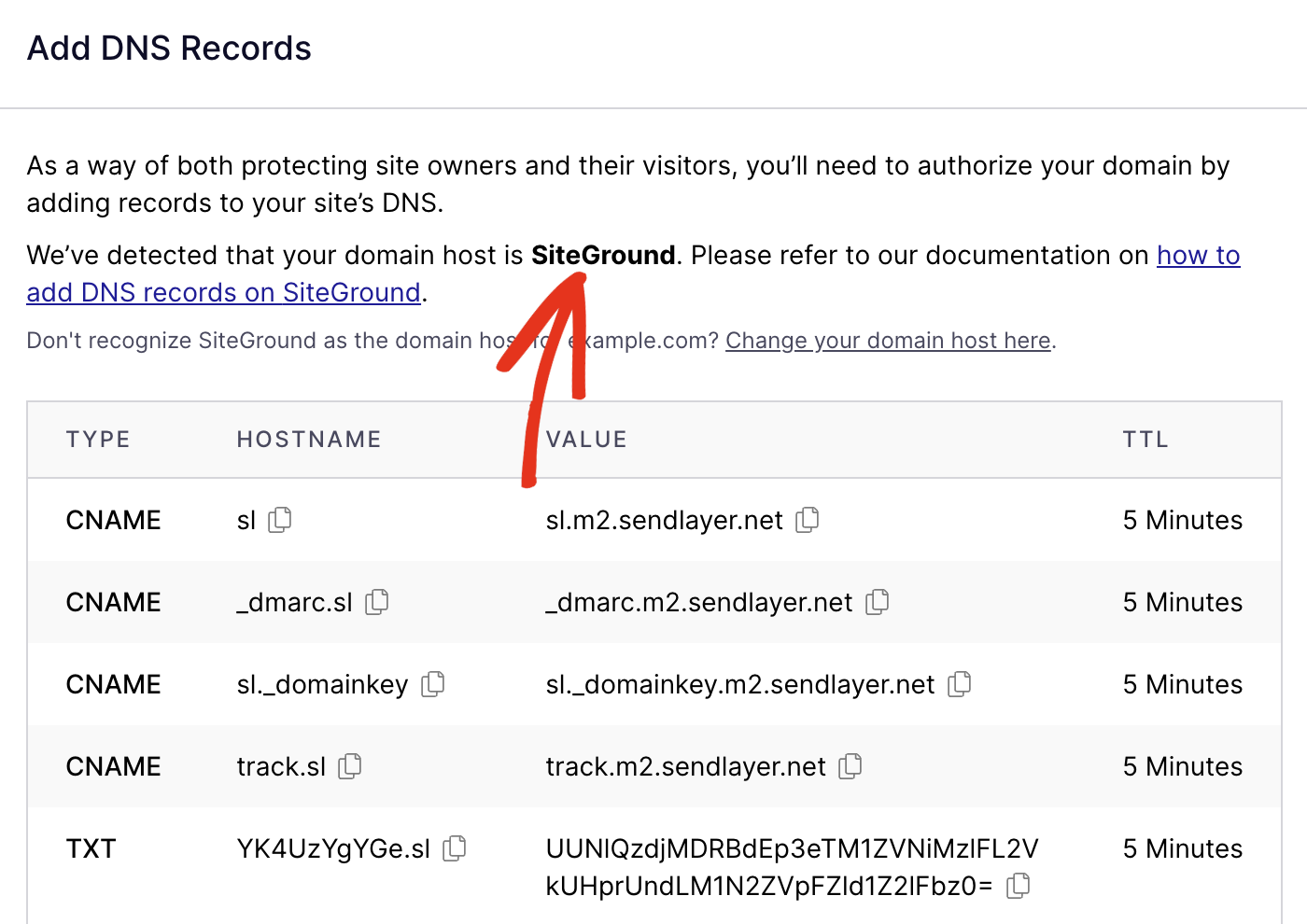
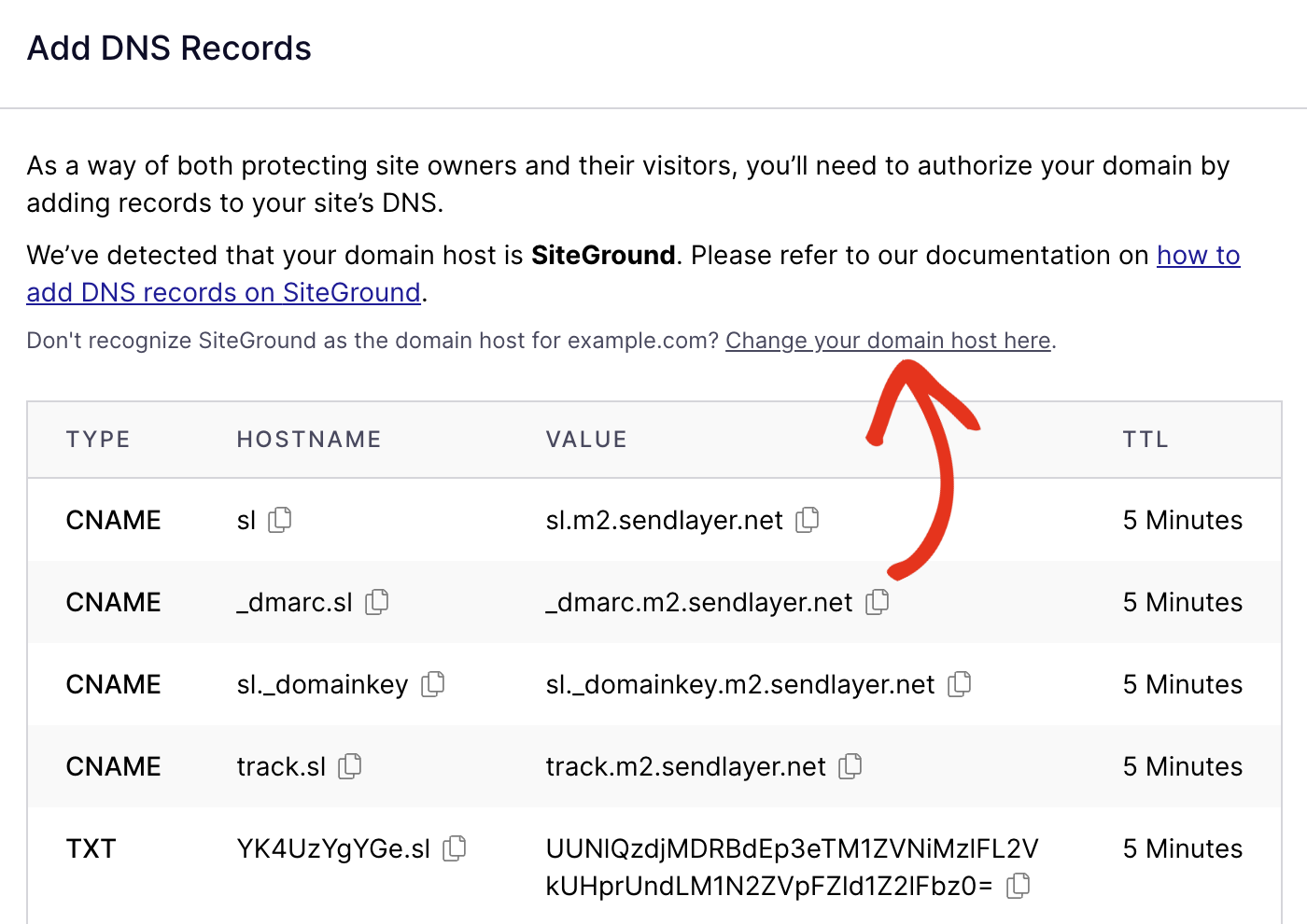
Adding your domain to SiteGround hosting is a key step to start building your website. It connects your domain name with your hosting account. This process lets visitors access your site by typing your domain into their browser. SiteGround offers easy tools to manage this setup.
This section explains how to add your domain in Site Tools and assign it to your website. Follow these steps carefully to ensure your domain works perfectly with your hosting.
Add Domain In Site Tools
Log in to your SiteGround account. Open Site Tools for the hosting plan you want. Find the “Domains” section on the left menu. Click “Add New Domain.” Enter your domain name here. Choose whether it is your primary or secondary domain. Confirm by clicking the “Add” button. SiteGround will now recognize your domain in your hosting panel.
Assign Domain To Website
After adding the domain, go to the “Websites” tab in Site Tools. Select the website you want to link with the domain. Click “Manage” next to the website. Find the option “Assign Domain.” Pick your newly added domain from the list. Confirm the assignment. The domain now points to your website files. Visitors can see your website using the domain name.
Verify Domain Connection
Installing an SSL certificate is crucial for website security and trust. It protects data between your site and visitors. SiteGround offers a free SSL certificate that is easy to activate. This helps keep your website safe and improves search engine ranking.
Enable Free Ssl In Siteground
Log in to your SiteGround account. Go to the “Websites” section. Click on “Site Tools” next to your domain name. Select “Security” from the left menu. Click on “SSL Manager.” Choose your domain from the dropdown. Select “Let’s Encrypt” as the SSL type. Press the “Install” button. SiteGround will start the installation process automatically.
Verify Ssl Activation
After installation, wait a few minutes. Visit your website using https:// in the browser. Check for a padlock icon in the address bar. The padlock shows the SSL is active. You can also use online SSL checkers. They confirm the certificate is working correctly. Your website is now secure and trusted by visitors.

Credit: www.youtube.com
Frequently Asked Questions
How Do I Link My Domain To Siteground Hosting?
To link your domain to SiteGround, update your domain’s nameservers to SiteGround’s. Find these in your SiteGround account and change them at your domain registrar. This connects your domain with SiteGround hosting, allowing your website to load correctly.
Can I Link A Domain Registered Elsewhere To Siteground?
Yes, you can link domains registered with other providers. Simply change the domain’s DNS nameservers to SiteGround’s nameservers. This process points your domain to SiteGround hosting without transferring domain ownership.
How Long Does Domain Linking To Siteground Take?
Domain linking usually completes within 24 to 48 hours. DNS propagation speed depends on your domain registrar and internet providers. After updating nameservers, your website should be accessible from your domain once propagation finishes.
Do I Need To Transfer My Domain To Siteground?
No, transferring your domain to SiteGround is optional. You can keep your domain with the current registrar and only update nameservers to link it. This method is simpler and keeps domain management separate.
Conclusion
Linking your domain to SiteGround hosting is simple and quick. Just follow the steps carefully and check each detail. This connection helps your website work smoothly online. Take your time to avoid mistakes. Soon, your site will be live and ready for visitors.
Keep your login info safe for future use. Now, you can focus on building great content and growing your site. Easy setup means less stress and more time for what matters.


