
Are you wondering if you can convert your WordPress.com site to WordPress.org? You’re not alone.
Many website owners want more control, flexibility, and freedom over their online space. But the process might seem confusing or even impossible at first. What if you could make the switch without losing your content or traffic? You’ll discover exactly how to move from WordPress.
com to WordPress. org step-by-step. By the end, you’ll know what to expect and how to take full control of your website’s future. Ready to unlock the full potential of your site? Keep reading.
Differences Between WordPress.com And WordPress.org
Understanding the differences between WordPress.com and WordPress.org is essential before switching platforms. Both serve as tools for building websites but operate differently. These differences affect how you manage your site, what features you can use, and the costs involved. Knowing these can help you decide if converting from WordPress.com to WordPress.org is right for you.
Hosting And Control
WordPress.com handles all hosting for you. Your website runs on their servers. This means less work but also less control over your site. WordPress.org requires you to find your own hosting provider. You manage your hosting and website files. This gives full control but needs more technical effort.
Customization Options
WordPress.com limits themes and plugins you can use. You can only use those approved by WordPress.com. WordPress.org lets you install any theme or plugin. You can fully customize the look and functions of your site. This allows for unique designs and advanced features.
Cost Implications
WordPress.com offers a free plan with basic features. Paid plans add more storage and options. WordPress.org software is free, but hosting costs money. You pay for domain registration and any premium themes or plugins. Costs vary depending on your needs and hosting provider.
Monetization Possibilities
WordPress.com restricts how you can earn money. Ads and affiliate links may be limited. WordPress.org has no restrictions on monetization. You can run ads, sell products, and use affiliate marketing freely. This makes it better for growing a business or blog.
Credit: wordpress.org
Reasons To Switch From WordPress.com To WordPress.org
Switching from WordPress.com to WordPress.org can improve your website in many ways. WordPress.org offers more control and options. It suits those who want to grow their site without limits. Below are key reasons to consider the switch.
Increased Flexibility
WordPress.org lets you change your site easily. You can edit code and add features. This freedom is not possible on WordPress.com. You decide how your site looks and works. This flexibility helps create a unique website that fits your needs.
Access To Plugins And Themes
With WordPress.org, you get thousands of plugins and themes. Plugins add new functions like contact forms and SEO tools. Themes change the look and feel of your site. WordPress.com limits these choices. More plugins and themes mean a better site for visitors.
Improved Seo Capabilities
WordPress.org gives you full control over SEO. You can use powerful SEO plugins to boost traffic. You can edit meta tags, URLs, and site speed. These options improve your site’s ranking on search engines. WordPress.com does not allow full SEO control.
Ownership And Backup Control
With WordPress.org, you own your website files and data. You can back up your site anytime. This protects your content from loss or hacking. WordPress.com holds your data on their servers. Full ownership means more security and peace of mind.
Preparing For The Migration
Preparing for the migration from WordPress.com to WordPress.org is a key step. Proper preparation makes the process smoother and helps avoid problems. This stage involves selecting the right hosting, securing a domain, and saving your current content.
Choosing A Hosting Provider
Select a reliable hosting provider for your new WordPress.org site. Look for providers with good speed, uptime, and customer support. Check if they offer easy WordPress installation. Compare prices and features before deciding.
Registering A Domain Name
Your domain name is your website’s address on the internet. You can keep your existing domain from WordPress.com or register a new one. Choose a name that matches your brand and is easy to remember. Register it through a trusted domain registrar.
Backing Up WordPress.com Content
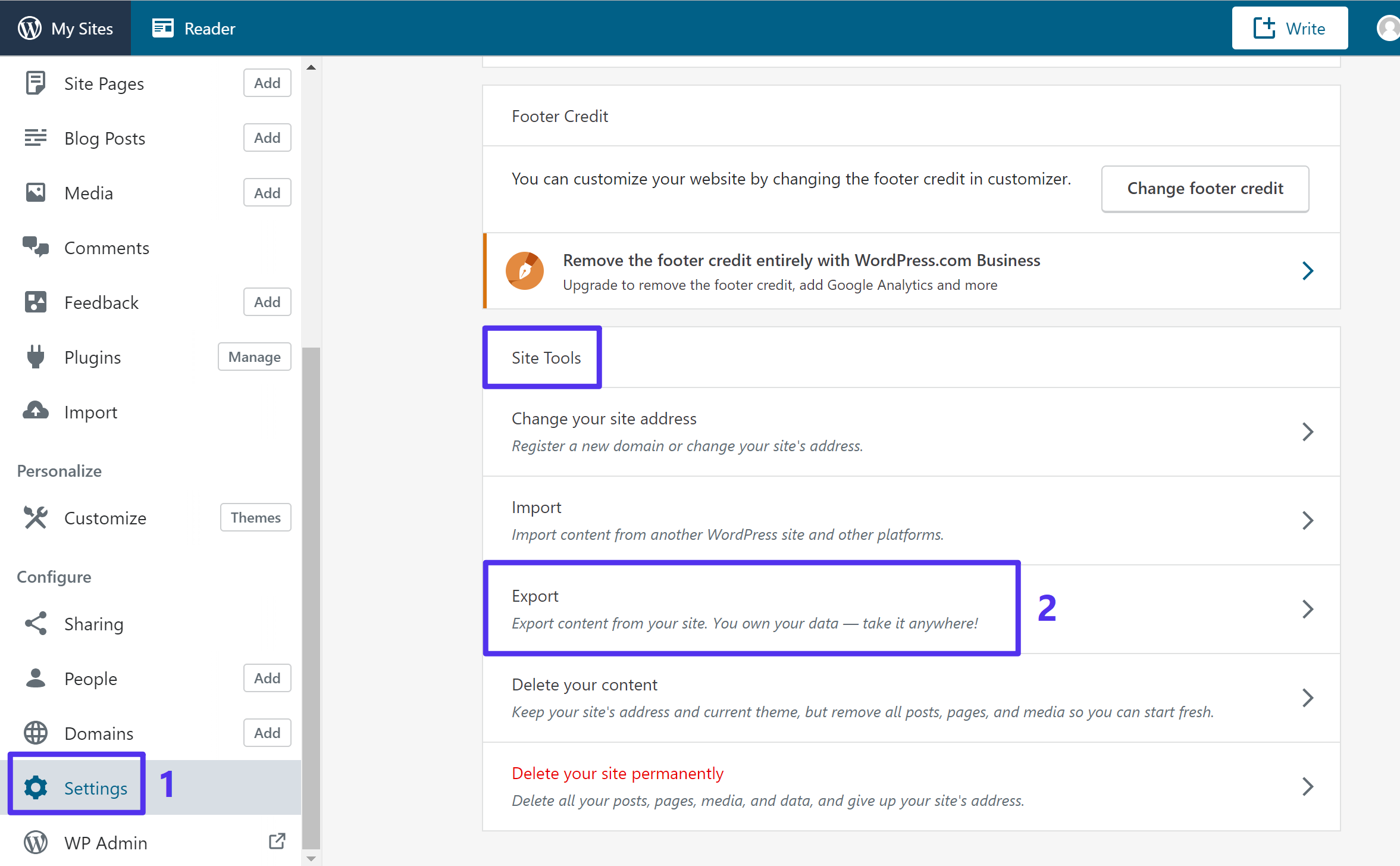
Backing up your WordPress.com content is crucial before migrating. Export your posts, pages, comments, and media files. Use the WordPress export tool found in your dashboard. Save the exported file safely on your computer.
Step-by-step Migration Process
Migrating from WordPress.com to WordPress.org is a smart move. It gives full control over your website. This process may seem hard, but it is simple if you follow each step carefully. The key is to move your content safely and keep your site looking good. Here is a clear, step-by-step guide to help you through the migration.
Exporting Content From WordPress.com
First, log in to your WordPress.com account. Go to the dashboard. Find the Tools menu and select Export. Choose “All Content” to download everything. This will save your posts, pages, comments, and media files. The file will be in XML format. Keep it safe for the next step.
Installing WordPress.org
Next, set up your WordPress.org site. Buy a hosting plan from a reliable provider. Use the hosting control panel to install WordPress. Many hosts offer one-click installation. After installation, log in to your new WordPress dashboard. Your site is now ready for content import.
Importing Content To WordPress.org
In your WordPress.org dashboard, go to Tools and select Import. Choose the WordPress option and install the importer plugin if needed. Upload the XML file you exported earlier. Assign authors to your posts or create new ones. Check the box to download and import attachments. Click Submit and wait for the process to finish.
Setting Up Themes And Plugins
Choose a theme that matches your old site’s look or try a new style. Install and activate it in the Appearance menu. Add plugins to extend your site’s features. Install only the plugins you need. Avoid too many plugins to keep your site fast and secure.
Configuring Permalinks And Settings
Go to Settings and click Permalinks. Choose a URL structure that fits your old site. This helps keep your links working well. Review other settings like reading, discussion, and media. Adjust them to match your preferences. Save all changes to complete your setup.
Post-migration Tasks
After moving your website from WordPress.com to WordPress.org, several important tasks remain. These post-migration steps ensure your site works well and keeps its audience. Completing these tasks helps avoid common issues and improves visitor experience.
Testing Website Functionality
Check every page and link on your site. Make sure images load correctly and forms work. Test site navigation to confirm all menus lead to the right places. Verify plugins and themes function as expected. Fix any broken links or missing content promptly.
Redirecting WordPress.com Traffic
Set up redirects to send visitors from your old WordPress.com site to the new domain. This keeps your traffic and search rankings intact. Use the WordPress.com paid site redirect service or configure redirects in your domain settings. Redirects help users find your new site easily.
Updating Dns Settings
Change your domain’s DNS settings to point to your new WordPress.org hosting. This step makes sure your domain leads to the new server. DNS changes can take time to spread worldwide. Check your domain provider’s instructions carefully to avoid downtime.
Optimizing Site Performance
Improve your site’s speed by using caching plugins and optimizing images. Choose a reliable hosting provider for better performance. Minimize the use of heavy plugins that slow down the site. A fast site keeps visitors engaged and improves search rankings.
Common Challenges And Solutions
Moving from WordPress.com to WordPress.org can bring many benefits. Still, it also comes with some common challenges. Knowing these issues helps you prepare and fix them fast. This section covers the main problems and how to solve them.
Dealing With Broken Links
Broken links often appear after migration. They happen because the website URLs change. Check all links carefully after moving. Use tools like Broken Link Checker to find errors. Fix links by updating URLs in your posts and pages. This keeps your visitors happy and improves SEO.
Resolving Media Upload Issues
Media files may not transfer correctly during migration. Missing images or videos reduce site quality. Make sure to export your media library completely. Use plugins like “Export Media Library” to help. Upload files to the new site’s media folder. Check each page to confirm all media works.
Handling Seo Impact
SEO rankings can drop after switching platforms. Search engines need time to recognize the new site. Keep your URLs the same if possible. Use 301 redirects for changed links to keep traffic. Submit a new sitemap to Google Search Console. Monitor your SEO performance regularly for any issues.
Troubleshooting Plugin Conflicts
Plugins on WordPress.org may differ from WordPress.com. Some plugins can clash and cause errors. Activate plugins one at a time to find conflicts. Update all plugins to the latest version. Remove plugins that cause problems or are unnecessary. Test your site after each change to ensure stability.
Tips For Managing Your New WordPress.org Site
Managing a WordPress.org site brings new responsibilities. Unlike WordPress.com, you control everything. This freedom means you must take steps to keep your site safe, fast, and updated. These tips help you manage your new WordPress.org website with ease.
Regular Backups
Backing up your site protects your content and settings. Use a reliable plugin or your host’s backup service. Schedule backups often, at least weekly. Store backups in a separate location. This way, you can restore your site quickly if anything goes wrong.
Security Best Practices
Security is essential for any WordPress site. Start by choosing strong passwords for all accounts. Keep WordPress, themes, and plugins updated. Install a security plugin to monitor threats. Limit login attempts and use two-factor authentication. These steps help prevent hacks and keep your site safe.
Content Updates And Maintenance
Keep your website fresh with regular content updates. Check for broken links and outdated information. Remove unused plugins and themes to improve speed. Optimize images to reduce load time. Regular maintenance improves user experience and helps with search rankings.
Leveraging Analytics Tools
Analytics tools show how visitors use your site. Set up Google Analytics or a similar tool. Track visitor numbers, popular pages, and user behavior. Use this data to improve your content and design. Understanding your audience helps grow your website effectively.

Credit: seahawkmedia.com
Credit: kinsta.com
Frequently Asked Questions
Can You Switch From WordPress.com To WordPress.org?
Yes, you can switch from WordPress. com to WordPress. org by exporting your content. Then, set up a self-hosted WordPress. org site and import your data. This allows full control and customization of your website.
What Are The Benefits Of WordPress.org Over WordPress.com?
WordPress. org offers full control, custom themes, and plugins. It provides better SEO options and monetization freedom. WordPress. com has limitations on design and monetization without paid plans.
Is It Difficult To Migrate From WordPress.com To WordPress.org?
Migration is straightforward with proper guidance. Export content from WordPress. com, then import it into WordPress. org. Some technical steps like domain setup and hosting are required but manageable.
Do I Need Hosting For WordPress.org?
Yes, WordPress. org requires you to purchase web hosting. Hosting stores your website files and ensures your site is accessible online. Popular hosts include Bluehost, SiteGround, and HostGator.
Conclusion
Switching from WordPress. com to WordPress. org gives you more control. You can customize your site the way you want. It may take some time to move everything over. But the extra effort is worth it for many users. You get more freedom with themes and plugins.
Also, you handle your own hosting and backups. This option suits those who want to grow their site. Think about your needs before making the switch. Take small steps and learn as you go. Your website can become more flexible and powerful.


