
Are you wondering if you can change the name of your WordPress site? Maybe you started with one idea, but now your vision has shifted.
Or perhaps your site’s current name no longer fits your brand. Whatever the reason, you’re not alone—and the good news is, yes, you can change it. But how? And what should you watch out for? Keep reading, because you’ll discover simple steps to rename your WordPress site without losing traffic or confusing your visitors.
Let’s make sure your site’s name works perfectly for you.
Why Change Your WordPress Site Name
Changing your WordPress site name can have many benefits. It helps your site stay relevant and clear to visitors. A new name can better show what your site is about. It also helps your site grow and reach more people.
Here are some key reasons to change your WordPress site name.
Branding And Identity
Your site name is a big part of your brand. A strong name makes your site easy to remember. It shows your site’s personality and style. Changing the name can match new goals or a fresh look. It helps build trust with your visitors and makes your site stand out.
Reflecting New Content Or Focus
Sites often change over time. New topics or services may appear. The old name might not fit the new content. Updating the name keeps everything clear and simple. Visitors will know exactly what your site offers. It makes your site feel fresh and relevant.
Improving Seo
A good site name can help search engines find you. Using keywords in your name improves your ranking. It makes your site easier to spot in search results. Changing the name to include important words can bring more traffic. SEO-friendly names help your site grow naturally.

Credit: wordpress.com
Preparing To Change Your Site Name
Changing your WordPress site name needs some preparation. It helps avoid mistakes and keeps your site safe. Taking a few simple steps before the change saves time and stress. Here is what to do before changing your site name.
Backup Your Website
Backing up your website is very important. It keeps a copy of your files and database. If something goes wrong, you can restore your site quickly. Use a plugin or your hosting service to create a full backup. Save the backup in a safe place outside your server.
Check Domain And Hosting Settings
Review your domain name and hosting settings. Changing your site name may affect these. Make sure your domain supports the new name. Check if your hosting account needs any updates. Confirm all settings match your new site name before making changes.
Inform Your Audience
Tell your visitors about the upcoming change. Use emails or social media to notify them. Explain why you change the name and what to expect. This builds trust and avoids confusion. Keep your audience updated throughout the process.
Changing The Site Title In WordPress
Changing the site title in WordPress helps your visitors know your website better. It shows up in the browser tab and search results. A clear and simple site title improves your site’s identity. Updating it is easy and takes only a few steps.
Accessing General Settings
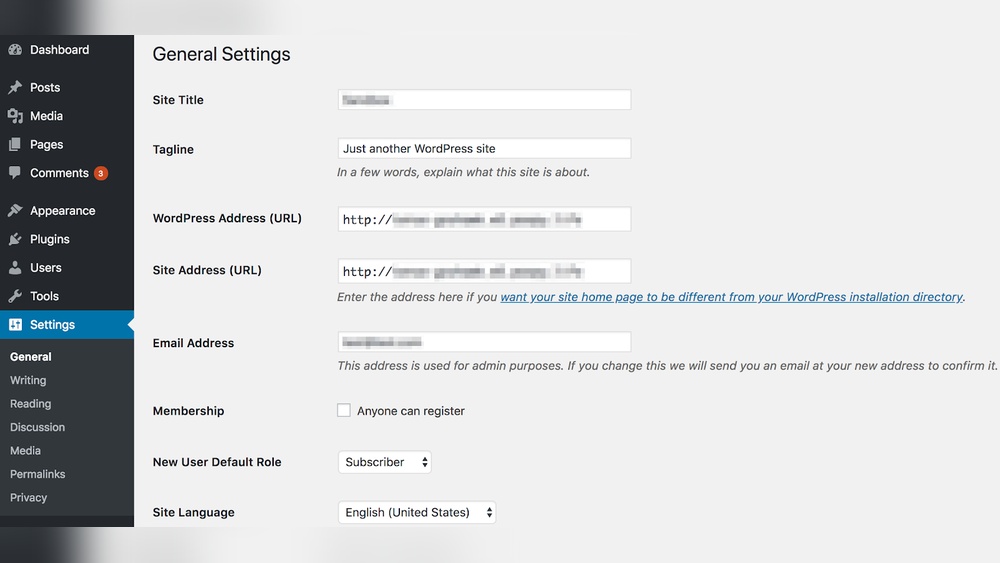
First, log in to your WordPress dashboard. Look for the “Settings” menu on the left side. Click on “General” under this menu. This page holds your site title and other main settings. You are now ready to edit the site title.
Updating Site Title And Tagline
On the General Settings page, find the “Site Title” box. Delete the old title and type your new one. Right below, you will see the “Tagline” box. This is a short phrase about your site. Change it to match your new site title or leave it blank.
Saving Changes
After typing the new site title and tagline, scroll down. Find the “Save Changes” button at the bottom. Click on it to apply your updates. Your site title changes will now appear on your website and browser.
Credit: kaydee.net
Updating The Site Name In Themes And Plugins
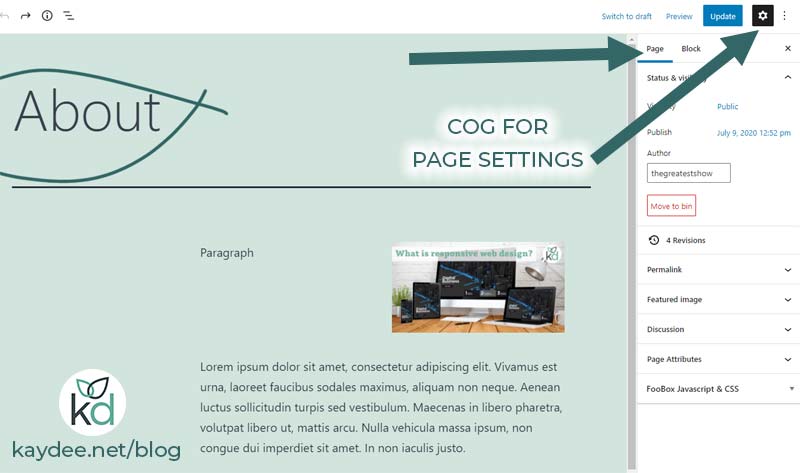
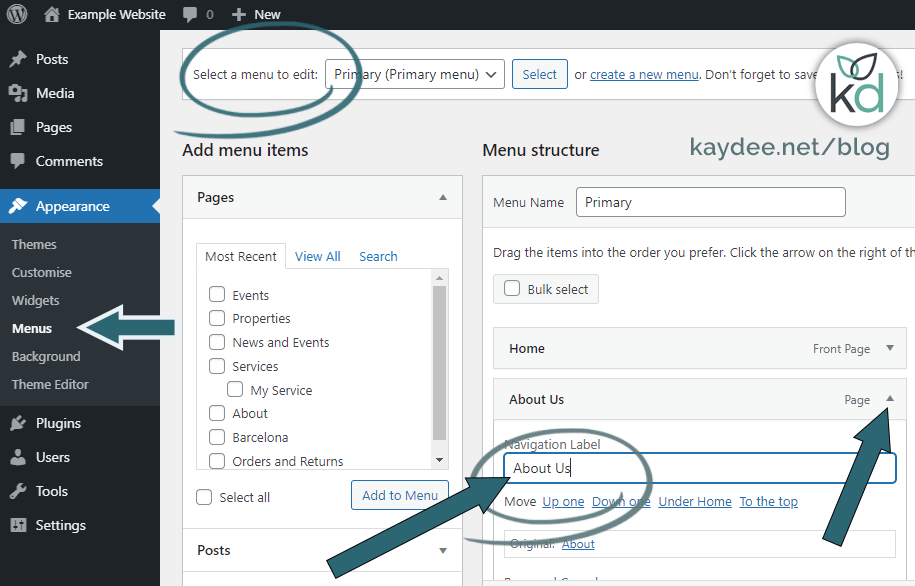
Changing your WordPress site name involves more than just updating general settings. Themes and plugins often display your site name in headers, footers, and other areas. Updating these elements ensures your new name appears consistently across your website. This step improves user experience and maintains your site’s professional look.
Customizing Header And Footer
The site name usually shows in the header or footer of your website. Many themes allow you to change this in the theme settings. Visit Appearance > Customize in your WordPress dashboard. Look for Header or Footer sections. Enter your new site name and save changes. Some themes may require editing code or widgets if options are limited.
Adjusting Seo Plugins
SEO plugins use your site name for titles and metadata. Open your SEO plugin settings, such as Yoast or All in One SEO. Find the section for site title or homepage settings. Replace the old name with the new one. This update helps search engines show the correct site name in search results. It also boosts your SEO consistency.
Reviewing Social Media Integrations
Social media plugins often display your site name in posts or share buttons. Check plugin settings to update the name. This step keeps your branding uniform across social platforms. Also, review any social media profiles linked to your site. Change the name there to match your new website name.
Changing The Domain Name
Changing the domain name of your WordPress site means your website will have a new web address. This can help with branding or moving to a better domain. The process involves a few clear steps to make sure your site works smoothly after the change. Let’s break down the main parts.
Registering A New Domain
First, buy a new domain name that suits your site’s purpose. Use trusted domain registrars like GoDaddy or Namecheap. Choose a short, easy-to-remember name. Check if the name is available before buying. Register the domain for at least one year to avoid losing it quickly.
Linking Domain To WordPress
After registering, link the new domain to your WordPress site. Update your domain’s DNS settings to point to your WordPress hosting server. This usually involves changing the nameservers. Your hosting provider gives the correct nameserver details. This step lets visitors find your site using the new domain.
Setting Up Redirects
Set up redirects from your old domain to the new one. This keeps your visitors and search engines happy. Use 301 redirects to tell browsers the site moved permanently. You can add redirects in your hosting control panel or via plugins. Redirects protect your SEO rankings and ensure smooth user experience.
Common Issues And How To Fix Them
Changing your WordPress site name can cause some common problems. These issues might confuse visitors or affect your site’s performance. Knowing how to fix them keeps your site smooth and user-friendly. Below are some common problems and easy solutions.
Broken Links And Missing Images
Changing your site name can break links inside your pages. Some links may still point to the old site name. This causes errors or pages not found.
Images might also disappear if their URLs use the old name. The site cannot find these files, so they show as missing.
Fix broken links by using a plugin like “Better Search Replace.” Replace old URLs with the new site name. Check your pages and posts for any incorrect links. Update image URLs in your media library or inside posts.
Cache Problems
Browsers and servers save versions of your site to load it faster. This is called caching. After changing your site name, the cache may still show the old version.
This causes visitors to see outdated content or broken links. Clear your browser cache first. Then, clear your WordPress cache if you use a caching plugin.
Also, clear your CDN cache if your site uses one. This ensures everyone sees the latest version with the new site name.
Search Engine Indexing
Search engines like Google save information about your site. Changing your site name can confuse search engines if not handled right.
Update your sitemap with the new site name. Submit it to Google Search Console. This helps search engines find your new site name quickly.
Check for any old links in the search results. Use 301 redirects to send visitors from the old site name to the new one. This keeps your SEO intact.
Tips For A Smooth Transition
Changing the name of your WordPress site can affect many parts of your online presence. Planning the change carefully helps avoid confusion and keeps your visitors happy. Follow these tips for a smooth transition and maintain your site’s success.
Communicating With Visitors
Tell your visitors about the name change before it happens. Use your homepage, blog posts, and social media to share the news. Clear messages reduce confusion and build trust. Remind visitors why you are changing the name and what to expect.
Monitoring Traffic And Performance
Watch your site traffic closely after the name change. Use tools like Google Analytics to track visitor numbers and behavior. Look for drops in traffic or unusual activity. Fix any issues quickly to keep your site running well.
Updating External Links
Check all external links that point to your old site name. Contact site owners or update your profiles to reflect the new name. This helps keep your SEO strong and makes sure visitors find your site easily.
Credit: kaydee.net
Frequently Asked Questions
Can I Change My WordPress Site Name Easily?
Yes, you can change your WordPress site name anytime. Go to Settings > General, then update the Site Title. Save changes, and the new name will appear on your site.
Will Changing My WordPress Site Name Affect Seo?
Changing your site name alone won’t harm SEO. However, update your site branding consistently to maintain search engine recognition and user trust.
Does Changing WordPress Site Name Update The Url Automatically?
No, changing the site name does not change your website URL. To change the URL, update your WordPress Address and Site Address settings separately.
Can I Revert My WordPress Site Name Back To The Original?
Yes, you can revert your site name anytime by editing the Site Title in Settings. Just save the changes to restore the original name.
Conclusion
Changing your WordPress site name is simple and quick. It helps your site look fresh and fit your brand better. Just follow the right steps to avoid mistakes. Remember to update your settings and inform your visitors if needed. A clear, fitting name makes your site easier to find and trust.
Keep your site’s name relevant and easy to remember. Small changes can improve your site’s image a lot. Take your time and choose a name you like. Your WordPress site can grow stronger with the right name.


