
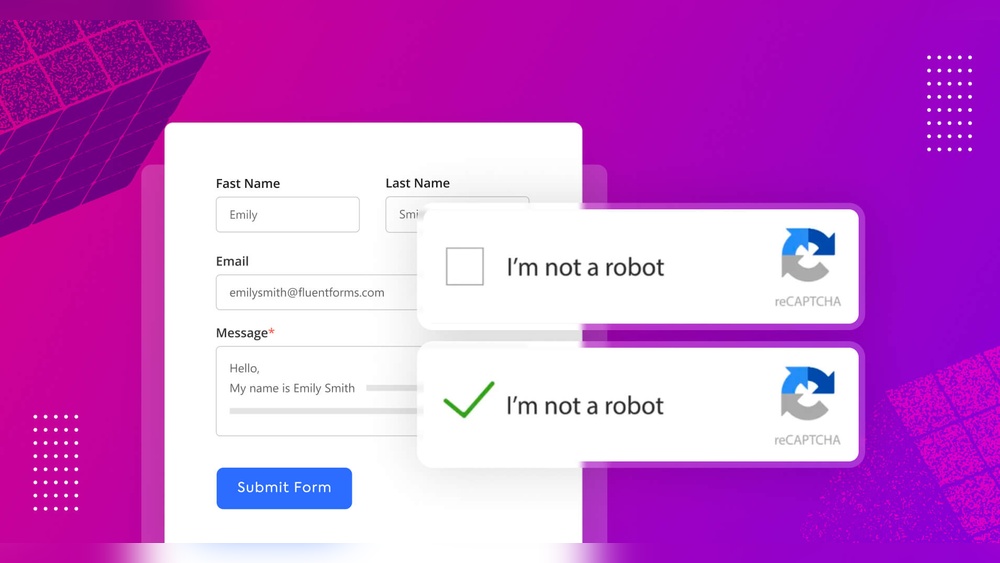
Are you tired of spam filling up your WordPress forms? Adding a CAPTCHA can be the simple solution you need to keep your site secure and your inbox clutter-free.
In this guide, you’ll discover easy, step-by-step ways to add CAPTCHA to your WordPress forms—no tech skills required. By the end, you’ll know exactly how to protect your site and give your visitors a smooth, trustworthy experience. Ready to stop spam for good?
Let’s dive in.
Why Captcha Matters
Captcha plays a key role in keeping WordPress forms safe and easy to use. It stops bad bots and spam from filling your forms. Captcha also helps protect your site from hackers. It makes sure real people, not machines, send messages or sign up.
Understanding why captcha matters helps you see its value. It improves security and keeps your site clean. It also makes the experience better for honest users.
Preventing Spam
Spam bots send fake messages through forms. They fill your inbox with useless content. Captcha blocks these bots from submitting forms. It makes sure only real users can send messages. This saves time and reduces frustration.
Enhancing Security
Captcha protects your site against attacks. Bots try to break into your site using forms. Captcha stops these automated attacks. It adds a layer of defense. Your site stays safer from hackers and scams.
Improving User Experience
Captcha keeps your forms clean and easy to use. Real users won’t face spam or broken forms. It helps genuine users submit their info without trouble. Simple captcha methods do not annoy visitors. This makes your site more trustworthy and friendly.
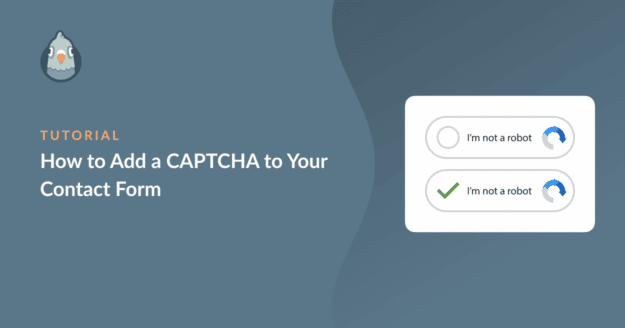
Credit: wpmailsmtp.com
Types Of Captcha For WordPress
Captcha helps protect WordPress forms from spam and bots. It stops fake users from submitting forms. Different types of captcha offer various ways to secure your site. Each type has unique features and usability.
Recaptcha
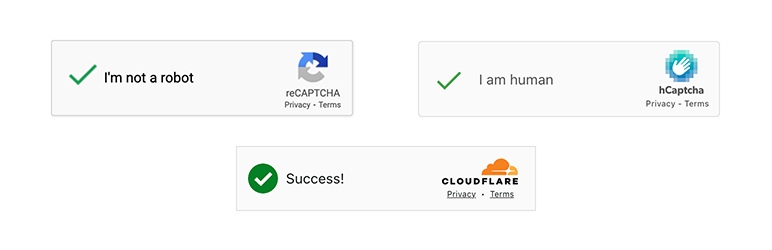
reCAPTCHA is a popular captcha by Google. It asks users to check a box or solve puzzles. It helps block bots while letting real users pass easily. It supports images and text challenges.
Hcaptcha
hCaptcha is a privacy-focused alternative to reCAPTCHA. It shows simple tasks like selecting images. It also helps websites earn small rewards. It works well for sites wanting extra privacy.
Math Captcha
Math Captcha asks users to solve a small math problem. For example, “What is 3 + 4?” It is easy for humans but hard for bots. It does not need internet connection to work.
Invisible Captcha
Invisible Captcha runs in the background. Users do not see any challenge or test. It checks user behavior to spot bots silently. It keeps the form simple and user-friendly.
Choosing The Right Captcha Plugin
Choosing the right captcha plugin for your WordPress form is essential. It helps protect your site from spam and bots. Picking a plugin that fits your needs ensures smooth user experience and strong security. This section guides you through key points to consider before selecting a captcha plugin.
Popular Plugins Overview
Several captcha plugins are popular among WordPress users. Google reCAPTCHA is widely used for its reliability and ease. hCaptcha offers privacy-focused protection and is easy to set up. Another option is WPForms’ built-in captcha, which integrates well with their forms. Each plugin has unique features and strengths. Knowing these helps in making the right choice.
Compatibility With Form Builders
Check if the captcha plugin works well with your form builder. Most plugins support popular builders like Contact Form 7, WPForms, and Gravity Forms. Compatibility ensures the captcha appears correctly on your forms. It also avoids conflicts that may cause errors. Ensure the plugin supports the specific form builder you use.
Ease Of Use And Customization
Select a plugin that is easy to install and configure. Simple setup saves time and reduces frustration. Look for options to customize the captcha style and behavior. Customization helps match your website design. Also, consider how the plugin handles user accessibility. A user-friendly captcha keeps visitors happy and secure.
Step-by-step Guide To Adding Captcha
Adding a captcha to your WordPress form helps protect your site from spam and bots. It makes sure that only real people can submit the form. This step-by-step guide shows how to add captcha easily. Follow each step to secure your forms quickly and effectively.
Installing The Plugin
First, log in to your WordPress dashboard. Go to the “Plugins” menu and click “Add New.” Search for a captcha plugin like “Google Captcha (reCAPTCHA).” Click “Install Now” and then “Activate.” The plugin is now ready to use on your site.
Generating Api Keys
Next, visit the Google reCAPTCHA website. Sign in with your Google account. Register your website by entering your domain name. Choose the reCAPTCHA type, usually v2 or v3. Accept the terms and submit the form. Copy the Site Key and Secret Key provided.
Configuring Captcha Settings
Return to your WordPress dashboard. Go to the captcha plugin settings page. Paste the Site Key and Secret Key into the fields. Adjust other settings like language and theme. Save the changes to activate the captcha on your site.
Adding Captcha To Your Form
Open the form where you want to add captcha. Most form plugins have a captcha option. Enable captcha and select the type you configured. Save the form and test it by submitting to check if captcha works. Your form is now protected from spam bots.
Testing Captcha On Your Site
Testing the captcha on your WordPress form is important. It ensures the security feature works properly. A well-tested captcha stops spam and bots effectively. It also keeps your site user-friendly and safe. This step saves time by catching issues early.
Verifying Functionality
First, open the form on your website. Try to submit it without filling the captcha. The form should block submission and show an error. Next, complete the captcha correctly and submit the form. The form should accept the submission without issues. Test on different devices and browsers to ensure consistency. Check if the captcha refreshes after each attempt. A working captcha should reset each time to prevent repeated entries.
Troubleshooting Common Issues
If the captcha does not appear, clear your site cache. Check your plugin or theme conflicts by disabling others temporarily. Make sure your captcha keys are correctly entered in the plugin settings. Slow loading captcha? It may be a server or internet issue. Captcha not validating? Recheck site and secret keys on the captcha provider’s site. Always update your captcha plugin to the latest version for best results.
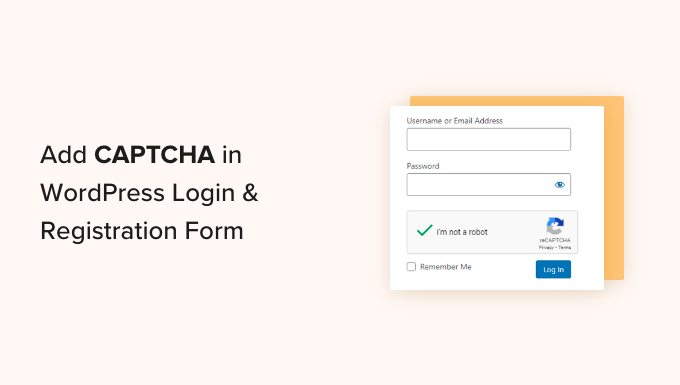
Credit: www.wpbeginner.com
Tips For Captcha Optimization
Optimizing CAPTCHA in your WordPress forms is important. It helps keep spam away while making the form easy for real users. Effective CAPTCHA settings improve user experience and site security. Follow these tips to find the right balance and keep your forms smooth.
Balancing Security And Usability
Strong CAPTCHA stops bots but can annoy users. Choose types that are simple to solve. Image or checkbox CAPTCHAs work well for most users. Avoid complex puzzles that slow form completion. Test your CAPTCHA to ensure it does not block real visitors.
Updating Plugins Regularly
Keep your CAPTCHA plugin updated for best results. Updates fix bugs and improve security features. Use the latest version to fight new spam techniques. Regular updates also ensure compatibility with WordPress and other plugins.
Monitoring Spam Activity
Check your form submissions often for spam signs. Track how many bots get through your CAPTCHA. Increase CAPTCHA difficulty if spam gets worse. Use logs or spam reports from your plugin to stay informed. Adjust settings to keep your site clean without hurting user flow.
Credit: wordpress.org
Frequently Asked Questions
What Is The Easiest Way To Add Captcha In WordPress Forms?
The easiest way is using a WordPress plugin like Google Captcha (reCAPTCHA). It integrates smoothly with popular form builders. This method requires minimal coding and ensures your forms are protected from spam effectively.
Which Captcha Types Work Best For WordPress Forms?
Google reCAPTCHA v2 and v3 are the most popular and effective types. They balance user experience and security well. Invisible reCAPTCHA is also favored as it minimizes user interaction while blocking bots.
Can I Add Captcha To Any WordPress Form Plugin?
Most major WordPress form plugins support Captcha integration. Plugins like Contact Form 7, WPForms, and Gravity Forms allow easy Captcha setup. Always check plugin compatibility before adding Captcha to ensure smooth functionality.
Does Adding Captcha Affect Form User Experience?
When implemented properly, Captcha has minimal impact on user experience. Invisible or simple checkbox Captchas keep forms user-friendly. It effectively reduces spam without frustrating genuine users.
Conclusion
Adding Captcha to your WordPress form helps stop spam bots fast. It keeps your website safe and user-friendly. The steps are simple and clear to follow. Choose the right Captcha plugin and set it up carefully. Test your form to make sure it works well.
Protecting your site improves trust and user experience. Stay secure with easy Captcha integration on your WordPress forms.



