
Ever wondered how to change your WordPress theme name without breaking a sweat? You’re in the right place.
Maybe you’ve found the perfect theme, but the name just doesn’t fit your style, or you want to add a personal touch before showcasing your site to the world. Changing a theme name can feel like solving a puzzle, but it’s simpler than you think.
In this guide, you’ll discover straightforward steps to tweak your theme’s name effortlessly. Imagine the satisfaction of personalizing your website just the way you want it, without any technical hassle. By diving into this article, you’ll gain the confidence to make your site uniquely yours, elevating your brand’s presence. Keep reading, and unlock the secret to transforming your WordPress theme name today!
Preparation Steps
Always create a backup before changes. Use plugins for easy backup. Store files in a safe location. This protects against data loss.
Ensure the new theme matches your site’s needs. Verify compatibility with existing plugins. Some themes might clash with plugins. Test in a staging environment first.
Locate the theme folder in your WordPress directory. Identify key files like style.css and functions.php. These files often contain theme details. Editing them changes the theme name.

Credit: www.nexgi.com
Accessing Theme Files
First, download an FTP client. Install it on your computer. Open the FTP client. Enter your website’s FTP credentials. These are username and password. Locate the folder named wp-content. Inside, find the themes folder. Select the theme you want to change. Right-click on it. Choose rename. Type the new name. Press enter. Your theme name is now changed.
Log in to your cPanel account. Look for File Manager. Open it. Navigate to public_html. Inside, find wp-content. Click on themes. Find the theme folder. Right-click it. Choose rename. Enter the new name. Save changes. The theme name is updated.
Modifying Theme Information
The style.css file holds theme details. It is in the theme folder. Open it with a text editor. Look for the Theme Name line. This line shows the current name. You can change it here.
To update the name, find the Theme Name line. Replace the old name with the new one. Save the file after editing. The name change is now complete.
Theme URI is the web address of your theme. Find the Theme URI line in style.css. Change the URL to your desired address. This helps link the theme correctly.
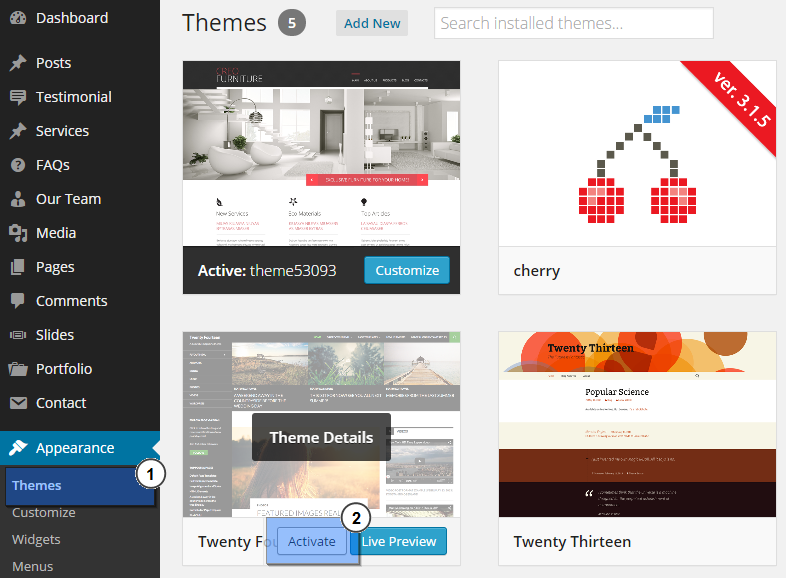
Credit: www.templatemonster.com
Testing Changes
Check the theme’s appearance after changing the name. Make sure the layout looks the same. Look at all pages and posts. They should display correctly. Try viewing on different devices. Use a phone or tablet. The theme should adjust well.
Test all buttons and links. Ensure they work as expected. Try forms and comments sections. Confirm they function properly. Visit the admin dashboard. Check if all settings remain unchanged. This ensures the site runs smoothly.
If issues appear, identify the problem. Check the error messages. They can help fix the problem. Look at the WordPress support forums. They have useful advice. Try disabling plugins one by one. This helps find the cause of the issue.
Final Steps
Changing your WordPress theme name involves editing the theme’s style. css file and theme folder name. Ensure you backup your site before making changes to avoid data loss. After editing, check your site to ensure everything works correctly with the new theme name.
Clear Cache
Clearing the cache is important. It removes old data. Old data can cause problems. It helps the new theme work well. Use a plugin to clear the cache. Plugins make the task easy. Restart your browser after clearing.
Update Documentation
Updating documentation is vital. It keeps records accurate. Write down new theme details. Include steps and changes made. This helps in the future. Others can read and understand easily.
Notify Team
Inform the team about the changes. Send an email with details. Explain the new theme and changes. Share the documentation link. Encourage them to review it. Everyone should be aware of the update.

Credit: www.youtube.com
Frequently Asked Questions
How Do I Edit The Template Name In WordPress?
To edit the template name in WordPress, go to the theme editor. Access “Appearance” > “Theme Editor”. Locate the template file you want to edit. Change the “Template Name” comment at the top of the file. Save the changes. Always back up your site before editing.
How Do I Change The Title Name In WordPress?
Go to your WordPress dashboard. Click on “Settings,” then “General. ” Change the “Site Title” field. Click “Save Changes” to update.
How Do I Change My WordPress Name?
Go to your WordPress dashboard. Navigate to Settings > General. Update the “Site Title” field with your new name. Save changes.
How Do I Change My WordPress Project Name?
To change your WordPress project name, access your WordPress dashboard. Navigate to Settings, then General. Update the Site Title field with your new project name. Save changes to apply the update. Ensure the new name reflects your brand and is SEO-friendly for better search engine visibility.
Conclusion
Changing your WordPress theme name is simple and beneficial. It helps personalize your site. Follow the steps carefully to avoid errors. Remember to back up your site first. This prevents data loss. A unique theme name enhances brand recognition. It also improves security by masking your theme details.
Enjoy the new look and feel of your website. Keep exploring WordPress features for more customization options. Stay updated with theme versions for better performance. Happy blogging!


