
Are you worried that your WordPress password might not be strong enough? Or maybe you just want to update it for extra security?
Changing your password on WordPress is easier than you think. In this guide, you’ll discover simple, step-by-step instructions to help you protect your website and keep your information safe. Stick with me, and by the end, you’ll feel confident managing your password like a pro.
Ready to take control of your WordPress security? Let’s get started!
Accessing The WordPress Dashboard
Accessing the WordPress dashboard is the first step to changing your password. The dashboard is the control center of your website. It lets you manage settings, posts, and users easily.
Knowing how to reach the dashboard helps keep your site secure. It also makes updating your password quick and simple.
Locate The WordPress Login Page
Start by finding your website’s login page. Usually, it is your website URL followed by /wp-login.php or /wp-admin. For example, www.yoursite.com/wp-login.php.
Type this in your browser’s address bar. Press enter to open the login screen.
Enter Your Username And Password
On the login page, enter your username or email address. Then type your password in the box below. Make sure you enter the correct details to avoid errors.
Click the “Log In” button to proceed. This action will bring you to the WordPress dashboard.
Understanding The Dashboard Layout
The dashboard has many sections like posts, pages, and settings. The menu is on the left side. It helps you navigate different parts of your site.
The main area shows updates and quick links. Familiarize yourself with these options to use WordPress better.

Credit: wordpress.com
Navigating To The Password Settings
Navigating to the password settings in WordPress is a simple process. It takes just a few clicks to reach the right page. This section helps you find the password options quickly. Follow the steps below to start changing your password safely.
First, log in to your WordPress account. You will see the main dashboard after login. The dashboard is the control center for your website. From here, you can manage all settings, including passwords.
Opening Your Profile Settings
On the left menu, find the “Users” section. Click on “Profile” or “Your Profile” under this section. This page shows your user details and options.
Locating The Password Change Area
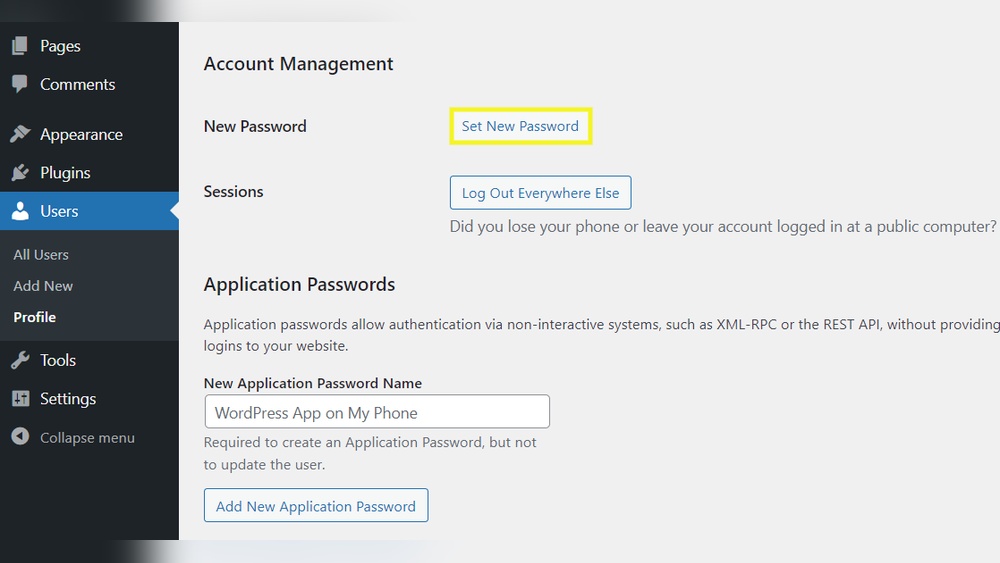
Scroll down the profile page until you find the “Account Management” area. Look for the “New Password” field here. This is where you enter your new password.
Changing Password From Profile Settings
Changing your password from the profile settings in WordPress is simple and quick. This method helps keep your account safe. You can update your password anytime without needing extra tools or plugins.
Accessing your profile settings lets you manage your personal details and security. The password change option is easy to find and use. Follow the steps carefully to ensure your new password works well.
Accessing Your Profile Settings
First, log in to your WordPress dashboard. Look for your username in the top right corner. Click on it to open a dropdown menu. Select “Profile” from the list. This opens your profile settings page.
Locating The Password Change Section
Scroll down the profile page until you find the “Account Management” area. Here, you see the option to change your password. WordPress shows a button labeled “Generate Password.” Click it to start.
Creating A New Password
WordPress suggests a strong password automatically. You can use it or type your own. Make sure your password is strong. Use letters, numbers, and symbols. Avoid easy words or patterns.
Saving Your New Password
After entering your new password, scroll to the bottom of the page. Click the “Update Profile” button. Your password changes immediately. Use the new password the next time you log in.
Resetting Password Via Email
Resetting your WordPress password via email is a simple and secure way to regain access. This method sends a special link directly to your registered email address. You can use this link to create a new password without needing to log in first.
Follow these steps to reset your password quickly and safely. This process works even if you forget your current password or cannot log in.
Navigate To The WordPress Login Page
First, go to your WordPress login page. This is usually found at yourwebsite.com/wp-login.php. Here, you will find the option to reset your password.
Click On The “lost Your Password?” Link
Under the login form, click the “Lost your password?” link. This opens a page where you can request a password reset email.
Enter Your Username Or Email Address
On the next page, type your WordPress username or the email linked to your account. This information helps WordPress find your profile.
Check Your Email Inbox
WordPress sends a password reset email soon after you request it. Open your email inbox and look for the message. Check your spam folder if you don’t see it.
Click The Password Reset Link
Inside the email, find the password reset link. Click this link to open the reset page on your website. The link is valid for a limited time.
Create A New Password
Enter your new password twice to confirm. Choose a strong password with letters, numbers, and symbols. This keeps your account secure.
Log In With Your New Password
Return to the login page and enter your username and new password. You should now access your WordPress dashboard without issues.
Using Phpmyadmin To Change Password
Using phpMyAdmin to change your WordPress password is a direct way to fix access issues. This method is helpful if you cannot reset your password through the usual WordPress login screen. You need access to your website’s hosting control panel to use phpMyAdmin.
phpMyAdmin lets you manage your WordPress database. Changing your password here updates it instantly in the system. This process requires care to avoid mistakes that could harm your site.
Accessing Phpmyadmin Through Your Hosting Control Panel
Login to your hosting account dashboard. Look for the phpMyAdmin icon or link. Click it to open the database management tool. This interface shows all your website databases.
Finding Your WordPress Database
Identify the database used by your WordPress site. Check your wp-config.php file if unsure. This file contains the database name. Select this database in phpMyAdmin to proceed.
Locating The Users Table
Within your database, find the table named wp_users. The prefix may differ, like wp123_users. Click on this table to view all WordPress users. Find your username in the list.
Editing Your Password In Phpmyadmin
Click the Edit button next to your username. Find the user_pass field. Select MD5 from the function dropdown. Enter your new password in the value box. Save the changes by clicking Go.
Verifying The Password Change
Go to your WordPress login page. Enter your username and new password. Confirm you can access your account. If the login fails, repeat the steps carefully.
Credit: help.one.com
Tips For Creating Strong Passwords
Creating a strong password is key to protecting your WordPress site. A good password stops hackers from guessing or breaking in. Strong passwords keep your data safe. Here are some easy tips to help you create one.
Use these tips to make your password hard to guess but easy to remember.
Use A Mix Of Letters, Numbers, And Symbols
Combine uppercase and lowercase letters with numbers. Add symbols like !, @, or . This mix makes your password harder to crack.
Make Passwords At Least 12 Characters Long
Longer passwords are safer. Aim for 12 characters or more. This adds more protection against attacks.
Avoid Common Words And Simple Patterns
Do not use easy words like “password” or “123456”. Avoid names, birthdays, or simple sequences. These are easy for hackers to guess.
Use Unique Passwords For Each Account
Do not reuse passwords on different sites. If one site is hacked, others stay safe with different passwords.
Try Using A Passphrase
Create a phrase made of several words. Add numbers or symbols for extra security. Passphrases are easy to remember and strong.
Preventing Password Issues
Preventing password issues on WordPress is essential for site security. Strong habits help avoid lockouts and hacking risks. Simple steps can protect your account and save time.
Enabling Two-factor Authentication
Two-factor authentication adds an extra layer of security. It asks for a code from your phone after entering the password. This makes it harder for hackers to access your account. Many plugins offer easy setup for two-factor authentication on WordPress. Use this feature to keep your site safer.
Using Password Managers
Password managers store and generate strong passwords for you. They help create unique passwords for every site. This reduces the risk of password reuse. You only need to remember one master password. Password managers also fill login forms automatically. This saves time and prevents typing mistakes.

Credit: akismet.com
Frequently Asked Questions
How Do I Change My WordPress Password Safely?
To change your WordPress password safely, log in to your dashboard, go to Users > Profile, and enter a new strong password. Use a mix of letters, numbers, and symbols for security. Save changes to update your password immediately.
Can I Reset My WordPress Password Without Email?
Yes, you can reset your WordPress password without email via phpMyAdmin. Access your hosting control panel, open phpMyAdmin, find the wp_users table, and edit your user’s password using the MD5 function. This method requires technical knowledge and access to your hosting account.
How Often Should I Update My WordPress Password?
It’s recommended to update your WordPress password every 3 to 6 months. Regular updates help protect your site from hacks and unauthorized access. Use strong, unique passwords to enhance security and reduce the risk of breaches.
What If I Forget My WordPress Password?
If you forget your WordPress password, click the “Lost your password? ” link on the login page. Enter your username or email to receive a reset link. Follow the instructions to create a new password and regain access quickly.
Conclusion
Changing your WordPress password helps keep your site safe. Do it regularly to protect your account from hackers. Use a strong, unique password that is hard to guess. Remember, the process is simple and quick. This small step improves your website security a lot.
Keep your login details private and update them often. Stay safe online with easy password changes on WordPress.


