
Are you ready to build your own website but don’t know where to start? WordPress is one of the easiest and most powerful tools you can use to create a stunning site without needing to be a tech expert.
Imagine having full control over your website’s look and content, all while reaching your audience exactly the way you want. You’ll discover simple, step-by-step guidance to get your WordPress site up and running fast. Keep reading, and you’ll see just how easy it is to turn your ideas into a real website that works for you.
Choosing A Domain And Hosting
Choosing a domain and hosting is the first step to start your WordPress site. The domain is your website’s address. Hosting is where your site lives on the internet. Both need careful thought. A good domain and reliable hosting help your site run smoothly.
Picking The Right Domain Name
Choose a domain name that is short and easy to remember. Avoid complex words or long phrases. Use keywords related to your site’s topic. This helps visitors find you quickly. Make sure the domain ends with common extensions like .com or .net. Check if the name is not already taken. A clear and simple domain builds trust.
Comparing Hosting Providers
Look for hosting companies with good uptime and fast servers. Uptime means your site stays online without breaks. Fast servers make pages load quickly. Check customer reviews to see real user experiences. Look for plans that fit your budget and needs. Some hosts offer WordPress-specific plans with easy setup. Choose a provider with helpful support available 24/7.
Setting Up Your Hosting Account
Sign up with your chosen hosting provider. Pick a hosting plan that matches your site size. Enter your domain name during setup. Follow the host’s instructions to link your domain and hosting. Usually, a control panel helps manage your site. Install WordPress using one-click tools many hosts provide. After setup, you can start building your website.

Credit: www.youtube.com
Installing WordPress
Installing WordPress is the first step to build your website. It is simple and quick. You can choose between easy automatic methods or manual setup. Both methods give you full control over your website. This section explains how to install WordPress and start your site.
Using One-click Installers
Many web hosts offer one-click installers for WordPress. These tools set up WordPress automatically. You only need to fill in a few fields like site name and admin details. The installer takes care of database creation and file setup. This method saves time and avoids technical steps. It is ideal for beginners and those who want fast setup.
Manual Installation Steps
Manual installation gives you more control over the setup. First, download the latest WordPress package from the official site. Next, upload the files to your web server using FTP. Create a new database and user with proper permissions. Then, open your site URL to start the WordPress installer. Enter your database details and site info. Finally, complete the installation by creating an admin account.
Configuring Basic Settings
After installation, configure basic settings to get started. Set your site title and tagline in the general settings. Choose a timezone that matches your location. Adjust reading settings to control your homepage display. Set up permalinks for better URL structure and SEO. Don’t forget to check discussion settings for comments. These basic steps prepare your site for visitors.
Exploring The WordPress Dashboard
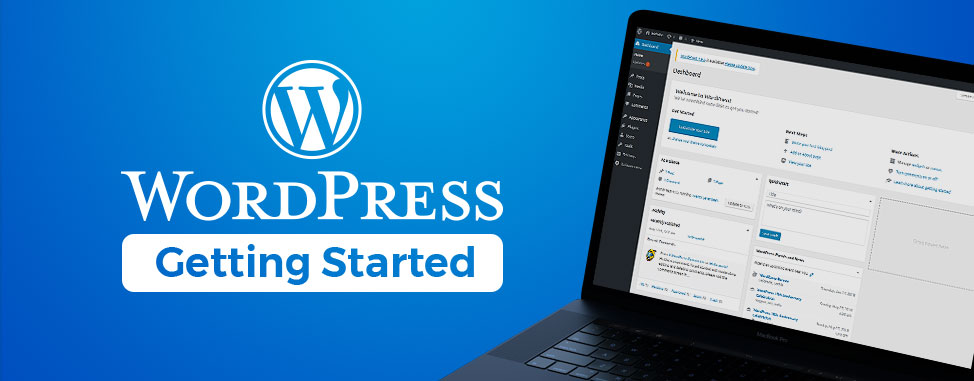
The WordPress dashboard is your website’s control center. It helps you manage posts, pages, and settings. Understanding this area is key to using WordPress smoothly.
Explore the dashboard step-by-step. Learn where to find tools and how to use them. This knowledge saves time and reduces confusion.
Navigating The Interface
The dashboard shows a menu on the left side. This menu lists all main sections like Posts, Media, and Settings. Click any item to open its panel.
The top bar gives quick access to your site and notifications. Use it to check updates or view your site live. The central area displays details or options based on your menu choice.
Customizing Your Profile
Go to Users > Your Profile to edit your details. Add a name, email, and a short bio. Upload a profile picture to personalize your account.
Set your preferred language and visual settings here. These changes make your dashboard easier to use. Save changes before leaving the page.
Managing Updates
WordPress often releases updates to improve security and features. Visit Dashboard > Updates to check for new versions. Update WordPress core, themes, and plugins regularly.
Keep backups before updating to avoid data loss. Updating keeps your site safe and running well.
Credit: whc.ca
Selecting And Customizing Themes
Selecting and customizing a theme is an important step in building your WordPress site. The theme controls how your site looks and feels. It affects colors, fonts, layout, and more. A good theme fits your content and style. Customizing allows you to make the site unique. You can change images, colors, and other design elements easily. This section helps you choose the right theme and make it your own.
Free Vs Premium Themes
Free themes cost nothing and are easy to find. They offer basic designs and features. Many are good for simple blogs or small sites. Premium themes require payment but offer more options. They often include extra features and support. Premium themes usually look more professional. Choose free themes to start without spending money. Pick premium themes for advanced design and tools.
Installing Your Theme
To install a theme, go to your WordPress dashboard. Click on “Appearance” and then “Themes.” Use the “Add New” button to search for themes. Find one you like and click “Install.” After installation, click “Activate” to use the theme. For premium themes, upload the theme file instead. This process sets your site’s design foundation.
Personalizing Your Site Design
Personalizing makes your site stand out. Go to “Appearance” and select “Customize.” Change colors, fonts, and background images here. Add your logo or site title for branding. Adjust the layout to fit your content style. Use widgets to add extra features like menus or social links. Preview changes before saving to ensure satisfaction.
Essential Plugins To Install
Starting with WordPress can feel tough. The right plugins help a lot. They add features and keep your site safe and fast. Choosing essential plugins saves time and makes your site better. Here are key plugins to install first.
Security Plugins
Security plugins protect your site from hackers and malware. They block suspicious activity and scan for threats. Some plugins also add a firewall and limit login attempts. A secure site builds trust with visitors.
Seo Tools
SEO tools help your site show up on search engines. They guide you to use keywords and optimize content. These plugins also create sitemaps and improve site structure. Better SEO means more visitors find your site.
Performance Enhancers
Performance plugins speed up your site. They optimize images and enable caching. Faster sites keep visitors happy and lower bounce rates. Some plugins also clean up your database to keep things running smoothly.
Creating Content
Creating content is the heart of your WordPress site. It helps share your ideas, stories, and information. Good content attracts visitors and keeps them coming back. Start by adding pages and posts. Then use tools like the Gutenberg editor to shape your words. Organize everything with categories and tags. This makes your site easy to navigate and search-friendly.
Adding Pages And Posts
Pages and posts are the main types of content in WordPress. Pages hold static information, like About or Contact. Posts are for timely updates, like blog entries or news. To add a page or post, go to the WordPress dashboard. Click on “Pages” or “Posts” and then “Add New.” Give your content a clear title. Write your text in the editor box. Save your work by clicking “Publish.”
Using The Gutenberg Editor
The Gutenberg editor uses blocks to create content. Each block holds a piece of text, image, or media. Blocks make it easy to change the layout. You can add paragraphs, headings, images, videos, and more. Click the “+” button to add a new block. Drag blocks to move them around. This editor helps build clean, organized content without coding.
Organizing Content With Categories And Tags
Categories and tags help group your posts. Categories are broad topics, like “Travel” or “Food.” Tags are more specific, like “Italy” or “Pasta.” Assign categories and tags to each post. This helps visitors find related content. It also improves search engine rankings. Use simple, clear names for categories and tags. Avoid using too many tags on one post.
Optimizing For Search Engines
Optimizing your WordPress site for search engines helps more people find your content. Simple steps can improve your site’s visibility. Search engines look for clear, fast, and well-structured sites. Start with basics and build on them.
Basic Seo Practices
Choose clear titles for your pages and posts. Use keywords naturally in your text. Write short, easy sentences. Add descriptions that explain your content well. Use headings to organize your content. Include alt text for images. This helps search engines understand your site.
Using Seo Plugins
SEO plugins make optimization easier. They guide you to improve titles and descriptions. Some plugins suggest keywords to use. They check for broken links and other issues. Popular options include Yoast SEO and All in One SEO. Install and activate a plugin to start optimizing fast.
Improving Site Speed
Fast websites rank better on search engines. Choose a good hosting provider. Use a lightweight theme. Compress images before uploading. Avoid too many plugins that slow your site. Use caching plugins to speed up loading times. Test your site speed regularly to keep it fast.
Credit: www.elegantthemes.com
Maintaining Your WordPress Site
Maintaining your WordPress site is key to its success. A well-kept site runs smoothly and stays safe. Regular care keeps visitors happy and search engines ranking your pages.
Simple tasks done often can prevent big problems later. Focus on backups, updates, and security checks. These basics protect your site and data.
Regular Backups
Backups save a copy of your website data. They help restore your site if something goes wrong. Set up automatic backups to run daily or weekly. Store backups in a safe place, like cloud storage or an external drive. Test your backups sometimes to make sure they work well.
Updating Themes And Plugins
Themes and plugins add features to your site. Updates fix bugs and improve security. Check for updates often and install them quickly. Outdated tools can cause errors or security risks. Use only trusted themes and plugins to avoid trouble.
Monitoring Site Security
Security keeps your site safe from hackers. Use strong passwords for all accounts. Install a security plugin to scan for threats. Watch for unusual activity like strange logins or file changes. Keep your WordPress version up to date to close security gaps.
Frequently Asked Questions
What Is The First Step To Start With WordPress?
The first step is choosing a domain name and reliable hosting. Then, install WordPress through your hosting provider’s control panel. This sets the foundation for your website.
How Do I Choose The Right WordPress Theme?
Select a theme that matches your site’s purpose and is mobile-friendly. Look for fast loading speed, good reviews, and customization options to enhance user experience.
Can I Use WordPress Without Coding Skills?
Yes, WordPress is user-friendly and requires no coding. You can use drag-and-drop builders and plugins to customize your site easily and professionally.
What Essential Plugins Should I Install First?
Start with plugins for SEO, security, and backups. Popular options include Yoast SEO, Wordfence Security, and UpdraftPlus to keep your site optimized and safe.
Conclusion
Starting with WordPress is easier than it seems. Choose a hosting service and install WordPress quickly. Pick a theme that fits your site’s style. Add useful plugins to improve your site’s function. Write clear and simple content for your visitors.
Keep your site updated and secure for best results. Take small steps and learn as you go. Soon, your WordPress site will be ready to share with the world. Don’t rush; enjoy the process and keep improving.


