Are you looking to add a new user to your WordPress site but don’t know where to start? Whether you want to give someone access to help manage your content or collaborate on your website, adding a user is quick and simple.
In this guide, you’ll discover exactly how to add a user in WordPress step-by-step. By the end, you’ll have full control over user roles and permissions, making your site more secure and organized. Keep reading to make managing your WordPress users easier than ever.
Choosing User Roles
Choosing the right user role in WordPress is important for site security and management. Each role has different permissions and limits what a user can do. Assign roles carefully to keep your site safe and organized.
Administrator
The Administrator has full control over the site. This role can change settings, install plugins, and manage other users. Only assign this role to trusted people.
Editor
Editors can publish and manage posts from all users. They control content but cannot change site settings. This role is good for content managers.
Author
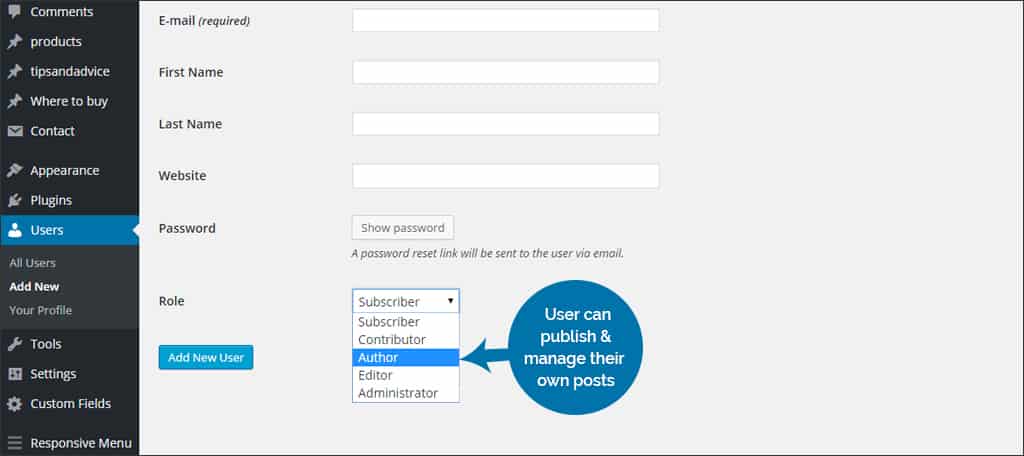
Authors can write, edit, and publish their own posts. They cannot access others’ posts or site settings. Use this role for regular content creators.
Contributor
Contributors can write and edit their posts but cannot publish them. An Editor or Administrator must review and publish their content.
Subscriber
Subscribers can only manage their profile. They cannot write or edit posts. This role suits users who just need to log in.
Accessing The User Section
Accessing the user section in WordPress is simple and quick. This part of the dashboard lets you manage users easily. You can add, edit, or remove users from here. Knowing how to find this section saves time and helps maintain your site well.
Navigating The Dashboard
Start by logging into your WordPress admin panel. The dashboard is the first screen you see after login. It shows various menus and options. Look for the main navigation menu on the left side. This menu holds all the tools you need.
Locating Users Menu
In the left menu, find the “Users” option. Click on it to open the user management area. This section displays all current users on your site. You will also see options to add new users. The “Users” menu is your gateway to control access.
Adding A New User
Adding a new user in WordPress is simple and quick. It allows you to give others access to your site. Each user can have different tasks and permissions. This helps keep your site safe and organized. Follow these steps to add a new user easily.
Filling Out User Details
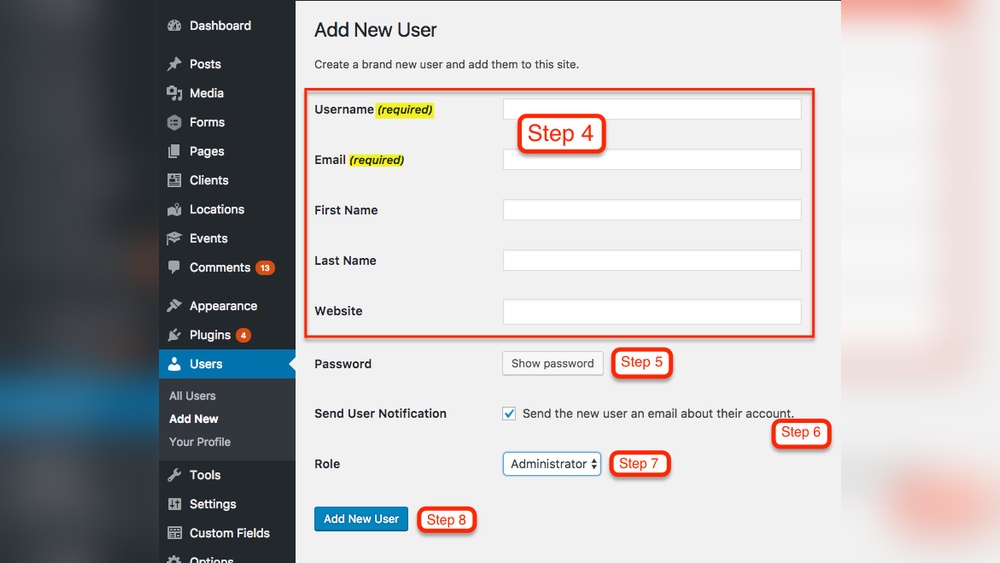
Start by entering the new user’s basic information. You need their username and email address. The username is how they will log in. The email is important for notifications and password resets. You can also add their first and last name. This helps identify them in the user list. You may write a short bio if needed. Make sure all details are correct before moving on.
Assigning Roles
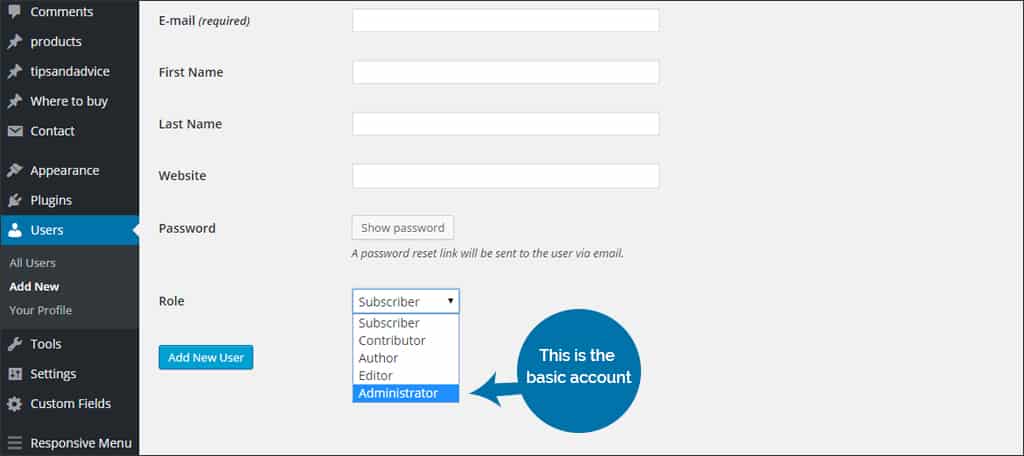
WordPress offers different roles for users. Each role controls what the user can do. Choose the right role carefully. The “Subscriber” role allows only reading content. “Contributor” can write but not publish posts. “Author” can publish and manage their own posts. “Editor” can manage others’ posts too. “Administrator” has full access to the site. Assign a role that fits the user’s tasks.
Setting Passwords
Create a strong password for the new user. WordPress may suggest a secure password automatically. You can use it or create your own. A strong password includes letters, numbers, and symbols. Avoid simple passwords like “123456” or “password.” After setting the password, choose if the user must change it on first login. This keeps accounts safe and secure.
Credit: www.greengeeks.com
Managing User Permissions
Managing user permissions in WordPress is important for site security and smooth operation. It controls what each user can see and do. Correct permission settings protect your content and prevent mistakes.
Each user role has specific rights. These rights decide what actions users can perform on your site. Adjusting permissions helps you keep control without limiting users unnecessarily.
Customizing Access Levels
WordPress has default roles like Administrator, Editor, Author, Contributor, and Subscriber. Each role comes with preset permissions. You can customize these roles to fit your needs.
To customize, use code snippets or plugins that allow role editing. Change permissions to allow or block actions for each user. This helps you tailor access precisely.
Custom roles help you create specific access rules. For example, you might want a user to edit posts but not publish them. Customization keeps your site organized and safe.
Using Plugins For Advanced Control
Plugins provide more control over user permissions than WordPress default settings. They offer easy interfaces to manage roles and capabilities.
Popular plugins let you create new roles, copy existing ones, or change permissions with clicks. This avoids coding and saves time.
With plugins, set limits for users on content, media, and even plugin use. These tools enhance security and improve site management.
Editing Or Deleting Users
Managing users in WordPress is a key part of keeping your site organized. Editing or deleting users helps you maintain control over who can access your site. It also ensures your site remains secure and up-to-date. This section explains how to modify user details and safely remove users.
Modifying User Information
To change user information, go to the WordPress dashboard. Click on “Users” to see the list of all users. Find the user you want to edit and click “Edit” under their name. You can update details like name, email, role, and password here. Make sure to save changes by clicking the “Update User” button at the bottom. Editing user roles can control their access to your site. Always review changes to avoid giving too many permissions.
Removing Users Safely
Deleting users requires care to avoid losing important content. In the “Users” section, select the user you want to remove. Click “Delete” under their name. WordPress asks what to do with the user’s content. Choose to assign posts and pages to another user or delete them. This step protects your content from disappearing. Confirm the deletion to complete the process. Removing inactive or unwanted users improves site security and performance.

Credit: www.youtube.com
Best Practices For User Management
Managing users in WordPress requires care and attention. Good user management keeps your website safe and organized. It helps prevent unauthorized access and keeps roles clear. Follow simple best practices to handle users well.
Maintaining Security
Security is key when managing WordPress users. Use strong passwords for all users. Limit the number of users with admin access. Remove users who no longer need access. Enable two-factor authentication if possible. Always back up your site before making changes.
Regularly Updating User Roles
Check user roles often to keep them current. Assign roles based on the tasks each user needs. Avoid giving more permissions than needed. Update roles when users change jobs or leave. Clear roles reduce risks and improve site control.
Credit: www.greengeeks.com
Frequently Asked Questions
How Do I Add A New User In WordPress?
To add a new user, log in to your WordPress dashboard. Go to Users > Add New. Fill in the user details and assign a role. Click “Add New User” to save.
What User Roles Can I Assign In WordPress?
WordPress offers roles like Administrator, Editor, Author, Contributor, and Subscriber. Each role has different permissions to manage your site effectively.
Can I Control What New Users Can Do?
Yes, user roles define permissions. You can customize roles using plugins to control what users can access or edit on your site.
Is It Possible To Add Multiple Users At Once?
By default, WordPress doesn’t support bulk user creation. You can use plugins or import tools to add multiple users efficiently.
Conclusion
Adding a new user to WordPress is simple and quick. Just follow the steps carefully. Choose the right role for each user to keep your site safe. Regularly check user accounts to manage access well. This helps your website stay organized and secure.
Practice these tips to make user management easy. Your WordPress site will run smoothly with the right users. Keep exploring and learning to improve your website skills.