Are you looking to boost your website’s SEO and keep visitors engaged longer? One simple but powerful way to do this is by creating internal links within your WordPress site.
Internal links guide your readers to related content, making it easier for them to find useful information—and they help search engines understand your site better. If you’re not sure how to add these links or want to make sure you’re doing it the right way, this guide is for you.
By the end, you’ll know exactly how to make internal links in WordPress that improve your site’s performance and keep your audience coming back for more. Let’s dive in!
Credit: www.internallinkjuicer.com
Benefits Of Internal Linking
Internal linking is a simple but powerful tool for any WordPress website. It connects different pages or posts within the same site. This connection helps both search engines and visitors understand your content better. Using internal links smartly brings many benefits.
Boosting Seo Rankings
Internal links guide search engines through your site. They show which pages are important. This helps search engines rank your pages higher. Well-placed links spread “link juice” across your site. It improves the authority of linked pages. This can lead to better visibility in search results.
Enhancing User Experience
Internal links keep visitors engaged longer. They help readers find related content easily. Visitors can learn more about topics they like. This reduces bounce rates and increases time on site. Happy visitors often become returning visitors.
Improving Site Navigation
Internal links create a clear path through your site. Visitors can move from one page to another smoothly. This makes your site easier to use. Good navigation helps visitors find what they need fast. It also helps organize your content logically.
Choosing The Right Pages To Link
Choosing the right pages to link is key for strong internal linking. It helps visitors find useful content easily. It also improves your site’s SEO by showing search engines important pages. Linking the right pages creates a clear path through your website. This makes your site easier to navigate and understand.
Identifying High-value Content
High-value content is content that brings the most benefit to your site. These pages often have good information or solve common problems. Look for pages with lots of views or shares. Check which pages get the most comments or feedback. These pages deserve links because they attract attention. Linking to high-value content boosts its authority and visibility.
Using Anchor Text Effectively
Anchor text is the clickable text in a link. Use clear and simple words in anchor text. It should describe what the linked page is about. Avoid generic words like “click here” or “read more.” Good anchor text helps users understand the link’s purpose. It also helps search engines learn about the linked page’s topic. Use natural phrases that fit well with your content.
Creating Internal Links In WordPress
Creating internal links in WordPress helps visitors find related content easily. It also improves your site’s SEO by connecting pages and posts. Internal links guide users through your site and keep them engaged longer. This section explains how to create internal links using different parts of WordPress.
Using The Classic Editor
Open the post or page in the Classic Editor. Highlight the text you want to turn into a link. Click the “Insert/edit link” button in the toolbar. A box appears where you can paste the URL or search for existing content on your site. Choose the right page or post from the list. Click “Add Link” to finish. Save or update your post to keep the changes.
Using The Block Editor (gutenberg)
Select the block containing the text you want to link. Highlight the specific words or phrase. Click the link icon in the block toolbar. Type or paste the URL in the field. You can also search your site’s content by typing keywords. Press Enter or click the arrow to apply the link. Update or publish your post to save the link.
Linking From Menus And Widgets
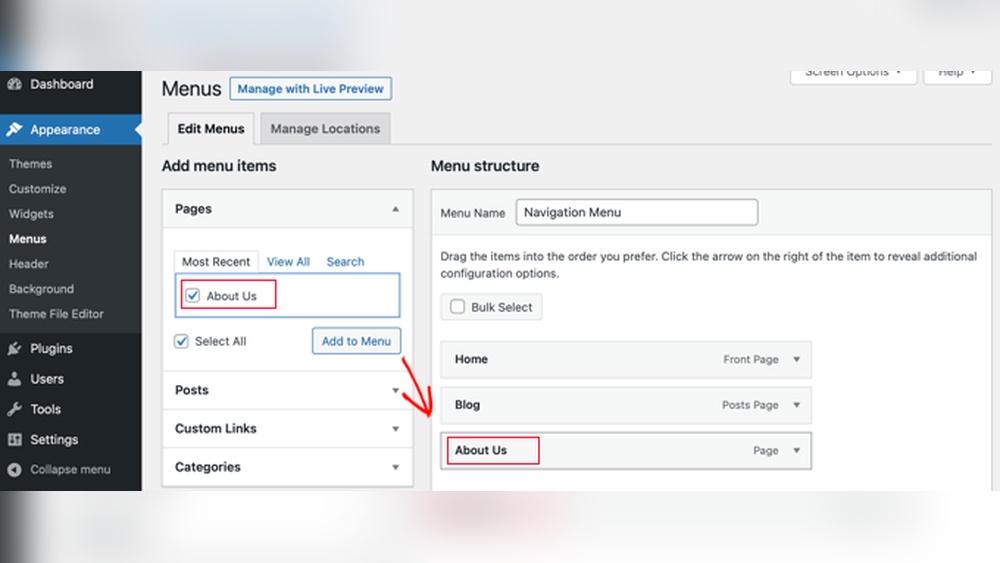
Go to Appearance > Menus in the WordPress dashboard. Choose the menu to edit or create a new one. Add pages, posts, or custom URLs as menu items. Drag and drop to arrange menu order. Save the menu when done. For widgets, go to Appearance > Widgets. Add a Custom HTML or Text widget. Insert your internal links using HTML or the editor. Save changes to display links on your site’s sidebar or footer.

Credit: www.wptasty.com
Best Practices For Internal Linking
Good internal linking improves your website’s user experience and SEO. It helps visitors find related content quickly. It also spreads link value across your pages. Follow best practices to make your internal links effective and natural.
Avoiding Overlinking
Too many links on one page can confuse readers. It looks spammy and lowers content quality. Use links only where they add real value. Focus on linking to the most important pages. Keep your links clear and easy to click.
Maintaining Relevant Links
Links must relate directly to the content around them. Irrelevant links frustrate visitors and reduce trust. Check that each link matches the topic of your text. Use descriptive anchor text that tells users what to expect. This improves both user experience and SEO.
Regular Link Audits
Review your internal links regularly to keep them fresh. Remove broken or outdated links quickly. Update links to point to new or better pages. Regular audits help maintain site health and improve rankings. Set a schedule to check your links every few months.
Tools To Manage Internal Links
Managing internal links can be tricky without the right tools. These tools help you organize and monitor links inside your WordPress site. They make sure your pages connect well and help improve your site’s SEO. Using these tools saves time and keeps your site healthy.
Seo Plugins
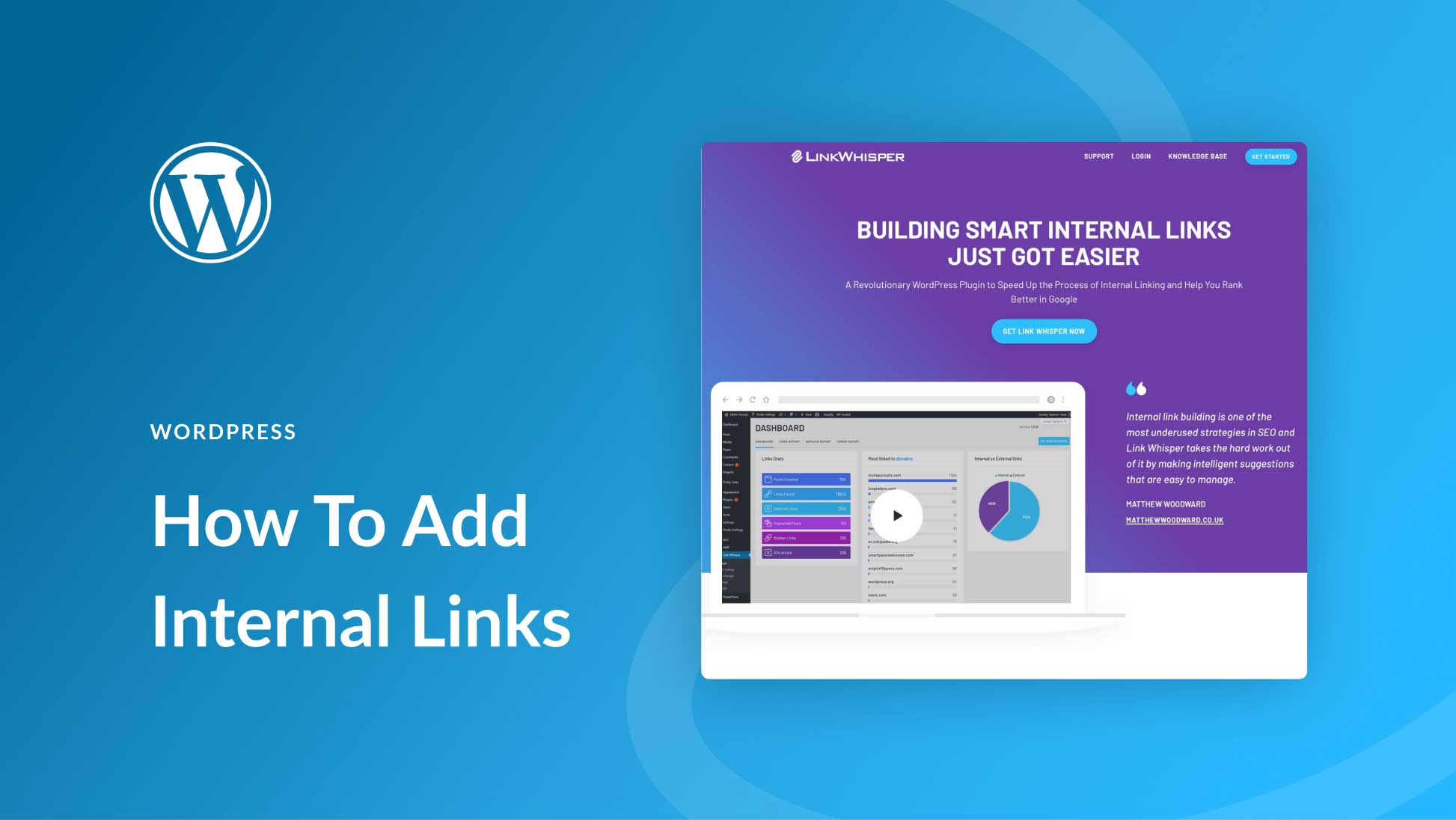
SEO plugins help you add and manage internal links easily. They suggest links based on your content. Some popular plugins highlight keywords to link to other pages. They also check for broken links and fix them fast. These plugins work inside WordPress, so no extra tools are needed.
Link Analysis Tools
Link analysis tools give a full overview of your internal links. They show which pages have many links and which have few. This helps balance your site’s link structure. Some tools find dead links and suggest fixes. They also help track link performance over time. These tools work with WordPress and outside platforms.
Credit: www.elegantthemes.com
Frequently Asked Questions
What Is An Internal Link In WordPress?
An internal link connects one page or post to another within the same WordPress site. It helps improve navigation, user experience, and SEO by spreading link authority across your site’s pages.
How Do I Add An Internal Link In WordPress Editor?
Highlight the text you want to link, click the link icon, and search for your internal page or post. Select it, then click “Apply” to create the internal link easily.
Why Are Internal Links Important For Seo In WordPress?
Internal links help search engines discover and index your pages better. They also distribute page authority, boost ranking potential, and increase user engagement on your WordPress site.
Can I Create Internal Links In WordPress Menus?
Yes, you can add internal links to WordPress menus. Go to Appearance > Menus, select pages or custom links, and add them to your menu structure for easy navigation.
Conclusion
Creating internal links in WordPress helps your site grow. It guides visitors to other useful pages. Search engines also notice well-linked content. Keep links relevant and clear for the best results. Practice adding links while you write. Soon, it will become an easy habit.
This small step improves user experience and SEO. Start linking today and watch your site improve steadily.