
Have you ever felt that your website needs a personal touch? Adding a custom logo to your WordPress theme is the perfect way to make your site stand out and reflect your unique brand identity.
Think about it: a logo is more than just an image. It’s the face of your brand, the first thing visitors notice, and a key element in building trust and recognition. But how do you go about adding that custom flair to your site without getting lost in a sea of technical jargon?
Don’t worry, you’re in the right place. In this guide, we’ll walk you through the simple steps to add a custom logo to your WordPress theme. Whether you’re tech-savvy or a complete beginner, you’ll find the process straightforward and rewarding. By the end of this article, you’ll not only have a unique logo on your site but also a deeper understanding of how to personalize your WordPress theme to match your brand’s vision. Ready to transform your website and make a lasting impression? Let’s dive in!
Choosing The Right Logo
A logo should be the right size and format. Too big or too small can look bad. Use a JPEG or PNG file. These formats work well. A logo should be clear and easy to see. Check the file size. It should not be too large. This can slow down your website. A small file loads faster.
A logo should match your website style. Colors should be the same. Fonts should look similar. This makes your site look nice. A good logo helps people remember your site. It is important for brand identity. Make sure the logo fits well with the design. Consistency is key. A well-matched logo looks professional.
Credit: erikainglasses.medium.com
Preparing Your Logo File
Your logo must load quickly on websites. Reduce its size to make it light. Use tools to compress it. Maintain quality while shrinking the file. Small files load fast and look good. A good size is under 100KB. This helps your site speed.
Choose formats that work well online. PNG and JPEG are common choices. PNG is great for logos with transparent backgrounds. JPEG is better for photos or colorful designs. Save your logo in both formats. This ensures it looks right on your site.
Accessing WordPress Dashboard
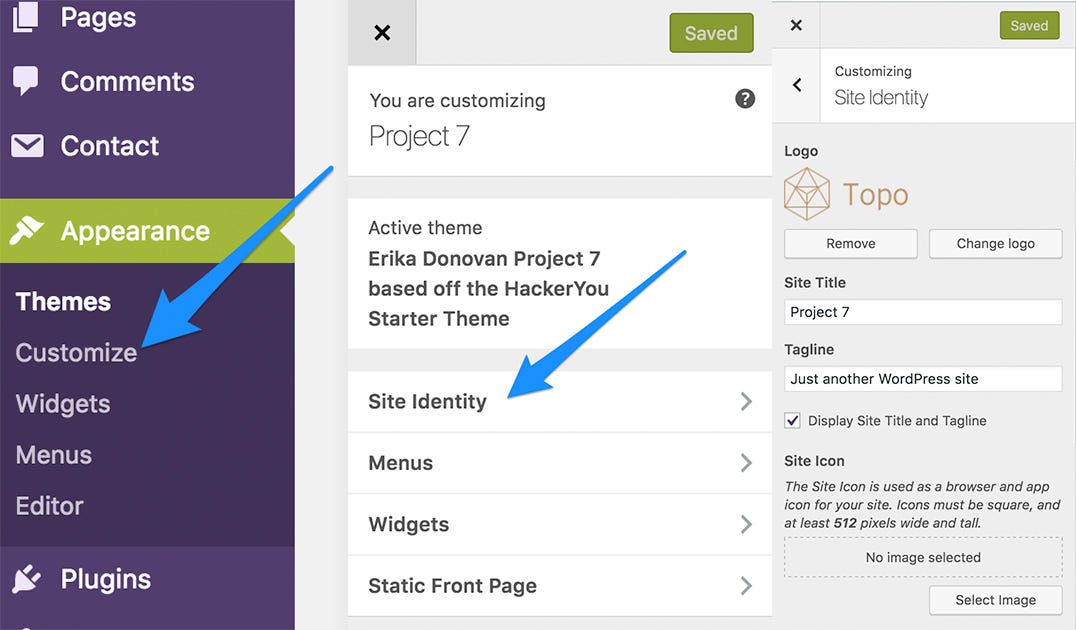
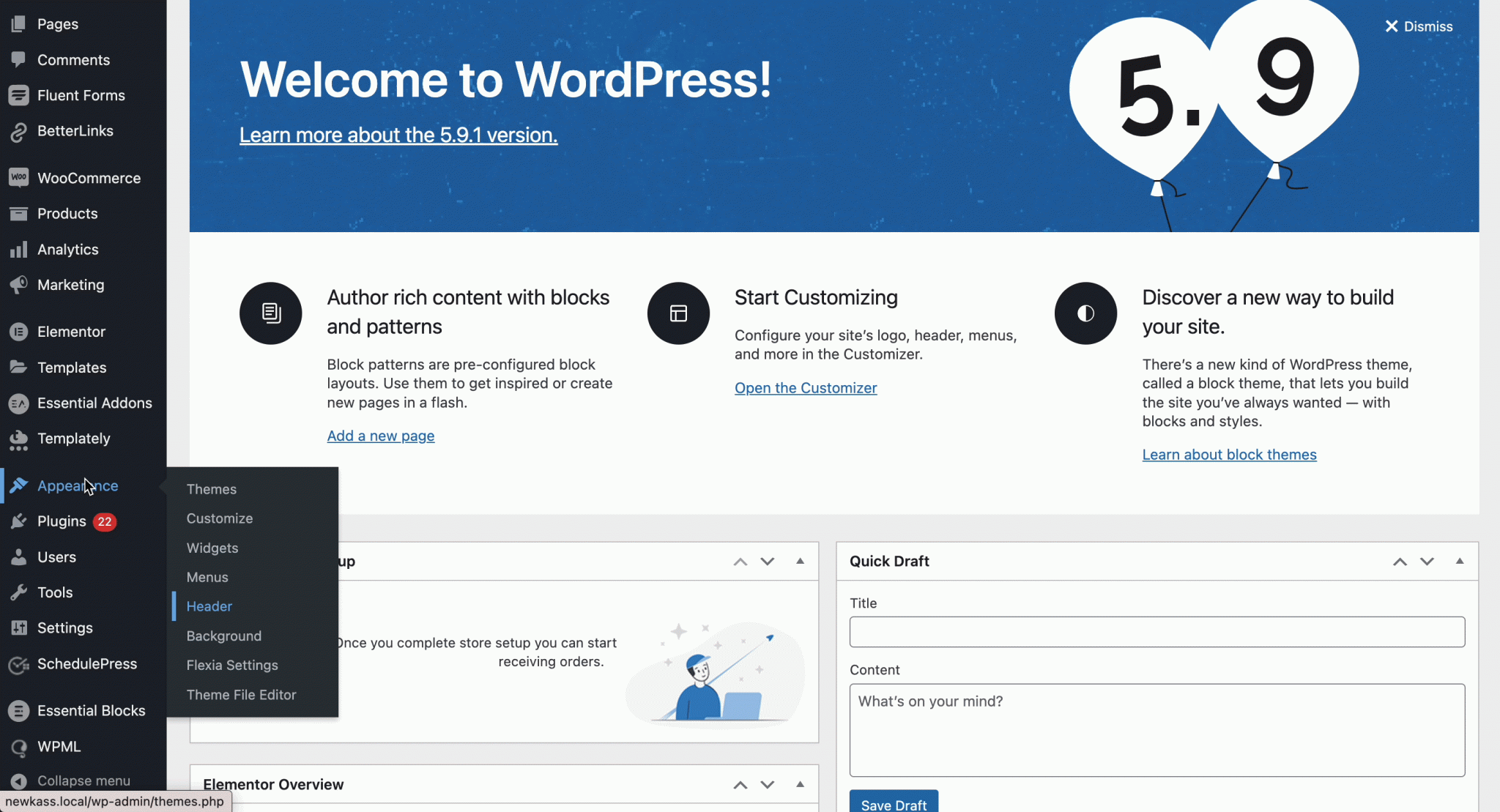
Start by logging into your WordPress dashboard. Find the menu on the left side. Look for the Appearance tab. Click on it. A drop-down menu will appear. Choose the Customize option. This will open the Customizer panel.
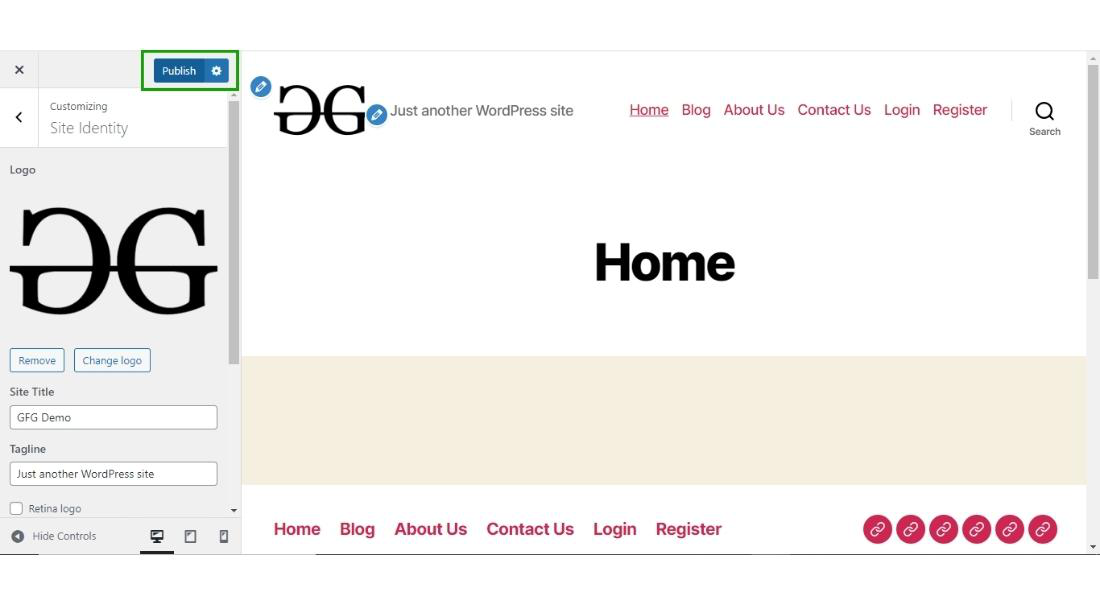
The Customizer is easy to use. It shows a live preview of your site. Find the Site Identity section. This is where you add your logo. Click on Select Logo button. Choose an image from your files. You can also remove or change it later. Remember to save changes. Your logo will now show on your site.
Credit: www.geeksforgeeks.org
Uploading Your Custom Logo
The Theme Customizer is a simple tool. First, go to the WordPress dashboard. Click on Appearance and then Customize. You will see many options here. Find the one labeled Site Identity. Click on it. Look for a button that says Select Logo. Click it to upload your logo. Make sure the logo is in the right format. Usually PNG or JPG works well. Once uploaded, you can see a preview. If it looks good, click Publish. Your new logo is now live!
Plugins can also help in uploading logos. Some themes support custom uploads. Check your theme settings first. You might find an option for logos. If not, a plugin can be helpful. Logo Carousel is one such plugin. Install it from the WordPress repository. After installing, follow the instructions. This makes the process easy and quick.
Adjusting Logo Settings
The logo is a key part of your site. It must be clear and visible. First, open your WordPress dashboard. Find the Appearance tab. Click on Customize. This opens the theme settings. Here, you can adjust the logo.
Positioning And Alignment
A logo should be placed correctly. Check the Header section. You can set the logo’s position. Choose left, center, or right alignment. Pick what suits your site best.
Resizing For Optimal Display
A logo must be the right size. Too big or small looks bad. In the Logo settings, you can change its size. Make sure it fits well. Use the size slider if available. Test the logo on different screens. It should look good everywhere.
Testing Your Logo Display
Your logo must look good on all devices. Use a smartphone and computer to check. Make sure the logo is clear and not blurry. Adjust the size if needed. A good logo is visible everywhere.
Browsers show logos differently. Test your logo on Chrome, Firefox, and Safari. They are the most used browsers. Check if the logo is clear on all browsers. Fix any issues you find. Your site must look good for everyone.
Troubleshooting Common Issues
Struggling to add a custom logo to your WordPress theme? Ensure your theme supports custom logos, then navigate to the “Customize” section in your WordPress dashboard. Upload your logo under the “Site Identity” tab to personalize your website effortlessly.
Handling Upload Errors
Sometimes, the logo won’t upload. Check the image format. JPEG and PNG are best. Ensure the image size is small. Large images may fail. Disable plugins if errors persist. Some plugins cause conflicts. Check your internet connection. Slow connections may interrupt uploads. Try uploading again after checking these.
Dealing With Display Problems
The logo might not show correctly. Check your theme settings. Some themes have specific logo sizes. Adjust the size if needed. Clear the browser cache. Cached data may cause display errors. Update your theme to the latest version. Older themes might not support new logo features. If still unseen, consult theme support forums. They offer solutions.
Maintaining Logo Quality
Regular Updates and Refinements are key to a great logo. Logos need to look fresh. Make sure to check them often. If a logo looks old, it can hurt your brand. Updates keep logos looking new. Regular checks help fix any problems. They keep the logo clean and clear. Refine logos to suit new styles. This makes sure your brand stays trendy. A good logo attracts people. So, always keep it sharp.
Using High-Resolution Files is very important. Low quality files can look blurry. High-resolution files keep logos clear. They look good on screens and print. Always save logos in high quality. This keeps them looking the best. High-resolution files make logos pop. They show every detail perfectly. Clear logos help people know your brand. They make your brand strong. So, use the best files for your logo.
Credit: wpdeveloper.com
Frequently Asked Questions
How Do I Add A Custom Logo In WordPress?
To add a custom logo in WordPress, go to your dashboard. Click on “Appearance,” then “Customize. ” Select “Site Identity” and upload your logo file. Adjust the logo size if needed, and click “Publish” to save changes. Ensure your theme supports custom logos for optimal results.
How Do I Import A Logo In WordPress?
Go to your WordPress dashboard. Navigate to Appearance, then Customize. Select Site Identity. Upload your logo image. Click Publish. Your logo is now imported.
How Do I Add A Logo To My WordPress Menu?
To add a logo to your WordPress menu, use a plugin like “Menu Image” or customize your theme’s header settings. Navigate to “Appearance” > “Menus” in the dashboard. Upload your logo and assign it to the menu. Save changes, and your logo will appear in the menu.
How Do I Change The Logo In A WordPress Template?
To change the logo in a WordPress template, access the dashboard. Click “Appearance” then “Customize. ” Select “Site Identity” and upload your logo file. Save changes to update the logo. Ensure the logo fits the recommended dimensions for optimal display.
Adjust settings if needed for better visibility.
Conclusion
Adding a custom logo enhances your WordPress theme’s identity. It makes your site unique and memorable. Follow the steps for a smooth process. Your logo reflects your brand’s essence. Be sure it fits well with the theme’s design. Remember, a logo isn’t just an image.
It’s your online signature. Keep it simple, yet impactful. Ensure it appears clear on all devices. A good logo improves user experience. It helps visitors recognize your brand easily. So, take time to craft a logo. Make it represent your brand well.
Your WordPress site deserves a personal touch. Enjoy creating your custom logo!


