
Are you struggling to get more clicks or sign-ups on your WordPress site? Adding a clear and attractive call to action (CTA) button can change that instantly.
A well-placed CTA guides your visitors exactly where you want them to go—whether it’s to buy a product, subscribe to a newsletter, or contact you for more info. You’ll learn simple, step-by-step ways to add a powerful CTA button on your WordPress site that grabs attention and boosts your results.
Keep reading, and you’ll soon have visitors taking action like never before.
Credit: wpmet.com
Benefits Of Cta Buttons
Call to action (CTA) buttons play a key role in any WordPress site. They guide visitors to take specific steps. These buttons help turn visitors into customers or subscribers. Understanding the benefits of CTA buttons can improve your website’s success.
Increase User Engagement
CTA buttons catch users’ attention quickly. They invite visitors to click and explore more. This interaction keeps users on your site longer. Longer visits mean users find your content useful. Higher engagement also boosts your site’s ranking on search engines.
Drive More Conversions
Clear CTA buttons encourage visitors to act. Whether it’s buying a product or signing up, CTAs lead the way. They simplify the decision-making process for users. This boost in action leads to more sales or leads. More conversions mean your website meets its goals better.
Enhance User Experience
Good CTA buttons make navigation easy. They provide clear directions for the next step. Users feel confident and less confused on your site. This smooth experience increases the chance they return. Happy visitors often become loyal customers or followers.
Choosing The Right Cta
Choosing the right call to action (CTA) button is key to boosting clicks and conversions on your WordPress site. The button should catch attention and clearly tell visitors what to do next. A well-chosen CTA helps guide users smoothly through your site and encourages them to take action.
Focus on simple words that prompt action. The design and color of the button must stand out but match your site’s style. Placement also matters. The button should appear where visitors naturally look and feel ready to click.
Effective Text Phrases
Use short, clear phrases for your CTA text. Words like “Buy Now,” “Sign Up,” or “Get Started” work well. Action verbs create urgency and tell visitors exactly what to do. Avoid long sentences or complex words. Keep it direct and easy to understand at a glance.
Color And Design Tips
Choose a color that contrasts with your background. This helps the button stand out. Bright colors like red, green, or orange often attract attention. The button’s shape should be simple, usually rounded or square. Make sure the text is large enough and easy to read. Avoid clutter around the button to keep focus on it.
Placement Strategies
Place the CTA button where visitors expect it. Common spots include the top right corner or just below your main content. Buttons near important information get more clicks. Repeat the CTA on long pages so users can act without scrolling back up. Test different positions to see what works best for your audience.
Adding A Cta With Gutenberg
Adding a call to action (CTA) with Gutenberg is simple and effective. Gutenberg is the default WordPress editor. It uses blocks to build content. You can add a button block easily to create a CTA. This helps guide visitors to take action, like buying or signing up. Follow the steps below to add and customize your CTA button.
Using Button Block
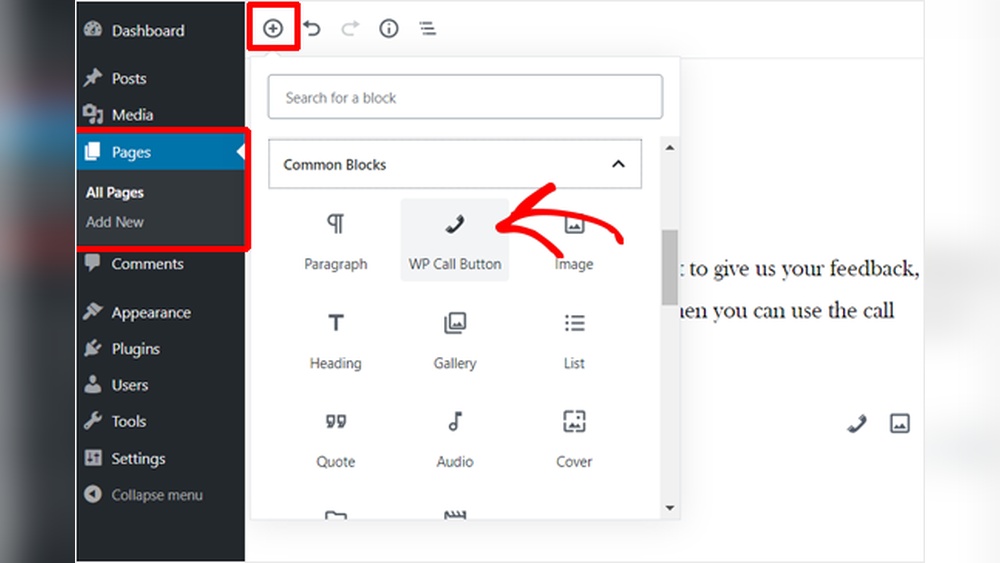
Open the page or post in the Gutenberg editor. Click the plus (+) icon to add a new block. Search for the “Button” block and select it. A button will appear on your page. Click the button text to type your CTA message. For example, “Buy Now” or “Contact Us”.
Customizing Styles
After adding the button, you can change its style. Use the block settings on the right side. Choose colors for the button background and text. Adjust the font size and padding to fit your design. You can also change the button shape, like rounded corners. This makes your CTA stand out and match your site.
Linking To Pages Or Actions
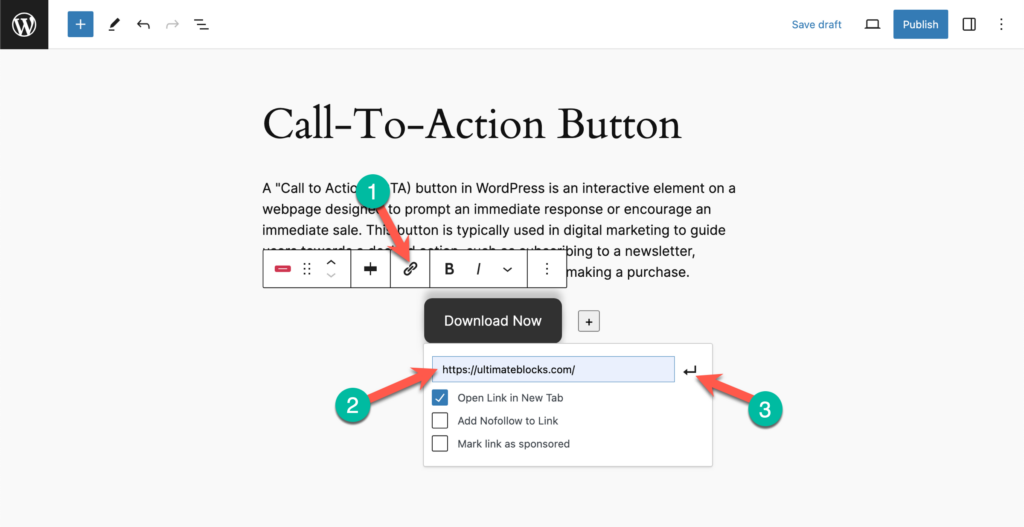
Next, add a link to your button. Paste the URL of the page or action you want visitors to go. It can be a product page, a contact form, or an external site. You can also link to email addresses or phone numbers. Make sure the link works well. Test by clicking the button in preview mode.
Using Plugins For Cta
Adding a call to action (CTA) button on WordPress is easy with plugins. Plugins help you create buttons without coding. They offer many styles and options. You can make buttons that match your site design and goals. Using a plugin saves time and makes your site look professional.
Top Cta Plugins For WordPress
Several plugins work well for adding CTA buttons. “WPForms” lets you add buttons to forms. “MaxButtons” offers many button styles and effects. “Thrive Leads” focuses on lead generation with smart buttons. “Elementor” includes button widgets in its page builder. Choose a plugin that fits your needs and skill level.
Step-by-step Installation
Go to your WordPress dashboard. Click “Plugins” then “Add New.” Type the plugin name in the search box. Find the plugin and click “Install Now.” After installation, click “Activate.” The plugin is ready for use. Follow the plugin’s instructions to add your CTA button.
Plugin Customization Options
Most CTA plugins let you change button colors and shapes. You can add text and icons to attract visitors. Some plugins allow animations to catch attention. Set button size and alignment for better placement. Test different styles to see what works best on your site.
Adding Cta In Themes
Adding a Call to Action (CTA) button directly in your WordPress theme helps guide visitors towards important actions. This method ensures the button appears exactly where you want it on your site. It also integrates smoothly with your site’s design and layout.
There are several ways to add a CTA in your theme. You can use the Theme Customizer for simple edits, or edit theme files for more control. Using a child theme protects your changes from being lost during updates.
Using Theme Customizer
The Theme Customizer lets you add a CTA button without touching code. Many themes offer options to add buttons in headers, footers, or widget areas. Find the customizer in your WordPress dashboard under Appearance > Customize.
Look for sections like “Header Settings” or “Buttons.” Add your button text and link. You can also choose colors and sizes to match your style. Preview changes live before saving. This method is simple and fast for beginners.
Editing Theme Files
Editing theme files gives you full control over your CTA button’s placement and design. You can add HTML and CSS directly to files like header.php or footer.php. Open these files from Appearance > Theme Editor.
Insert your CTA button code where you want it to show. Use clear, simple HTML like Click Here. Add CSS in style.css to style the button. Be careful. Mistakes can break your site.
Child Theme Best Practices
A child theme keeps your CTA changes safe when your main theme updates. Create a child theme with its own style.css and functions.php files. Copy the template files you want to edit into the child theme folder.
Make your CTA button changes in the child theme files. This way, updates to the parent theme won’t remove your button or styles. Always test your site after changes to avoid errors. Using a child theme is a smart step for long-term site management.
Credit: ultimateblocks.com
Tracking Cta Performance
Tracking the performance of your Call to Action (CTA) buttons helps you understand what works. It shows which buttons get clicks and which do not. This information helps improve your website and increase user engagement. Below are simple methods to track your CTA buttons effectively.
Using Google Analytics
Google Analytics tracks user actions on your website, including CTA clicks. Set up event tracking to see how many clicks each button gets. This tool provides detailed reports on user behavior. You can learn which CTAs drive the most traffic and conversions. It is free and easy to connect with WordPress.
Heatmaps And Click Tracking
Heatmaps visually show where users click on your page. They highlight popular areas and buttons. This helps you see if your CTA buttons attract attention. Click tracking tools record each button click in real-time. Use these tools to find the best spots for your CTAs. Many plugins offer heatmaps and click tracking for WordPress.
A/b Testing Ctas
A/B testing compares two versions of a CTA button to find the better one. Change the color, text, or size of the button. Show each version to different visitors and track their clicks. This method finds the most effective CTA design for your audience. WordPress plugins can help run A/B tests easily and efficiently.
Common Cta Mistakes To Avoid
Adding a call to action (CTA) button on WordPress is key for engagement. Mistakes can lower clicks and lose visitors. Avoid these common CTA errors to keep your site effective and user-friendly.
Overcrowding Pages
Too many buttons or links confuse visitors. They do not know where to click. Keep your pages clean and focused. One clear CTA per page works best. Use white space to guide eyes to the button.
Weak Call-to-action Text
Vague or boring text fails to motivate clicks. Use strong, clear words like “Buy Now” or “Get Started.” Tell visitors exactly what they will get. Avoid generic phrases like “Click Here” or “Submit.”
Ignoring Mobile Users
Many visitors use phones or tablets. If your CTA button is too small or hard to find, they leave. Make buttons large enough to tap easily. Check your site on different devices to ensure usability.

Credit: verpex.com
Frequently Asked Questions
How Do I Add A Call To Action Button In WordPress?
To add a call to action button, use the WordPress block editor. Insert a Button block, customize the text, style, and link. Publish or update your page to make it live. This method is simple and requires no coding.
Which Plugins Help Create Call To Action Buttons?
Popular plugins like Elementor, WPForms, and MaxButtons simplify button creation. They offer customizable designs and easy placement. These plugins improve user engagement without coding. Choose one based on your needs and site compatibility.
Where Should I Place Call To Action Buttons?
Place call to action buttons above the fold, at the end of posts, and in sidebars. Positioning them strategically boosts visibility and click rates. Test different locations to find what works best for your audience.
Can I Customize Call To Action Button Styles?
Yes, WordPress allows full button customization. Change colors, fonts, size, and shapes easily. Use custom CSS for advanced styling. A well-designed button attracts more clicks and conversions.
Conclusion
Adding a call to action button on WordPress is simple and effective. It helps guide visitors to take steps you want. You can customize the button’s look and place it anywhere on your site. Remember, a clear call to action boosts user engagement.
Keep testing different styles to see what works best. Start adding buttons today and watch your website become more interactive and helpful for your visitors.


