
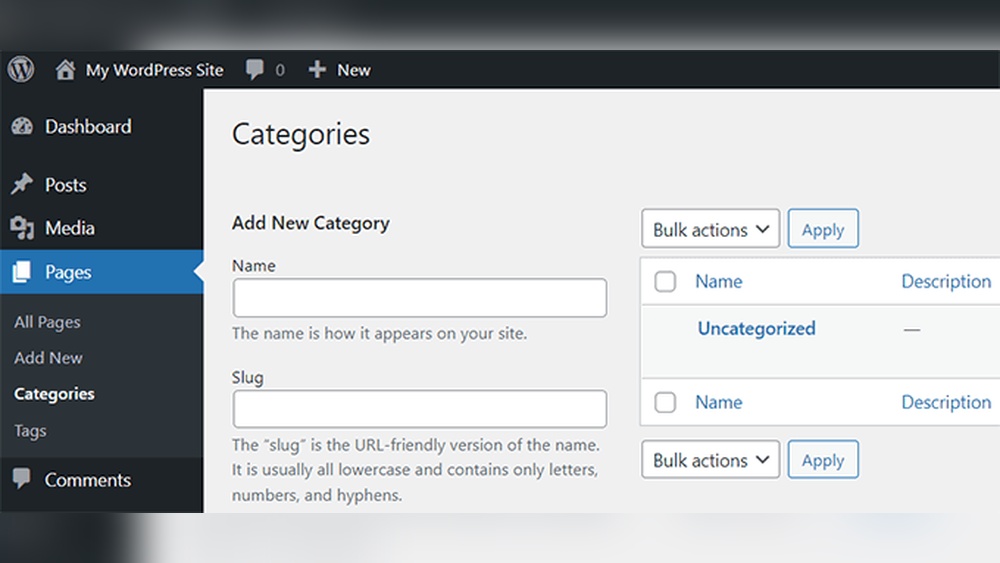
Are you struggling to organize your WordPress site and make it easier for visitors to find what they need? Adding categories to your pages can be a game-changer.
It helps you keep your content neat, improves navigation, and boosts your site’s SEO. You’ll learn simple, step-by-step ways to add categories to your WordPress pages—even if you’re not a tech expert. By the end, you’ll have a clearer, more user-friendly website that keeps your visitors engaged and coming back for more.
Ready to take control of your site’s structure? Let’s dive in!
Why Categories Matter For Pages
Categories help organize your website content clearly. They group similar pages together. This makes your site easier to navigate. Visitors find what they want faster.
Using categories on pages also improves SEO. Search engines understand your site structure better. This can boost your rankings in search results.
Improved User Experience
Categories create a clear path for visitors. Users can browse related topics easily. This reduces frustration and keeps people on your site longer.
Better Site Organization
Categories help you keep pages tidy. They prevent content from getting lost or mixed up. Managing your site becomes simpler and faster.
Enhanced Seo Benefits
Search engines use categories to index pages properly. Well-organized sites often rank higher. This drives more organic traffic to your site.
Default WordPress Behavior
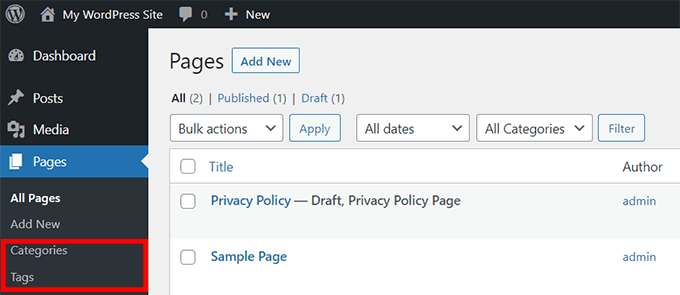
WordPress does not let you add categories to pages by default. Pages and posts have different ways to organize content. To add categories to pages, you need to use custom code or plugins.
WordPress treats posts and pages differently by default. Posts have categories and tags for better organization. Pages do not have these options. This design keeps pages simple and focused on static content.
Categories help group related posts. They make it easier for visitors to find similar content. Since pages are usually standalone, WordPress does not include categories for them.
This behavior can limit site structure if you want to organize pages like posts. Understanding this default setup is important before making changes. It helps you decide how to manage your content effectively.
Methods To Enable Categories On Pages
WordPress does not allow categories on pages by default. Categories help organize content and improve site navigation. There are several ways to enable categories on pages. Each method suits different skill levels and needs. Choose the best fit for your site and comfort with WordPress.
Using A Plugin
Plugins provide an easy way to enable categories on pages. They require no coding skills. Install and activate a plugin that adds category support. Popular options include “Category Tag Pages” or “Post Tags and Categories for Pages”. After activation, categories appear in the page editor. You can assign categories as you do with posts.
Adding Custom Code
Adding custom code allows more control over category support. Add a small snippet to your theme’s functions.php file. This snippet registers categories for pages. It enables categories without extra plugins. Be sure to back up your site before editing code. Use a child theme or custom plugin to keep changes safe from updates.
Child Theme Modifications
Modifying a child theme is a safe way to add categories to pages. Create or use an existing child theme. Add code that registers categories for pages within the child theme’s functions.php. This method keeps your main theme intact. It also keeps your site update-proof. Changes remain active even after the main theme updates.
Step-by-step: Adding Categories With A Plugin
Adding categories to pages in WordPress helps organize your content better. Using a plugin simplifies this process. It allows you to assign categories to pages without coding. Follow these steps to add categories quickly and easily.
Choosing The Right Plugin
Select a plugin that supports page categories. Look for one with good reviews and regular updates. Popular choices include “Category Tag Pages” and “Add Category to Pages.” Make sure the plugin is compatible with your WordPress version.
Installing And Activating
Go to your WordPress dashboard. Click on Plugins > Add New. Search for the plugin by name. Click “Install Now” and wait a few seconds. Then, click “Activate” to start using the plugin.
Configuring Plugin Settings
After activation, find the plugin settings in the dashboard menu. Enable categories for pages if not enabled by default. Customize options like category display and URL structure. Save settings to apply changes. Now, you can assign categories to your pages easily.
Step-by-step: Adding Categories With Code
Adding categories to pages in WordPress helps organize content better. By default, WordPress only allows categories on posts. Using code, you can enable categories for pages too. This guide walks you through the process step-by-step. Each step is clear and easy to follow.
Accessing Theme Functions
First, access your theme’s functions file. This file is called functions.php. You can find it in your WordPress dashboard under Appearance > Theme Editor. Or use an FTP client to open the file on your server. Always back up your site before editing.
Adding Taxonomy Support
Next, add taxonomy support to pages. Taxonomies are ways to group content. Categories are a type of taxonomy. Use the register_taxonomy_for_object_type function. This links categories with the page type. Insert the code snippet inside functions.php.
Registering Categories For Pages
Finally, register the category taxonomy for pages. Use the init action hook to run your code early. Write a function that calls register_taxonomy_for_object_type('category', 'page'). This makes categories available on page edit screens. Save your file and refresh the admin panel to see changes.
Credit: www.wpbeginner.com
Assigning Categories To Your Pages
Assigning categories to your WordPress pages helps organize your site better. It improves navigation and user experience. Visitors find related content easily. Categories group pages by topic or theme. WordPress does not support page categories by default. You need plugins or custom code to add this feature. Once added, assigning categories is simple and quick.
Editing Existing Pages
To assign categories, open your WordPress dashboard. Go to the Pages section and select a page to edit. Look for the category box on the right side. If you don’t see it, enable it in the Screen Options tab. Check the categories that fit your page content. Save or update the page to apply the changes. This method works well for a few pages.
Bulk Category Assignment
For many pages, bulk assignment saves time. Go to the Pages list in the dashboard. Use the checkboxes to select multiple pages. Choose “Edit” from the Bulk Actions dropdown menu. Click Apply. In the bulk edit panel, find the Categories option. Select the category you want for all chosen pages. Click Update to finish. This method quickly categorizes many pages.
Displaying Categories On Your Site
Displaying categories on your WordPress site helps visitors find content easily. Categories organize pages into groups. This makes your site clearer and user-friendly. Visitors can quickly see topics you cover. You can show categories in different ways. Two common methods include using widgets and modifying page templates. Both ways improve site navigation and user experience.
Using Widgets
Widgets offer a simple way to display categories. Go to your WordPress dashboard. Find the Appearance section and click Widgets. Choose the Categories widget and drag it to your sidebar or footer area. This shows a list of all page categories automatically. Visitors can click any category to see related pages. You can customize the widget title and display options. This method needs no coding and works well for most themes.
Modifying Page Templates
Editing page templates gives more control over category display. Access your theme files via the Theme Editor or FTP. Locate the page template file, often named page.php. Add PHP code to fetch and show categories linked to the current page. For example, use the function get_the_category() or get_the_terms() if you use custom taxonomies. This method allows placing categories anywhere on the page. It requires basic knowledge of PHP and WordPress theme structure.
Credit: pagely.com
Tips For Managing Page Categories
Managing page categories in WordPress helps keep your site organized. Clear categories make navigation easier for visitors. They also improve your site’s SEO by grouping related content. Use these tips to handle page categories effectively.
Use Descriptive Category Names
Choose names that clearly describe the page content. Avoid vague or complex terms. Short, simple names help visitors understand your site structure quickly. They also assist search engines in indexing pages properly.
Limit The Number Of Categories
Too many categories can confuse users and clutter your site. Focus on key topics relevant to your content. Keep the list manageable for easy navigation and better user experience.
Organize Categories Hierarchically
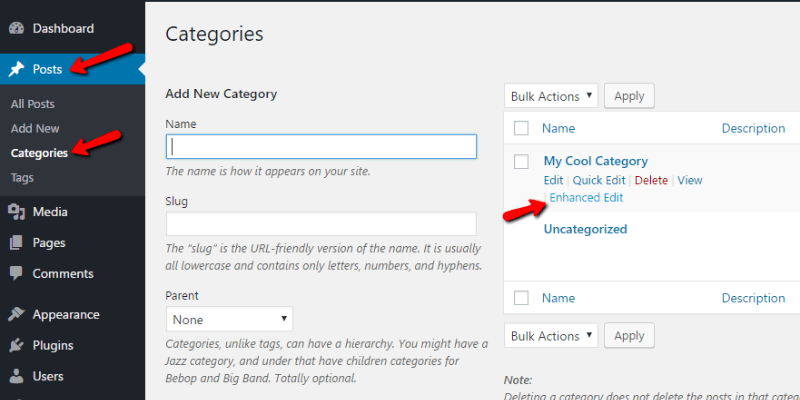
Create parent and child categories to show relationships. This structure helps visitors find related pages faster. It also improves your site’s logical flow and SEO benefits.
Regularly Review And Update Categories
Periodically check if categories still fit your content. Remove or merge categories that overlap or are empty. Keeping categories updated maintains site relevance and clarity.
Assign Pages To Relevant Categories Only
Ensure each page fits well within its assigned category. Avoid placing pages in unrelated categories. Proper categorization improves site navigation and search rankings.

Credit: wpsites.net
Frequently Asked Questions
How Can I Add Categories To WordPress Pages?
By default, WordPress doesn’t allow categories on pages. You can add this feature using plugins like “Category Tag Pages” or by adding custom code to your theme’s functions. php file to enable categories for pages.
Why Add Categories To WordPress Pages?
Adding categories to pages improves site organization and navigation. It helps visitors find related content easily and boosts SEO by structuring your website better for search engines.
Which Plugin Is Best For Page Categories In WordPress?
The “Category Tag Pages” plugin is popular and easy to use. It enables category support for pages without complex coding, making it ideal for beginners and advanced users alike.
Can I Assign Multiple Categories To One WordPress Page?
Yes, once category support is enabled on pages, you can assign multiple categories. This allows better content grouping and helps users find relevant information quickly.
Conclusion
Adding categories to WordPress pages helps organize your site clearly. It makes finding content easier for visitors. You can group pages by topic or purpose. This improves site navigation and user experience. The process is simple and takes just a few steps.
Try it on your site to see the difference. Clear categories keep your website neat and professional. Start categorizing your pages today for better site structure.


