
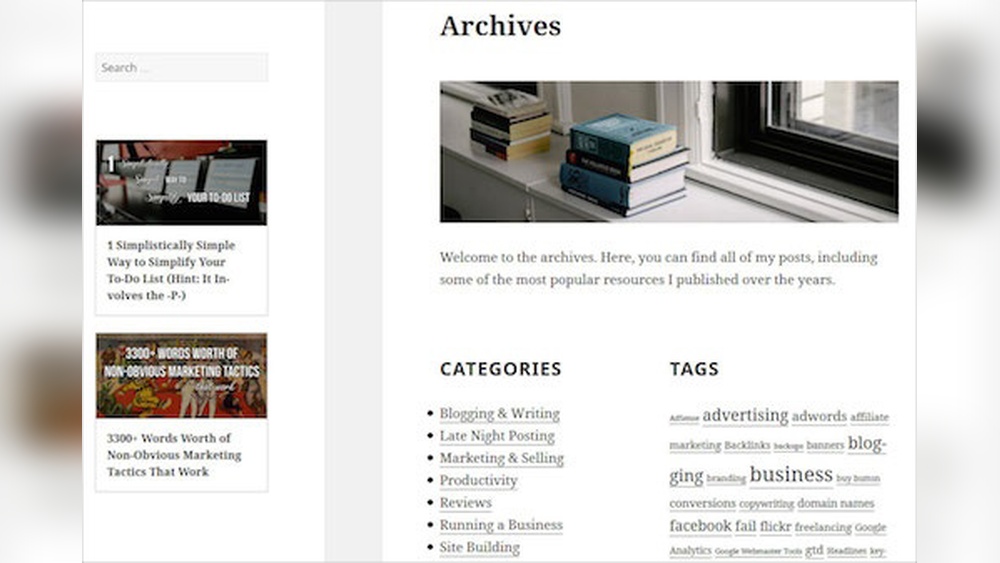
Are you struggling to keep your WordPress site organized and clutter-free? Archiving pages can be the simple solution you need to manage your content better.
Whether you want to hide old pages without deleting them or create a neat archive section for your visitors, knowing how to archive pages in WordPress is a game-changer. You’ll discover easy steps to archive your pages quickly and effectively.
Stick with me, and by the end, you’ll have a clear strategy to keep your website tidy and user-friendly. Let’s dive in!
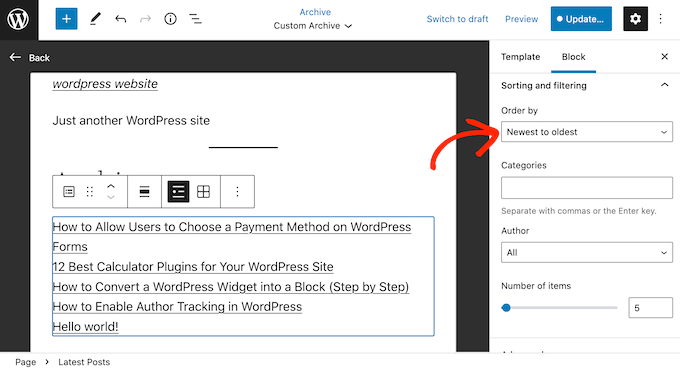
Credit: www.wpbeginner.com
Benefits Of Archiving Pages
Archiving pages in WordPress brings several benefits. It helps keep your website clean and easy to manage. Archiving also improves how fast your site works. Plus, it keeps old content available for visitors who want to see it.
Improve Site Organization
Archiving pages helps you sort content clearly. It removes old pages from the main menu or navigation. This makes your site look neat and easier to explore. Visitors find current information faster. You avoid confusion by hiding outdated content.
Enhance Website Performance
Archiving reduces the number of active pages. Fewer pages mean less data for your server to handle. This speeds up page loading times. Faster sites keep visitors happy and lower bounce rates. It also helps your site rank better in search results.
Maintain Content Accessibility
Archived pages stay available without cluttering your site. Visitors can access old posts or information anytime. This protects valuable content from disappearing. You preserve your site’s history and resources for future use.
Preparing Pages For Archiving
Preparing your WordPress pages for archiving is an important first step. It helps keep your website organized and ensures you don’t lose valuable data. Proper preparation also protects your search engine rankings.
Take time to plan before moving any pages. This process makes archiving smooth and safe. Follow a few key steps to prepare your pages correctly.
Identify Pages To Archive
Start by listing pages that no longer serve your audience. Old promotions, outdated content, or seasonal pages are good candidates. Check traffic and engagement metrics to find low-performing pages. Decide which pages to keep live and which to archive.
Backup Your Website
Create a full backup of your WordPress site. This protects your data in case something goes wrong. Use plugins or hosting tools to save your files and database. Store backups safely before making any changes.
Check Seo Considerations
Review the SEO impact of archiving pages. Redirect URLs of archived pages to relevant content. Update internal links to avoid broken links. Keep meta data and sitemaps updated for search engines.
Archiving Pages Manually
Archiving pages manually in WordPress helps keep your website tidy. It also ensures old content does not confuse visitors. You can store pages without deleting them. This way, you keep data safe and ready for future use.
Manual archiving gives control over what stays visible. It also lets you manage access to certain pages. Here are simple steps to archive pages effectively in WordPress.
Change Page Status To Draft
Changing a page to draft hides it from public view. The page stays in your WordPress dashboard. You can edit or republish it anytime. To do this, open the page editor. Find the status option and switch it to “Draft”. Save your changes. The page will no longer appear on your site.
Use Password Protection
Password protection limits access to archived pages. Only users with the password can see the content. In the page editor, look for the visibility settings. Choose “Password Protected” and create a strong password. Update the page to apply this. This method keeps pages online but private.
Redirect Archived Pages
Redirecting sends visitors from old pages to new ones. It improves user experience and SEO. Use a plugin or edit the .htaccess file for redirects. Set the archived page URL to point to another page. This avoids broken links and keeps your site organized.
Credit: toolset.com
Using Plugins For Archiving
Archiving pages in WordPress helps keep your site organized and clean. Plugins make this task simple and efficient. They allow you to archive pages without deleting them. This keeps old content accessible but out of the way. Using plugins saves time and reduces errors during archiving.
Top Plugins For Archiving
Several plugins help with archiving pages. “WP Archive Pages” offers easy page archiving options. “Simple Page Archiver” moves pages to an archive section automatically. “Content Archive” helps organize archived pages by date or category. Each plugin has unique features to suit different needs.
Installing And Setting Up Plugins
Go to your WordPress dashboard and open the Plugins menu. Click “Add New” and type the plugin name in the search box. Click “Install Now” and then “Activate” to enable the plugin. Follow setup instructions provided by the plugin. Most plugins offer simple settings to configure archiving options.
Managing Archived Pages Via Plugins
After setup, you can archive pages with a click or automatic rules. Some plugins create a separate archive section in the dashboard. From there, you can restore, delete, or edit archived pages. Managing archives becomes easy and keeps your site tidy. Archived pages stay safe and ready to use again.
Automating Archiving Processes
Automating archiving processes saves time and keeps your WordPress site clean. It helps manage old pages without manual effort. Automation can reduce errors and keep your content organized. Here are some steps to automate archiving efficiently.
Schedule Archiving With Plugins
Use WordPress plugins to schedule archiving of pages. Plugins like WP Scheduled Posts or Auto Post Scheduler work well. Set the date and time for pages to archive automatically. This keeps your site tidy without constant checking. Choose a plugin that fits your site’s needs.
Set Rules For Automatic Archiving
Define clear rules for which pages to archive. Rules can be based on page age, status, or category. For example, archive pages older than six months automatically. This keeps only relevant content live. Setting rules saves you from sorting pages manually.
Monitor And Review Archived Content
Check archived pages regularly to ensure accuracy. Sometimes, important pages may be archived by mistake. Review the archive to restore any needed content. Monitoring helps keep your website updated and relevant. Use reports or plugin dashboards for easy tracking.
Restoring Archived Pages
Restoring archived pages in WordPress helps bring old content back to life. It lets you reuse pages without starting from scratch. This section explains easy steps to restore those pages and make them live again.
Locate Archived Content
First, find your archived pages in WordPress. Go to the Pages section in the dashboard. Use filters to see pages marked as archived or drafts. You can also search by page title or date. This helps you quickly find the content you want to restore.
Reactivate Pages
After locating the page, open it for editing. Change the page status from archived or draft to published. Click the Update or Publish button. This action makes the page visible to visitors again. Reactivating pages is quick and simple.
Update Content Before Republishing
Check the page content carefully before republishing. Edit any outdated information or broken links. Add new images or text to improve the page. Updating content boosts SEO and user experience. Make sure the page is fresh and relevant.
Best Practices For Archiving
Archiving pages in WordPress helps keep your site organized and fast. Following best practices ensures your archived content remains useful and does not harm your site’s performance or ranking. Proper management of archived pages benefits both users and search engines.
Regularly Review Archived Pages
Check your archived pages often to see if they still hold value. Remove outdated or irrelevant content to keep the archive clean. Update pages that can be refreshed with new information. This keeps your website current and trustworthy.
Keep Seo Impact Minimal
Use proper redirects for archived pages to avoid broken links. Add “noindex” tags to pages that should not appear in search results. Maintain a clear site structure to help search engines understand your content. These steps protect your SEO rankings.
Communicate Changes To Users
Inform visitors when pages move to the archive. Use clear messages or banners on archived pages. Provide links to updated or related content. This helps users find what they need and improves their experience.

Credit: www.greengeeks.com
Frequently Asked Questions
How Do I Archive Pages In WordPress Manually?
To archive pages manually, change the page status to “Draft” or “Private” in WordPress. This hides the page from public view but keeps it accessible in your admin dashboard.
Can I Use Plugins To Archive WordPress Pages?
Yes, plugins like “Simple Page Ordering” or “WP Archive” help manage and archive pages easily. They offer features to organize and hide old content efficiently.
Does Archiving Pages Affect Seo In WordPress?
Archiving pages properly does not hurt SEO. Use “noindex” tags or redirects to avoid duplicate content and maintain search engine rankings.
How To Access Archived Pages Later In WordPress?
Archived pages remain in the WordPress dashboard under “Pages” with their status as “Draft” or “Private. ” You can edit or republish them anytime.
Conclusion
Archiving pages in WordPress helps keep your site organized and clean. You can easily hide old content without deleting it. This method saves time and keeps your website professional. Following simple steps makes archiving quick and stress-free. Try archiving pages to improve your site’s structure today.
It supports better navigation and user experience too. Managing content becomes easier with this smart approach. Keep your WordPress site neat and updated regularly.


