
Are you ready to make your website live with 1And1 Hosting but unsure how to connect your GoDaddy domain? Pointing your domain from GoDaddy to 1And1 Hosting might sound tricky, but it’s simpler than you think.
By following a few clear steps, you can have your site up and running smoothly in no time. Keep reading, and you’ll discover exactly what to do to make this switch fast and hassle-free. Your online presence is just a few clicks away!
Prepare Domain For Transfer
Preparing your domain for transfer is an important step before moving it from GoDaddy to 1And1 Hosting. This process helps avoid delays and ensures a smooth transition. You must complete a few tasks to get your domain ready for transfer.
Check Domain Lock Status
Domains have a security feature called domain lock. It prevents unauthorized transfers. You need to check if your domain is locked in your GoDaddy account. If locked, unlock it to allow the transfer. This step is quick and necessary for the transfer to start.
Get Authorization Code
The authorization code is a key that confirms your ownership. GoDaddy provides this code, also known as EPP code. You must request this code from your GoDaddy dashboard. Keep this code safe; you will need it to authorize the transfer at 1And1 Hosting.
Backup Existing Dns Settings
DNS settings control where your domain points, like your website and email. Before transfer, save a copy of these settings. This backup helps you restore services quickly if needed. Access your DNS records in GoDaddy and note all important details.
Access Godaddy Account
Accessing your GoDaddy account is the first step to point your domain to 1And1 hosting. You need to log in and find your domain settings. This process is simple and takes only a few minutes.
After logging in, you will see the main dashboard. From there, you can manage all your domains easily. Let’s see how to get started.
Log In To Godaddy
Go to the GoDaddy website. Click the “Sign In” button at the top right. Enter your username and password. Then click “Sign In” to access your account.
Use the same login details you used when buying your domain. Keep your password safe for future use.
Navigate To Domain Manager
After logging in, find the “My Products” section. Click on “Domains” to open the Domain Manager. This page shows all your registered domains.
Select the domain you want to point to 1And1 hosting. This opens the settings for that specific domain.
Update Dns Records
Updating DNS records is a key step in pointing your domain from GoDaddy to 1And1 hosting. It tells the internet where to find your website. Without updating these settings, visitors cannot reach your site on the new host. Follow the steps carefully to make the change smoothly.
Locate Dns Settings
First, log in to your GoDaddy account. Go to the “My Products” page. Find your domain name and click “Manage.” Look for the section labeled “DNS” or “DNS Management.” This is where you will update your domain’s settings.
Change Nameservers To 1and1
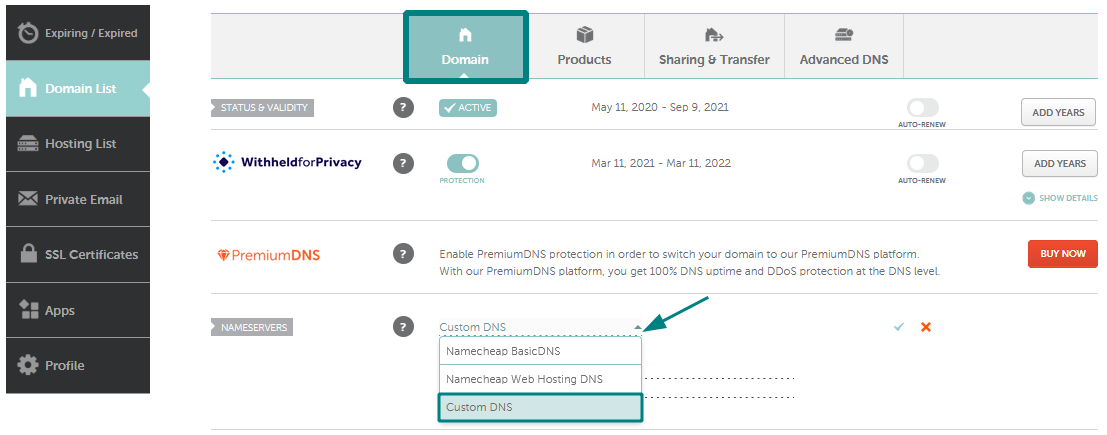
In the DNS Management area, find the nameservers option. Select “Custom” to enter new nameservers. Enter the nameservers provided by 1And1 hosting. Usually, they look like ns1.1and1.com and ns2.1and1.com. Double-check the nameservers for accuracy.
Save Changes
After entering the new nameservers, click the “Save” button. GoDaddy may ask for confirmation before applying changes. Once saved, the update can take a few hours to propagate across the internet. Your domain will start pointing to 1And1 hosting after this process.
Credit: www.namecheap.com
Configure 1and1 Hosting
Configuring your 1And1 hosting is an important step in pointing your domain from GoDaddy. It lets your website work properly on the new server. The process is simple and does not take much time.
You will need to access your 1And1 account, add your domain, and check if the connection works. This ensures your site loads without errors.
Access 1and1 Control Panel
Log in to your 1And1 account using your username and password. The control panel is the place to manage all your hosting settings. Find the hosting section on the dashboard after logging in.
Click on your hosting plan to open detailed options. This is where you will add your domain and configure settings.
Add Domain To Hosting Account
Inside the control panel, look for “Domains” or “Add Domain.” Enter your domain name that you bought from GoDaddy. Choose the option to assign it to your hosting plan.
Confirm the changes and wait for the system to link your domain to the hosting account. This step connects your domain with the website files on 1And1 servers.
Verify Domain Connection
After adding your domain, check if it points to 1And1 correctly. Use online tools or the 1And1 panel to verify this. The domain should show the 1And1 server IP address.
Open your website in a browser to confirm it loads from 1And1 hosting. If the site appears, your domain is connected successfully.
Wait For Dns Propagation
After you update your domain settings at GoDaddy to point to 1And1 Hosting, you must wait for DNS propagation. This process allows the internet to recognize your new hosting setup. It takes time for all servers worldwide to update with your new domain information. During this period, your website may not be accessible to everyone.
Patience is important here. Changes do not happen instantly. The waiting time can vary based on several factors, such as your domain registrar and internet service providers.
Typical Propagation Time
DNS propagation usually takes anywhere from a few hours to 48 hours. Some changes update quickly, within 1 to 2 hours. Others may take longer, up to two days. The time depends on how fast servers refresh their DNS cache globally. Keep in mind that some users might see the new site earlier than others.
Check Dns Status
You can check your domain’s DNS status with online tools. These tools show whether your domain points to 1And1’s servers yet. Enter your domain name in a DNS checker to see current records. Repeat the check every few hours to track progress. This helps confirm when propagation completes and your site is fully live.

Credit: support.wix.com
Troubleshoot Common Issues
Pointing your domain from GoDaddy to 1And1 Hosting usually goes smoothly. Sometimes, issues can slow the process or cause errors. Knowing common problems helps you fix them quickly. This section covers key troubleshooting tips. These tips ensure your website works on 1And1 hosting without delays or errors.
Dns Propagation Delays
DNS changes take time to spread across the internet. This process is called DNS propagation. It can take up to 48 hours to complete. During this time, your website may load from the old hosting or show an error. Be patient and check your site after a few hours. Avoid making more changes while waiting.
Incorrect Nameserver Entries
Nameservers point your domain to the right hosting provider. Entering wrong nameservers stops your website from loading. Double-check the nameservers given by 1And1 Hosting. Make sure you replace GoDaddy’s default nameservers with these exact values. Even small typos cause problems. Update the nameservers carefully in your GoDaddy account.
Contact Support
Sometimes issues need expert help. Both GoDaddy and 1And1 have support teams to assist. Contact support if your domain still does not work after waiting. Provide them with details about your domain and steps taken. Clear communication helps solve problems faster. Keep your account info ready before calling or chatting.
Credit: support.clickdimensions.com
Frequently Asked Questions
How Do I Update Dns Settings On Godaddy?
Log in to your GoDaddy account. Go to Domain Settings, select Manage DNS. Replace existing nameservers with 1And1 nameservers. Save changes to update DNS settings.
How Long Does Dns Propagation Take?
DNS propagation typically takes 24 to 48 hours. This delay allows global servers to update your domain’s new hosting details. It may vary slightly depending on your ISP.
Can I Keep My Email With Godaddy?
Yes, you can keep your email service at GoDaddy. Just avoid changing MX records during domain pointing. This maintains your existing email setup without disruption.
What Are 1and1 Nameservers For Domain Pointing?
1And1 nameservers usually are ns01. 1and1. com and ns02. 1and1. com. Use these nameservers in GoDaddy’s DNS settings to point your domain correctly to 1And1 hosting.
Conclusion
Pointing your domain from GoDaddy to 1And1 hosting is simple. Just follow the steps carefully. Double-check your DNS settings to avoid errors. Wait a few hours for changes to take effect. Your website will start working with 1And1 hosting soon.
Keep your login details safe for future updates. This process helps you manage your site easily. Stay patient and review each step slowly. You will see your website live on the new host quickly.


