Are you ready to remove a WordPress site but don’t know where to start? Deleting a site might seem tricky, but it doesn’t have to be.
In this guide, you’ll discover simple, clear steps to delete your WordPress site safely and completely. Whether you want to free up space, start fresh, or just clean up, you’ll find everything you need right here. Keep reading, and by the end, you’ll have the confidence to delete your site without any hassle.

Credit: wpmarmite.com
Reasons To Delete A WordPress Site
Deleting a WordPress site is a big step. Many website owners wonder why they might need to delete their site. Understanding the reasons helps make the right choice. Sometimes, keeping a site no longer makes sense. Other times, starting fresh is better for your online presence.
When Deletion Is Necessary
Sites that no longer serve a purpose can clutter your web space. A business that closes may no longer need its website. Old blogs with outdated content might confuse visitors. Hacked or compromised sites can pose security risks. Deleting removes these risks and frees hosting space.
Sometimes, a site is too broken to fix easily. Themes or plugins may stop working. The site may load very slowly or crash often. Deletion becomes the simplest solution in these cases. It clears the way for a new, faster site.
Alternatives To Deleting
Deletion is not the only option. You can put a site in maintenance mode. This hides content but keeps the site online. Archiving old content lets you keep your work without updates. You might also migrate content to a new site.
Changing the website’s focus or design can renew interest. Updating plugins and themes often fixes performance issues. Backing up the site before making big changes is smart. These steps can save your site without deleting it.
Preparing To Delete Your Site
Preparing to delete your WordPress site is an important step. It ensures you do not lose valuable content or data. Taking time to back up and export your information protects your work. This preparation makes the deletion process safe and simple.
Backing Up Your Content
Backing up your content saves your posts, pages, and media files. Use a reliable backup plugin or your hosting control panel. Store the backup on your computer or cloud storage. This copy helps you restore your site later if needed. Never skip this step before deleting your site.
Exporting Data
Exporting data lets you download your site’s information in a file. Go to the WordPress dashboard and select Tools > Export. Choose what to export: all content or specific items. Save the file safely on your device. This export can be imported into another WordPress site.
Deleting A WordPress.com Site
Deleting a WordPress.com site is a simple process. It helps you remove a site you no longer need. This guide explains how to delete your site step by step. You will also learn what happens after deletion.
Accessing Site Settings
First, log in to your WordPress.com account. On the dashboard, find the site you want to delete. Click on the site to open its settings. Look for the “Settings” option in the left menu. Click on it to open the site settings page.
Steps To Delete The Site
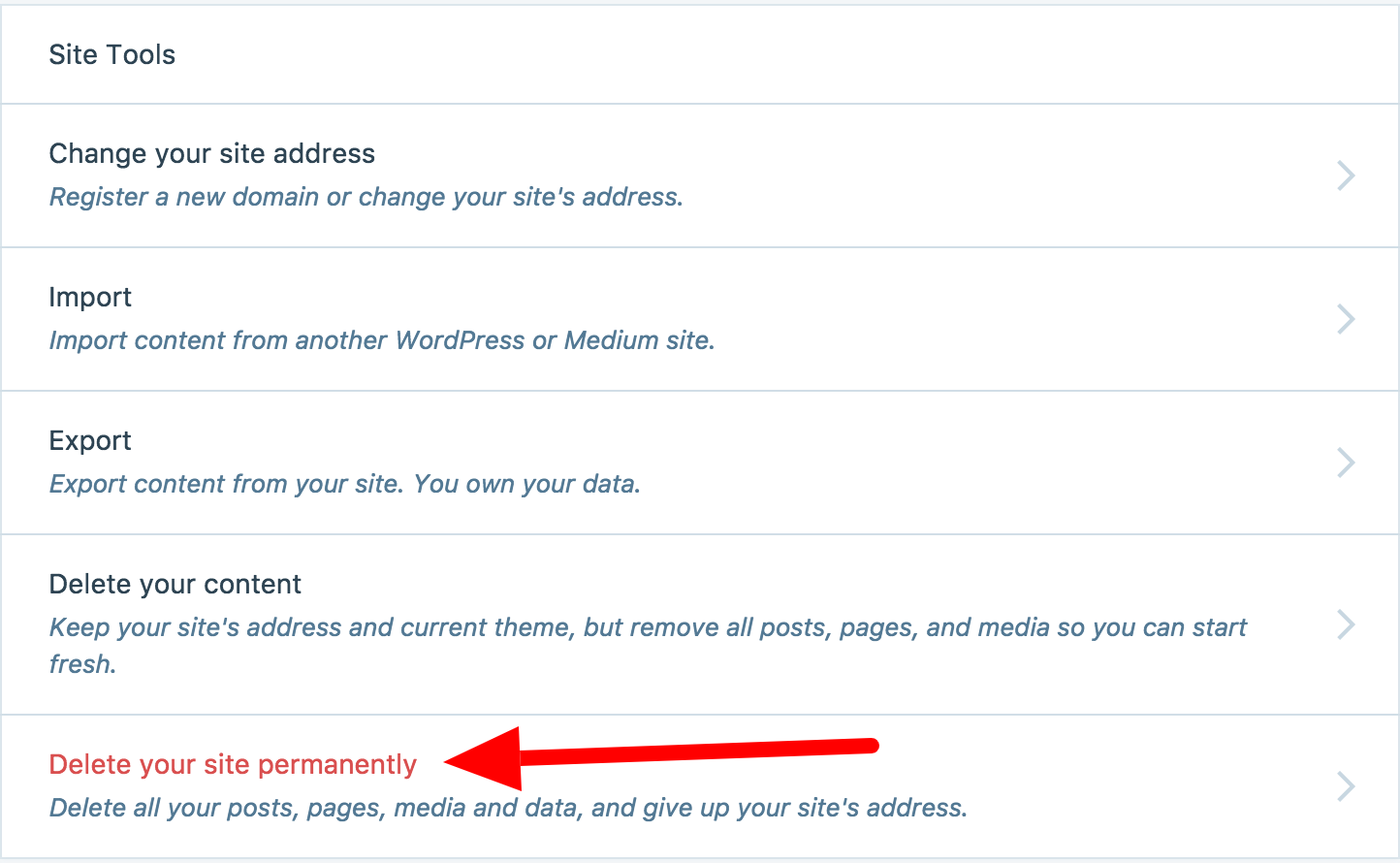
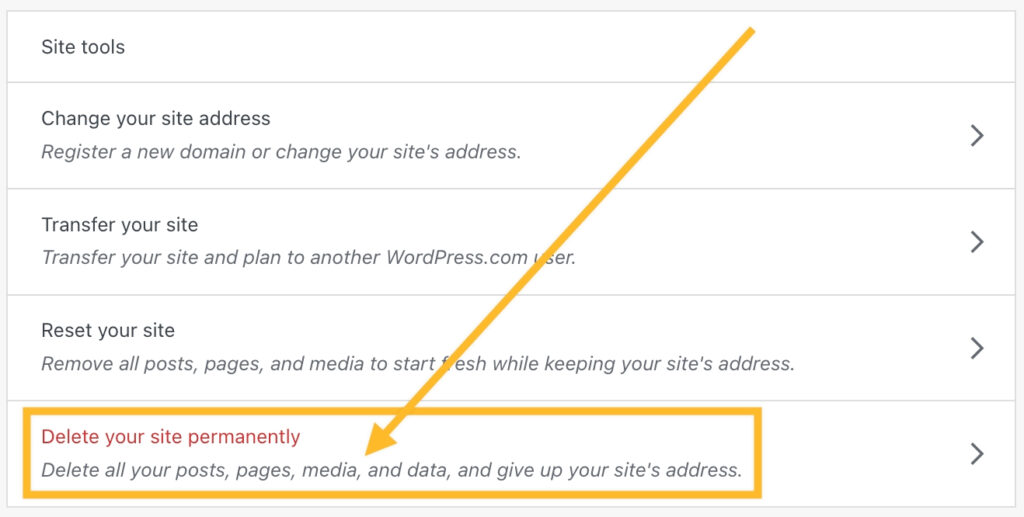
Scroll down to the bottom of the settings page. Find the “Delete your site permanently” option. Click on it to start the deletion process. WordPress.com will ask you to confirm the action. Follow the instructions carefully and confirm the deletion.
What Happens After Deletion
Once deleted, your site and all its content are removed from WordPress.com. Visitors will no longer see your site online. The site URL becomes available for others to use. You cannot recover the site after deletion. Make sure to back up any important content before deleting.
Credit: wordpress.com
Deleting A Self-hosted WordPress Site
Deleting a self-hosted WordPress site means removing all parts of your website from the internet. This process requires deleting files from your hosting account, removing the database, and cancelling your hosting plan. Each step is important to fully erase your site and stop any charges.
Start by removing all WordPress files stored on your hosting server. Next, delete the database where your content is saved. Finally, cancel your hosting services to avoid further billing.
Removing Files Via Hosting Panel
Log in to your hosting control panel, often called cPanel. Find the File Manager tool. Open the folder where WordPress is installed, usually named public_html. Select all files and folders inside. Delete them permanently. This step removes your site’s code, themes, and uploads.
Deleting The Database
In your hosting panel, locate the MySQL Databases section. Find the database linked to your WordPress site. Click to delete the database completely. Also, remove the database user associated with it. This action clears all posts, pages, and user data.
Cancelling Hosting Services
Visit your hosting provider’s billing or account area. Look for the option to cancel your hosting plan. Confirm the cancellation following the provider’s instructions. This stops all future payments and closes your hosting account.
Common Issues When Deleting
Deleting a WordPress site may seem simple but can bring some challenges. Understanding these common issues helps you avoid frustration. Some problems happen because of settings, others due to server delays. Knowing what to expect can save time and effort.
Site Still Accessible
Sometimes the site remains online even after deletion. This happens because of caching by browsers or servers. Cached pages show old content as if the site is live. Clearing your browser cache or waiting a few hours often fixes this. Also, check if your hosting provider fully removed the site files. Incomplete removal can keep the site visible.
Data Recovery Options
Deleting a site removes all content permanently. Yet, some hosts keep backups for a limited time. Contact your hosting support quickly to ask about recovery. You may restore your site from these backups. WordPress plugins also help create backups before deletion. Use them to avoid losing important data.
Preventing Unwanted Site Deletion
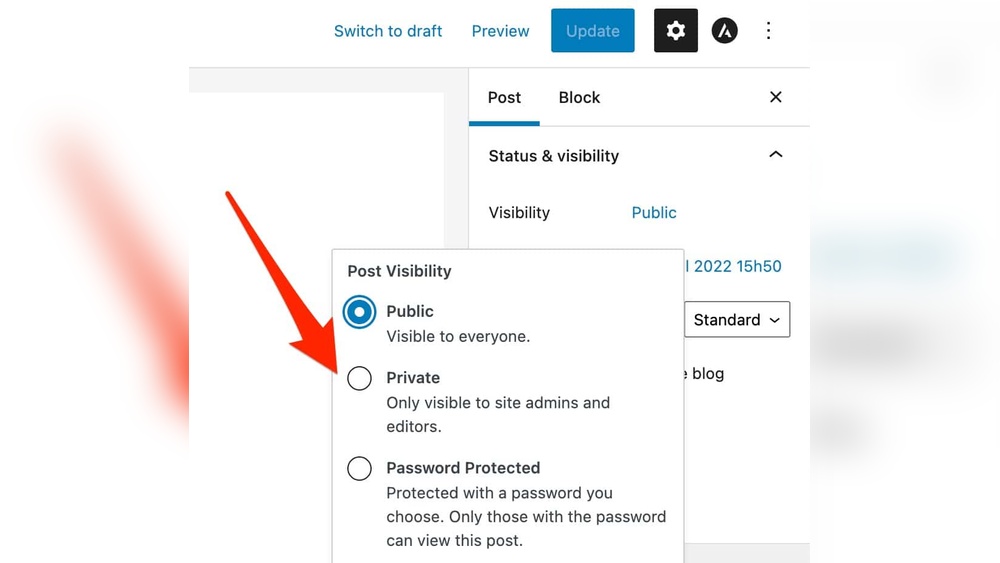
Preventing unwanted site deletion is crucial for every WordPress user. Losing your site by accident or through unauthorized access can cause serious problems. Protecting your site helps keep your content and hard work safe. Simple steps can lower risks and give you peace of mind. Focus on managing who can access your site and improving your site’s security.
User Role Management
Control who can delete your site by managing user roles carefully. Only give the Administrator role to trusted people. Others should have limited roles like Editor or Author. Review user roles regularly to remove inactive or unknown users. Assign roles based on tasks, not convenience. Use plugins to customize permissions for extra control.
Site Security Tips
Strong passwords are the first defense against unwanted access. Use unique passwords with letters, numbers, and symbols. Change passwords often and avoid sharing them. Enable two-factor authentication to add a second layer of protection. Keep WordPress, themes, and plugins updated to fix security gaps. Back up your site regularly to recover quickly if needed.
Credit: wpamelia.com
Frequently Asked Questions
How Do I Delete A WordPress Site Permanently?
To delete a WordPress site permanently, log into your dashboard. Go to Settings > Delete Site, then confirm deletion. Backup your data before proceeding, as this action cannot be undone. The site and all content will be removed from WordPress servers.
Can I Delete A WordPress Site Without Losing Content?
No, deleting a WordPress site removes all content permanently. To keep content, export your posts and pages first. Use the WordPress export tool under Tools > Export to save your data before deletion.
What Happens After Deleting A WordPress Site?
After deletion, your WordPress site is removed from the platform. All content and settings are erased and inaccessible. The site URL becomes available for new users to claim. Ensure you have backups before deleting.
Is It Possible To Recover A Deleted WordPress Site?
Recovering a deleted WordPress site is usually not possible. Once deleted, WordPress removes all data from its servers. If you have backups, you can restore your site manually. Always back up before deleting to avoid data loss.
Conclusion
Deleting a site on WordPress is simple and quick. Just follow the steps carefully to avoid mistakes. Always back up your content before deleting anything. This way, you keep your important data safe. Removing a site frees up space and keeps your dashboard tidy.
Take your time and double-check everything before you hit delete. This helps prevent losing valuable information by accident. Now, managing your WordPress sites becomes easier and stress-free.