
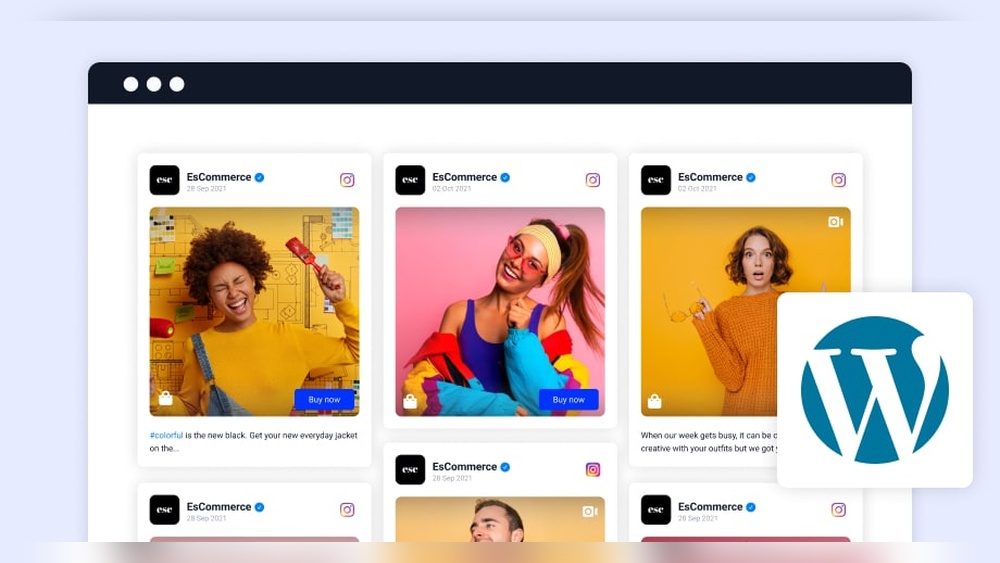
Want to make your WordPress site more engaging and visually appealing? Embedding your Instagram feed directly on your website is one of the easiest ways to do just that.
Imagine your visitors seeing your latest photos and updates without leaving your page. Sounds great, right? In this guide, you’ll learn simple, step-by-step methods to add your Instagram feed to WordPress. By the end, you’ll have a dynamic, fresh-looking website that keeps your audience hooked.
Ready to boost your site’s appeal? Let’s dive in!

Credit: onstipe.com
Benefits Of Embedding Instagram Feed
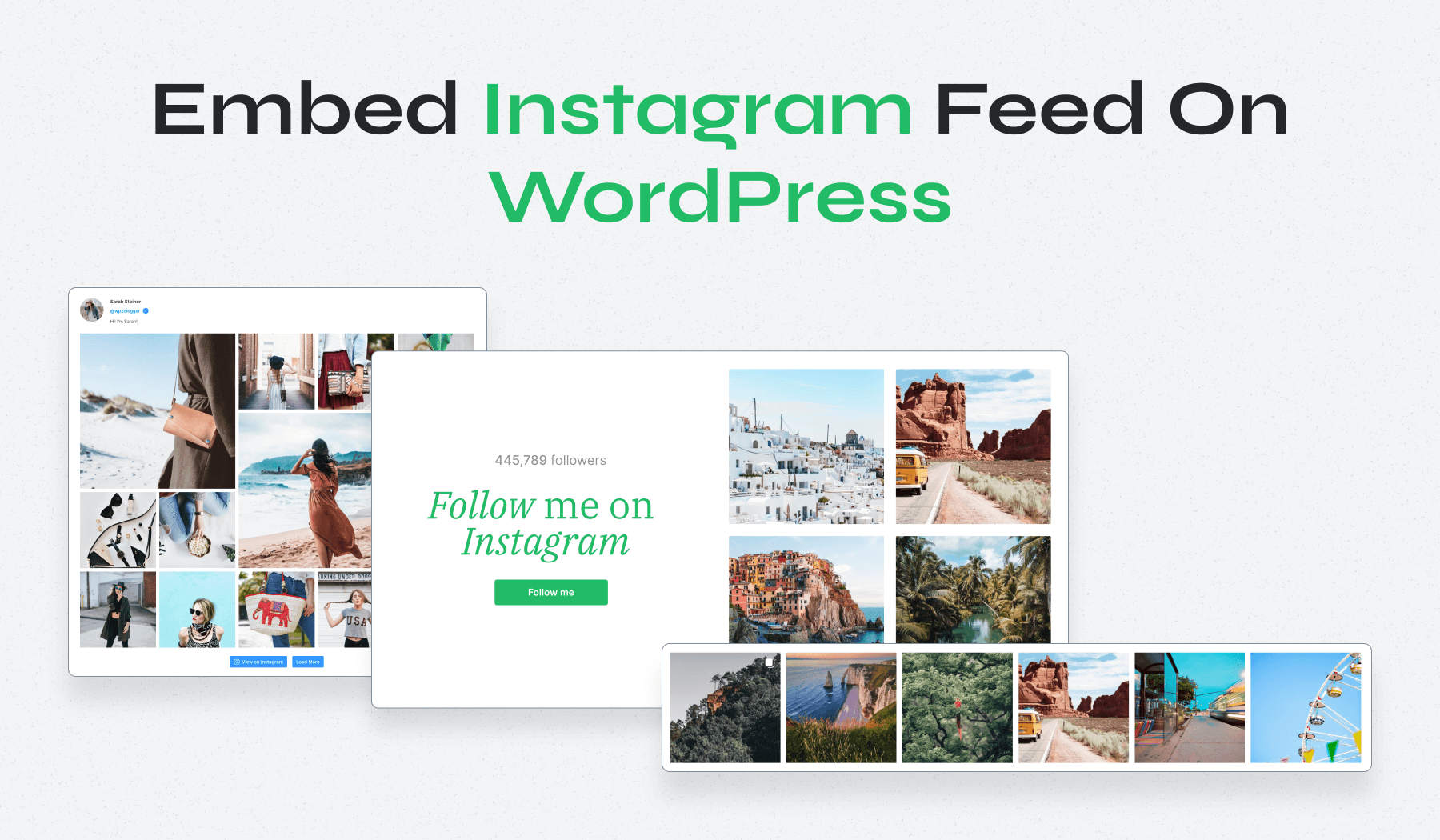
Embedding an Instagram feed on your WordPress site offers many benefits. It connects your social media with your website. Visitors see fresh content without leaving your page. This keeps your site lively and interesting. It also builds trust by showing real-time updates and customer experiences.
Boosting Engagement
Instagram feeds invite visitors to interact more. Users can see posts and want to learn more. This can lead to more likes, comments, and shares. Engagement improves your site’s activity and user interest. Higher engagement also helps your SEO rankings.
Enhancing Website Aesthetics
Instagram feeds add a visual appeal to your site. Bright images and videos make pages look attractive. This breaks up text and adds color naturally. A beautiful website keeps visitors longer. It also creates a modern and professional look.
Showcasing Latest Content
Embedding your Instagram feed shows your newest posts instantly. This keeps your website updated without extra work. Visitors see your latest products, events, or news right away. It helps you promote content in real time. Your site stays fresh and relevant every day.
Credit: www.wpzoom.com
Preparing Your Instagram Account
Preparing your Instagram account is the first step to embed your Instagram feed on WordPress. This ensures smooth integration and better display of your posts. Proper setup helps avoid errors and makes your feed visible to your website visitors.
Switching To A Business Profile
Switch your Instagram account to a Business Profile. This gives access to advanced features needed for embedding. A Business Profile connects your Instagram to Facebook, which is required for many WordPress plugins.
To switch, open Instagram settings and select “Account.” Tap “Switch to Professional Account” and choose Business. Add your business details if asked. This change is free and easy to reverse anytime.
Ensuring Public Access
Your Instagram account must be public. Private accounts block Instagram feeds from showing on websites. Make sure your posts are visible to everyone.
Go to Instagram settings, select “Privacy,” and check if your account is private. If it is, switch off the private option. Public access allows your website visitors to see your latest posts without logging in.
Choosing The Right Plugin
Choosing the right plugin is key to successfully embedding your Instagram feed on WordPress. The right tool will show your photos clearly and keep your site fast. It must work well with your theme and offer easy setup. Some plugins offer extra features like filtering posts or customizing layouts. Pick one that fits your needs and budget.
Popular Plugins For Instagram Feeds
Several plugins stand out for embedding Instagram feeds. Smash Balloon Social Photo Feed is a favorite for its ease of use and flexibility. Instagram Feed by 10Web offers good customization and responsive design. Feed Them Social supports multiple social networks, including Instagram. WPZOOM Social Feed Widget is simple and lightweight. Each has a strong user base and regular updates.
Comparing Features And Pricing
Features vary between plugins. Some offer automatic updates for new posts. Others allow filtering by hashtags or user accounts. Layout options include grid, carousel, and masonry styles. Pricing differs too. Free versions often have limits on posts or features. Paid plans unlock more feeds and advanced settings. Choose based on how many feeds you need and the design you prefer.
Installing And Activating The Plugin
Installing and activating a plugin is the first step to embed your Instagram feed on WordPress. Plugins add extra features to your site easily. You do not need coding skills. Just follow the simple steps below.
Step-by-step Installation Guide
Go to your WordPress dashboard. Find the “Plugins” menu on the left side. Click “Add New” to open the plugin search page. Type “Instagram feed” in the search box. Look for a plugin with good reviews and recent updates. Click “Install Now” next to it. Wait for a few seconds. Then click “Activate” to enable the plugin on your website.
Configuring Basic Settings
After activation, find the plugin in your dashboard menu. Click on it to open settings. Connect your Instagram account by following the prompts. Choose how many photos to show on your feed. Select the layout style that fits your site. Save your settings. Your Instagram feed is now ready to display.
Connecting Instagram To WordPress
Connecting Instagram to WordPress is the first step to display your Instagram feed on your website. This process allows your website visitors to see your latest Instagram posts directly on your site. It builds trust and keeps your content fresh without much effort. You need to create a secure link between your Instagram account and WordPress.
Generating Access Tokens
An access token is a special code. It lets WordPress access your Instagram data safely. To get this token, you must use Instagram’s developer tools. First, log in to your Instagram account. Then visit the Instagram Graph API or Facebook for Developers site. Follow the steps to create an app and generate your access token. Keep this token private to protect your account.
Linking Your Instagram Account
After you have the access token, connect your Instagram account to WordPress. Use a plugin designed for Instagram feeds, like Smash Balloon or others. Go to the plugin settings in your WordPress dashboard. Paste your access token in the required field. The plugin will then fetch your Instagram posts automatically. This link keeps your feed updated on your website.
Customizing Your Instagram Feed
Customizing your Instagram feed on WordPress helps match it to your website’s style. It makes your site look more polished and professional. You can change how the feed looks and works. This boosts visitor engagement and keeps your content fresh.
Layout Options
Choose the layout that fits your site best. You can pick grid, carousel, or list views. A grid shows many photos at once. Carousel lets visitors scroll through posts. List style shows posts one after another. Each layout suits different website designs.
Adjusting Colors And Styles
Match the feed colors with your website’s theme. Change background colors to blend with your pages. Adjust text colors for better readability. You can also change border styles and spacing. Small changes make your feed look neat and clean.
Setting Post Limits
Control how many posts appear on your feed. Set a limit to avoid clutter. Showing too many posts can slow your site. A smaller number keeps the page fast and easy to browse. Choose a number that highlights your best content.
Embedding The Feed On Your Site
Embedding your Instagram feed on your WordPress site helps visitors see your latest posts. It keeps your website fresh and engaging. You can display photos and videos directly from Instagram. This way, your audience stays connected with your social media updates without leaving your site.
There are easy methods to add your Instagram feed. You can use shortcodes or widgets to place the feed exactly where you want. Both ways work well for different parts of your site. Choose the one that fits your needs best.
Using Shortcodes
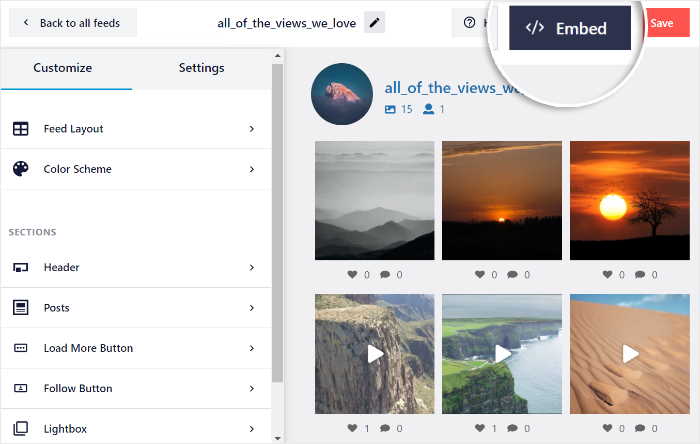
Shortcodes are simple codes that insert content into pages or posts. Many Instagram feed plugins provide a shortcode after setup. Copy this shortcode from the plugin settings.
Next, open the page or post where you want the feed. Paste the shortcode into the text editor. Update or publish the page. Your Instagram feed will appear there instantly.
This method works well for blog posts or special pages. It gives control over where the feed shows up on your site.
Adding To Widgets And Pages
Widgets add content to sidebars, footers, or other widget-ready areas. Go to your WordPress Dashboard and open the Appearance menu. Click on Widgets to see available areas.
Find the Instagram widget provided by your plugin. Drag it to the sidebar or footer where you want the feed. Enter your Instagram username or paste the shortcode if required. Save the widget settings.
Your Instagram feed will now show in the widget area. This method is great for adding the feed site-wide without editing each page.
Optimizing Feed Performance
Optimizing the performance of your Instagram feed on WordPress is crucial for a smooth user experience. A well-optimized feed loads quickly and adapts well to different devices. This keeps visitors engaged and reduces bounce rates. Focus on techniques that boost speed and improve display quality.
Caching Techniques
Caching stores a copy of your Instagram feed on your server. This reduces the need to fetch data from Instagram every time. Use plugins or tools that support caching to speed up load times. Clear cache regularly to show fresh content. This method lowers server load and improves page speed.
Mobile Responsiveness
Your Instagram feed must look good on phones and tablets. Use responsive design that adjusts the feed layout based on screen size. Test the feed on multiple devices to check appearance and usability. Responsive feeds improve user experience and keep visitors longer on your site.
Troubleshooting Common Issues
Troubleshooting common issues helps keep your Instagram feed working on WordPress. Problems can stop the feed from showing or cause errors. Knowing what to check saves time and frustration.
Feed Not Displaying
The Instagram feed might not show due to several reasons. First, check if the plugin is active and updated. Old versions may not work well. Also, clear your website cache to remove old data.
Make sure your Instagram account is public. Private accounts do not display feeds. Verify the shortcode or widget settings for errors. Even a small mistake can block the feed.
Authentication Errors
Authentication errors happen when WordPress cannot connect to Instagram. This often occurs if the access token expired. Renew the token by reconnecting your Instagram account in the plugin settings.
Check app permissions on Instagram. The plugin needs access to your profile and media. Without this, it cannot pull data to your site.
Alternative Methods Without Plugins
Embedding your Instagram feed on WordPress can be done without plugins. This keeps your site fast and simple. Two main ways work well: using Instagram widgets manually or Instagram’s embed code. Both methods let you show posts directly on your pages.
Embedding Instagram Widgets Manually
Instagram widgets display your latest posts in a clean layout. You create a widget on Instagram or third-party sites. Then, copy its HTML code and paste it into your WordPress page or post. This method does not need extra tools or plugins.
Widgets often update automatically. Your feed stays fresh without extra work. Choose a widget style that fits your site’s design. Make sure it is responsive, so it looks good on phones and tablets.
Using Instagram’s Embed Code
Instagram provides embed codes for individual posts. Open the post you want to share. Click on the three dots and select “Embed”. Copy the code Instagram gives you.
Go to your WordPress editor and switch to the HTML view. Paste the embed code where you want the post to appear. Save your changes and preview the page.
This method shows single posts, not a full feed. It works great for highlighting specific photos or videos. You can add multiple embed codes to display several posts.
Credit: smashballoon.com
Frequently Asked Questions
How Do I Embed An Instagram Feed On WordPress?
To embed an Instagram feed, use a plugin like Smash Balloon or SnapWidget. Install and connect it to your Instagram account. Then customize the display and add the shortcode to your WordPress page or post.
Can I Display Multiple Instagram Feeds On One Site?
Yes, you can show multiple Instagram feeds using plugins. Each feed can be customized separately by connecting different Instagram accounts or hashtags to distinct widgets or shortcodes.
Is Embedding Instagram Feed Free On WordPress?
Many plugins offer free versions with basic features for embedding Instagram feeds. For advanced customization or more feeds, premium plans may be required. Choose based on your site’s needs.
Will Embedding Instagram Slow Down My WordPress Site?
Embedding Instagram feeds can slightly affect loading times. Use optimized plugins and enable caching to minimize speed impact. Regularly monitor your site’s performance for best results.
Conclusion
Embedding your Instagram feed on WordPress helps keep your site fresh and lively. Visitors see your latest posts without leaving your page. It also builds trust by showing real content. Use plugins or manual code to add the feed easily.
Check that your feed looks good on all devices. Regular updates keep your site interesting and engaging. Try embedding today and see how it improves your website’s appeal. Simple steps lead to great results.


