
Are you ready to take full control of your website by using your domain with a different host? You might think it’s complicated, but it doesn’t have to be.
Whether you want better performance, lower costs, or more features, switching hosts while keeping your domain is easier than you imagine. You’ll discover simple, clear steps to make the switch smoothly—no tech jargon, no confusion. Keep reading, and you’ll learn exactly how to use your domain with another host without losing traffic or downtime.
Your website deserves the best setup, and you’re just a few clicks away from it.
Credit: www.greengeeks.com
Choosing The Right Host
Choosing the right host is an important step in using a domain with another host. The right host ensures your website runs smoothly and stays online. It also affects your site’s speed, security, and support. Picking a good host can save you many problems later.
Comparing Hosting Providers
Compare different hosting providers before making a choice. Look at their prices and what features they offer. Check if they provide enough storage and bandwidth for your needs. See if they have good customer support. Read user reviews to learn about others’ experiences.
Checking Compatibility With Your Domain
Make sure the host supports the type of domain you have. Some hosts may not support certain domain extensions. Check if they allow you to connect your existing domain easily. Confirm if they offer tools to manage your domain settings. Compatibility helps avoid technical issues later on.
Credit: www.namecheap.com
Preparing Your Domain
Preparing your domain is the first step to use it with another host. This process ensures smooth transfer and avoids delays. You need to access the domain settings, unlock the domain, and get authorization codes. Each step is important to move your domain safely.
Accessing Domain Settings
Start by logging into your domain registrar account. Find the domain you want to transfer. Look for the domain management or settings section. This area lets you change domain details and prepare for transfer. Keep your login information ready for easy access.
Unlocking Your Domain
Domains are often locked to prevent unauthorized transfers. You must unlock the domain before moving it. Find the domain lock option in your settings. Turn off the lock to allow transfer requests. This step helps new hosts recognize your domain for transfer.
Obtaining Authorization Codes
The authorization code is like a password for your domain transfer. Request this code from your domain registrar. It may be called EPP code or transfer key. Save the code safely. You will need it to approve the domain move with the new host.
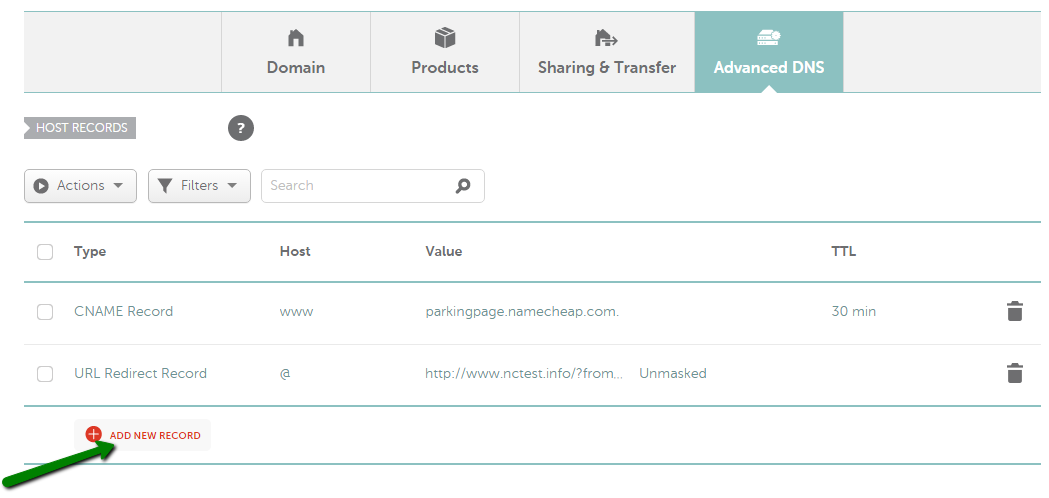
Updating Dns Records
Updating DNS records is a key step when you want to use your domain with a different host. It tells the internet where to find your website and email services. This process involves changing settings at your domain registrar to point to the new host’s servers. Understanding how to update these records helps keep your website online and working smoothly.
Understanding Dns Basics
DNS stands for Domain Name System. It works like a phone book for the internet. DNS translates your domain name into an IP address. This address tells browsers where to find your website. Changing DNS records means updating this information to match your new host.
Changing Nameservers
Nameservers are special servers that control your DNS records. Your domain registrar usually sets default nameservers. To use another host, replace these with the new host’s nameservers. This change directs all traffic to your new hosting provider. Nameserver updates can take a few hours to take effect.
Configuring A And Cname Records
A records link your domain to an IP address. CNAME records point a domain or subdomain to another domain. You may need to edit these records for your new host. Enter the IP address or hostname given by your host. Proper setup ensures your website and services work correctly.
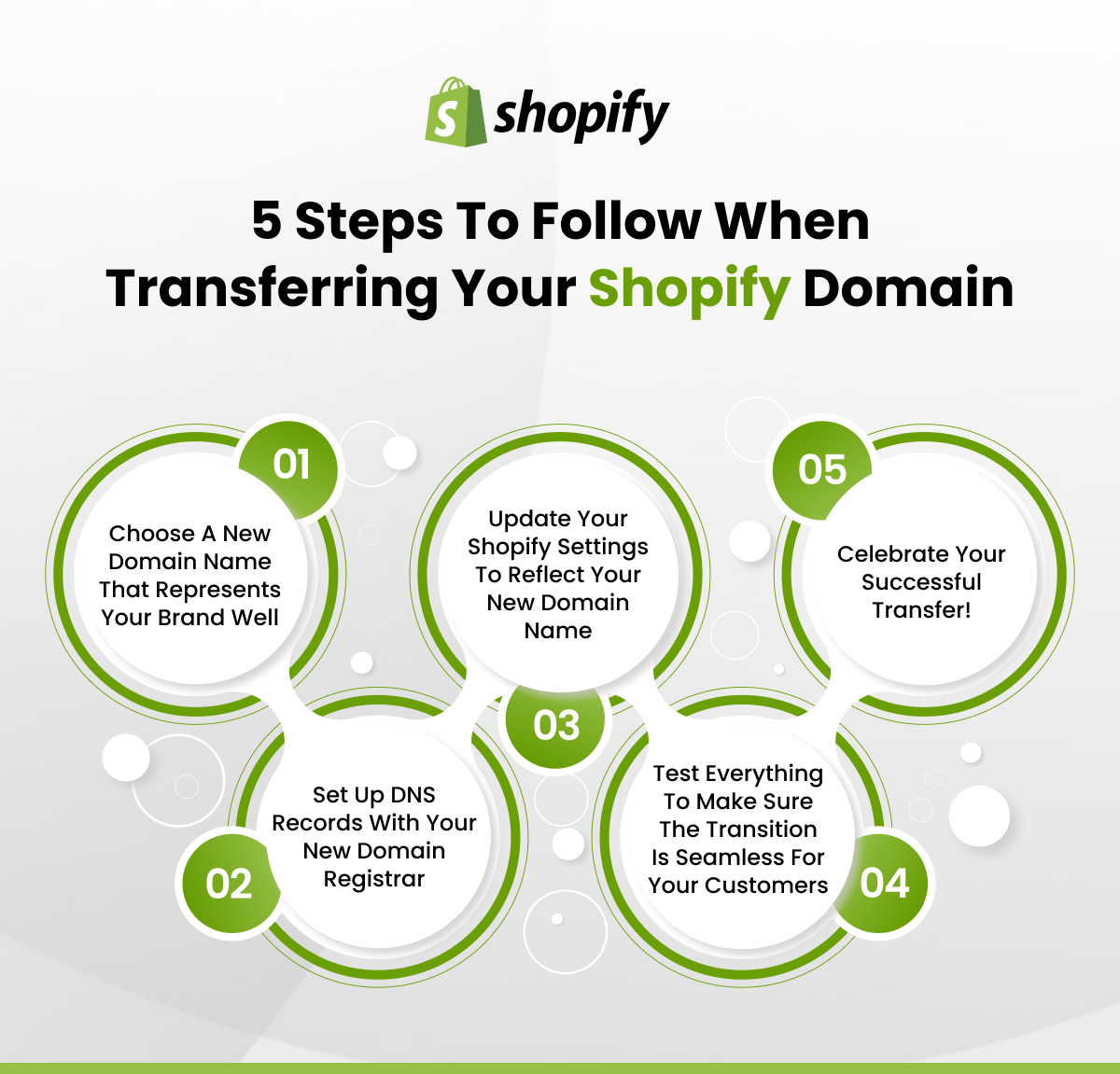
Transferring Domain Registration
Transferring domain registration means moving your domain name from one registrar to another. This helps you manage your domain and hosting in one place. It can also save money or provide better support. The process needs care to avoid downtime or loss of control over your domain.
When To Transfer Your Domain
Transfer your domain if you want better service or lower costs. Some people transfer to keep domain and hosting together. Moving domains can also simplify renewals and billing. Avoid transfers near domain expiration or during active website changes.
Steps For Domain Transfer
First, unlock your domain at the current registrar. Then, get the authorization code needed for transfer. Next, start the transfer at the new registrar using this code. Confirm the transfer request through your email. Wait for the transfer to complete, which can take up to seven days.
Avoiding Common Transfer Issues
Check that your domain is not locked before transfer. Make sure your contact email is correct to receive codes. Do not transfer within 60 days of domain registration or previous transfer. Confirm that your domain is active and not expired. Follow all instructions from both registrars carefully to prevent delays.
Verifying Domain Setup
After pointing your domain to a new hosting provider, verifying the setup is important. This step confirms your domain works correctly with the new host. Checking the domain setup helps avoid downtime and errors. It also ensures visitors reach your website without issues.
Checking Propagation Status
DNS changes take time to spread across the internet. This process is called propagation. It can take up to 48 hours. You can use online tools to check propagation status. These tools show if your domain points to the new host globally. Wait until most locations show the new server IP. This confirms that your domain setup is live.
Troubleshooting Common Errors
Sometimes, errors occur after changing hosts. Common issues include “DNS not found” or “server not responding.” Check your domain’s DNS records for mistakes. Confirm the nameservers match your new host’s settings. Clear your browser cache to avoid old data. Contact your hosting support if problems persist. Fixing these errors quickly keeps your site online and visitors happy.
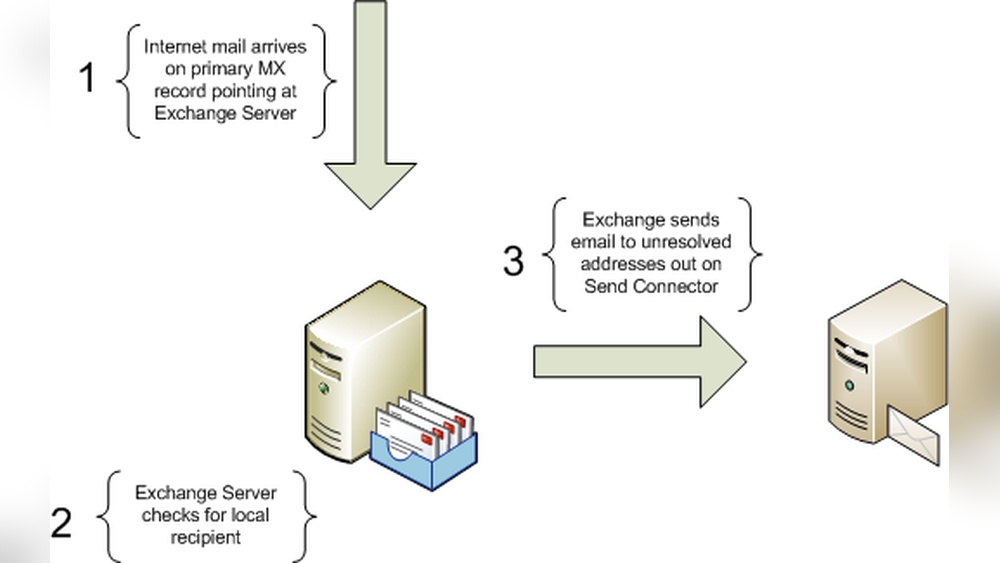
Managing Email And Services
Managing email and other services is a key step when using a domain with a different host. Email keeps your communication running smoothly. Other services like databases and applications rely on correct settings to work well. Careful management avoids disruptions and keeps your online operations steady.
Updating Email Settings
Start by checking your current email setup. Note the incoming and outgoing server details. These include server names, port numbers, and security types. Update these settings to match the new host’s requirements. Adjust your MX records in the domain’s DNS. This change directs emails to the new server. Double-check SPF, DKIM, and DMARC records to maintain email security and reduce spam.
Ensuring Service Continuity
Plan changes during low-traffic times to limit disruption. Backup all emails and service data before switching. Test email sending and receiving after updates. Monitor your services closely for any errors. Keep old settings active until you confirm new ones work. This overlap helps prevent loss of messages or data. Communicate changes with your team or users to avoid surprises.
Maintaining Your Domain
Maintaining your domain is key to keeping your website online and safe. A domain is like your website’s address on the internet. Taking good care of it helps avoid downtime and security problems. You need to keep track of renewal dates and protect your domain from threats.
Renewal Tips
Set reminders for your domain renewal date. Domains expire if not renewed on time. Use automatic renewal if your registrar offers it. Check your contact details regularly to get renewal notices. Renew early to avoid losing your domain. Keep payment information updated to prevent failed renewals.
Security Best Practices
Enable domain privacy to hide your personal information. Use strong, unique passwords for your domain registrar account. Turn on two-factor authentication for extra security. Lock your domain to prevent unauthorized transfers. Monitor your domain status often for unusual activity. Keep your registrar contact email active and secure.
Credit: ecommerce.folio3.com
Frequently Asked Questions
How Do I Point My Domain To Another Host?
To point your domain to another host, update the domain’s nameservers to the new host’s nameservers. This change directs traffic to the new hosting provider.
Can I Keep My Domain Registrar Separate From My Host?
Yes, you can keep your domain registrar and web host separate. Just update the DNS settings at your registrar to link to your hosting provider.
What Dns Records Are Needed To Use A Domain With Another Host?
You need to update A records or CNAME records to your new host’s IP address or hostname. This connects your domain to the new server.
How Long Does Dns Propagation Take After Changing Hosts?
DNS propagation usually takes 24 to 48 hours. During this time, your domain may resolve to either the old or new host.
Conclusion
Using a domain with another host is easier than it seems. Change your domain’s DNS settings carefully. Point your domain to the new hosting provider. Wait for the changes to take full effect. Test your website to confirm it works well.
Keep your domain registration separate from hosting. This way, you control both parts easily. Stay patient during the process—it takes some time. Now you can manage your website with your chosen host. Simple steps lead to successful domain transfer.


