
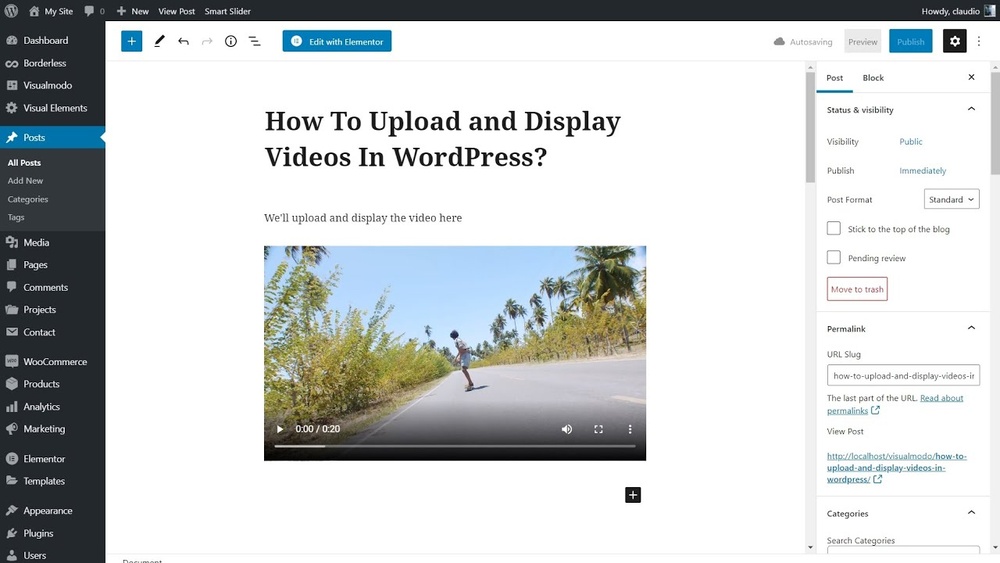
Are you looking to add an MP4 video to your WordPress site but don’t know where to start? You’re in the right place.
Adding videos can make your content more engaging and keep visitors on your site longer. But if you’ve tried before, you might have faced confusing steps or technical glitches. This guide will walk you through simple, clear steps to get your MP4 video up and running smoothly.
By the end, you’ll feel confident sharing videos that boost your site’s appeal and keep your audience coming back for more. Let’s dive in!
Prepare Your Mp4 File
Preparing your MP4 file is a key step before uploading it to WordPress. A well-prepared video ensures smooth playback and better user experience. It also helps your website load faster and rank higher in search engines.
Focus on the file size, video quality, and file name. These factors affect how your video performs on your site and how easily people find it online.
Check File Size And Format
Ensure your MP4 file is not too large. Large files slow down your website and frustrate visitors. Aim for a size under 100 MB for faster loading. Confirm the file format is MP4, as WordPress supports it best. Other formats may not work or cause errors.
Optimize Video Quality
Balance video quality with file size. High-quality videos look great but can be heavy. Use video editing tools to lower resolution or bit rate without losing clarity. A 720p video often works well for web use. Clear videos keep viewers engaged and reduce buffering.
Rename For Seo
Rename your MP4 file with simple, clear words. Use keywords related to your video topic. Avoid spaces and special characters. Use hyphens to separate words, like “how-to-add-mp4-wordpress.mp4.” This helps search engines understand your content. A good file name can boost your video’s visibility in search results.
Upload Mp4 To WordPress Media Library
Uploading an MP4 video to the WordPress Media Library is simple and fast. This process saves the video on your site, making it easy to use in posts or pages. The WordPress Media Library stores all your files in one place. It supports videos, images, audio, and documents. Below are two easy ways to upload your MP4 file.
Access Media Upload
Start by logging into your WordPress dashboard. Find the “Media” menu on the left side. Click on “Add New.” This opens the upload screen. You can now upload your MP4 video here. This step is the same for all WordPress themes and setups.
Drag And Drop Method
On the upload screen, drag your MP4 file from your computer. Drop it into the box labeled “Drop files to upload.” WordPress starts uploading the video immediately. Wait for the upload to finish before leaving the page. This method is quick and easy for large files.
Using File Selector
Click the “Select Files” button on the upload page. A file browser opens on your computer. Find your MP4 video file and select it. Click “Open” to begin uploading. The video uploads to the Media Library. This method works well if drag and drop is not possible.
Embed Mp4 In Posts Or Pages
Embedding MP4 videos in your WordPress posts or pages is a simple way to make your content more engaging. Videos help explain ideas clearly and keep visitors interested longer. WordPress supports MP4 files natively, so you can add videos without extra plugins. Below are easy methods to embed MP4 videos in your content.
Using Block Editor
The Block Editor, also called Gutenberg, makes video embedding straightforward. Start by opening the post or page you want to edit. Click the plus (+) button to add a new block. Select the “Video” block from the list. Upload your MP4 file directly or choose one from the Media Library. WordPress will insert the video player automatically. You can adjust video size and alignment in the block settings.
Classic Editor Method
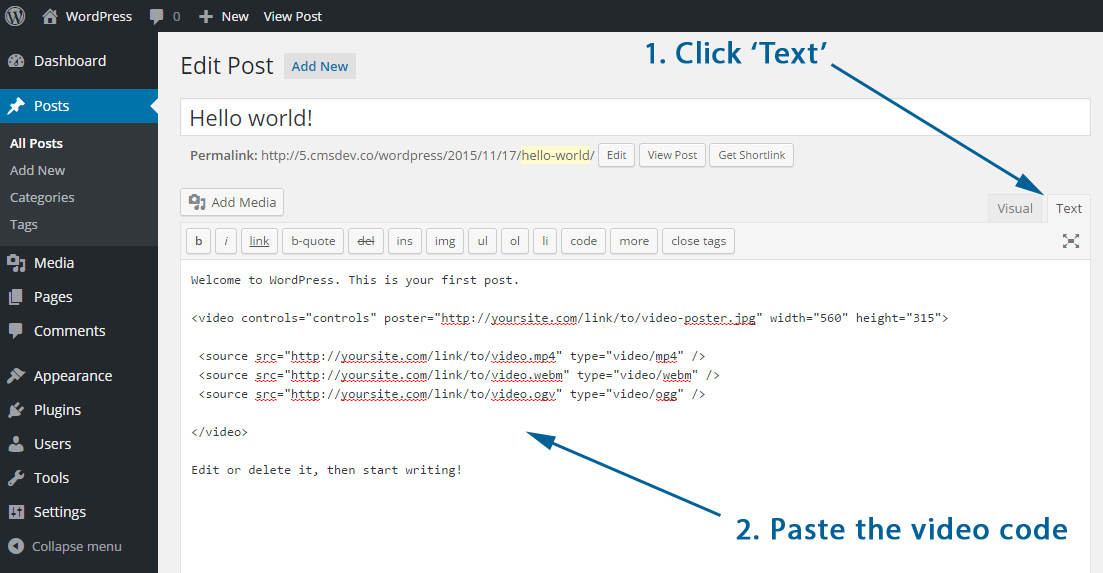
The Classic Editor uses a different approach. Open your post or page in the editor. Place the cursor where you want the video to appear. Click the “Add Media” button above the text area. Upload your MP4 file or pick one from the library. Click the “Insert into post” button. The video will show as a shortcode or HTML tag. Update or publish the content to see the video live.
Shortcode Usage
Shortcodes offer a flexible way to embed MP4 videos. Use the following format:
Replace “URL-to-your-video.mp4” with your actual video link. You can add this shortcode in any post, page, or widget area. It works with both editors. Shortcodes give you control over video placement without extra steps.
Customize Video Player Settings
Customizing your video player settings improves how visitors watch your MP4 videos. Simple adjustments make videos more user-friendly and fit your site style. This section explains key settings to change in WordPress for better video playback.
Autoplay And Loop Options
Autoplay makes your video start playing as soon as the page loads. This catches visitor attention quickly. Loop lets the video play repeatedly without stopping. Both options suit background videos or short clips. Use autoplay carefully to avoid annoying users. Enable loop for videos meant to repeat.
Controls And Display
Video controls let viewers pause, play, and adjust volume. Showing controls improves user experience by giving viewers control. You can hide controls for clean design or special effects. Display settings also include video size and player theme. Choose settings that match your website’s look and feel.
Responsive Video Setup
Responsive videos change size on different devices. This ensures videos look good on phones, tablets, and desktops. Use CSS or plugins to make MP4 players responsive. A responsive setup prevents videos from being too big or too small. It keeps your website professional and easy to use.
Use Plugins For Advanced Features
Adding MP4 videos to WordPress becomes simple with the right plugins. These tools offer extra features beyond the basic video upload. Plugins help improve video quality, add custom controls, and support various video formats. They make managing videos easier for all users.
Top Video Plugins
Several plugins work well with WordPress for video tasks. Video.js offers a clean player with many options. FV Player supports captions and playlists. WP Video Lightbox lets videos open in a popup. Each plugin suits different needs and skill levels.
Benefits Of Using Plugins
Plugins add flexibility to your video handling. They improve playback speed and compatibility across devices. Many plugins allow you to customize the player’s look and controls. Some also provide analytics to track viewer behavior. These features enhance user experience and site performance.
Plugin Installation Steps
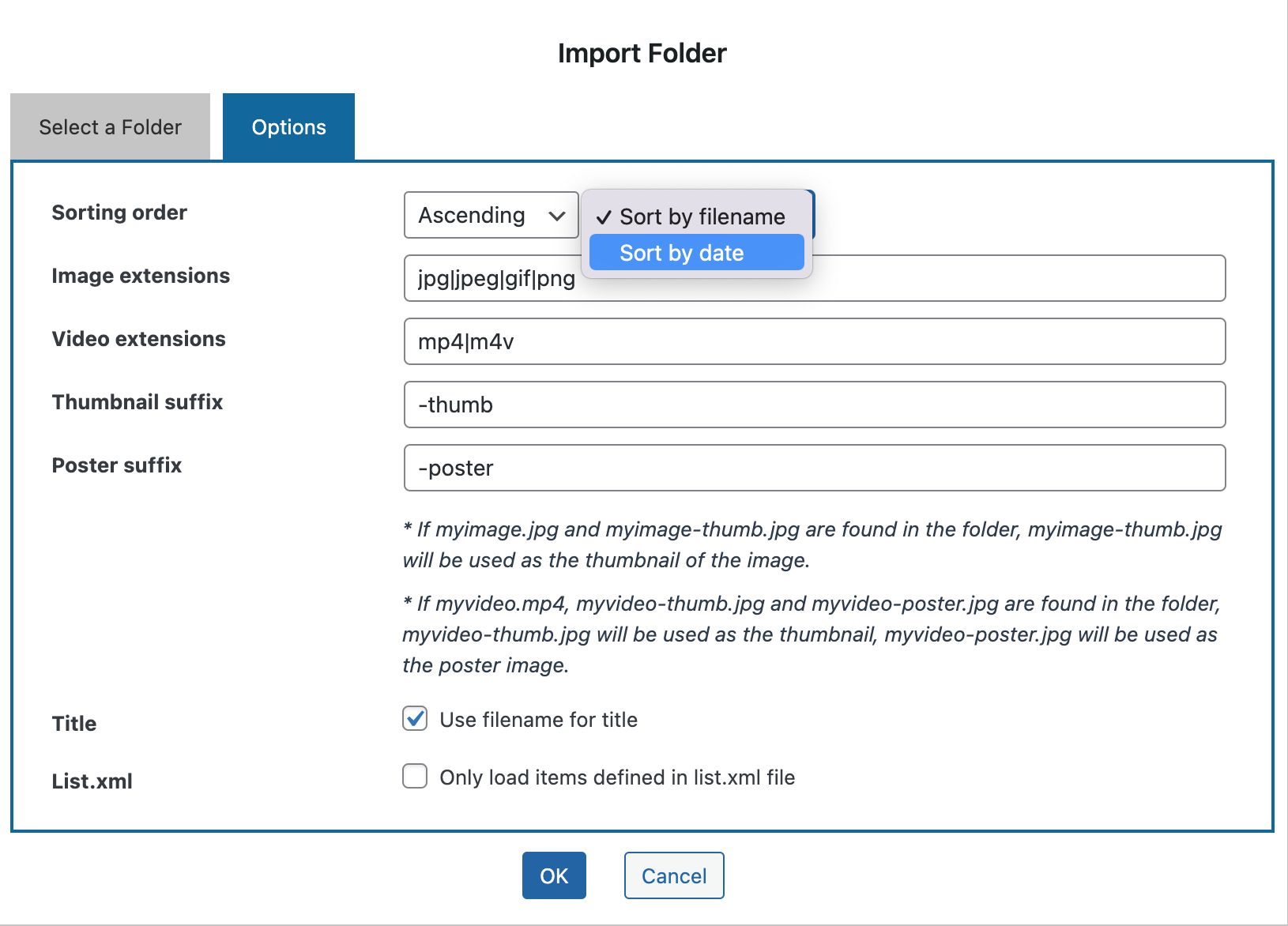
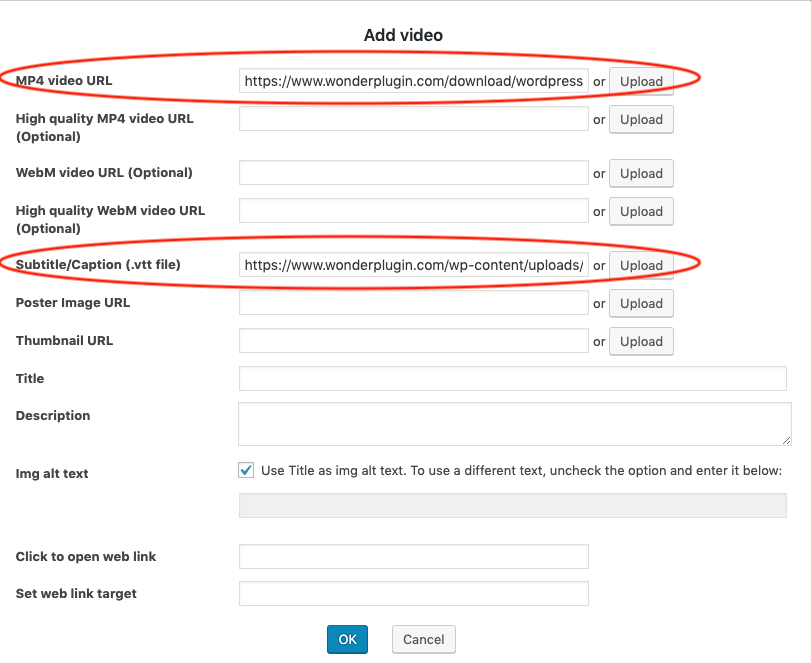
Go to your WordPress dashboard and select “Plugins.” Click “Add New” and search for your chosen video plugin. Click “Install Now” and then “Activate” once the installation finishes. Configure the plugin settings to fit your video needs. Upload your MP4 video through the plugin’s interface. Embed videos easily in posts or pages using shortcodes or blocks.
Credit: www.wonderplugin.com
Optimize Video Performance
Optimizing video performance is key to a smooth user experience on your WordPress site. Videos can slow down your pages and make visitors leave. Use smart methods to keep videos fast and responsive. This helps your site rank better on search engines and keeps visitors happy.
Enable Lazy Loading
Lazy loading delays video loading until the visitor scrolls to it. This reduces the initial page load time. WordPress supports lazy loading by default for videos. You can also use plugins for better control. This method saves bandwidth and speeds up your pages.
Use Content Delivery Networks
A Content Delivery Network (CDN) stores copies of your video on servers worldwide. It delivers the video from the nearest server to the visitor. This cuts down loading time significantly. CDNs handle high traffic well and improve video streaming quality.
Compress Videos Efficiently
Large video files slow down your site and use more data. Compress videos to reduce file size without losing quality. Use tools like HandBrake or online compressors. Smaller files load faster and improve user experience on all devices.
Troubleshooting Common Issues
Troubleshooting common issues helps keep your MP4 videos running smoothly on WordPress. Videos may not play due to various reasons. Upload errors can stop your video from appearing. Compatibility problems might affect playback on some devices or browsers.
Video Not Playing
Check the video format first. WordPress supports MP4 files, but the encoding matters. Use H.264 video codec and AAC audio codec. Clear your browser cache and reload the page. Try playing the video on another browser. Disable plugins that might block videos. Ensure your hosting server allows video streaming.
Upload Errors
File size limits often cause upload failures. Check your hosting upload size limit in the settings. Compress the video if it is too large. Use an FTP client to upload large files directly. Verify your internet connection is stable. Rename the file to avoid special characters. Check for permission issues on your WordPress folders.
Compatibility Problems
Not all browsers support every video codec. Test your video on Chrome, Firefox, Safari, and Edge. Use a plugin that handles video playback for older browsers. Consider adding fallback formats like WebM. Mobile devices may require different encoding settings. Keep WordPress and plugins updated for best compatibility.
Credit: psdtowp.net
Credit: www.wonderplugin.com
Frequently Asked Questions
How Do I Upload An Mp4 Video To WordPress?
To upload an MP4, go to your WordPress dashboard. Click “Media” then “Add New. ” Select your MP4 file and upload. Once uploaded, copy the video URL for embedding in posts or pages.
Can I Embed Mp4 Videos Directly In WordPress Posts?
Yes, WordPress supports direct MP4 embedding. Use the block editor and add a “Video” block. Then, insert your MP4 URL or upload the file directly. The video will display and play smoothly on your site.
What Is The Best Way To Optimize Mp4 Videos For WordPress?
Optimize MP4s by compressing files to reduce size without quality loss. Use tools like HandBrake. Smaller files load faster, improving site speed and user experience. Also, consider using a content delivery network (CDN) for faster video delivery.
Are There Any Plugins For Adding Mp4 Videos To WordPress?
Yes, plugins like “Video Embed & Thumbnail Generator” help manage MP4 files easily. They offer advanced features like custom players, lazy loading, and video galleries. Plugins enhance video performance and user engagement on your site.
Conclusion
Adding an MP4 video to WordPress is simple and quick. Use the built-in media uploader or embed links easily. Videos help make your site more engaging and lively. Keep your files small for faster loading times. Test your video on different devices to ensure it works well.
Follow these steps to share your content clearly. Enjoy creating a better experience for your visitors with video.


