
Are you worried about spam bots flooding your WordPress site with fake comments or malicious attacks? Adding reCAPTCHA is a simple and powerful way to protect your website and keep it secure.
You’ll learn exactly how to add reCAPTCHA to your WordPress site step-by-step. By the end, you’ll have a safer site that saves you time and gives your visitors a smoother experience. Ready to stop spam and boost your site’s security?
Let’s dive in.
Credit: www.wpbeginner.com
Why Use Recaptcha On WordPress
Adding reCAPTCHA to your WordPress site protects it from unwanted actions. It helps keep your site safe and running smoothly. Many site owners use reCAPTCHA to block spam and harmful bots. This tool also makes the site better for real visitors. Here are key reasons why reCAPTCHA is important for your WordPress site.
Preventing Spam And Bots
Spam comments and fake signups can harm your site’s reputation. Bots often cause these problems by sending automatic messages. reCAPTCHA stops these bots from accessing your forms. It checks if the user is real or a robot. This keeps your site clean and trustworthy.
Enhancing Site Security
Hackers use bots to try and break into sites. reCAPTCHA adds a strong layer of defense against such attacks. It prevents automated login attempts and brute force attacks. This helps protect user data and site content. Your WordPress site becomes much harder to hack.
Improving User Experience
Real users want a smooth, hassle-free visit. reCAPTCHA prevents spam without blocking genuine visitors. It uses easy tests that most users solve quickly. Some versions work silently in the background. This means less frustration and faster access for your visitors.

Credit: wedevs.com
Choosing The Right Recaptcha Version
Choosing the right reCAPTCHA version for your WordPress site is important. It affects how well the system blocks spam and how users interact with your site. Different versions offer different features and levels of security. Picking the best one depends on your site’s needs and user experience goals.
Recaptcha V2: Checkbox And Invisible
reCAPTCHA v2 uses visible challenges to stop bots. The most common type is the checkbox. Users click “I’m not a robot” to prove they are human. This method is simple and clear for most visitors.
Invisible reCAPTCHA v2 works without a checkbox. It runs in the background and only shows a test if the user looks suspicious. This keeps the user experience smooth while still protecting your site.
Both versions are easy to set up on WordPress. They provide strong protection with minimal fuss. Choose v2 if you want clear user interaction or automatic checks.
Recaptcha V3: Score-based Verification
reCAPTCHA v3 works differently. It does not interrupt users with tests or clicks. Instead, it gives your site a score based on user behavior. This score shows how likely a user is a bot.
You can set a threshold score to allow or block visitors. This system works quietly in the background. It helps keep your site safe without bothering real users.
Use v3 if you want a seamless experience and smart risk analysis. It fits well with modern websites focused on smooth visitor flow.
Getting Recaptcha Api Keys
Getting Recaptcha API keys is the first step to protect your WordPress site. These keys connect your site to Google’s Recaptcha service. You need two keys: a site key and a secret key. Both keys help verify if visitors are real humans or bots. Follow simple steps to get these keys and add Recaptcha to your site quickly.
Registering Your Site
Go to the Google Recaptcha website. Sign in with your Google account. Click on “Admin Console” to start registration.
Enter your website name in the label box. Choose the right Recaptcha type. Usually, “Recaptcha v2” or “Recaptcha v3” works well for WordPress sites.
Add your website domain name without “https://” or “www.”. This step helps Google link keys to your site only.
Accept the terms of service by checking the box. Submit the form by clicking the “Register” button. Your site is now registered with Google Recaptcha.
Obtaining Site And Secret Keys
After registration, Google shows two keys on the screen. The first key is the “Site Key.” It appears publicly on your website.
The second key is the “Secret Key.” Keep it private. This key is for server-side verification.
Copy both keys carefully. Save them in a safe place for later use. You will need these keys to configure Recaptcha in WordPress plugins or theme settings.
Installing Recaptcha Plugin On WordPress
Installing a Recaptcha plugin on your WordPress site helps protect it from spam and bots. It adds a simple test that visitors must pass to prove they are human. This keeps your forms and comments safe.
Choosing the right plugin is important. A good plugin is easy to use and works well with your site. Below are some popular options and a clear guide to install one step-by-step.
Popular Plugins To Consider
Several Recaptcha plugins are available in the WordPress plugin directory. Google Captcha (reCAPTCHA) by BestWebSoft is popular for its simplicity and reliability. It supports both reCAPTCHA v2 and v3.
Advanced noCaptcha & invisible Captcha is another option. It integrates with login, registration, and comment forms. It also supports multiple languages.
WPForms includes a built-in Recaptcha feature. It is ideal if you use WPForms for creating contact forms on your site.
Step-by-step Plugin Installation
First, log in to your WordPress dashboard. Go to the Plugins menu and click Add New.
Type “Recaptcha” in the search bar. Browse the results and select the plugin you want. Click Install Now, then Activate.
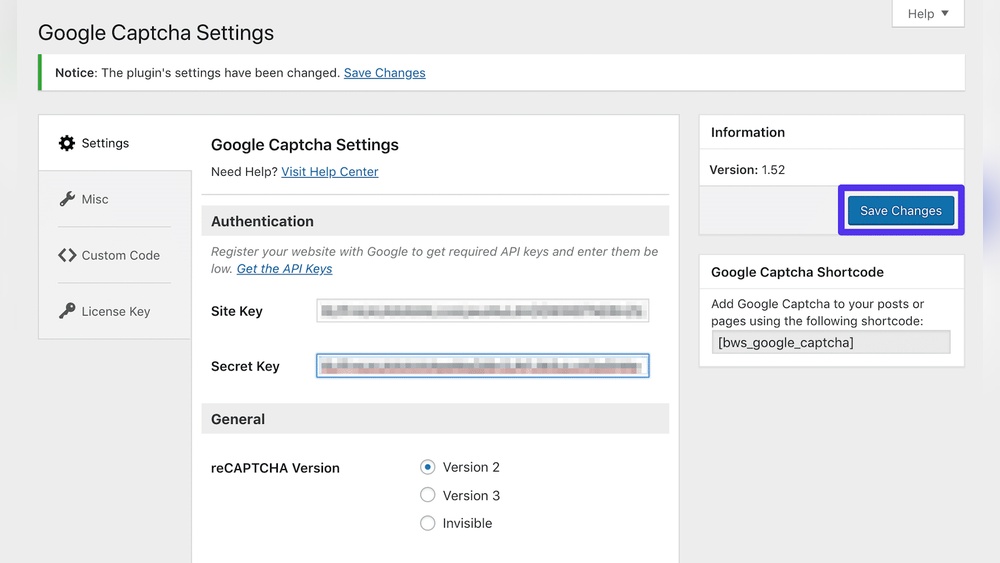
Next, find the plugin’s settings page in the dashboard menu. You will need to enter your Google Recaptcha site key and secret key. These keys come from the Google Recaptcha website.
After entering the keys, save your settings. Test your site forms to ensure Recaptcha appears and works correctly.
Configuring Recaptcha Settings
Adding reCAPTCHA to your WordPress forms helps stop spam and bots. It protects your site and keeps it safe for real users. This step is simple but important. You can add reCAPTCHA to different types of forms on your site. Each form type may need a slightly different approach. Below are easy ways to add reCAPTCHA to common WordPress forms.
Contact Forms
Most WordPress sites use contact forms to connect with visitors. Spam messages can fill these forms fast. Adding reCAPTCHA stops bots from sending fake messages. Use a plugin like Contact Form 7 or WPForms. These tools let you add reCAPTCHA with a few clicks. Just enter your reCAPTCHA site and secret keys. Then enable reCAPTCHA in the form settings. Visitors must prove they are human before submitting.
Login And Registration Pages
Login and registration pages are targets for attacks. Bots try to guess passwords or create fake accounts. Adding reCAPTCHA here adds a layer of protection. You can use plugins like Login No Captcha reCAPTCHA or WPBruiser. These plugins add a reCAPTCHA box to your login and signup forms. This stops bots while letting real users log in easily. It keeps your site more secure.
Comment Sections
Comments sections often get spam messages. Spam can harm your site’s reputation and slow it down. Adding reCAPTCHA to comments helps block spam bots. Many caching or comment plugins support reCAPTCHA. Enable it in the plugin’s comment form settings. Visitors will need to complete the reCAPTCHA challenge before posting. This keeps your comment section clean and real.
Adding Recaptcha To Forms
Testing Recaptcha functionality is important after setting it up on your WordPress site. It ensures the feature works correctly and blocks spam. Testing helps you confirm that genuine users can submit forms without trouble. It also reveals any configuration errors early. Proper testing improves user experience and site security.
Verifying Form Submission
Start by filling out the form on your site. Complete all required fields as a normal user would. Click the submit button and watch for the Recaptcha challenge. Solve the challenge if it appears. After submission, check for a success message or confirmation page. This shows the form sent data correctly.
Try submitting the form without solving Recaptcha. The form should block submission and show an error. This test confirms Recaptcha prevents bots. Repeat the test on different devices and browsers. This ensures consistent functionality for all visitors.
Troubleshooting Common Issues
If the form does not submit, check your Recaptcha keys. Incorrect site or secret keys cause errors. Verify your API keys in the WordPress plugin settings. Clear your browser cache and reload the page to fix display issues.
Recaptcha may not appear if JavaScript is blocked. Make sure your site allows scripts to run. Disable conflicting plugins that may interfere with Recaptcha. Check your site’s SSL certificate. Recaptcha requires HTTPS to work properly.
Review error messages shown during submission. They often indicate what is wrong. Fixing these issues helps Recaptcha function as expected.
Testing Recaptcha Functionality
Maintaining Recaptcha on your WordPress site keeps it secure and smooth. Regular care helps stop spam and keeps user experience easy. Neglecting Recaptcha can lead to errors and risks. Follow simple steps to keep it working well.
Updating Plugins Regularly
Keep your Recaptcha plugin up to date. Developers fix bugs and improve security with each update. Check for new versions often in your WordPress dashboard. Updates prevent conflicts with WordPress and other plugins. Set reminders to update plugins monthly or more.
Monitoring Security Logs
Check your site’s security logs frequently. Logs show blocked spam and suspicious activity. Spot unusual patterns early to act fast. Use security plugins that track Recaptcha events clearly. Regular monitoring helps you fix issues before they grow.

Credit: www.youtube.com
Frequently Asked Questions
What Is Recaptcha And Why Add It To WordPress?
ReCAPTCHA is a free Google service that protects websites from spam and abuse. Adding it to WordPress stops bots from submitting forms and enhances site security. It improves user experience by verifying real users, making your site safer and more reliable.
How Do I Install Recaptcha On My WordPress Site?
To install reCAPTCHA, use a WordPress plugin like Google Captcha or Contact Form 7. Register your site on Google reCAPTCHA, get the site and secret keys, then enter these keys in the plugin settings. Finally, enable reCAPTCHA on your forms.
Which Recaptcha Version Works Best For WordPress?
ReCAPTCHA v3 is recommended as it runs in the background without user interaction. It scores user behavior to block bots smoothly. However, v2 with the “I’m not a robot” checkbox is also popular for clear user verification.
Can Recaptcha Reduce Spam On WordPress Contact Forms?
Yes, reCAPTCHA significantly reduces spam by blocking automated bot submissions. It ensures only genuine users can send messages, protecting your contact forms from unwanted spam and abuse. This keeps your inbox clean and improves communication quality.
Conclusion
Adding reCAPTCHA helps protect your WordPress site from spam. It keeps your forms safe and your visitors happy. The setup is simple and takes just a few minutes. You can choose the version that fits your needs best. Regular checks keep it working well over time.
This small step improves your site’s security and trust. Start today to keep your site safe and secure.


