
Are you thinking about moving your WordPress.com site to WordPress.org but aren’t sure where to start? You’re not alone.
Many website owners wonder if making the switch is possible and how it might affect their content, design, or traffic. The good news is, yes—you can move your site from WordPress. com to WordPress. org. But there are important steps you need to know to make the process smooth and stress-free.
You’ll discover exactly how to do it, what to watch out for, and why this move could be the best decision for your website’s growth. Keep reading to find out how to take control of your site like a pro.
Credit: www.theblogstarter.com
Differences Between WordPress.com And WordPress.org
WordPress.com and WordPress.org often confuse new users. Both use the WordPress platform but differ a lot. Knowing these differences helps decide which suits your needs. This section explains key areas where they vary.
Hosting And Control
WordPress.com hosts your site for you. It manages servers, backups, and security. You cannot access server files or change backend settings. WordPress.org requires you to choose a web host. You control every aspect of your site’s hosting. This includes installing plugins and modifying code.
Customization Options
WordPress.com limits themes and plugins. You can only use what they offer. Custom code is not allowed on free plans. WordPress.org lets you install any theme or plugin. You can edit files and add custom features easily. This allows unique and flexible website designs.
Monetization Possibilities
WordPress.com restricts ads and monetization tools. You must follow their rules and share revenue. WordPress.org lets you add any ads or eCommerce tools. You keep all your earnings without sharing. This freedom helps build income from your website.
Cost Considerations
WordPress.com offers free plans with basic features. Paid plans increase storage and options but cost monthly fees. WordPress.org software is free but needs hosting and domain fees. Costs vary depending on hosting provider and site needs. Overall, WordPress.org can be cheaper or cost more based on choices.
Credit: www.wpbeginner.com
Reasons To Switch From WordPress.com To WordPress.org
Switching from WordPress.com to WordPress.org offers many benefits. WordPress.org gives you more control over your site. You can customize and grow your website in ways WordPress.com limits. This section explains key reasons why moving to WordPress.org makes sense.
Enhanced Flexibility
WordPress.org lets you change your website’s design fully. You can pick any theme or create your own. This freedom means your site looks and works exactly how you want. WordPress.com restricts many design options, limiting creativity.
Full Plugin Access
With WordPress.org, you can install any plugin. Plugins add features like contact forms, online stores, and SEO tools. WordPress.com only allows a few plugins on paid plans. Full access helps your site do more for visitors and business.
Better Seo Capabilities
WordPress.org gives full control over SEO settings. You can use powerful SEO plugins and tools. This helps your site rank higher on search engines. WordPress.com has limited SEO tools, which can hold back traffic growth.
Ownership And Backup Control
WordPress.org means you own your website data fully. You decide how and when to back up your site. This control protects your content and ensures you never lose important files. WordPress.com stores your data on their servers, reducing your control.
Preparing For The Migration
Preparing for the migration from WordPress.com to WordPress.org needs careful steps. You must plan each part to avoid problems later. This section helps you get ready for the move. Follow these steps to make the change smooth and easy.
Choosing A Hosting Provider
Pick a reliable hosting provider to store your site files. Good hosts offer fast loading times and strong security. Look for providers with good customer support and easy WordPress installation. Check reviews to find one that fits your budget and needs.
Selecting A Domain Name
Your domain name is your website’s address on the internet. Choose a name that is simple and easy to remember. Try to keep it short and related to your website content. Make sure the domain is available and register it through your hosting provider or a domain registrar.
Backing Up Your WordPress.com Site
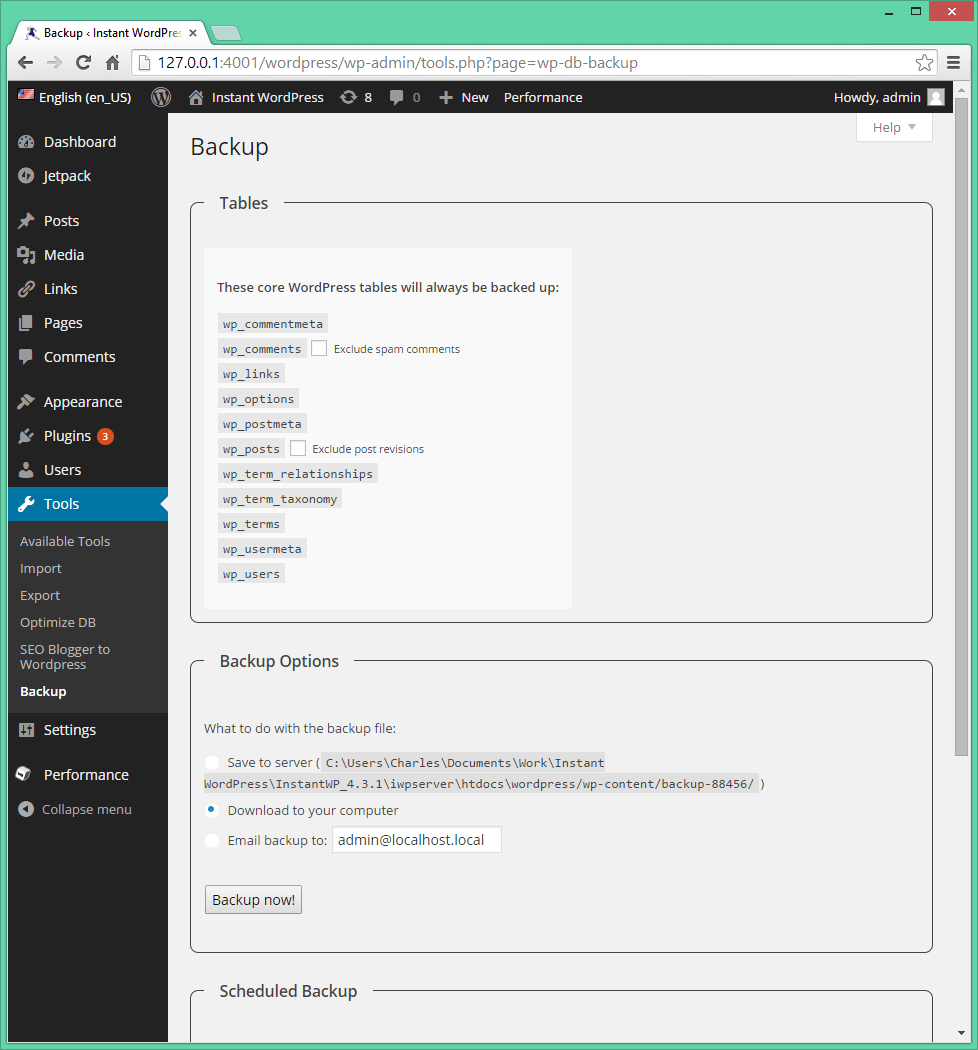
Backing up your site is very important before moving. Export your content using the WordPress.com export tool. Save all posts, pages, and media files to your computer. This backup ensures you don’t lose any data during migration.
Credit: duplicator.com
Step-by-step Migration Process
Migrating from WordPress.com to WordPress.org can seem hard. This step-by-step guide makes the process clear. Follow each step carefully to move your site safely. Keep your content, design, and SEO intact during the move.
Exporting Content From WordPress.com
Start by logging into your WordPress.com account. Go to Tools and select Export. Choose “All Content” to get posts, pages, and media. Click the Download button to save the export file. This file contains your site’s data for transfer.
Setting Up WordPress.org On Your Host
Buy a hosting plan that supports WordPress.org. Use the hosting control panel to install WordPress. Follow the setup wizard to create your new site. Choose a strong username and password. Your new WordPress.org site is now ready.
Importing Content To WordPress.org
Log into your WordPress.org dashboard. Go to Tools and select Import. Choose WordPress and install the importer plugin if needed. Upload the export file from WordPress.com. Assign authors and import attachments to keep media files.
Configuring Themes And Plugins
Pick a theme similar to your old site or a new one. Install it through Appearance > Themes. Activate essential plugins for SEO, security, and backups. Customize the theme settings to match your brand. Plugins add functionality your site needs.
Setting Up Permalinks And Seo
Go to Settings and open Permalinks. Choose the “Post name” option for clean URLs. Save changes to update your site links. Install an SEO plugin like Yoast or Rank Math. Configure SEO settings to keep your search rankings.
Handling Media And Customizations
Moving your WordPress.com site to WordPress.org means handling media and customizations carefully. These elements give your site its unique look and feel. Properly transferring them keeps your site familiar to visitors. It also keeps your content rich and engaging.
Migrating Images And Files
Images and files are important parts of your website. They make posts and pages attractive and informative. Exporting your WordPress.com site does not always move media files automatically. You may need to manually download and upload these files to your new WordPress.org hosting. Use an FTP client or the media library to upload files. Check that all images display correctly after moving.
Recreating Custom Menus And Widgets
Menus and widgets shape your site’s navigation and sidebar content. These settings often do not transfer in the migration process. Take note of your menu structure and widget placement before moving. Rebuild them on your WordPress.org site using the Appearance menu. This step ensures visitors find your content easily and keeps your site organized.
Adjusting Css And Design Elements
Custom CSS styles help your site stand out. WordPress.com may limit CSS editing, but WordPress.org offers full control. Copy your custom CSS codes from WordPress.com and paste them into your new theme’s Customizer. Test your site to confirm that styles and design elements look right. Adjust any parts that do not match your previous site’s appearance.
Managing Redirects And Seo
Moving your site from WordPress.com to WordPress.org changes your website’s structure. This shift affects how visitors find your pages. Managing redirects and SEO is key to keeping your traffic and search rankings stable. Redirects guide visitors and search engines from old URLs to new ones. SEO adjustments help maintain your site’s visibility in search results.
Setting Up Site Redirects
Redirects send users from your WordPress.com links to your new WordPress.org site. Use a 301 redirect for this task. It tells search engines the move is permanent. WordPress.com offers a paid Site Redirect upgrade for this. It automatically forwards all traffic to your new domain. Without redirects, visitors may reach broken pages and leave. Proper redirects keep user experience smooth and avoid losing visitors.
Preserving Search Rankings
Search engines rank your old URLs based on content and links. Redirects transfer this ranking power to new URLs. Check that all old pages redirect correctly to matching new pages. Avoid redirect chains or loops, which can confuse search engines. Keep your site structure similar if possible. Submit a sitemap with updated URLs to help search engines crawl your site faster.
Updating Google Search Console
Google Search Console tracks your site’s performance in search results. Add your new WordPress.org site property in Search Console. Verify ownership to access data and tools. Use the Change of Address tool to notify Google of your move. Submit your new sitemap to speed up indexing. Monitor for errors or issues to fix them quickly. This keeps your site healthy and visible to users.
Common Challenges And Solutions
Moving from WordPress.com to WordPress.org can be tricky. Many face common problems during the switch. These challenges can cause frustration and delays. Knowing how to fix them helps make the move smooth.
Below are common issues and easy solutions. Understanding these will save time and effort.
Fixing Broken Links
Links often break after moving a site. This happens because URLs change. Visitors see error pages instead of content. Fixing broken links restores user experience and SEO.
Use a plugin to scan your site for broken links. Update the URLs to match the new site structure. Also, check internal links in posts and pages carefully. Redirect old URLs to new ones to keep traffic.
Dealing With Plugin Conflicts
Plugins may not work well on the new site. Conflicts cause errors or site crashes. This happens because of different WordPress versions or settings.
Deactivate all plugins at first. Reactivate them one by one. Check the site after each activation. This helps find the problem plugin. Update or replace plugins that cause trouble. Always use plugins from trusted sources.
Troubleshooting Import Errors
Importing content can fail or show errors. Large files or server limits often cause this. Missing images or posts happen too.
Split large files into smaller parts before importing. Increase server limits like upload size and execution time. Use tools designed for WordPress migration. Check imported content carefully and fix missing items manually.
Post-migration Tasks
After moving your site from WordPress.com to WordPress.org, some important tasks follow. These tasks make sure your site works well and stays safe. They help keep visitors happy and improve your site’s performance.
Testing Site Functionality
Check every part of your site carefully. Test pages, posts, and links to confirm they work right. Make sure images load and forms send messages. Look for missing content or broken elements. Fix problems before you tell visitors about your new site.
Optimizing Site Speed
Speed matters for visitors and search engines. Use caching tools to reduce loading times. Compress images to make them smaller but clear. Remove unused plugins and themes to keep the site fast. A quick site keeps people on your pages longer.
Implementing Security Measures
Protect your site from hackers and threats. Install security plugins that block attacks and scan for problems. Use strong passwords and update software often. Regular backups save your work if something goes wrong. Security keeps your site and visitors safe.
Cost And Maintenance After Migration
Moving from WordPress.com to WordPress.org changes how you handle costs and maintenance. WordPress.com includes hosting and basic updates for you. WordPress.org means you manage these yourself. Understanding the new expenses and tasks helps you plan better after migration.
Hosting Fees And Renewals
WordPress.org needs a separate hosting service. Hosting fees vary by provider and plan. Shared hosting is cheaper but slower. Managed hosting costs more but offers better speed and support. Hosting plans often renew yearly. Remember to budget for hosting renewals to keep your site live.
Plugin And Theme Updates
You choose and install plugins and themes on WordPress.org. Keeping them updated is your job. Updates fix bugs and improve security. Ignoring updates can cause website problems. Set a routine to check and update plugins and themes regularly. This keeps your site safe and running smoothly.
Ongoing Backup Strategies
WordPress.org does not back up your site automatically. You must create backups yourself. Use plugins or hosting backup tools. Regular backups protect your data from loss or hacks. Store backups in a safe place. Test backups to ensure they work before trouble strikes.
Frequently Asked Questions
Can You Move WordPress.com Site To WordPress.org?
Yes, you can move a WordPress. com site to WordPress. org by exporting content and importing it into a self-hosted WordPress. org setup. This requires purchasing hosting and a domain, then manually transferring your posts, pages, and media.
What Are The Benefits Of Moving To WordPress.org?
Moving to WordPress. org gives you full control over customization, themes, and plugins. It removes WordPress. com limitations and allows monetization options. You also get better SEO capabilities and the freedom to grow your website as you want.
Is The Migration From WordPress.com To WordPress.org Difficult?
Migration is straightforward but requires careful steps to avoid data loss. Exporting content, setting up hosting, and importing files are key tasks. Beginners may need guidance, but many tutorials and plugins simplify the process.
Will I Lose Seo Rankings After Moving?
If done correctly, you won’t lose SEO rankings. Use proper redirects from WordPress. com to WordPress. org URLs. Maintain your site structure and submit a new sitemap to search engines to preserve your SEO performance.
Conclusion
Moving from WordPress. com to WordPress. org gives more control and flexibility. You can customize your site with themes and plugins. It requires some effort but is worth it for growth. Remember to back up your content before starting the move.
Take time to learn the new platform’s features. Your website will feel more professional and unique. This change opens new possibilities for your online presence. Start planning carefully to avoid common mistakes. Keep your goals clear and focus on what you want to achieve.


