
You’ve just purchased a new domain on Namecheap, and now you’re wondering how to redirect it effectively. Whether you’re looking to streamline your online presence or simply change the direction of your website traffic, knowing how to redirect your domain is crucial.
Imagine effortlessly guiding your visitors to the right spot, enhancing their experience while boosting your site’s performance. This guide will provide you with simple, step-by-step instructions to make the process smooth and hassle-free. Get ready to take control of your online domain and ensure your visitors reach their intended destination without a hitch.
Stay with us, and you’ll discover how easy it is to master domain redirection on Namecheap.
Domain Name Redirection Basics
Redirecting your domain can be a game-changer for your website. Whether you’re rebranding, moving to a new hosting provider, or simply want to point users from an old URL to a new one, understanding the basics of domain redirection is essential. With Namecheap, the process is straightforward, but knowing a few key principles can save you time and hassle.
What Is Domain Name Redirection?
Domain name redirection, also known as URL forwarding, is a method to send visitors from one web address to another. This ensures that traffic to your old domain doesn’t get lost. It’s like giving directions to a friend on how to get to your new house after you’ve moved.
Why Would You Redirect A Domain?
Imagine you’ve recently changed your business name and want your old customers to find your new website effortlessly. Redirecting your domain ensures they land on the right page without confusion. It’s also useful for consolidating multiple domains or handling expired ones.
Types Of Domain Redirection
There are several types of domain redirection, but the most common are 301 and 302 redirects. A 301 redirect is permanent, telling search engines to update their index with your new address. On the other hand, a 302 redirect is temporary, used when you’re making changes but plan to revert back.
How Does Redirection Affect Seo?
Effective redirection helps maintain your site’s SEO value. A proper 301 redirect transfers most of the original page’s SEO authority to the new URL. This ensures your hard-earned search rankings stay intact.
Steps To Redirect A Domain In Namecheap
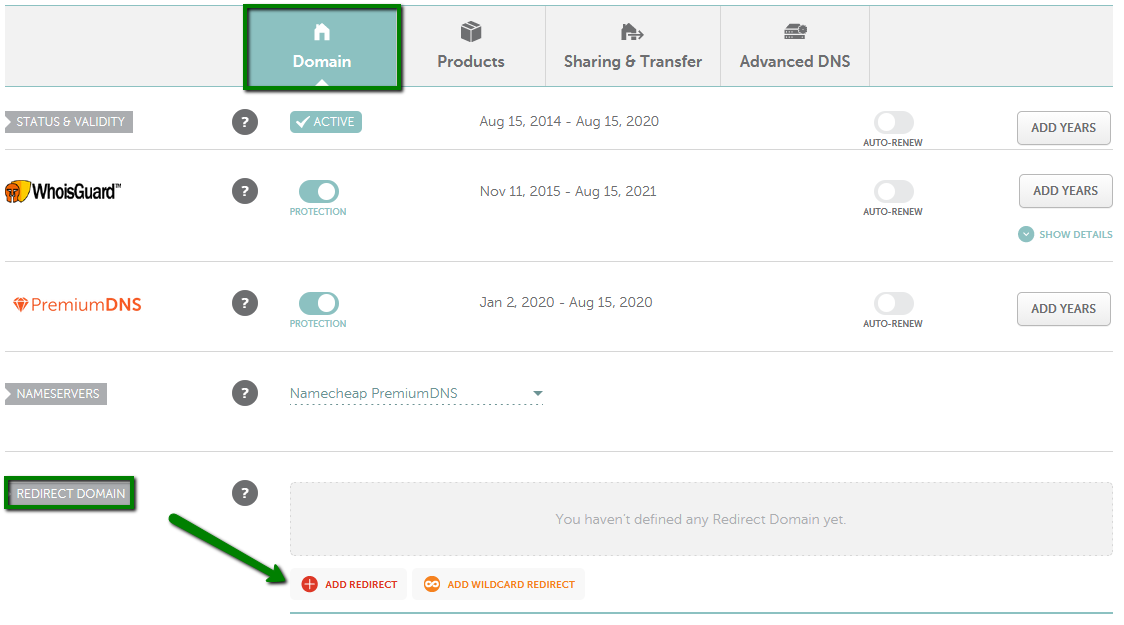
Ready to redirect your domain on Namecheap? Start by logging into your account. Navigate to the Domain List and select the domain you want to redirect. Use the advanced DNS settings to add your new URL, and choose the type of redirect that suits your needs.
Have you ever tried redirecting a domain and faced challenges? Share your experiences and insights with fellow readers in the comments below. Your tips could be the key to helping someone else navigate the process smoothly!
Credit: www.namecheap.com
Setting Up Your Namecheap Account
Setting up your Namecheap account allows easy domain redirection. Access the dashboard, locate “Domain List,” and select “Manage. ” Find “Redirect Domain,” then enter your destination URL. Save changes to complete the process.
Setting up your Namecheap account is the first step in redirecting your domain. It’s like setting the foundation for a house. Without a solid start, nothing else can stand correctly. Whether you’re a seasoned pro or a first-timer in the domain game, getting your Namecheap account ready is straightforward. Let’s break it down into manageable tasks so you can tackle it with confidence. ###Create Your Namecheap Account
If you don’t have a Namecheap account, you’ll need to create one. Simply visit the Namecheap website and click on the “Sign Up” button. Fill in your details like email and password, and you’re good to go. A quick confirmation email will verify your account. Remember, this account will be your control center for managing domains, so keep your login information secure. ###Log In To Your Dashboard
Already have an account? Log in! Head to the Namecheap website and click on “Login” at the top right. Enter your email and password, and you’ll be greeted by your personal dashboard. This is where the magic happens. Everything you need, from domain management to billing, is right at your fingertips. ###Explore The Dashboard Features
Once inside the dashboard, take a moment to explore its features. You’ll find sections like “Domain List,” “Billing,” and “Profile.” Understanding these areas will empower you to manage your domains effectively. Familiarity with these options will save you time when you need to make changes or updates. ###Verify Your Account Details
Check your profile settings to ensure all your information is correct. Is your email updated? Is your contact info current? This step is crucial because if Namecheap needs to reach you for any reason, you want to make sure they can. An outdated email could mean missing important updates or alerts. ###Secure Your Account
Think about adding an extra layer of security. Namecheap offers two-factor authentication (2FA) to keep your account safe. It might seem like an extra step, but isn’t peace of mind worth it? Protecting your domains from unauthorized access should be a top priority. ###Prepare For Domain Management
Now that your account is ready, you’re set to manage your domains. This is where you can add, transfer, or redirect domains. Having a streamlined setup in your account ensures smooth transitions whenever you need to make changes. Have you ever tried setting up a domain without knowing where to start? It’s frustrating. But with your Namecheap account prepared, you’re one step ahead. Setting up your Namecheap account doesn’t have to be daunting. By following these steps, you’re laying the groundwork for effective domain management. Ready to redirect your domain? Let’s move forward with confidence.Accessing Domain Management
Redirecting a domain on Namecheap involves a few simple steps. First, log into your Namecheap account. Then, navigate to the Domain List and select the domain you wish to redirect. Finally, configure the redirect settings by entering the desired destination URL.
It’s straightforward and user-friendly.
Accessing the domain management section in Namecheap is the first step in redirecting your domain. This process is straightforward and beginner-friendly, making it accessible to anyone, even if you’re not a tech expert. Let’s dive into how you can effortlessly navigate to this crucial part of your domain settings. ###Log Into Your Namecheap Account
To begin, you’ll need to log into your Namecheap account. Use your email and password associated with your account. If you’re like me and tend to forget passwords, consider using a password manager to keep track. Once logged in, you’ll find yourself on the dashboard. ###Navigate To The ‘domain List’
Once on the dashboard, locate the ‘Domain List’ option on the left-hand sidebar. Clicking here will bring up a list of all the domains you own. It’s satisfying to see your collection of domains, isn’t it? Choose the domain you wish to redirect by clicking on the ‘Manage’ button next to it. ###Access The ‘advanced Dns’ Tab
After selecting your domain, you’ll be directed to the domain management page. Here, click on the ‘Advanced DNS’ tab. This is where the magic happens. Do you feel a bit like a wizard configuring spells? You’re now ready to set up your domain redirection. ###Why Is This Important?
Accessing domain management is crucial because it gives you control over your domain settings. Whether you’re redirecting for SEO purposes, branding, or just tidying up old links, understanding this process is empowering. How else will you ensure your visitors land exactly where you want them? ###Final Thoughts
Navigating the Namecheap domain management section is simpler than it sounds. With just a few clicks, you’re ready to redirect your domain. Has this guide changed your perspective on managing your domains? Try it out and see how easy it truly is!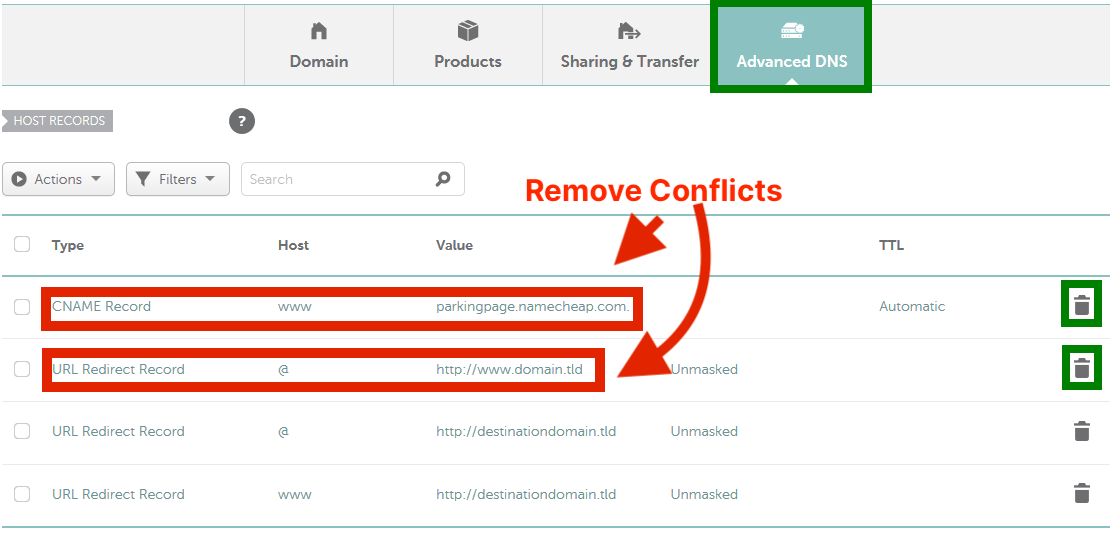
Credit: typedream.com
Choosing Domain To Redirect
Redirecting a domain on Namecheap is straightforward. First, log into your account. Then, go to the “Domain List” and select the domain you want to redirect. Click “Manage,” navigate to “Advanced DNS,” and set up the redirect by entering the destination URL.
Choosing the right domain to redirect can significantly impact your website’s traffic and user experience. It’s not just about picking any domain; it’s about finding one that aligns with your brand and goals. Redirecting a domain effectively can help capture lost traffic and enhance your online presence. ###Understanding The Purpose Of Your Redirect
Why do you want to redirect a domain? Is it because of rebranding, merging websites, or capturing traffic from an old domain? Clarifying your purpose will help you make a strategic choice. For instance, if you’re merging two brands, selecting a domain that reflects the new identity is crucial. ###Assessing The Value Of Existing Traffic
Consider the current traffic of the domain you plan to redirect. Does it bring in valuable visitors? Look at metrics like bounce rate and conversion rate. A domain with high-quality traffic can be an asset to your main site, boosting visibility and engagement. ###Checking Domain Authority And Seo Impact
A domain with good authority can enhance your SEO efforts. Tools like Moz or Ahrefs can help evaluate a domain’s authority. Redirecting a high-authority domain can pass on valuable link juice, improving your main site’s search rankings. ###Ensuring Brand Consistency
Your brand’s identity must remain consistent, even with redirects. Choose a domain that aligns with your brand message and values. If your brand is known for simplicity, avoid complex or unrelated domains that might confuse users. ###Evaluating Historical Performance And Reputation
Dig into the domain’s past performance and reputation. Was it ever penalized by search engines? A domain with a tarnished history can harm your site’s credibility. Use tools like Wayback Machine to check its historical content and ensure it’s aligned with your standards. ###Seeking Alignment With Future Goals
Think about your long-term goals. Will this redirect support your future marketing strategies? If you’re planning to expand into new markets, the domain should be versatile enough to grow with your ambitions. ###Personal Experience: Learning From Mistakes
When I first started my website, I hastily redirected a domain without considering these factors. It resulted in a drop in traffic and confused users. Learning from that experience, I now prioritize thorough evaluation, ensuring each redirect aligns with my overall strategy. Choosing the right domain to redirect requires careful consideration and analysis. What are your goals? How does this domain fit into your brand’s narrative? Reflect on these questions to make an informed decision that propels your website’s success.Configuring Dns Settings
Redirecting a domain on Namecheap involves configuring DNS settings. Understanding DNS settings is key. DNS, or Domain Name System, acts like an address book. It translates domain names into IP addresses. Configuring DNS settings helps direct your domain to the right server. Let’s explore the steps involved in configuring these settings.
Understanding Dns Records
DNS records store information about your domain. Different types of records exist. A Records point your domain to an IP address. CNAME records alias one domain to another. Knowing these records is essential for redirection. They ensure that users reach your desired destination. Each type of record serves a unique purpose.
Modifying Cname And A Records
To modify records, access your Namecheap account. Navigate to the Domain List. Click on the “Manage” button beside your domain. Under the DNS tab, you can view existing records. To change A Records, edit the IP address field. For CNAME, adjust the alias field. Save changes to update DNS records. Changes may take time to propagate.

Credit: www.youtube.com
Redirect Options
Effortlessly redirect your domain using Namecheap’s options. Access your account, locate the domain list, and select the redirect option. Follow the simple prompts to ensure smooth navigation between your domains.
Redirecting your domain can be a game-changer when it comes to managing your website. Whether you’re shifting to a new domain or simply want to redirect traffic from old URLs, understanding the redirect options available through Namecheap is crucial. These options ensure your visitors are seamlessly directed to the right place, enhancing user experience and maintaining your site’s SEO value. ###Permanent Vs Temporary Redirects
Permanent redirects, known as 301 redirects, are like setting your new home address in stone. They tell search engines that the old URL has moved permanently to a new location. This is great for when you’ve rebranded or changed your domain name. A permanent redirect also helps in transferring SEO value from the old URL to the new one. On the other hand, temporary redirects, or 302 redirects, are like a temporary forwarding address. They indicate a short-term change, perfect for when you’re updating a webpage or running a limited-time campaign. This way, search engines know not to update their index with the new URL. But be cautious—using a temporary redirect when a permanent one is needed can confuse search engines and harm your SEO. ###Using Url Forwarding
URL forwarding is an easy way to redirect your domain without diving into the technical details. Namecheap offers this feature right in their dashboard. Simply navigate to the domain you wish to forward, and you can set up forwarding with just a few clicks. Consider URL forwarding when you have multiple domains pointing to a single site. For instance, if you own both .com and .net versions of your domain, forwarding can ensure all traffic lands on your primary site. This not only consolidates your audience but also strengthens your brand presence. Have you ever considered how many potential visitors might be lost due to outdated links? URL forwarding can be the straightforward solution you need to maintain your traffic and enhance user experience.Testing Domain Redirection
Testing domain redirection is a crucial step after making changes. It ensures your changes work correctly and directs visitors to the right place. This process checks if the redirection is functioning as intended. It confirms that users and search engines follow the new path without issues.
Checking Propagation Status
Propagation status shows if DNS changes have spread worldwide. It often takes 24 to 48 hours for full propagation. Use online tools to check your domain’s status. These tools help verify if the redirection is active in different regions.
Troubleshooting Common Issues
Sometimes redirection doesn’t work as expected. Ensure you’ve entered the correct settings in your Namecheap account. Double-check your domain’s DNS records and redirection paths. Clear your browser cache to see the latest changes.
If problems persist, contact Namecheap support for assistance. They can help identify issues with your setup. Proper redirection keeps your site accessible and user-friendly.
Tips For Effective Redirection
Redirecting a domain using Namecheap is a crucial task for website management. Effective redirection ensures users find your content seamlessly. It also plays a vital role in SEO and user experience. Here are some tips to make your domain redirection smooth and efficient.
Seo Considerations
Redirection impacts search engine rankings. Use 301 redirects for permanent moves. This passes link equity to the new URL. Avoid 302 redirects for permanent changes. They don’t transfer SEO value. Ensure old URLs point to relevant new content. This keeps search engines happy. Don’t forget to update your sitemap. It informs search engines of new URLs.
Maintaining User Experience
User experience matters in domain redirection. Ensure redirection doesn’t lead to broken links. Broken links frustrate users. Test all redirected URLs for functionality. Make sure new URLs load quickly. Slow-loading pages drive users away. Keep navigation intuitive on the new site. Users should find information easily. Use clear and concise URLs. This helps users remember and revisit your site.
Frequently Asked Questions
How Do I Redirect A Domain From Namecheap?
To redirect a domain from Namecheap, log in to your account, navigate to “Domain List,” select your domain, click “Manage,” and then choose “Advanced DNS. ” Add a new redirect record under “Redirect Domain” and enter your desired URL. Save changes to complete the process.
How Do I Redirect A Domain To Another Domain?
Use a 301 redirect to point your domain to another domain. Update the. htaccess file or configure DNS settings. This ensures SEO benefits and seamless user experience. Consult your domain registrar or hosting provider for specific instructions, as it may vary based on their platform.
How Do I Redirect A Domain To A Path?
Use a server configuration file, like. htaccess, to redirect your domain to a specific path. Utilize the “Redirect” directive in Apache or “rewrite” in Nginx for path redirection. Ensure your DNS settings point to the correct server hosting the configuration.
Adjust settings based on your server type.
Is A Cname The Same As A Redirect?
A CNAME is not the same as a redirect. A CNAME points a domain to another domain’s IP address. Redirects send users from one URL to another URL directly. Both serve different purposes in DNS and web navigation.
Conclusion
Redirecting your domain on Namecheap is simple and straightforward. Follow the steps outlined above. You’ll ensure smooth transitions and maintain your online presence. Remember to double-check your settings to avoid errors. With practice, this process becomes easier over time. A well-redirected domain enhances your website’s functionality.
It can also improve user experience. So, take the time to get it right. With patience and attention, you’ll manage domain redirects effectively. This skill is valuable for any website owner. Good luck with your domain management!


