
Transferring your Namecheap domain to Shopify can seem daunting, but it’s easier than you think. Imagine having a seamless online store where everything is under one roof, reducing hassle and boosting your business efficiency.
If you’re ready to streamline your e-commerce operations and maximize your online potential, you’re in the right place. This guide will walk you through each step of the transfer process. By the end, you’ll have a fully integrated domain, ready to enhance your brand’s presence and captivate your audience.
Let’s dive in and make your Shopify store shine!
Credit: www.namecheap.com
Preparing For Domain Transfer
Transferring your Namecheap domain to Shopify requires careful preparation. This process ensures a smooth transition without any hitches. Understanding each step will help you avoid common pitfalls. This guide will walk you through preparing your domain for transfer.
Checking Domain Eligibility
First, verify if your domain is eligible for transfer. Ensure the domain is over 60 days old. Also, check that it is not involved in any disputes. Confirm it is not locked by Namecheap. These checks are crucial before proceeding.
Unlocking Domain
Next, unlock your domain in your Namecheap account. Log in and navigate to the domain list. Select the domain you wish to transfer. Find the option to unlock the domain. This step is necessary for the transfer to Shopify. Keep your account information handy during this process.
Obtaining Authorization Code
Transferring your domain from Namecheap to Shopify involves several steps. One key step is obtaining the authorization code. This code is crucial for verifying your ownership of the domain. It also allows for the smooth transfer of your domain to Shopify. The process is straightforward, but attention to detail is important. Let’s dive into the steps for obtaining this code.
Requesting Code From Namecheap
First, log into your Namecheap account. Navigate to the Domain List section. Find the domain you wish to transfer. Click on the “Manage” button next to it. Look for the “Sharing & Transfer” tab. Here, you will find the “Auth Code” section. Click the “Send Auth Code to Email” button. Namecheap will send the code to your registered email. Check your email inbox to retrieve the code. Ensure you have access to this email account.
Storing Code Securely
Once you receive the authorization code, store it securely. Write it down or use a secure digital note. Avoid sharing it with unauthorized people. This code is sensitive information. Keep it safe until the domain transfer is complete. You will need to enter it during the transfer process. Misplacing the code can delay your domain transfer.
Initiating Transfer On Shopify
Transferring a Namecheap domain to Shopify is simple. Start by unlocking your domain and getting an authorization code from Namecheap. Then, enter the code in Shopify’s domain transfer section. Follow the prompts to complete the transfer. This ensures your domain works seamlessly with your Shopify store.
Transferring your Namecheap domain to Shopify involves a few key steps. This process ensures your domain points directly to your Shopify store. Starting the transfer on Shopify is crucial. Let’s dive into the detailed steps.Accessing Shopify Domain Settings
Begin by logging into your Shopify admin panel. Navigate to the “Online Store” section. Click on “Domains” to access domain settings. This is where you manage all domain-related tasks. It’s user-friendly and straightforward.Entering Domain Details
Once you’re in the domain settings, find the “Connect existing domain” option. Enter your Namecheap domain name in the provided field. Ensure you type the domain name correctly. Shopify will then guide you through the remaining steps. Follow each instruction carefully. This ensures a smooth transfer process. By following these steps, your Namecheap domain will soon be linked to Shopify. This will help improve your store’s accessibility.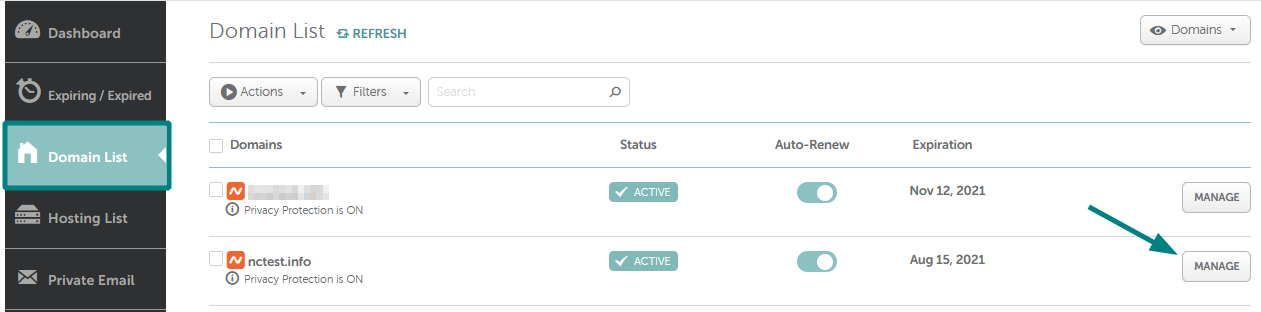
Credit: www.namecheap.com
Completing Domain Verification
Transferring a Namecheap domain to Shopify involves completing domain verification. Start by accessing Namecheap and locating the domain settings. Then, update the DNS settings to point to Shopify servers. Finally, confirm the transfer on Shopify to complete the process.
Completing the domain verification process when transferring your Namecheap domain to Shopify is a pivotal step. It’s like unlocking the door to a successful transfer. Without this, your domain remains in a state of limbo. Ensuring it’s done correctly is crucial. So, how do you make sure this step goes smoothly? First, let’s dive into confirming the email verification.Confirming Email Verification
Once you initiate the domain transfer from Namecheap to Shopify, keep an eye on your email inbox. You’ll receive an email from Namecheap asking you to verify the transfer. This email is your green light to proceed. Click the link provided and confirm your request. Have you ever missed an important email? It’s frustrating, right? So, check your spam or junk folders if you don’t see the email promptly. You wouldn’t want a simple oversight to delay your transfer.Monitoring Transfer Status
After confirming the email, the next step is to monitor the transfer status. Shopify provides a status bar that updates you on the progress of the transfer. It’s like tracking a package—knowing where it is gives peace of mind. Log into your Shopify admin panel and navigate to the Domains section. Here, you’ll see the status updates. Are you excited to finally see your domain listed there? The anticipation can be thrilling. But if it takes longer than expected, don’t hesitate to reach out to Shopify support. They can provide insights or solutions to any issues that arise. Remember, a successful transfer is not just about moving a domain. It’s about ensuring your business runs smoothly and efficiently on Shopify. Engage with the process actively, and you’ll find it much more rewarding. What’s your biggest takeaway from ensuring a seamless domain transfer?Updating Dns Settings
Transferring a domain from Namecheap to Shopify requires updating DNS settings. This step is crucial for ensuring your domain points correctly to your Shopify store. DNS settings act as the guide for directing internet traffic to your online shop. Proper configuration can help avoid downtime and ensure seamless access for customers.
Configuring Dns Records
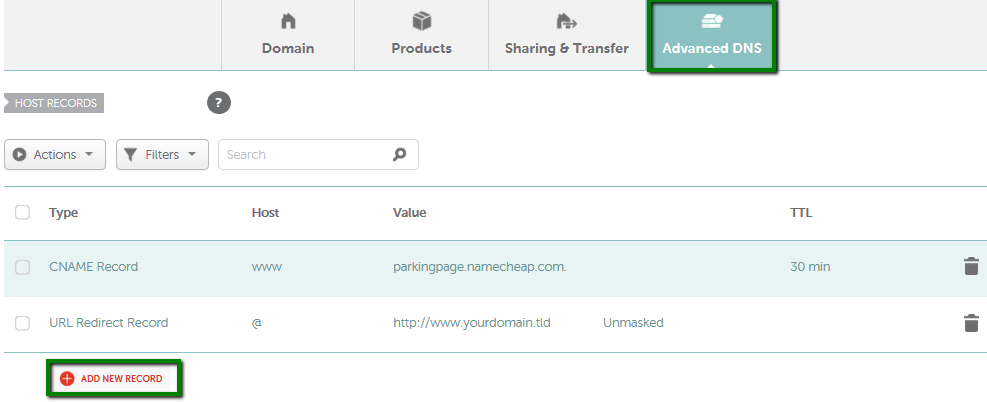
To start, log in to your Namecheap account. Navigate to the domain list and select the domain you wish to transfer. Find the DNS settings section. Here, you need to configure your DNS records to point to Shopify. Set the A record to Shopify’s IP address. Update the CNAME record to Shopify’s URL. These changes direct your domain traffic to your Shopify store.
Testing Domain Functionality
After updating DNS settings, test your domain. This ensures the traffic is correctly routed. Visit your domain in a web browser. If the setup is correct, your Shopify store should appear. Use online tools to check DNS propagation status. This confirms if the changes have spread across the internet. Adjust any incorrect settings to avoid access issues.
Credit: www.youtube.com
Troubleshooting Common Issues
Transferring a Namecheap domain to Shopify can be straightforward with the right steps. Ensure your domain is unlocked and get the EPP code from Namecheap. Complete the transfer by entering the code in Shopify’s domain transfer section.
Transferring your Namecheap domain to Shopify can be a smooth process, but sometimes, unexpected hiccups arise. These common issues might seem daunting, but fear not! With some practical troubleshooting tips, you can tackle these challenges head-on and ensure a seamless transition. Whether it’s delays or DNS errors, understanding how to resolve them is crucial for maintaining your online presence. Dive into these insights to keep your domain transfer on track and your business thriving.Resolving Transfer Delays
Transfer delays can be frustrating, especially when you’re eager to get your Shopify store up and running. One common reason for delays is domain lock settings on Namecheap. Make sure your domain isn’t locked before initiating the transfer. Another culprit could be incorrect authorization codes. Double-check the EPP code you received from Namecheap, as a small typo can halt the process. Are you receiving notifications about pending transfer approvals? Ensure your contact information on Namecheap is up-to-date. Sometimes, outdated email addresses prevent you from receiving crucial confirmations.Fixing Dns Errors
DNS errors can disrupt your website’s visibility, leaving potential customers in the dark. If you’re encountering DNS issues, the first step is to verify your DNS settings on Shopify. Ensure they match the records provided by Namecheap. Have you recently changed your DNS settings? It can take up to 48 hours for changes to propagate globally, so exercise patience during this period. Consider using Shopify’s DNS template for a straightforward setup. This ensures you have all necessary records in place, minimizing the risk of errors. Is your site displaying the dreaded “Not Secure” warning? Check your SSL certificate status on Shopify. A missing or inactive certificate can create trust issues with visitors. — Transferring your domain doesn’t have to be a headache. With these troubleshooting insights, you can confidently navigate any roadblocks. Have you encountered other issues during your transfer? Share your experiences in the comments and help fellow entrepreneurs overcome similar challenges.Frequently Asked Questions
How To Move Namecheap Domain To Shopify?
Log in to Namecheap, access Domain List, select your domain, and click “Manage. ” Update DNS settings to Shopify’s nameservers. In Shopify, go to Settings > Domains, then “Connect existing domain,” and follow the prompts. Allow time for DNS propagation.
How Do I Transfer My Domain To Shopify?
Transfer your domain to Shopify by unlocking it, obtaining the authorization code, and updating DNS settings. Follow Shopify’s step-by-step guide for precise instructions. Ensure the domain is eligible for transfer and meets Shopify’s requirements. Contact Shopify support for assistance if needed.
How Do I Transfer A Domain From Namecheap?
To transfer a domain from Namecheap, unlock it in the Domain List. Obtain the authorization code. Initiate the transfer at the new registrar. Confirm the transfer via email. Ensure domain privacy is disabled.
Is Namecheap Compatible With Shopify?
Yes, Namecheap is compatible with Shopify. You can use Namecheap to register domains for your Shopify store. Simply connect your domain to Shopify by updating DNS settings. This integration allows seamless domain management, enhancing your online store’s branding and visibility.
Conclusion
Transferring your Namecheap domain to Shopify is straightforward. Follow each step carefully. This ensures a seamless transition. Start by unlocking your domain on Namecheap. Then, get the authorization code. Next, initiate the transfer on Shopify. Enter your domain details accurately.
Confirm the transfer via email. Monitor the process to complete it successfully. This lets you manage your store efficiently. Enjoy better integration with Shopify’s features. Remember, patience is key during the transfer. Don’t rush through the steps. With this guide, the process becomes less daunting.
Good luck with your new Shopify journey!


