
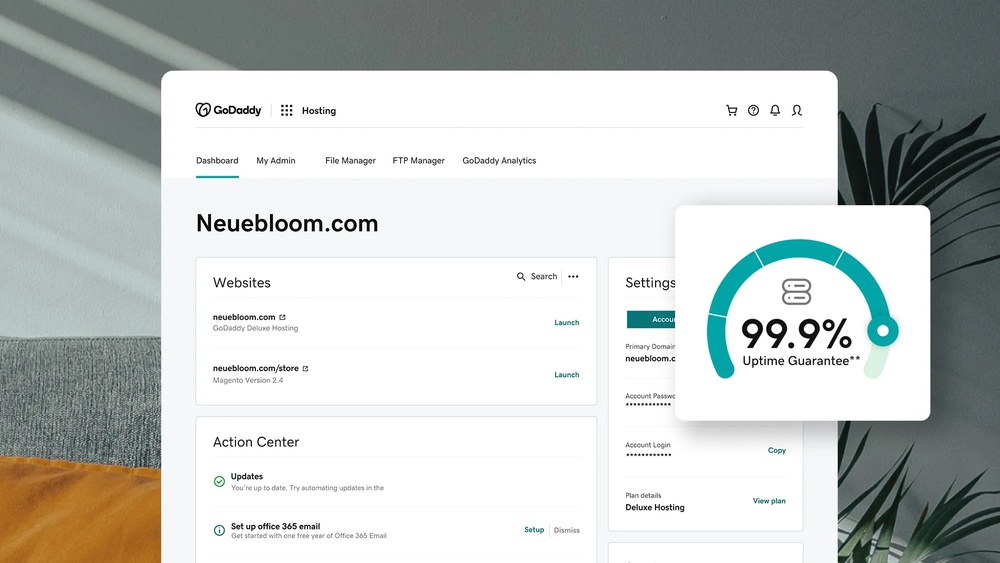
Are you ready to connect your third-party domain to your GoDaddy hosting but don’t know where to start? You’re not alone.
Many website owners find this step confusing, but it’s easier than you think. By the end of this guide, you’ll have your domain and hosting working together smoothly, so your website can go live without any hassle. Keep reading, and you’ll discover simple, clear steps to get your domain set up correctly—no technical jargon, just straightforward instructions you can follow right now.
Credit: www.godaddy.com
Choose Your Domain
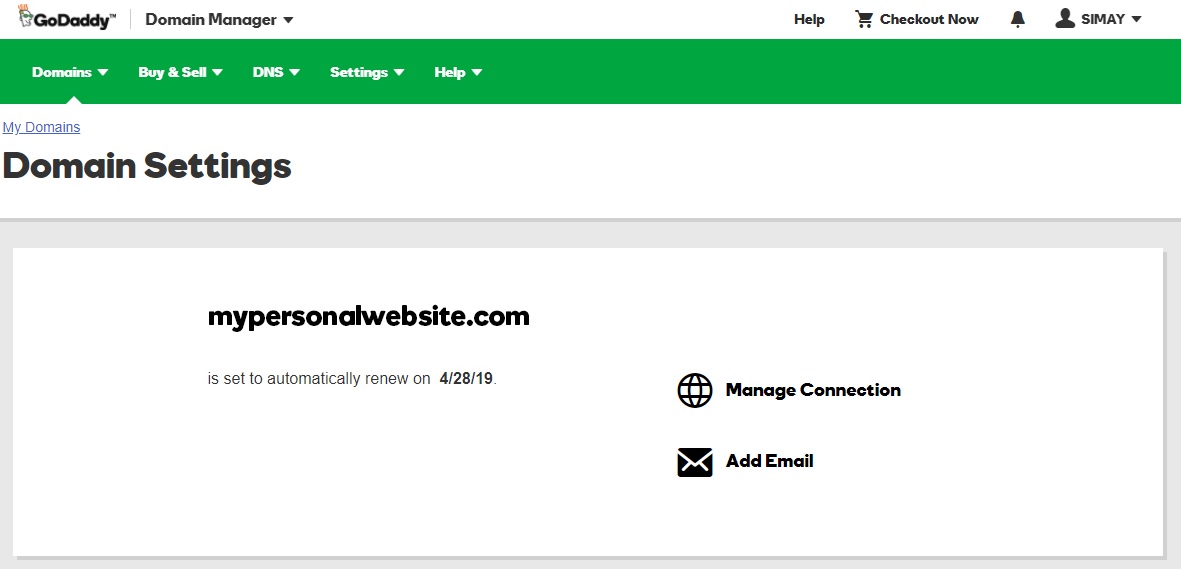
Adding a third-party domain to GoDaddy hosting is simple and fast. Start by pointing your domain’s DNS to GoDaddy’s servers. Then, connect the domain in your hosting account to make your website live.
Select A Third Party Domain
Start by picking a domain name from your chosen provider. This domain is the website address visitors will use. Make sure you own the domain and have access to its settings. You will need to make changes there later. Keep the domain simple and easy to remember. Avoid complicated spellings or long names.
Check Domain Compatibility
Confirm your domain works with GoDaddy hosting. Most domains from popular providers are compatible. Check if your domain supports DNS changes. You must be able to update nameservers or DNS records. This step is crucial to connect your domain to GoDaddy hosting. If unsure, contact your domain provider’s support for help.
Credit: support.squarespace.com
Access Godaddy Hosting
Accessing your GoDaddy hosting is the first step to add a third-party domain. You must log into your account to manage hosting settings. This process gives you control over your domains and web hosting.
Once logged in, you can find the hosting dashboard. The dashboard lets you manage websites, files, and domains easily. Follow the steps below to access your hosting account quickly.
Log Into Your Account
Open the GoDaddy website and click the “Sign In” button. Enter your username and password carefully. Use the email linked to your GoDaddy account. Click “Sign In” to proceed.
If you forgot your password, use the “Forgot Password” option. Follow the instructions to reset it. Secure your account with a strong password for safety.
Navigate To Hosting Dashboard
After logging in, find the “My Products” section. Look for “Web Hosting” and click “Manage.” This action opens the hosting dashboard.
Here, you see all your hosting plans and details. Choose the hosting account linked to your website. Now, you can start managing your third-party domains.
Add Domain To Hosting
Adding a third-party domain to GoDaddy hosting lets you use a domain bought elsewhere with GoDaddy’s web services. This process connects your domain to your hosting account, so your website loads correctly.
Follow simple steps to add your domain. This guide helps you add your domain quickly and without confusion.
Locate Domain Management
Start by logging into your GoDaddy account. Find the “My Products” section on the dashboard. This area shows all your domains and hosting plans.
Click on the hosting account where you want to add the domain. Then, look for “Manage” or “Settings” to access hosting controls. This is where you manage your domains linked to hosting.
Initiate Domain Addition
Inside the hosting control panel, find the option “Add Domain” or “Add Website.” Click it to start adding your third-party domain.
Enter the domain name you own but registered elsewhere. Follow the prompts to confirm ownership and set up domain pointing.
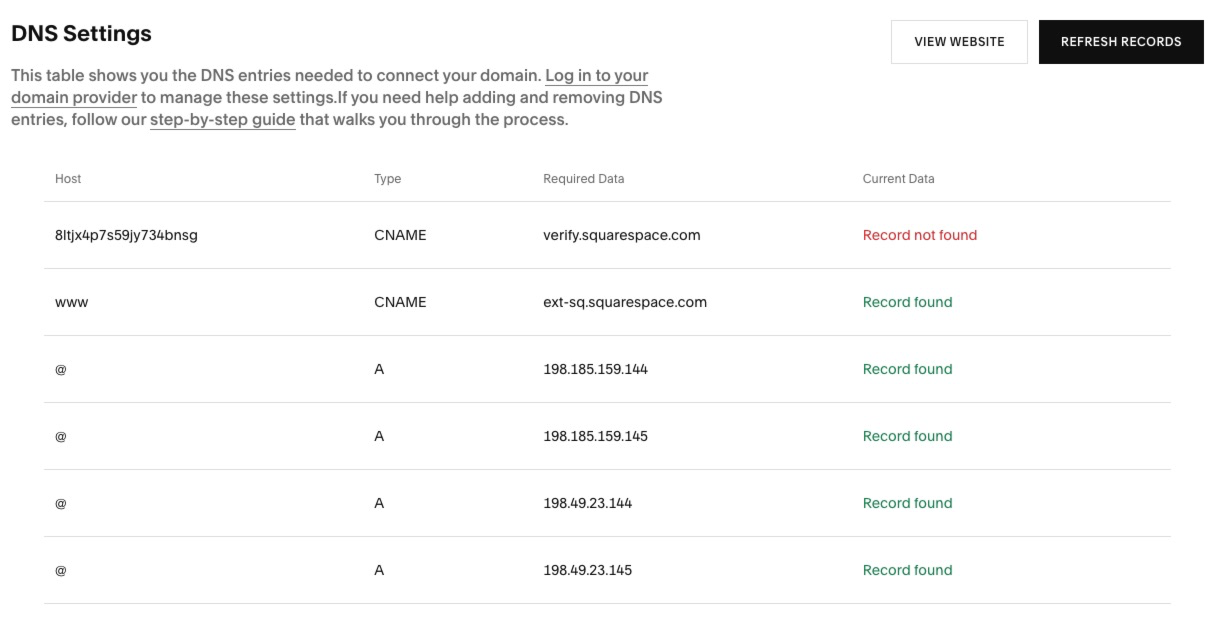
Update the domain’s DNS records at your domain registrar to point to GoDaddy’s servers. This step is essential for your website to work.
Save all changes and wait for DNS to update. This may take a few hours but usually finishes sooner.
Update Dns Settings
Updating DNS settings is a key step to link your third-party domain with GoDaddy hosting. It tells the internet where to find your website files. The process involves changing the domain’s nameservers to point to GoDaddy. This ensures your domain directs visitors to your GoDaddy-hosted site.
Follow the steps carefully to avoid any downtime. The update can take some time to take effect. Usually, it completes within a few hours but may take up to 48 hours.
Find Nameserver Details
First, log in to your GoDaddy account. Go to your hosting dashboard. Look for the section labeled “Nameservers” or “DNS Settings.” Here, you will find the nameserver addresses you need. They usually look like ns1.godaddy.com and ns2.godaddy.com. Write them down or keep the tab open for easy access.
Modify Third Party Domain Dns
Next, access your third-party domain registrar’s control panel. Find the DNS management or nameserver settings area. Replace the current nameservers with the ones from GoDaddy. Save the changes carefully. Avoid changing other settings unless you know what they do. After saving, wait for the DNS changes to spread across the internet. This step connects your domain to your GoDaddy hosting.
Verify Domain Connection
Verifying your domain connection is a key step after adding a third-party domain to GoDaddy hosting. It ensures your website works properly and visitors can reach your site. This step confirms that GoDaddy recognizes your domain and links it to your hosting account. Without verification, your domain may not display your website content.
Checking the connection helps avoid downtime and email issues. It also confirms that DNS settings are correctly set. Let’s explore how to verify the domain connection using GoDaddy tools and how to fix common problems.
Use Godaddy Tools
GoDaddy offers simple tools to verify your domain connection. Start by logging into your GoDaddy account. Navigate to the “My Products” section and select your hosting account. Find the domain management area and look for the verification status.
Use the DNS checker tool to confirm your domain points to the correct IP address. The system will also show if the domain is connected to your hosting properly. Follow any instructions provided to complete the verification process. This tool saves time and helps avoid errors.
Troubleshoot Common Issues
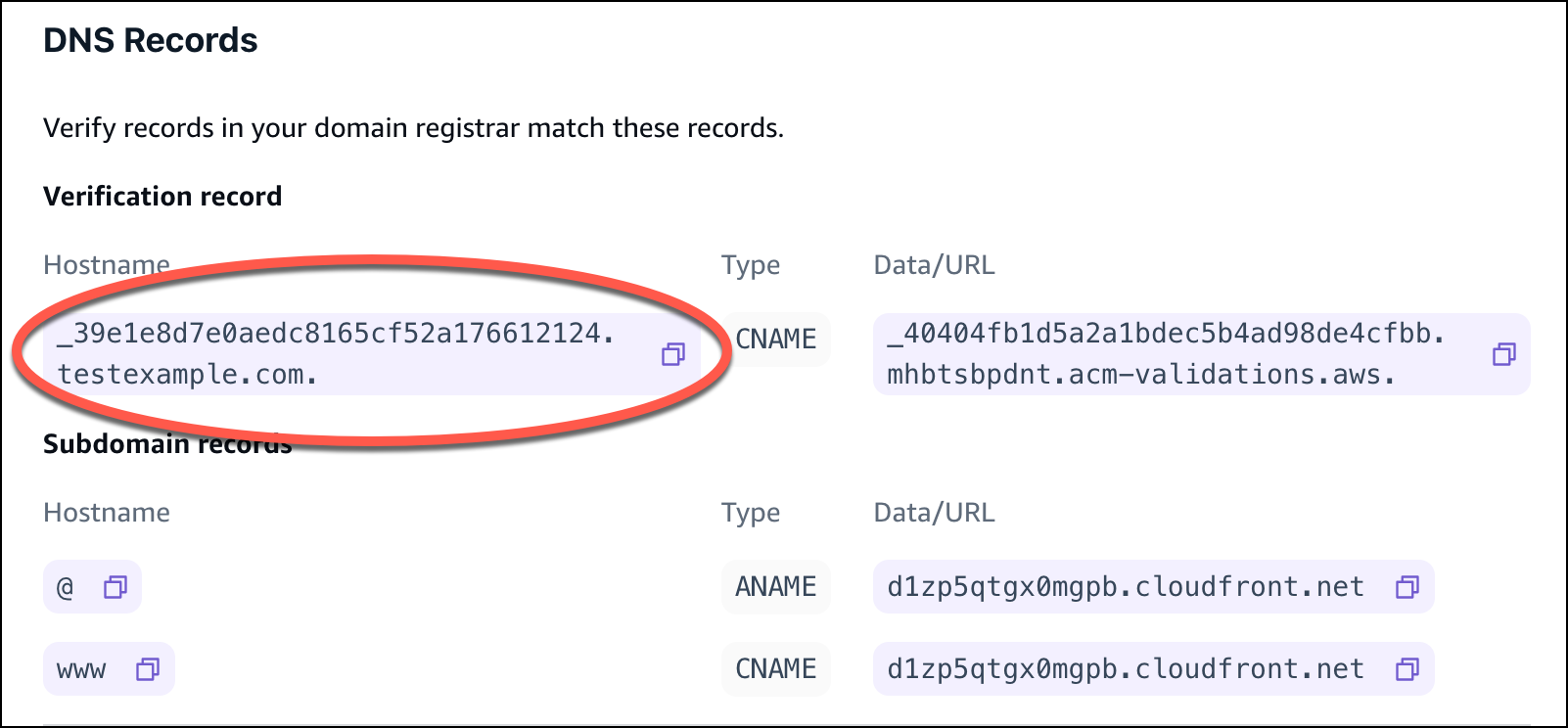
Sometimes, domain verification may fail. Common causes include incorrect DNS records or propagation delays. Check your domain’s DNS settings to ensure the A record points to your GoDaddy hosting IP.
Allow up to 48 hours for DNS changes to fully propagate. Clear your browser cache to see the latest updates. If problems persist, contact GoDaddy support for help. They can guide you through fixing settings and verifying the domain connection.
Credit: docs.aws.amazon.com
Finalize Hosting Setup
Finalizing your hosting setup is the last step to make your website live. It ensures your domain and hosting work together smoothly. This step also secures your site with encryption. Follow these simple actions to complete the setup.
Assign Domain To Website
Log in to your GoDaddy hosting account. Find the section called “My Products” or “Domains.” Select your third-party domain from the list. Choose the option to assign this domain to your website. This links your domain name with your hosting space. It may take some time for changes to update worldwide.
Configure Ssl Certificate
Go to your hosting control panel and locate SSL settings. Activate a free SSL certificate like Let’s Encrypt or use one you bought. This step secures your site with HTTPS. It helps protect visitor data and improves search engine ranking. Wait for the SSL to install fully. Check your website to confirm it shows a secure padlock icon.
Frequently Asked Questions
How Do I Add A Third Party Domain To Godaddy Hosting?
Log in to your GoDaddy account. Access the hosting dashboard. Select “Add Domain” and enter your third party domain. Update the domain’s nameservers to point to GoDaddy. Wait for DNS propagation, then link the domain to your hosting.
Can I Use Any Third Party Domain With Godaddy Hosting?
Yes, you can use any third party domain with GoDaddy hosting. Just update the domain’s DNS settings to GoDaddy’s nameservers. Ensure your domain is unlocked and your registrar allows DNS changes for smooth integration.
How Long Does Domain Propagation Take On Godaddy?
Domain propagation can take 24 to 48 hours. Sometimes, it completes faster depending on your DNS provider. During this time, your domain may not resolve correctly. Be patient and check periodically until the domain points to GoDaddy hosting.
Do I Need To Update Dns Records For Third Party Domains?
Yes, you must update DNS records. Point your domain’s nameservers to GoDaddy’s servers. This step connects your domain to GoDaddy hosting. Incorrect DNS settings can cause website downtime or errors.
Conclusion
Adding a third-party domain to GoDaddy hosting is simple and clear. Follow the steps carefully to avoid mistakes. Make sure your domain points to the right servers. Check your settings to confirm everything works well. This process helps you manage your website better.
With patience, you will complete the setup smoothly. Keep your domain and hosting details handy for quick access. This guide helps you connect your domain without confusion. Now, you can enjoy using your website with GoDaddy hosting easily.


